

Contents
On this page
Booking calendar - Plugixa Boat Rental
The plugin gives you two ways to see bookings by day. The Calendar, in the free plugin, lays every booking out on a month or a week. The Timeline PRO shows each boat on its own row, where you can drag a booking to move it and block out time a boat cannot be sold.
The calendar
The calendar is the Calendar app. It is on by default; you can switch it off in the App manager. Open Plugixa Boat Rental -> Calendar, in the Bookings group of the sidebar. Anyone who may read bookings can open it.
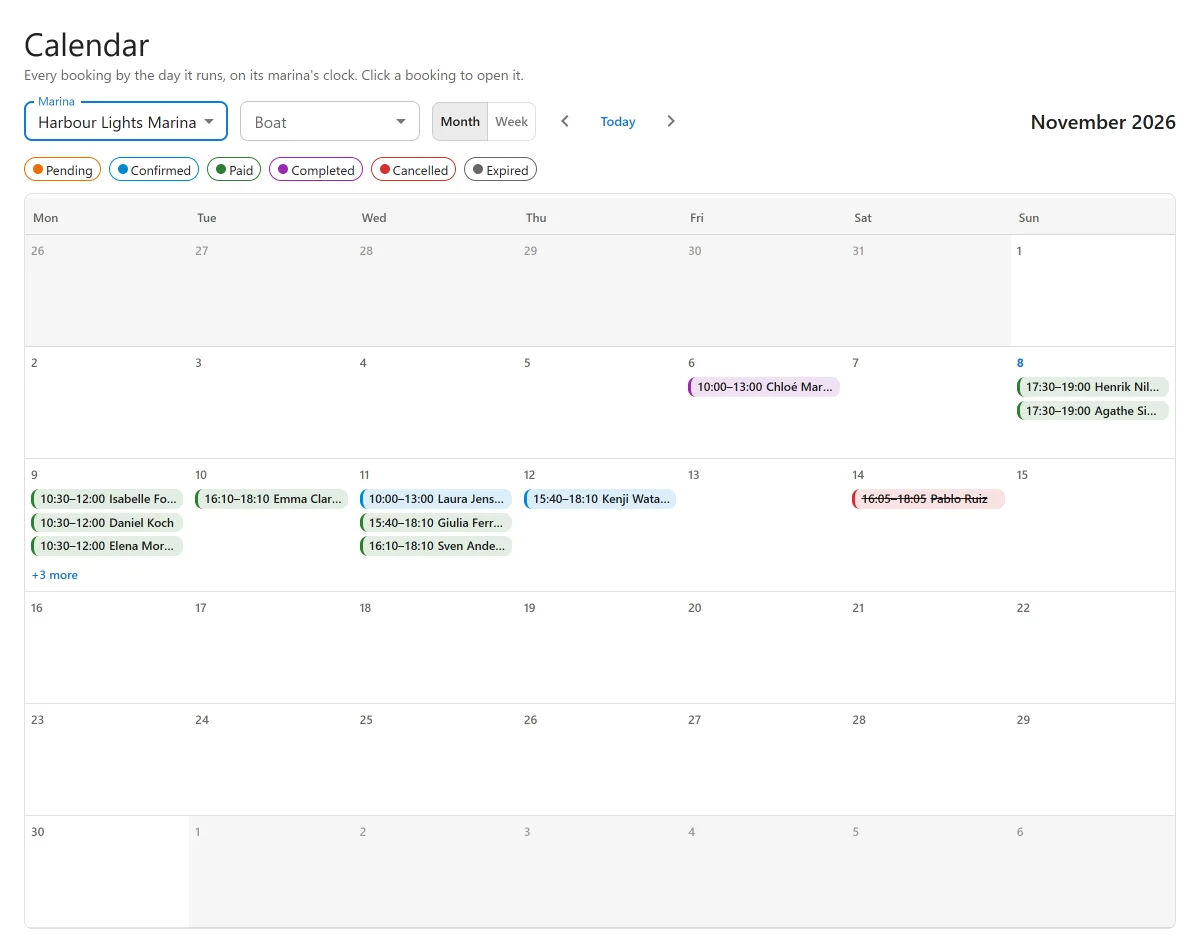
Every booking is shown on the days it runs, on its marina’s clock. Click a booking to open its page (see Bookings).
Choosing what to see
| Control | What it does |
|---|---|
| Month, Week | A month (six weeks of days) or a single week. |
| Earlier, Today, Later | Step back, return to today, or step forward. |
| Marina | One marina, or All marinas. |
| Boat | One boat, or All boats. |
Weeks start on the day chosen in Settings -> General -> Week starts on.
Reading it
Each booking is coloured by its status, and Colours above the grid is the legend: Pending, Confirmed, Paid, Completed, Cancelled and Expired. A cancelled, refunded, expired or no-show booking is struck through, so you can tell at a glance it no longer holds a boat.
In month view a day lists three bookings; when there are more, +N more opens that week. On a phone the calendar becomes a list of days, with “Nothing today.” on an empty day.
The calendar shows at most 62 days and 3,000 bookings at a time. When a marina is too busy for that, it says “There are too many bookings to show them all here. Choose one marina or one boat.”
The calendar only shows bookings. To move one, open it and change its dates, or use the timeline.
Marina limits
A staff member whose role is limited to some marinas sees only those marinas’ bookings. Limiting a role to marinas is part of Pro and needs a Pro licence for unlimited sites. See Roles and staff access.
The timeline PRO
The timeline is the Timeline app of Pro. It is on by default. Open Plugixa Boat Rental -> Timeline, in the Bookings group.
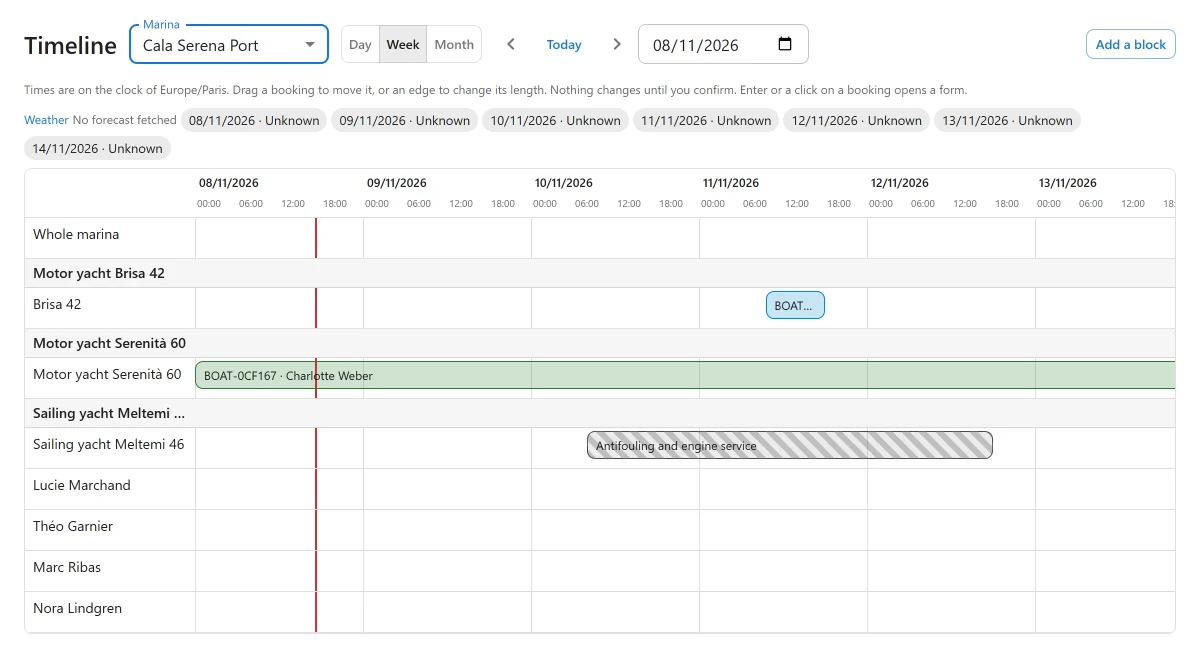
The timeline shows one marina at a time, with each boat in service on its own row and its bookings and blocks as bars across the days. Times are on the marina’s clock, which the screen names.
| Control | What it does |
|---|---|
| Marina | Which marina’s boats to show. |
| Day, Week, Month | How many days across. |
| Earlier, Today, Later | Step through the days. |
| Go to a date | Jump to a day. |
| Add a block | Take a boat off sale for a time (see below). |
Moving a booking
Drag a booking to another time or another boat, or drag one of its edges to change its length. Nothing changes until you confirm. Pressing Enter on a booking, or clicking it, opens the same move as a form.
The Move booking window checks the move first and shows:
- Total before and New total: a move prices the booking again at the new times. If the price changes, Accept the new price and move applies it. As the window says, nothing is charged there: the customer owes the difference. When the customer has paid more than the new total, the window says how much; refund it from the booking’s Payments panel.
- Paid so far and Still to pay.
- In the way: bookings or blocks that overlap the new time. When the boat is taken or the marina is closed, Move it anyway: I know this is closed or double-booked lets you go ahead.
- Any free one of the same boat, to let the plugin choose the unit.
- Email the customer the new times, to tell the customer.
A booking that is over or finished cannot be moved.
Blocking out time
A block takes a boat off sale for a period, for example for repairs or a private use. A blocked boat cannot be booked in that time, here or by customers.
Click Add a block, choose What is out, the From and Until times and a Reason, then Save block. Click a block on the timeline to change or remove it.
When bookings already fall in that time, the app lists them. Block it anyway: those bookings stay where they are, and I will deal with them saves the block without moving any booking.
The Maintenance app PRO uses the same blocks when you schedule a service.
Switching the timeline off
The timeline cannot be switched off while a block has not ended, because that boat would go back on sale. Remove the block or wait for it to end first. Blocks that are over are kept, and show again if you switch the timeline back on.
Quick Links
Share