

Contents
On this page
SMS, Telegram, WhatsApp and the unfinished booking follow-up - Plugixa Boat Rental
Four Pro apps send booking messages beyond email PRO:
| App | Sends to | On by default |
|---|---|---|
| SMS | The customer, by text | Yes |
| Telegram | Your staff chat | Yes |
| The customer, who ticked the box on the booking form | No | |
| Unfinished booking follow-up | The customer whose unpaid booking ran out, by email | No |
All four need the free Notifications app. Switch them on or off in the App manager. Each one sends nothing until its details are filled in. Every message is recorded in the message log, sent or failed. See Emails and alerts.
SMS
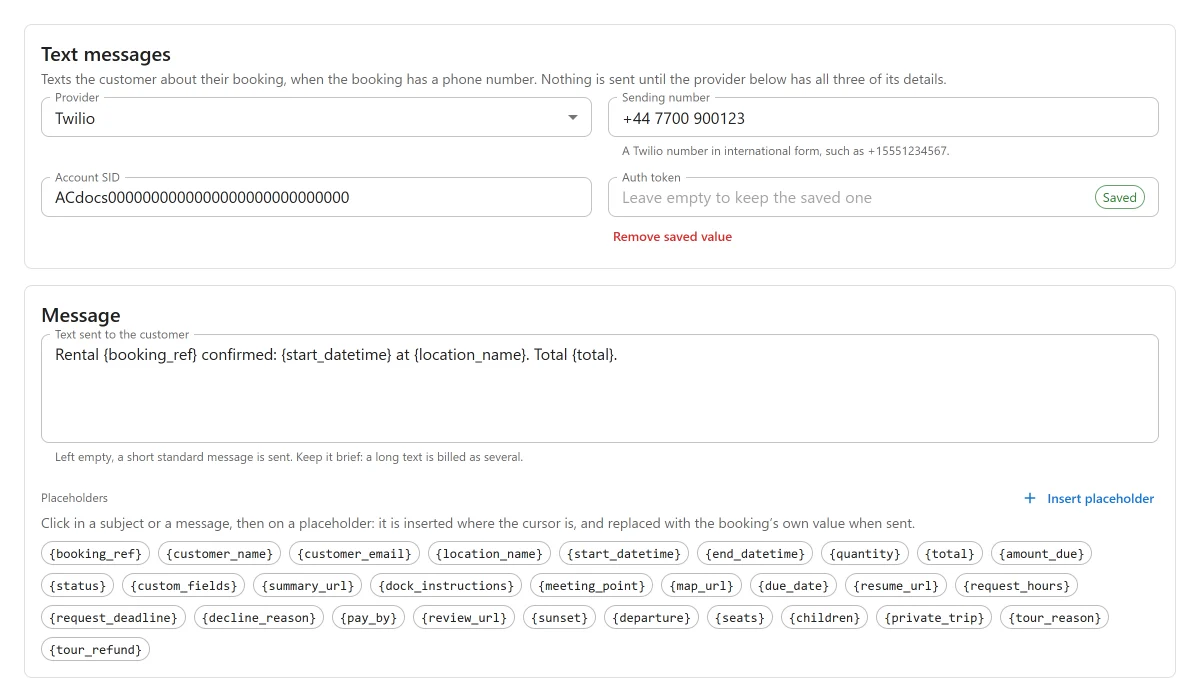
Under Plugixa Boat Rental -> Settings -> SMS, the card Text messages texts the customer about their booking, when the booking has a phone number.
| Setting | What it does |
|---|---|
| Provider | Twilio (the default) or Vonage. |
| Twilio: Account SID, Auth token, Sending number | The sending number in international form, such as +15551234567. |
| Vonage: API key, API secret, Sender | The sender is the name or number the text comes from. |
| Text sent to the customer | The confirmation text. Left empty, a short standard message is sent. |
Nothing is sent until the chosen provider has all three of its details. The auth token and API secret are stored encrypted. Keep messages short: a long text is billed as several.
The customer is texted when:
- a booking is placed: your Text sent to the customer when it is confirmed, or “Booking {booking_ref} received for {start_datetime} at {location_name}. We will confirm it shortly.” when it still waits;
- a payment is received;
- a request to book is received, accepted or declined;
- a shared trip is going ahead or cancelled;
- a self check-in code is released.
The default text is: Rental {booking_ref} confirmed: {start_datetime} at {location_name}. Total {total}.
Telegram
Under Settings -> Telegram, booking events are posted to a Telegram chat for your staff.
- Create a bot with BotFather in Telegram and copy its token.
- Add the bot to your staff chat or group.
- Enter the Bot token and the Chat ID. A group’s ID is a negative number, such as
-1001234567890. - Optionally write the Message posted to the chat. Left empty, a standard summary of the booking is posted: reference, status, customer, marina, times and total.
Nothing is posted until both the token and the chat ID are set. The bot token is stored encrypted.
Every booking event is posted to the chat. Requests to book, shared trips and self check-in codes have their own wording: a new request asks for an answer and links to the booking’s page, and a released code is announced without the code itself.
WhatsApp lets a business start a conversation only with a template Meta has approved, so the plugin never sends free text. It uses the WhatsApp Cloud API with your own Meta account.
Setting it up
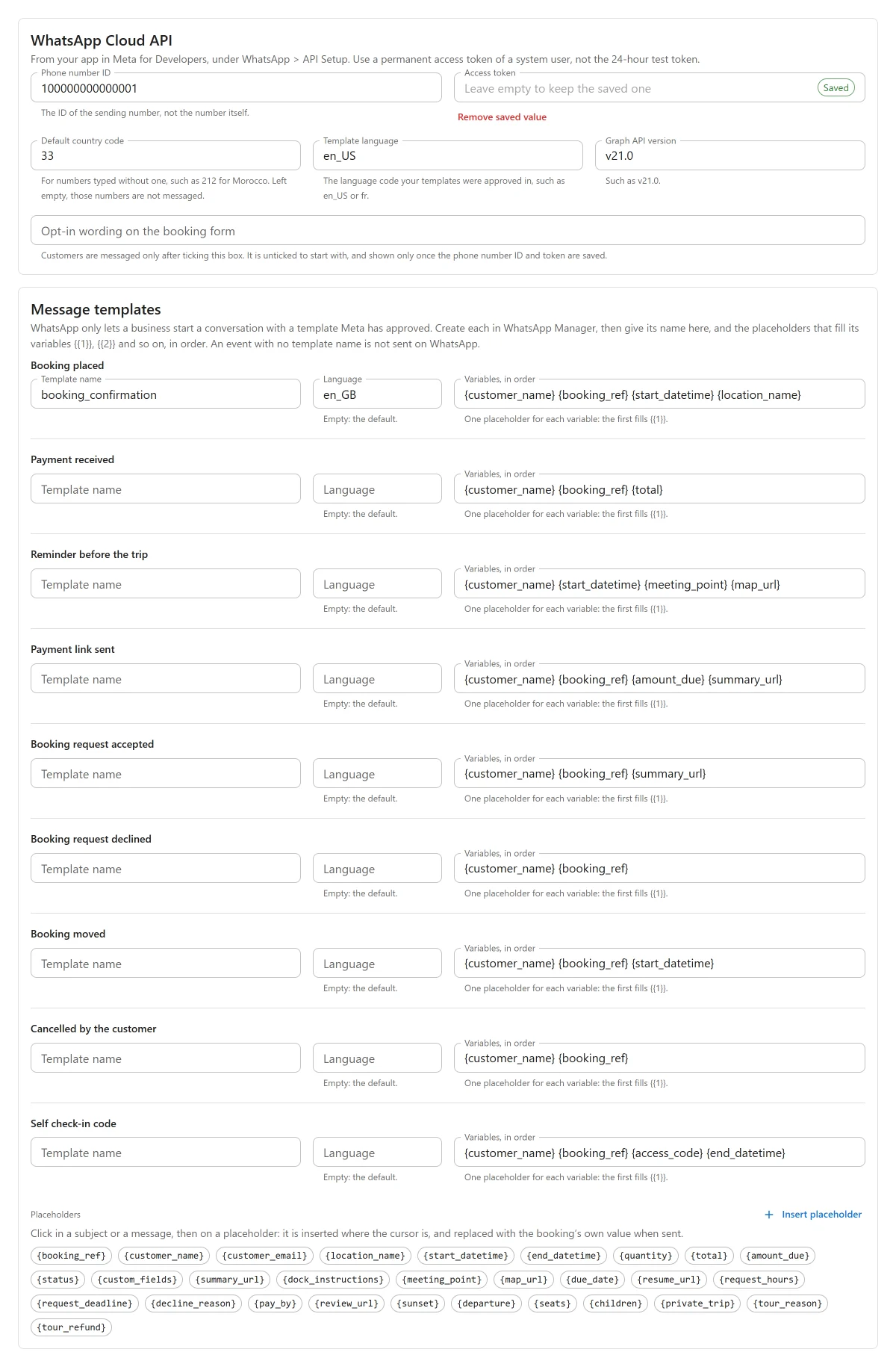
Under Settings -> WhatsApp, the card WhatsApp Cloud API takes the details from your app in Meta for Developers, under WhatsApp, API Setup:
| Setting | Default | What it does |
|---|---|---|
| Phone number ID | The ID of the sending number, not the number itself. | |
| Access token | Use a permanent access token of a system user, not the 24-hour test token. Stored encrypted. | |
| Graph API version | v21.0 |
|
| Default country code | Empty | For numbers typed without one, such as 212 for Morocco. Left empty, those numbers are not messaged. |
| Template language | en_US |
The language code your templates were approved in, such as en_US or fr. |
| Opt-in wording on the booking form | The wording of the consent box. |
Nothing is sent until a phone number ID and an access token are saved.
Message templates
Create each template in WhatsApp Manager. Then, in the Message templates card, give for each
event its Template name, optionally a Language (empty: the default), and Variables, in
order: one placeholder for each variable, the first filling {{1}}, the second {{2}} and so
on. An event with no template name is not sent on WhatsApp.
The events are:
- Booking placed
- Payment received
- Reminder before the trip
- Payment link sent
- Booking request accepted
- Booking request declined
- Booking moved
- Cancelled by the customer
- Self check-in code
Line breaks and tabs inside a value are made one line, because Meta refuses them, and an empty
value is sent as -.
Consent
Only customers who ticked the box on the booking form are messaged. The box is unticked to start with, and shown only once the phone number ID and token are saved. The consent is kept per phone number, so a later booking with the same number, even one made in the office, is messaged too.
WordPress’s personal data erase tool deletes a person’s WhatsApp opt-ins. Replies such as STOP are not read by the plugin, so tell customers to ask you if they want to stop.
Phone numbers
A number starting with + or 00 is used as it is. A national number gets the default country
code, with its leading zero removed. A number with no country code and no default is not
guessed at: the attempt is logged as failed.
“Sent” in the log means Meta accepted the message, not that it was delivered.
Unfinished booking follow-up
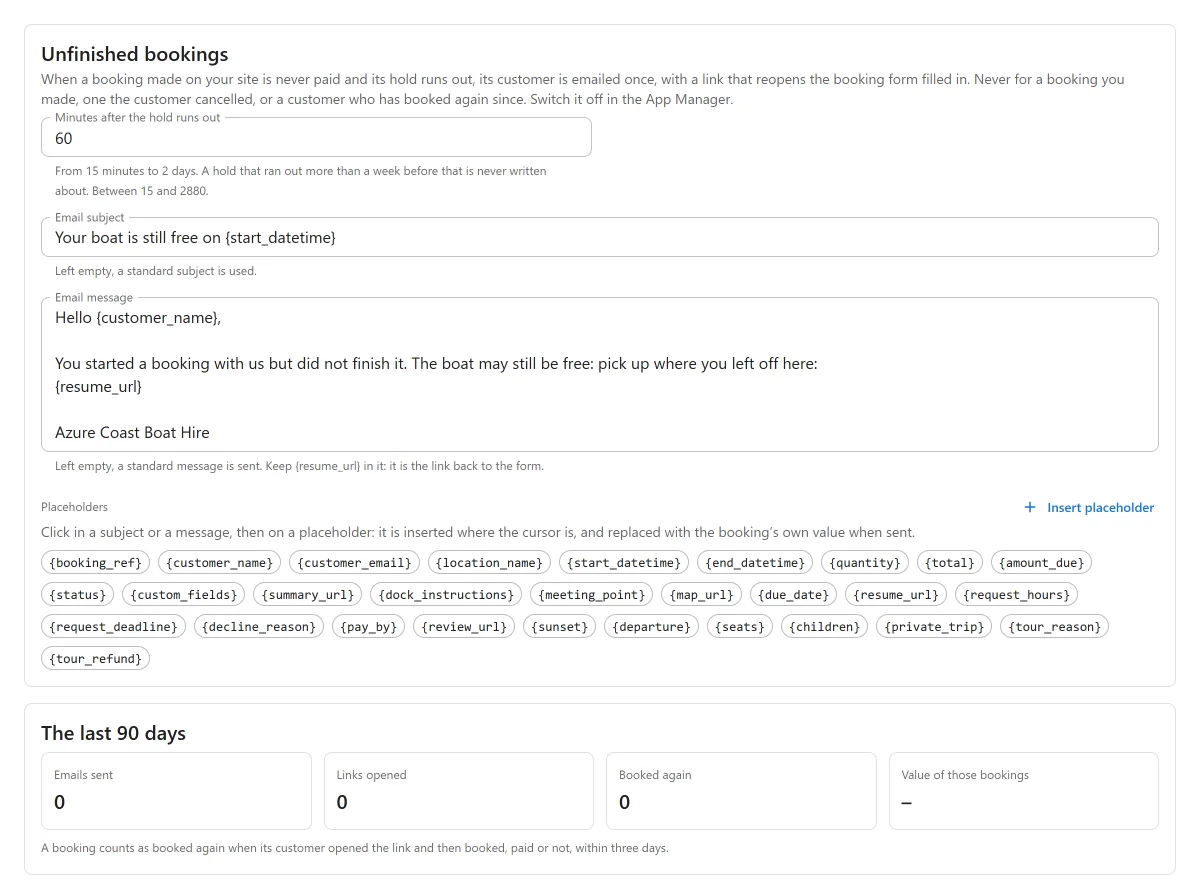
When a booking made on your site is never paid and its hold runs out, the customer is emailed once, with a link that reopens the booking form with their choices filled in.
It is never sent for a booking you made in the office, one the customer cancelled, a booking paid even in part, or a customer who has booked again since. It is sent once per booking, and never for an old booking when you first switch the app on.
Under Settings -> Unfinished bookings:
| Setting | Default | What it does |
|---|---|---|
| Minutes after the hold runs out | 60 | From 15 minutes to 2 days. A hold that ran out more than a week before that is never written about. |
| Email subject | Empty | Left empty, a standard subject is used. |
| Email message | Empty | Left empty, a standard message is sent. Keep {resume_url} in it: it is the link back to the form. |
The app switch in the App manager is the on/off.
The link
The link opens your booking page and fills in the marina, dates, guests and boat. If the boat is still free it is chosen; if not, the form says it is no longer free on those dates and shows what is free. Each link works once. Opening the page in a mail scanner does not use it up: it is spent only when the form fills in.
The last 90 days
The settings section shows Emails sent, Links opened, Booked again and the Value of those bookings. A booking counts as booked again when its customer opened the link and then booked, paid or not, within three days.
Arrival details for every message
Each marina’s form has an Arrival section with a Meeting point and Dock
instructions. Any message can use them with {meeting_point}, {dock_instructions} and
{map_url}, a map link that opens on any phone. See
Marinas.
Quick Links
Share