

Contents
On this page
Pricing rules and customer groups - Plugixa Boat Rental
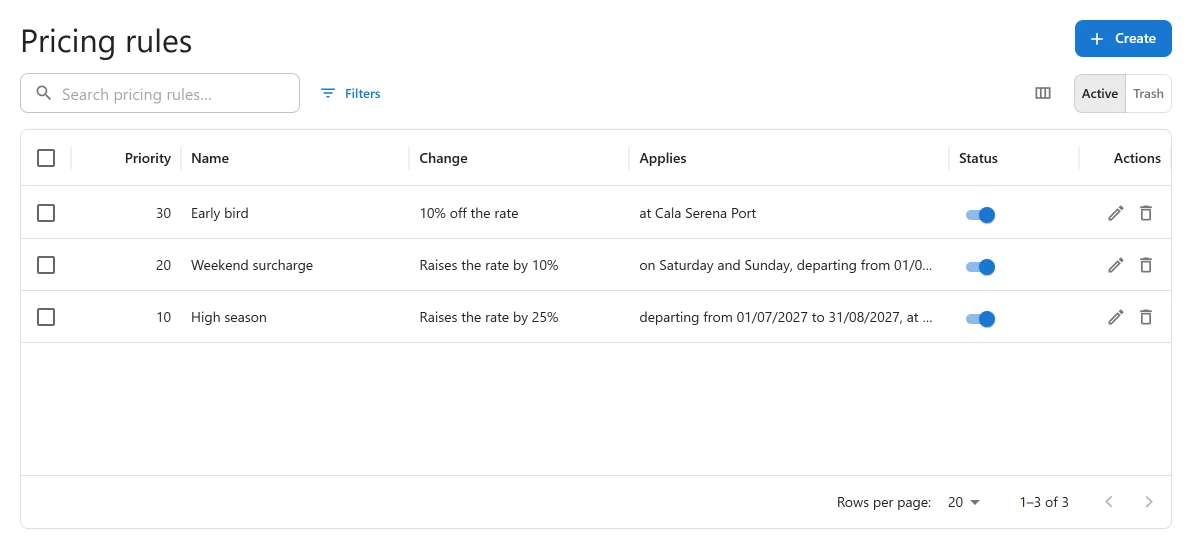
Pricing rules PRO change the price of a booking that matches their conditions: a high season, a weekend surcharge, a discount for long stays, an early bird price, a price for one group of customers. A boat keeps its own prices (see Boats); a rule changes them on the way to the quote.
Find them under Plugixa Boat Rental -> Pricing rules, in the Sales group of the menu. Pricing rules and Customer groups are two apps in the App manager, both on by default in Pro.
How rules are applied
- Every rule that matches is applied. Not just the first one.
- Lowest priority number first, each on the price the one before it left. So a 10% discount after a 20% surcharge is worked out on the raised price.
- A booking has to match all of a rule’s conditions. A rule with no conditions applies to every booking.
- Only an active rule changes prices.
- A booking already made is not repriced when you add or change a rule. It keeps the price it was sold at until somebody moves it to other dates, which prices it again.
Making a rule
Press the add button on the list to open New pricing rule.
| Field | What it does |
|---|---|
| Name | Required. On a charter that crosses seasons, the customer reads it on the price breakdown, so name seasons for a customer to read. |
| Status | “Only an active rule changes prices.” |
| Priority | “Every rule that matches a booking is applied, lowest number first, each to the price the one before it left.” |
What it changes
| Field | Choices |
|---|---|
| Price | The rate per billing unit (the hourly, daily or weekly rate) or The fee charged once per booking (the boat’s one-off fee) |
| Change | Lower it by a percentage, Raise it by a percentage, Lower it by an amount, Raise it by an amount, Set it to a fixed price |
| Percentage, Amount or New price | The figure, depending on the change. A discount cannot be more than 100%. |
When it applies
“With no conditions the rule applies to every booking. Add the ones that narrow it: a booking has to match all of them.”
| Condition | What it checks |
|---|---|
| Dates | The booking’s departure falls on or between First day and Last day. Leave one empty for an open end. |
| Days of the week | The days a booking may depart on. |
| Time of departure | The booking departs between From and Until. An end earlier than the start runs past midnight, as a night rate does. |
| Length of stay | Shortest stay and Longest stay, Measured in days or hours. Leave one empty for no limit. |
| Locations | Only at the locations you pick. |
| Boats | Only for the boats you pick. |
| Customer groups | Only for members of the groups you pick. Never applies to a guest; see below. |
| Billing unit | Only when billed in one unit, so a discount written for a daily rate does not touch an hourly one. |
Under Holidays, booking lead time, occupancy there are three more:
| Condition | What it checks |
|---|---|
| Listed days (YYYY-MM-DD, comma separated) | The departure is one of these days: public holidays, regatta days. |
| The season and listed days come back every year | Makes the dates and listed days yearly, so you do not redo them each year. A yearly season may wrap the new year (November to February). |
| Early bird: at least days ahead | The booking is made at least this many days before departure. |
| Last minute: at most days ahead | The booking is made at most this many days before departure. |
| Occupancy at least (%) | The share of the marina’s units already taken over the dates is at least this much. Use it for a surcharge when the fleet is nearly full. |
The form sums the rule up In plain words as you fill it in, for example “Raises the rate by 20% on Sat and Sun.” The list shows the same summary in its Change and Applies columns.
Examples
| You want | Price | Change | Conditions |
|---|---|---|---|
| High season, +25% | The rate | Raise it by a percentage, 25 | Dates 1 June to 15 September, every year |
| Weekend surcharge | The rate | Raise it by a percentage, 15 | Days of the week: Sat, Sun |
| Sunset hour costs more | The rate | Raise it by an amount | Time of departure 18:00 to 21:00 |
| Week or longer, -10% | The rate | Lower it by a percentage, 10 | Length of stay at least 7 days |
| No booking fee for club members | The booking fee | Set it to a fixed price, 0 | Customer groups: your group |
| Early bird, -5% | The rate | Lower it by a percentage, 5 | Early bird: at least 60 days ahead |
Charters that cross a season
On a multi-day charter, each night pays its own season’s rate. A date condition (a date range or listed days) is read for every night of the charter, not only for the departure. A night is the day it starts on, so the check-out day is not a night and a season’s last day is.
- Nights at different rates get a price line each, labelled with the name of the rule that set the rate, for example “1 boat × 3 nights: High season”. The booking form’s summary shows those words in place of the boat’s name.
- Nights all at one rate keep the single line they always had.
- The other conditions (weekdays, departure time, lead time, length of stay, occupancy, group, location, boat, billing unit) still read the booking as a whole. A Saturday rule on a charter leaving on a Saturday lifts every night.
- A rule on the booking fee is charged once and reads the departure.
- A boat priced by the week is split by nights: each night is its share of the weeks charged, at that night’s week rate. Six nights at 900 a week and one at 600 is 771.43 + 85.71 = 857.14.
Each part is rounded to the currency by itself and the total is their sum, so the lines add up. A split week can differ by a cent from the same sum rounded once.
Hourly boats, day boats and fixed departures read the departure only.
What comes after the rules
Rules change the rental and the booking fee. Then, in order:
- Extras and fuel are added.
- A coupon takes its share off the subtotal.
- Tax is charged on what is left.
Customer groups
A customer group is a named set of customer accounts, such as staff or season-ticket holders. A group has no price of its own: to charge its members differently, add a pricing rule with the group as a condition.
Find them under Plugixa Boat Rental -> Customer groups.
| Field | What it does |
|---|---|
| Name | Required. |
| Slug | “Left empty, it is made from the name.” |
| Description | “A note for staff. Customers do not see it.” |
| Members | Saved with the group first, then added and removed straight away, without saving the group. |
To add a member, type in Add a member and press Add. Searching by name finds people with access to the plugin’s admin. Add a customer by their account’s email address, typed in full.
A group rule applies only to a signed-in customer who belongs to one of the groups. A guest booking without an account never gets it, even with a member’s email address.
Quick Links
Share