

Contents
On this page
Maintenance - Plugixa Boat Rental
Maintenance PRO keeps each unit’s service tasks, such as an oil change every 100 engine hours or an impeller every 365 days. It tells you when a task is due soon or overdue, lets you take the boat off sale for the service, and keeps the history of what was done.
It is an app, on by default in Pro. The screen is Plugixa Boat Rental -> Maintenance, in the Bookings menu group. Its settings are under Settings -> Maintenance.
Maintenance warns. It never stops a sale or a hand-over: the decision stays with you.
Tasks
Press Add a task.
| Field | What it does |
|---|---|
| Task name | For example “Oil change”. |
| Applies to | Every unit of a boat or One unit. |
| Boat | Which boat, and with One unit, which unit. |
| Every (engine hours) and Every (days) | Fill in either or both. Whichever comes first makes it due. |
| Last done at (engine hours) and Last done on | Leave empty to count from now. |
A new task counts from now: the current reading and today. Counting from zero would call every boat in use overdue on day one. If a unit has no reading yet, its hours start counting from the first reading.
Defaults per boat
A task for Every unit of a boat is a default: every unit of that boat gets it, including a unit you add later. You can then Change one unit’s copy, giving it its own name or interval. Removing the default removes the copies that still follow it, and leaves units with their own interval as ordinary tasks.
Status
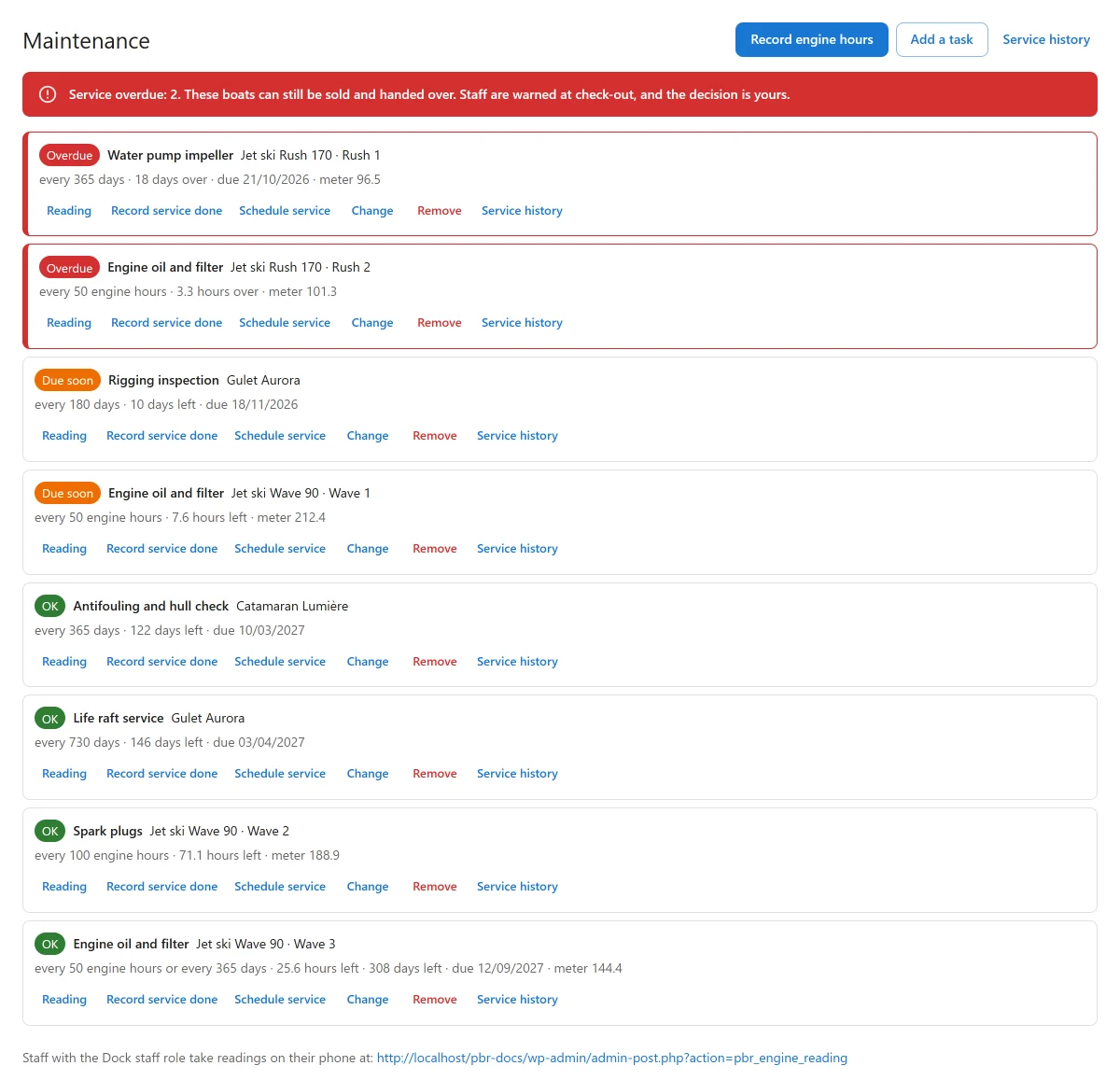
Each task reads:
| Status | When |
|---|---|
| Overdue | The hours used, or the days passed, have reached the interval. |
| Due soon | Within the settings below, or the meter reads below the last service. |
| OK | Otherwise. |
The list shows “12 hours left”, “3 days over” and so on.
If the meter reads below the last service’s figure, the meter was probably replaced or a figure was mistyped. Hours are then counted from the new meter and may be too few, so the task never reads better than due soon, and the screen asks you to correct the last done figure.
Under Settings -> Maintenance:
| Setting | Default | What it does |
|---|---|---|
| Due soon, engine hours left | 10 | A task reads due soon this close to its hours. |
| Due soon, days left | 14 | A task reads due soon this close to its days. |
Engine hours
Readings come from two places:
- the dock app, at every check-out and check-in;
- Record engine hours on the Maintenance screen.
The newest reading counts, not the highest, so a replaced meter becomes the comparison. A reading lower than the last one is refused unless you say why.
Dock staff do not open the admin app, so readings have their own phone page, linked from the dock app’s home. The Maintenance screen shows its address after “Staff with the Dock staff role take readings on their phone at:”. It works even with the Dock app off. Anyone with the Dock staff role, or permission to edit, can use it.
Alerts
The admin address gets one email when a task crosses into due soon, and one when it becomes overdue. Each email lists every task that crossed since the last check, which runs hourly. A task that comes back down and crosses again is news again.
The Maintenance screen shows a banner while anything is overdue: “Service overdue. These boats can still be sold and handed over. Staff are warned at check-out, and the decision is yours.” The Dashboard has a Maintenance widget.
Scheduling a service
Schedule service takes the unit off sale for a time, with From and Until, by adding a block on the Timeline. Bookings are never moved. If bookings fall in that time, they are listed, and you can tick Block it anyway. I will ring these customers.
Scheduling needs the Timeline app. With it off, the screen says so, and you can still record a service that was done.
Cancel the schedule removes the block.
Recording a service
Record service done takes the reading, Done on (empty for today), Cost and Notes, then press Record it. The task starts counting again. If a service block is running, it ends now and the boat goes back on sale. A block not yet begun is removed.
Each unit’s Service history lists what was done, when, by whom and at what reading.
At check-out and on bookings
When a task is overdue on the unit going out, the dock app shows a red alert at check-out and asks for a typed reason. The reason is kept on the report, with the task names and who went ahead. With several units, it follows the unit chosen.
On a booking’s page, the side panel Maintenance warns when service is overdue on the booking’s unit, or, with no unit assigned yet, on any unit of that boat at that marina. It shows nothing when there is nothing to say.
Who can do what
| Action | Needs |
|---|---|
| See the screen and the history | Permission to view |
| Tasks, scheduling, recording a service | Permission to edit |
| Take a reading | The Dock staff role, or permission to edit |
Current limits
- No parts and stock, and no work orders.
- One schedule per task at a time.
- Thresholds are per site, not per marina.
- Days are counted on the site’s clock, not each marina’s.
Quick Links
Share