

Contents
On this page
Booking forms - Plugixa Boat Rental
A booking form is what customers fill in to reserve a boat. Each form has its own steps, its own extra fields, the locations and boats it offers, a colour and a design. You can have as many as you like: one for the whole site, one per marina, one for a single kind of boat.
The screen is Booking forms, in the Configuration section of the app’s sidebar. A new site starts with one form, Default Booking Form, which is the default.
The Booking forms list
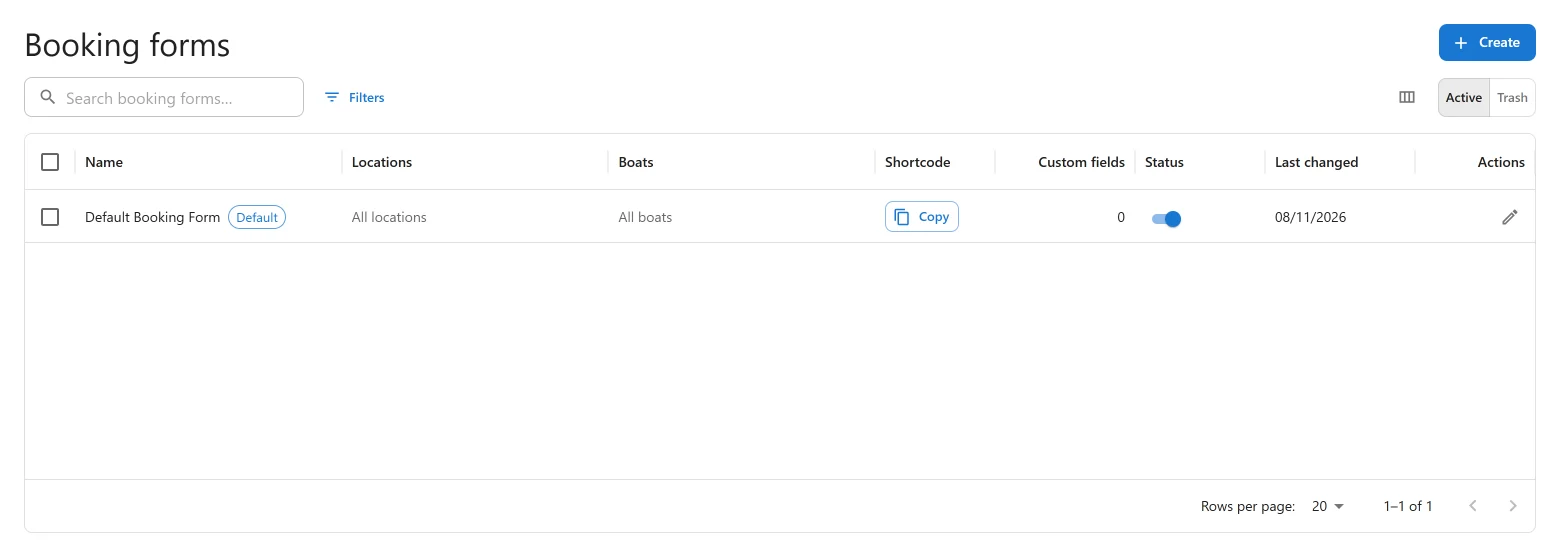
| Column | What it shows |
|---|---|
| Name | The form’s name, with a Default chip on the default form. |
| Locations | The locations it books at, or All locations. |
| Boats | The boats it offers, or All boats. |
| Shortcode | The shortcode for the form, with a copy button. |
| Custom fields | The fields you added. |
| Status | Active or Inactive. |
| Last changed | When the form was last saved. |
Make default on a row makes that form the default. Only an active form can be the default. The default form cannot be moved to the trash.
The default form
The default form is the one a page shows when its shortcode or block names no form, as with
a plain [plugixa_boat_rental]. Exactly one form is the default. To change it, make
another form the default: “Pages that name no form use this one. Make another form the
default to change it.”
Editing a form
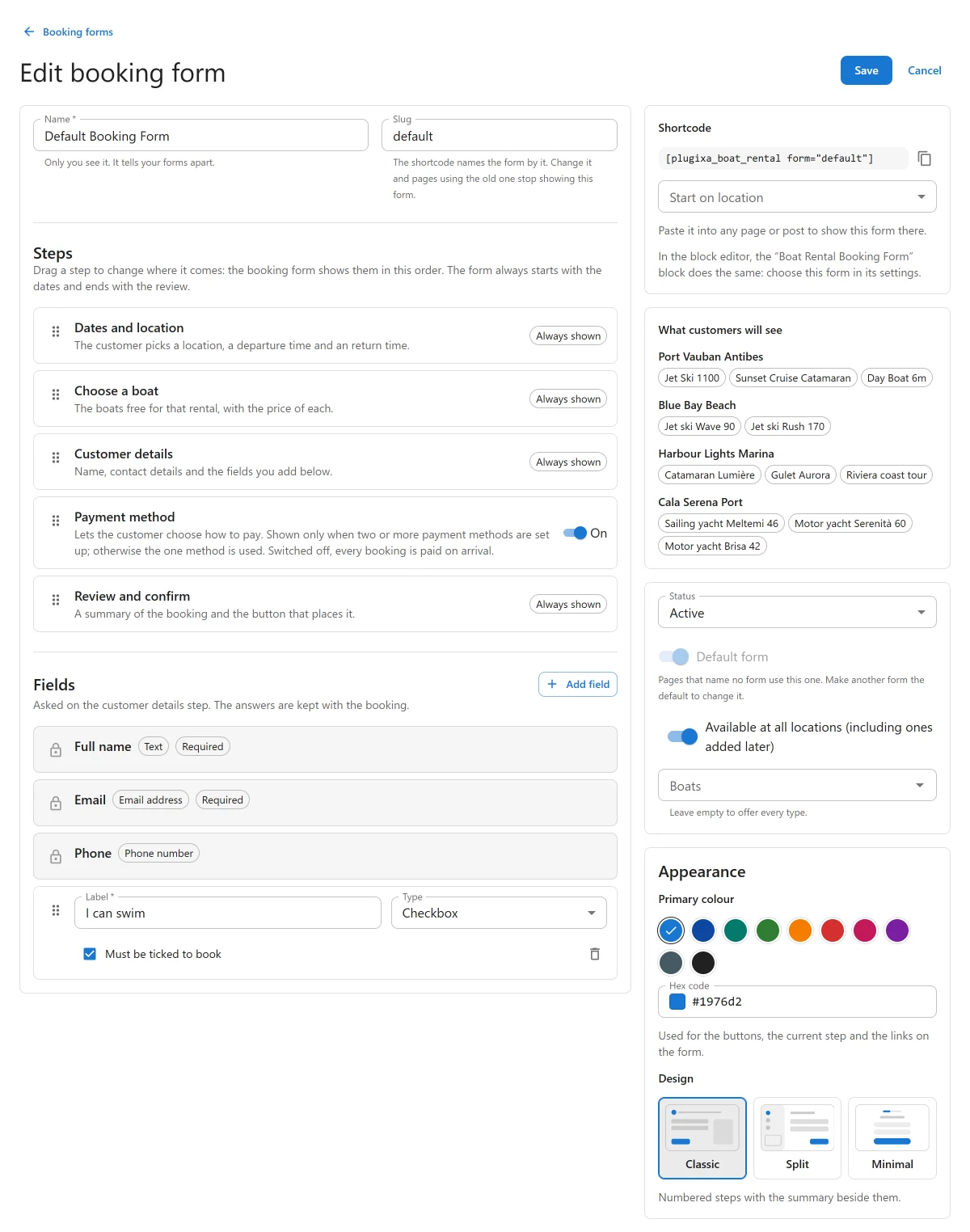
Shortcode
Once the form is saved, the Shortcode box gives the code that puts it on a page, such
as [plugixa_boat_rental form="default"]. Choose a location under Start on location to
add it to the code, so the form opens on that marina. Click Copy and paste it into any
page or post.
Status, default and scope
| Field | Notes |
|---|---|
| Status | An inactive form is not shown to visitors. People who can edit forms see “This booking form is inactive, so visitors do not see it.” in its place. |
| Default form | Turn on to use this form on pages that name no form, in place of the current default. |
| Available at all locations (including ones added later) | On by default. Switch it off to choose Locations: “The form books only at these.” A form needs at least one. |
| Boats | “Leave empty to offer every type.” Otherwise the form offers only the boats chosen. |
What customers will see
On a saved form, What customers will see lists each location the form books at and the boats a customer can book there, by the same rules the public form uses: the boat is active, kept at that location and has a price for its unit. A switched-off location is marked: “This location is switched off, so customers do not see it.” If nothing can be booked: “This form has no location a customer can book at.”
Appearance
| Field | Notes |
|---|---|
| Primary colour | Used for the buttons, the current step and the links on the form. Pick a swatch or type a Hex code such as #1976d2. |
| Design | Classic: numbered steps with the summary beside them. Split: steps and summary in a side column, which needs a wide page. Minimal: one quiet column with a progress bar. |
A page can choose another design for the same form with the design attribute or the
block’s Design setting. See
Shortcodes and blocks.
Name and slug
- Name: only you see it. It tells your forms apart.
- Slug: left empty, it is made from the name. The shortcode names the form by it. “Change it and pages using the old one stop showing this form.”
Steps
The Steps list holds the screens of the public form, in order. Drag a step by its handle to move it.
| Step | What it does | Can be switched off |
|---|---|---|
| Dates and location | The customer picks a location, a departure time and a return time. | No: Always shown |
| Choose a boat | The boats free for that rental, with the price of each. | No: Always shown |
| Customer details | Name, contact details and the fields you add below. | No: Always shown |
| Payment method | Lets the customer choose how to pay. | Yes |
| Review and confirm | A summary of the booking and the button that places it. | No: Always shown |
Dates and location is always first and Review and confirm always last: a boat can only be offered once the dates are known, and the booking is placed on the review. The other steps can be put in any order between them.
Payment method is a screen of its own only when two or more payment methods are set up. Otherwise the one method is used. Switched off, every booking is paid on arrival. The free plugin has one method, Pay on arrival, so its customers do not see this step.
Fields
Fields lists what the Customer details step asks. Three fields are always there and locked: Full name (required), Email (required) and Phone (optional). “Every booking needs this field, so it cannot be changed or removed.”
Click Add field to ask your own question:
| Setting | Notes |
|---|---|
| Label | Required. What the customer reads. |
| Type | Text, Email address, Phone number, Paragraph, List of choices or Checkbox. |
| Choices | For a list. Type a choice and press Enter. They are offered in this order. |
| Required | The customer must answer. For a checkbox it reads Must be ticked to book, which suits a terms or safety agreement. |
Drag a field to reorder it, and use Remove field to take it away. The answers are saved
on the booking, shown on its page in the admin, and available in emails through the
{custom_fields} placeholder. See
Emails and alerts.
A new form works as it is: the steps are the standard ones. Change them or add fields now, or come back to it later.
The booking form, step by step
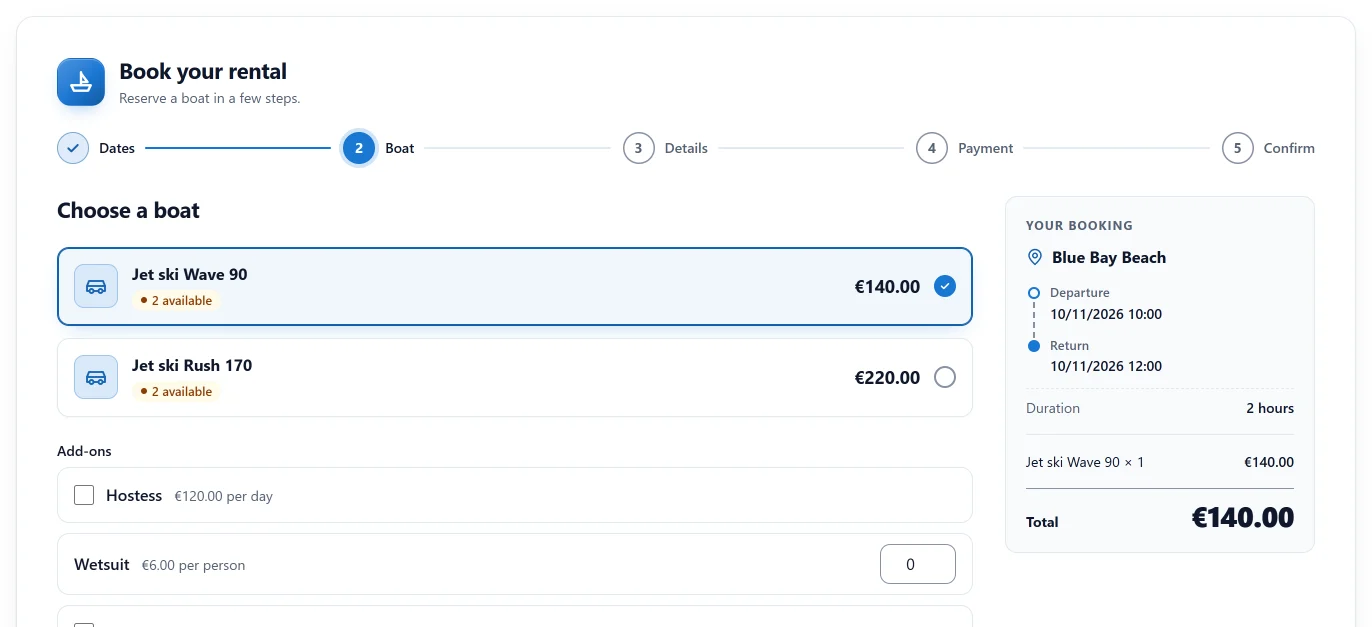
This is what a customer sees with the standard steps. The progress bar at the top shows Dates, Boat, Details, Payment (only when there is a choice of payment) and Confirm, each with a short line such as “Where and when”. The order summary, Your booking, sits beside the steps or under them on a narrow screen, and updates as the customer chooses.
1. Dates
“When would you like to sail?”
- Location: a list of the marinas the form books at. With only one, its name is shown instead.
- Departure and Return: a date and a time each. “Return must be after departure.”
- Guests: how many people, 1 by default.
- Quick stay lengths, which set the return in one tap: 2, 4 or 8 hours and 1 day where the marina bills by the hour, 6 hours and 1 day by the half day, 1 day, 3 days, 1 week and 2 weeks by the day, and 1, 2 or 4 weeks by the week.
Then Check availability. On a boat’s own page the dates step changes with the boat’s mode: a boat on fixed departures asks for a day and then a Departure time, and a full-day boat asks only for the day. See Booking modes.
2. Boat
“Choose a boat”. The boats free for that time are listed with their price and how many are free, such as “3 available”, or Sold out. Boats that cannot be sold for that time, for example because of their minimum hours or the number of guests, are listed under them with the reason. If nothing is free: “No boats are available for those dates.”
At a marina that counts by numbered unit PRO, a Pick a boat list lets the customer choose the hull, see Units.
3. Details
“Your details”: Full name, Email, Phone and the fields you added. Then Review.
4. Payment
“How would you like to pay?” Shown only when the customer has more than one way to pay.
5. Review and confirm
A summary of the booking, then Confirm booking.
The confirmation
The last screen says Booking received, or Booking confirmed when new bookings start as Confirmed, with the reference and a Copy button: “Keep your reference: you will need it to view or change this booking.” From there the customer can View your booking (when a booking summary page is set), Add to Google Calendar or Make another booking.
A customer who pays online is sent to the payment page and comes back to the form, which then shows how the payment went instead of a fresh form.
If the form shows nothing
| What the page says | Why |
|---|---|
| “No marinas are available yet.” | No active location is offered by this form. |
| “This booking form is inactive, so visitors do not see it.” (only to staff) | The form’s Status is Inactive. Visitors see nothing. |
| “The location this page names is not one this form books at, so the form starts on its first location.” (only to staff) | The page’s location attribute names a marina outside the form’s locations. |
The form also checks every request on the server, so a field that a robot fills in and a person never sees is refused.
Quick Links
Share