Contents

Custom Fields — Plugixa Team

Extend member profiles with any data your organization needs — certifications, tenure, pronouns, expertise tags, PGP keys, anything. Custom fields are defined once, appear as type-aware inputs on the member form, and can be optionally rendered on the frontend or in the submission form.

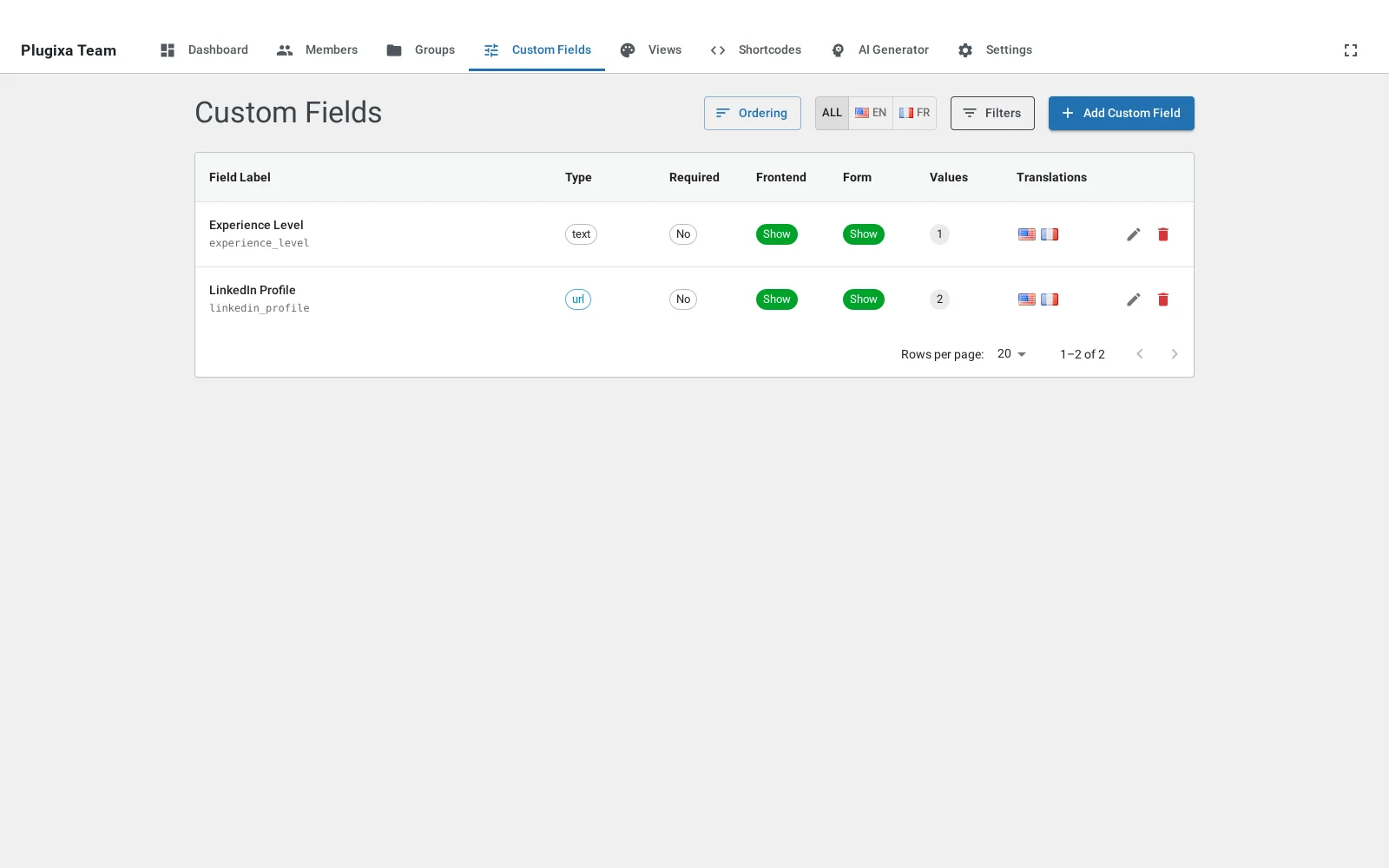
Open Plugixa Team → Custom Fields.

Custom fields list

Key concepts

  • A field definition lives in the plugixateam_custom_fields table — one row per field, defined once globally.
  • Per-member values live in the plugixateam_meta table (similar in spirit to wp_postmeta) — one row per member_id + meta_key pair.
  • The original JSON-based members.custom_fields column is kept for legacy compatibility (read-only) and auto-migrated to the meta table on activation.

Create a field

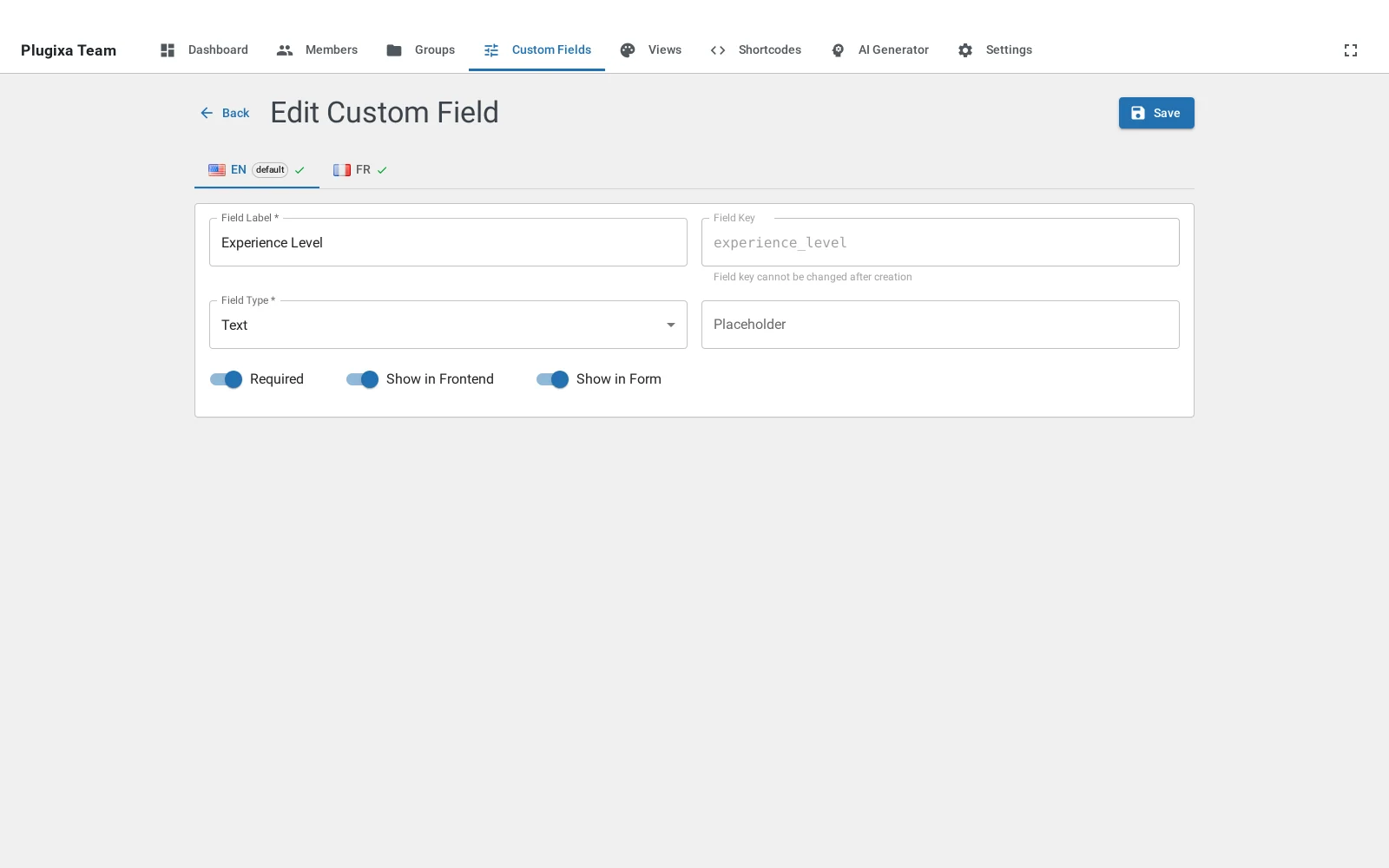
Custom field form

Click Add New. Fill in:

Field Notes
Label Human-readable label shown on forms (e.g. “Certifications”).
Key Auto-generated from the label; lowercase, snake-case. Immutable after creation — changing a label doesn’t change the key.
Type See Field types below.
Options For select and checkbox — add rows of value / label.
Placeholder Optional placeholder text for text-like inputs.
Required Enforced client + server side.
Show in frontend Render on the frontend templates (via the partials/custom-fields.php partial).
Show in form Render on the [plugixa_team_form] submission form.
Menu order Display order (lower = earlier).

Field types

Custom fields support 11 input types:

Type Input Frontend render
text <input type="text"> Plain text.
textarea <textarea> Paragraph; preserves line breaks.
url <input type="url"> Rendered as clickable <a>.
number <input type="number"> Plain text.
date Date picker Formatted per site locale.
select Dropdown Selected value label.
checkbox Checkbox(es) Comma-separated labels.
color Color picker Color swatch + hex.
file File input Link to uploaded file.
email <input type="email"> mailto: link.
phone <input type="tel"> tel: link.

The admin form automatically renders the right input type; no extra config needed.

Reorder fields

Custom Fields → Ordering is a drag-and-drop list. Order is stored in menu_order and controls the sequence on both the member form and frontend templates.

Use custom fields on a member

Open any member. Custom fields appear in their own section near the bottom of the form. Values are:

  • Saved into plugixateam_meta on every save.
  • Keyed by field_key (the immutable key defined above).
  • Per-translation — each language’s copy of a member has independent values (e.g., certifications written in the local language).

Display on the frontend

All 9 layouts support custom fields via the shared partial templates/partials/custom-fields.php. The partial renders each field’s label + value, respecting the show_in_frontend flag.

Hide specific fields per shortcode

There’s no per-shortcode “hide custom field” toggle — hide a field globally by setting show_in_frontend = false. For conditional visibility, use the plugixa_team_custom_field_visible filter:

add_filter( 'plugixa_team_custom_field_visible', function ( $visible, $field, $member ) {
    if ( 'internal_notes' === $field->field_key ) {
        return current_user_can( 'manage_options' );
    }
    return $visible;
}, 10, 3 );

Display on the submission form

Fields with show_in_form = true appear on [plugixa_team_form]. They’re rendered with type-appropriate inputs and server-side sanitized per type:

  • number → cast to int/float
  • emailsanitize_email()
  • urlesc_url_raw()
  • date → validated against YYYY-MM-DD
  • checkbox → stored as comma-separated values
  • color → hex-validated
  • file → uploaded via media_handle_upload(), stored as attachment URL

See Submission Form for the full form UX.

Multilingual PRO

Custom fields are multilingual-aware when Polylang is active:

  • Translatable: field_label, placeholder (shown in the current language).
  • Shared: field_key, field_type, field_options, is_required, show_in_frontend, show_in_form, menu_order.

Use the Translation Tabs on the field form to provide localized labels and placeholders. See Multilingual.

Legacy JSON migration

Older versions of the plugin stored custom fields as a JSON blob in members.custom_fields. On activation, the plugin:

  1. Reads every existing JSON value.
  2. Creates field definitions (as text type) if they don’t exist.
  3. Inserts values into the plugixateam_meta table.
  4. Sets the plugixateam_cf_migrated option so this only runs once.

The legacy column is preserved untouched — the migration is non-destructive. After migration, edit field types / options in Custom Fields as needed.

REST API

All endpoints require the manage_options capability + valid Pro license.

GET    /wp-json/plugixateam/v1/custom-fields
POST   /wp-json/plugixateam/v1/custom-fields
GET    /wp-json/plugixateam/v1/custom-fields/{id}
PUT    /wp-json/plugixateam/v1/custom-fields/{id}
DELETE /wp-json/plugixateam/v1/custom-fields/{id}
POST   /wp-json/plugixateam/v1/custom-fields/reorder

Public read endpoint (used by the submission form):

GET /wp-json/plugixateam/v1/frontend/custom-fields

Returns only fields with show_in_frontend = 1.

Programmatic access

Read a custom field value in a template:

$certifications = \PlugixaTeam\Data\get_member_meta( $member_id, 'certifications' );

Set a value:

\PlugixaTeam\Data\update_member_meta( $member_id, 'certifications', 'AWS, Azure' );

Delete a value:

\PlugixaTeam\Data\delete_member_meta( $member_id, 'certifications' );

When the member is deleted, all meta rows cascade-delete automatically.

Delete a field

Deleting a field definition from the admin permanently removes all its values across every member (cascade delete on meta_key). There’s no undo — confirm with a full DB backup if you’re not sure.

Troubleshooting

Field key doesn’t update when I rename the label

Expected. The field_key is immutable after creation so that existing data (keyed by field_key) doesn’t orphan. If you need a truly new key, create a new field and delete the old one.

Values disappeared after upgrade

The migration runs on activation. If you upgraded by replacing plugin files without re-activating, the migration may not have fired. Deactivate and reactivate the plugin to trigger the idempotent migration.

Custom field doesn’t appear on the submission form

  • Check show_in_form = true for the field.
  • Check the submission form has the field enabled in Settings → Submission → Visible fields.
  • Pro license must be active; Custom Fields is a Pro feature.

I see stale data in the legacy JSON column

The legacy members.custom_fields column is preserved for compatibility but is no longer written. New saves go only to the meta table. The JSON column can be ignored (or dropped manually, but doing so is not officially supported).

Quick Links