Contents

Groups — Plugixa Team

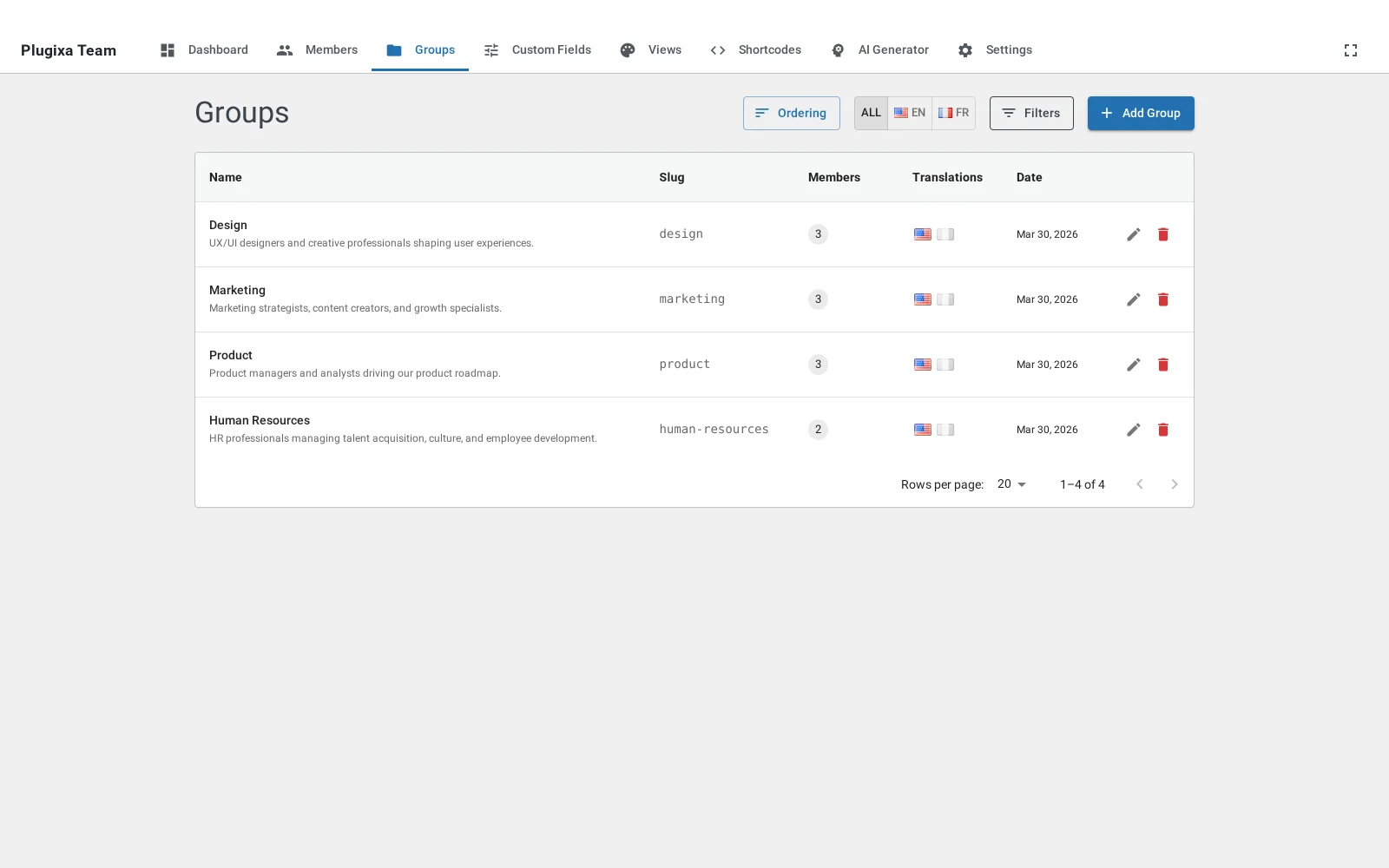
Groups organize team members into departments, teams, committees, or any other category. Members can belong to any number of groups (many-to-many), and each group can have a different member order via the pivot table.

Open Plugixa Team → Groups.

Groups list

Why groups matter

  • Filter shortcodes[plugixa_team group="engineering,design"] renders only members in those groups.
  • Groups navigation — on the frontend, show tabs / pills / dropdown to let visitors filter by group.
  • Per-group ordering — a member can appear first in “Leadership” but last in “Engineering”, thanks to the pivot table’s display_order column.
  • Accordion / filter layouts — use groups as the accordion sections or filter buttons.

Create or edit a group

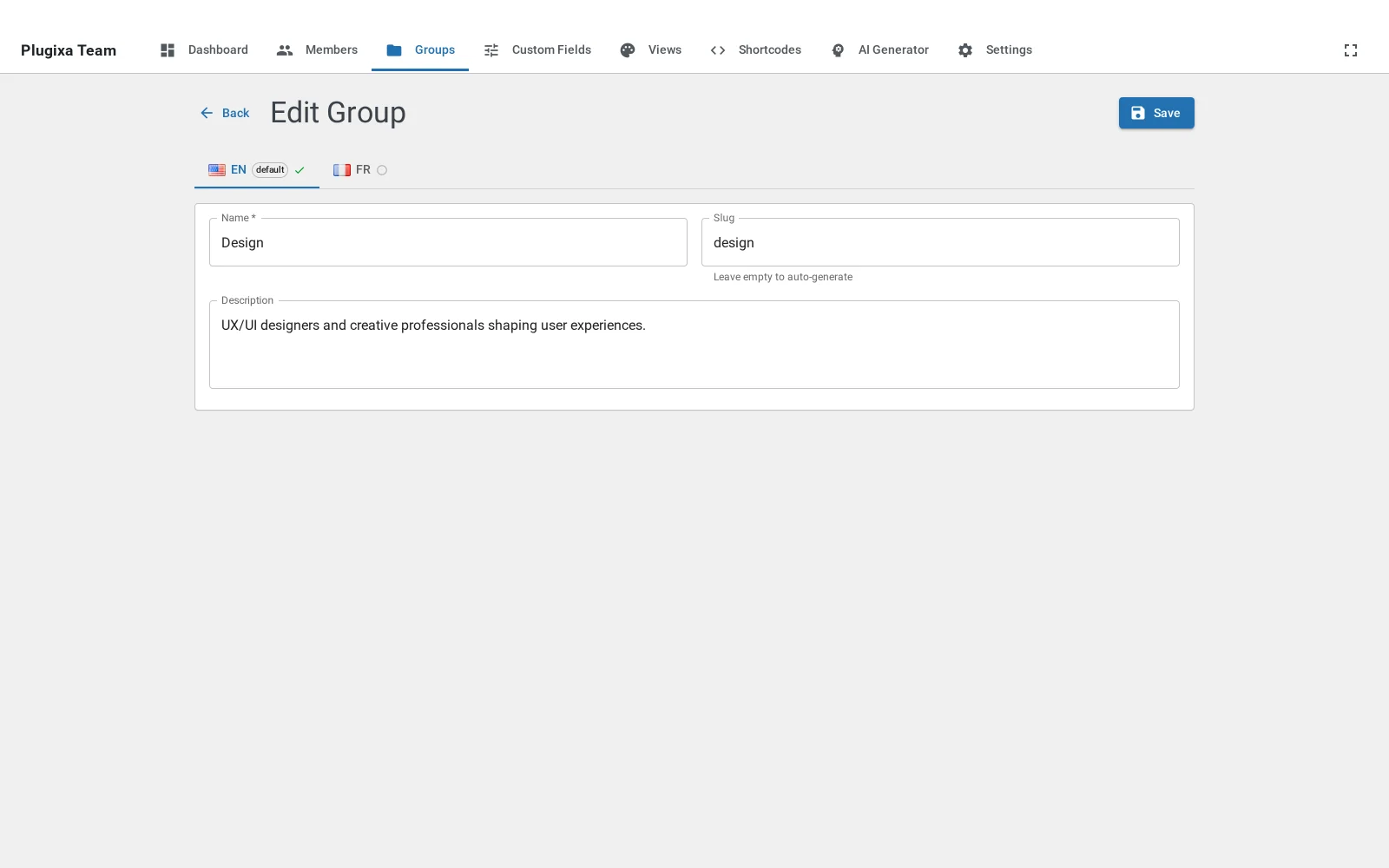
Group form

Open a group (or click Add New). The form is simple:

Field Notes
Name E.g. “Engineering” or “Leadership”. Required.
Slug Auto-generated; must be unique within a language. Used in shortcode attributes.
Description Optional; displayed under the group header or name when show_description is on.
Display order Controls where the group appears in the groups nav (lower = earlier).

Translations

When Polylang is active, groups use the batch Translation Tabs pattern. The name, slug, and description are per-language; display_order is shared across translations. See Multilingual.

Reorder groups

Reorder groups

Groups → Ordering is a sortable list. Drag to reorder; the order is stored in groups.display_order and determines the sequence in groups-nav displays.

Assign members to a group

Two ways:

  1. From the member form — the Groups field is a multi-select.
  2. From the group form — group forms don’t currently include a “members” picker; use the member form instead.

Groups navigation on the frontend

Grouped display

A view can render a Groups Nav bar above the team list. Configure it from Views → {view} → Groups Nav tab:

Option Values Description
enabled on / off Master toggle.
displayStyle tabs, pills, dropdown, sidebar Visual style.
showAll on / off Show an “All” option that clears the filter.
allLabel text Label for the “All” option (e.g., “Everyone”).
showMemberCount on / off Show a count badge next to each group.
showDescription on / off Show the group description when it’s selected.
colors hex bg / text / activeBg / activeText / border / activeBorder.
typography px Font size + weight.
spacing px gap, padding, margin.
border px Width + radius.

Shortcode overrides

[plugixa_team groups_nav="yes" show_member_count="yes"]
  • groups_nav="yes" forces the nav on even if the view has it disabled.
  • groups_nav="no" forces it off.
  • show_member_count="yes" shows the per-group count badge.

Filter by group in a shortcode

[plugixa_team group="engineering"]                  # single slug
[plugixa_team group="3,8,12"]                        # comma-separated IDs
[plugixa_team group="engineering,design"]            # comma-separated slugs

Slugs are resolved to IDs automatically. When multilingual, slugs are matched via the group’s translation group, so localized slugs still work.

Use groups in layouts

Some layouts use group membership internally:

  • Filter layout — renders a button bar of all groups; click to filter client-side. Every group with at least one member becomes a button.
  • Accordion layout — groups become the accordion sections when combined with groups nav.
  • Org chart — not group-based; uses parent_id instead.

For other layouts (grid, list, masonry, carousel, table, inline), groups are purely a filter — the layout itself doesn’t change based on groups.

Member count per group

The /groups REST endpoint returns a member_count field computed via a pivot join against member_groups. This count respects translation grouping (counts distinct translation_group values so one multilingual member doesn’t count twice).

REST API

GET    /wp-json/plugixateam/v1/groups
POST   /wp-json/plugixateam/v1/groups
GET    /wp-json/plugixateam/v1/groups/{id}
PUT    /wp-json/plugixateam/v1/groups/{id}
DELETE /wp-json/plugixateam/v1/groups/{id}
POST   /wp-json/plugixateam/v1/groups/reorder

Troubleshooting

The groups nav doesn’t appear

  • Confirm the view has Groups Nav → Enabled turned on, OR pass groups_nav="yes" in the shortcode.
  • The nav is hidden when there’s only a single group (or zero) — add at least two published groups with members.

A translated group is missing from the nav

  • Confirm the translated group has the same translation_group UUID as the source.
  • Confirm the group’s translated status is published (there’s no separate “published” field — but empty names fall back to the default language).

Member count is wrong

The count filters for published members only. Draft and hidden members don’t contribute.

Quick Links