Contents

Frontend Submission Form — Plugixa Team

Let visitors submit new team member profiles through a public form — useful for crowdsourced directories, alumni networks, volunteer organizations, and speaker lists. Submitted members go to your admin queue as drafts for moderation before appearing on the frontend.

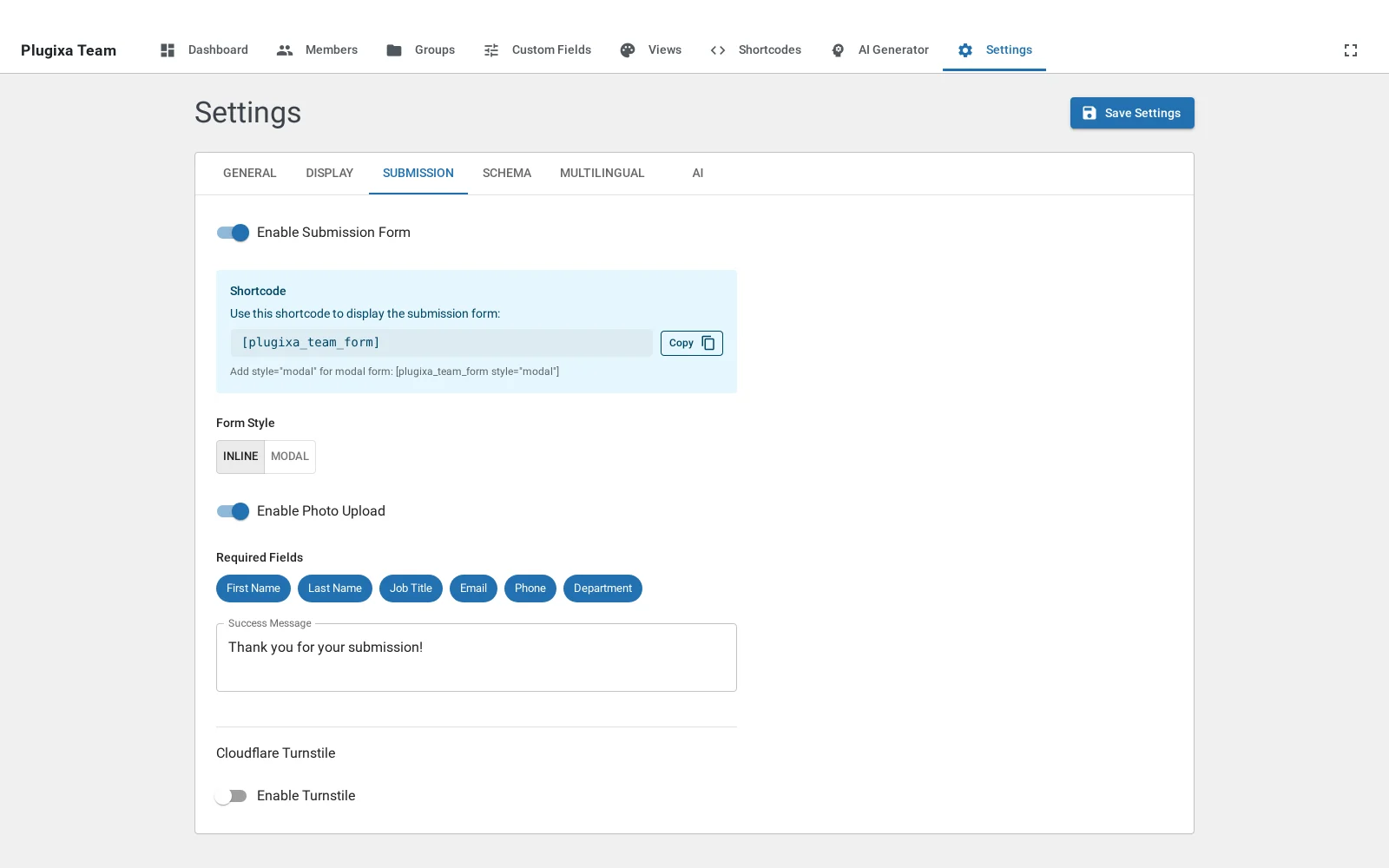
Enable the form

  1. Go to Plugixa Team → Settings → Submission.
  2. Toggle Enable submission form.
  3. Configure required fields, visible fields, photo upload, and reCAPTCHA.
  4. Drop the shortcode on any page:
[plugixa_team_form]

Submission settings

Form styles

The form has two display styles, controlled by Settings → Submission → Form style:

Inline

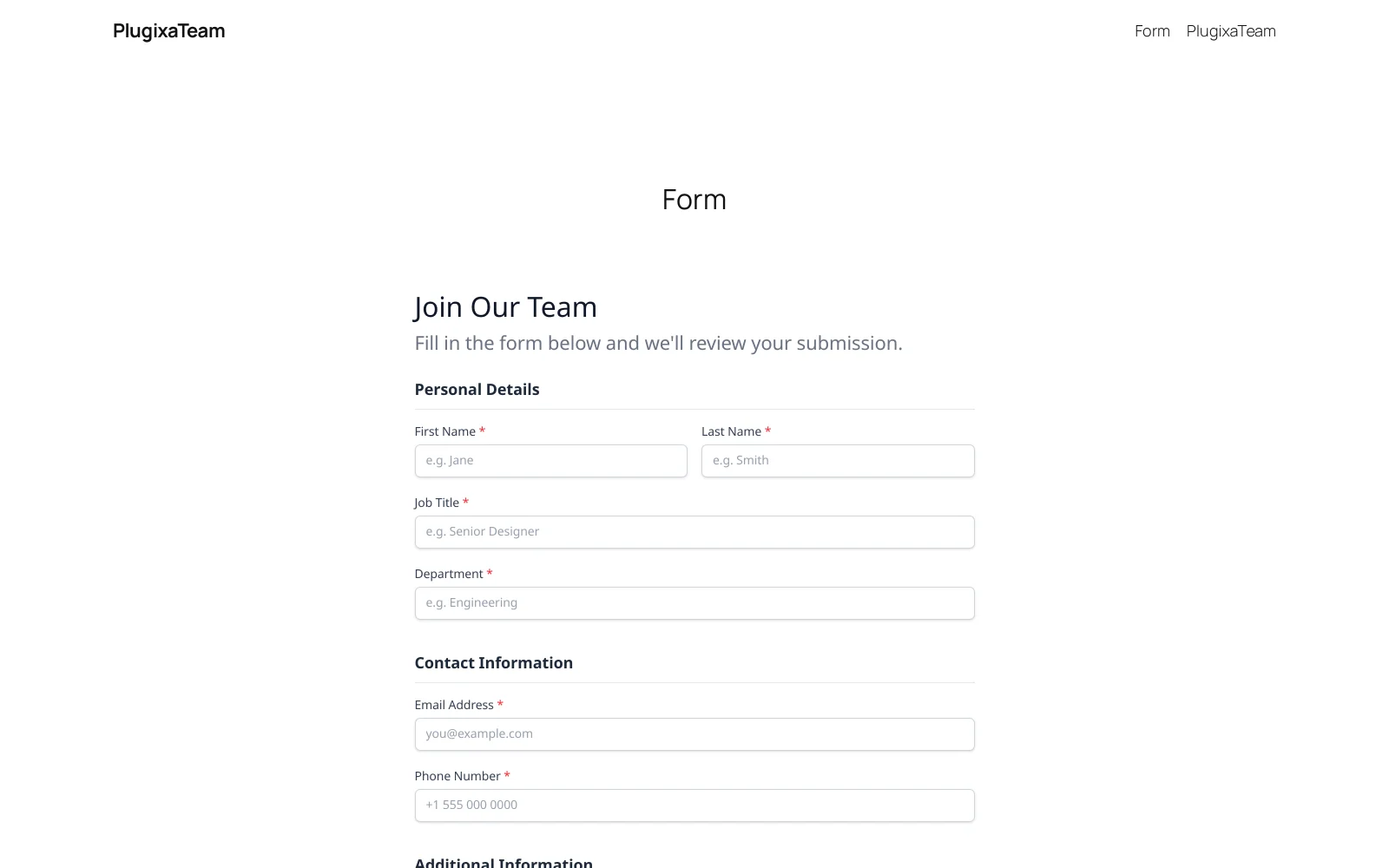
The form renders directly on the page where the shortcode lives. Best for dedicated “Join our team” pages.

Inline form on the frontend

The shortcode renders a “Submit your profile” button. Clicking it opens the form in a centered modal overlay with:

  • Fixed fullscreen backdrop (semi-transparent).
  • Centered white card.
  • Close button + Escape key dismiss.
  • Body scroll lock while open.
  • Auto-close on successful submission.

Use modal when the form shouldn’t take up page real estate.

Modal variant

Form fields

The form shows whichever fields you enable in Settings → Submission → Visible fields. By default:

Field Default Notes
First name Required
Last name Required
Job title Optional
Department Optional
Email Required Validated client + server side.
Phone Optional
Website URL Optional Validated client + server side.
Location Optional
Short bio Optional
Bio Optional Plain text; HTML is stripped server-side.
Skills Optional Add multiple rows of name / percentage.
Social links Optional Add multiple rows of platform / URL.
Photo Optional Drag-and-drop upload when enabled.
Custom fields Optional Fields with show_in_form = true appear here. See Custom Fields.

Required fields

Set per-field required flags in Settings → Submission → Required fields. Server-side validation rejects submissions missing any required field with a 422 response and per-field error messages.

Photo upload

Enable Photo upload in settings. When on, the form adds a drag-and-drop upload area (dashed border, upload icon, helper text) with a hidden <input type="file"> overlay.

Client-side

  • Preview via FileReader — visitors see their image before submitting.
  • Submissions with a photo use FormData (multipart); without, JSON.

Server-side

  • Accepts image/jpeg, image/png, image/gif, image/webp.
  • Max size enforced (default 2 MB, configurable in settings).
  • Uses media_handle_upload() to create a WP attachment.
  • Stores the attachment ID in members.photo_id.

Failed uploads return a 422 with the specific error (wrong type, too large, upload failed).

reCAPTCHA v3

Score-based, invisible (no “I’m not a robot” checkbox). Submissions score 0.0 (bot) to 1.0 (human). The plugin rejects submissions below the threshold.

  1. Get keys from Google reCAPTCHA admin console.
  2. Choose reCAPTCHA v3 during setup.
  3. Paste the site key and secret key in Settings → Submission.
  4. Set the threshold (default 0.5).

If reCAPTCHA fails to load (ad blockers, etc.), the form still submits — users aren’t blocked by client-side errors. The server-side score check is authoritative.

Rate limiting

The plugin rate-limits submissions per IP address:

  • 5 submissions / 15 minutes per IP.
  • Exceeded requests return 429 Too Many Requests with a Retry-After header.

Use the plugixa_team_submission_rate_limit filter to change these numbers — see Hooks.

Honeypot protection

A hidden “Website” field acts as a honeypot — bots typically auto-fill every field, while human visitors don’t see this one. Submissions with a honeypot value are silently accepted (to not tip off the bot) but never persisted.

Moderation workflow

  1. Visitor submits the form.
  2. Server validates, sanitizes, and inserts a draft member with source = 'form'.
  3. The admin email (or form_notify_email if set) receives a notification with a link to the member.
  4. Admin opens the member, reviews, and clicks Publish or Delete.

Use the Members list filter source = 'form' to see only submissions awaiting moderation.

Email notifications

By default the plugin emails get_option('admin_email') on every new submission. Customize the recipient in Settings → Submission → Notification email. Customize the subject and body via the plugixa_team_submission_email_subject / plugixa_team_submission_email_body filters.

REST endpoint

POST /wp-json/plugixateam/v1/frontend/submit

Public (no auth). Content type: application/json or multipart/form-data (when a photo is included).

Success response:

{
  "success": true,
  "message": "Thank you! Your profile has been submitted for review."
}

Validation failure:

{
  "success": false,
  "message": "Please fix the errors below.",
  "errors": {
    "email": "Please enter a valid email address.",
    "photo": "Image must be smaller than 2 MB."
  }
}

Styling the form

The form uses Tailwind pxt: utility classes for layout and .pxt-submit-form__* BEM-style classes as JS hooks. Target those in your theme CSS if you need to override look-and-feel:

.pxt-submit-form__input,
.pxt-submit-form__textarea {
  /* your overrides */
}

.pxt-submit-form__submit {
  background: #your-brand-color;
}

Custom fields in the submission form PRO

Each custom field has a show_in_form toggle. When on, the field appears on the submission form with type-appropriate inputs:

  • Text / textarea / email / phone / URL → standard <input> / <textarea>.
  • Number → numeric input.
  • Date → date picker.
  • Select → dropdown.
  • Checkbox → checkbox(es) for multi-select options.
  • Color → color picker.
  • File → file input (stored as URL or attachment ID).

See Custom Fields.

Troubleshooting

Submissions are rejected with “Security check failed”

The REST endpoint expects no nonce (it’s public), so this usually means a security plugin is blocking public REST routes. Whitelist the plugixateam/v1 namespace or add an exception for /frontend/submit.

Photo uploads fail silently

  • Check server limits: upload_max_filesize and post_max_size in PHP.
  • Check the HTTP response — the error should arrive as a 422 with an errors.photo field.
  • Some hosts limit file uploads to authenticated users; Plugixa Team’s public form uses media_handle_upload() which respects these host-level rules.

reCAPTCHA always fails

  • Confirm site key matches the domain you’re testing on (v3 keys are domain-locked).
  • Lower the threshold to 0.3 during testing.
  • Check the browser console — if reCAPTCHA JS didn’t load, it’s likely an ad blocker or a strict CSP header.

Submitted members have no photo

The media_handle_upload() function requires the user to have upload_files capability. For unauthenticated submissions, Plugixa Team uses a special context to allow uploads. If your security plugin overrides this, the upload will fail without an obvious message — check PHP error logs.

“Too many submissions” from my own IP

You hit the rate limit while testing. Either wait 15 minutes, restart your PHP process, or temporarily raise the limit via the plugixa_team_submission_rate_limit filter.

Quick Links