

Contents
AI settings — Plugixa Team
The AI tab configures the OpenAI or Google Gemini provider used by the AI Generator — the feature that turns a topic, URL, or uploaded document into a draft set of team members.
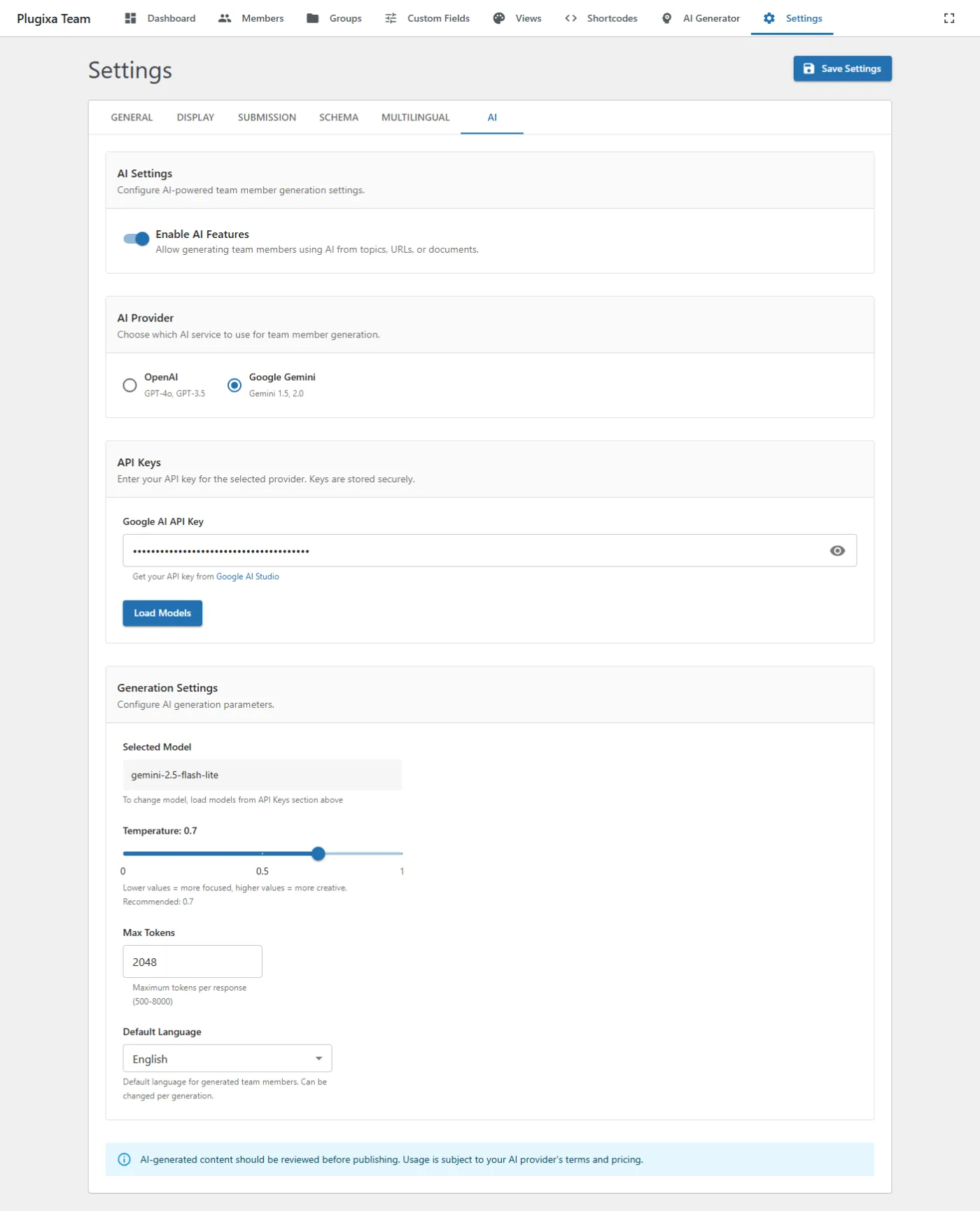
Options
| Key | Default | Values | Notes |
|---|---|---|---|
ai_enabled |
false |
bool | Master toggle. Disabled hides the AI Generator menu. |
ai_provider |
openai |
openai, google |
Which provider to use. |
ai_openai_api_key |
"" |
string | Encrypted at rest. Never displayed after save. |
ai_google_api_key |
"" |
string | Same handling as OpenAI key. |
ai_model_openai |
gpt-4o-mini |
model id | See AI Generator → Models. |
ai_model_google |
gemini-2.0-flash |
model id | |
ai_temperature |
0.7 |
0.0–1.0 | 0 = deterministic, 1 = creative. |
ai_max_tokens |
2000 |
500–8000 | Response length cap. |
ai_default_language |
English |
string | Default generation language. |
Test the connection
Click Test Connection on the AI tab to validate the key — the plugin makes a minimal request and reports success, an API error, or a rate-limit message. This confirms the key is valid and the provider is reachable from the server.
Reload models
Click Reload Models to fetch the current model list from the provider. This picks up new releases (e.g., GPT-4.1 or Gemini 2.5) added since your last save.
Cost notes
- Temperature has no cost effect on its own.
- Max tokens caps the response — raising it increases worst-case cost per generation.
- Provider rate limits apply: hitting them returns a clear error in the AI Generator UI.
Related
- AI Generator — the end-to-end generation workflow.