

Contents
All permissions - Plugixa Advanced User Role Editor
All permissions, under Configuration, lists every capability this site knows about and what registered it. It is the one screen that works in capability names rather than plain words, and it is where leftovers from deleted plugins are found and cleaned up.
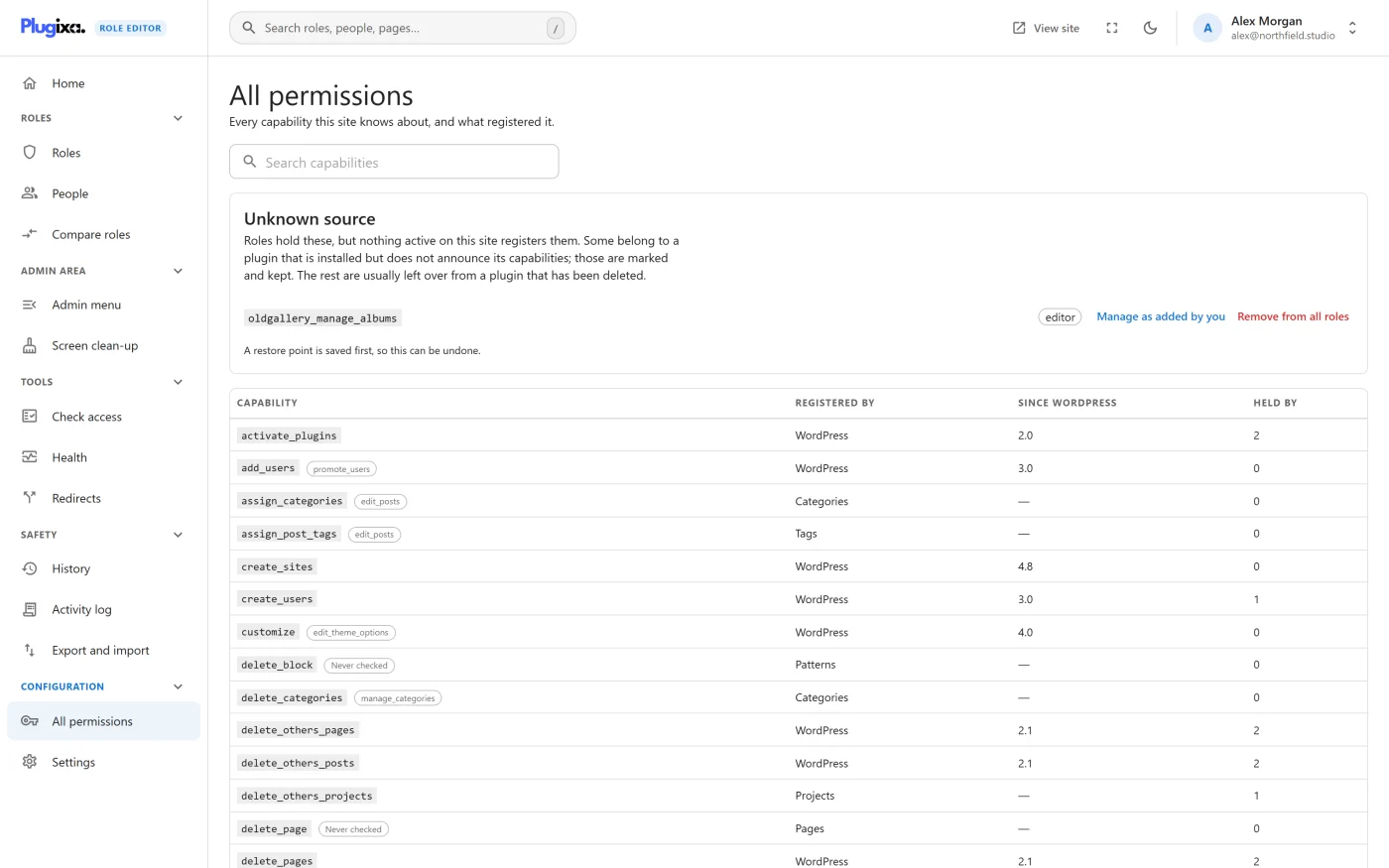
The table
| Column | What it shows |
|---|---|
| Capability | The capability’s name, as WordPress stores it |
| Registered by | Where it comes from |
| Since WordPress | The WordPress version that introduced it, for WordPress’s own capabilities |
| Held by | How many roles hold it |
Use Search capabilities to filter by capability name, by its plain label or by what registered it.
Registered by
| Value | Meaning |
|---|---|
| WordPress | One of WordPress’s own capabilities |
| Post type | Registered by a kind of content |
| Taxonomy | Registered by a taxonomy, such as a set of categories |
| A plugin’s name | Claimed by a plugin. Common plugins are recognised, including WooCommerce, Yoast SEO, Rank Math, Gravity Forms, WPForms, Easy Digital Downloads, bbPress, BuddyPress, The Events Calendar and LearnDash. |
| Added by you | Added by name in this editor |
| Unknown source | Nothing on the site registers it |
Markers on a row
| Marker | Meaning |
|---|---|
| Deprecated | A capability WordPress has replaced, such as the old user levels. Nothing reads it. |
| Never checked | A role cannot usefully hold this. WordPress decides it for one item at a time, or it is switched off on this site. Granting it changes nothing. |
| Another capability’s name | WordPress answers this by checking that other capability instead. Grant that one. |
Unknown source
The panel at the top lists capabilities that roles hold but nothing active on the site registers. Each row shows the capability and the roles that hold it.
They are of two kinds.
Probably from an installed plugin. Some plugins do not announce their
capabilities. When a capability looks like it belongs to a plugin installed on
your site, the row says Probably from
Leftovers. The rest are usually left over from a plugin that has been deleted. These rows have two buttons, described below.
When there is nothing to list, the panel says Nothing left behind. Every capability a role holds is registered by something on this site.
Remove from all roles
Remove from all roles takes the capability off every role that holds it. A restore point is saved first, so this can be undone from History.
Unlike edits on role pages, this is carried out straight away. It does not wait in the Unsaved changes bar.
The server refuses the removal when:
| Case | Reason given |
|---|---|
| The capability is still registered by WordPress, a kind of content or a plugin | Removing it would break that. Only capabilities nothing claims can be cleaned up. |
| It looks like it belongs to an installed plugin | It is not removed from every role at once. If you are sure it is unused, remove it from each role separately. |
| It is one of this plugin’s own capabilities | Removing it would take away access to the editor. |
| You do not hold it yourself | You cannot take away a permission you do not hold. Use Manage as added by you first. |
The button is disabled for people who may view the editor but not change roles.
Manage as added by you
Nobody holds a leftover on purpose, so the rule against handing out or taking back what you do not hold would put it out of everyone’s reach. Manage as added by you lists the capability under Added by you, so that site administrators can give it out and take it back like a permission they added.
It does not change which roles hold the capability. After it, the capability appears in the Added by you card on every role page.
The button is offered only:
- to site administrators, meaning people who can change site settings,
- for capabilities whose name does not look like a powerful permission,
- for capabilities that no installed plugin probably owns.
Adding a permission by name
Custom code and some plugins check a permission WordPress does not know about. To create one, open a role’s page and choose More actions -> Add a permission by name…. This screen lists the result, and the adding itself is done from the role page.
- Type the name, for example
manage_bookings. - Press Add.
The permission is listed under Added by you from then on, and giving it to the role you started from is added to your unsaved changes for review.
Rules for the name:
| Rule | Detail |
|---|---|
| Characters | Letters, numbers and underscores, 100 characters at most. What you type is made lower-case, and spaces and other characters become underscores, so View premium becomes view_premium. |
| Not a role’s name | A permission cannot share its name with a role |
| Not already on the site | If WordPress, a kind of content or a plugin registers it, find it in the list and choose who gets it there |
| Not a dangerous-looking name | Names treated as able to take over the site are refused, because a new one could not be given to anyone |
If the name is already on the site as a capability of unknown source, it is taken over instead, exactly as Manage as added by you does, and the notice says so.
A permission added by name stays listed under Added by you even when no role holds it yet. Site administrators can give it to any role or take it back, whether or not they hold it themselves.
What to do next
- Give a permission to a role in Editing a role.
- See leftovers alongside other findings in Health check.
- Undo a removal in History and restore.