

Contents
Home - Plugixa Advanced User Role Editor
Home is the screen the editor opens on. It answers the questions worth asking before you change anything: how many roles and people there are, whether anything is risky right now, what changed last, and what each role can do.
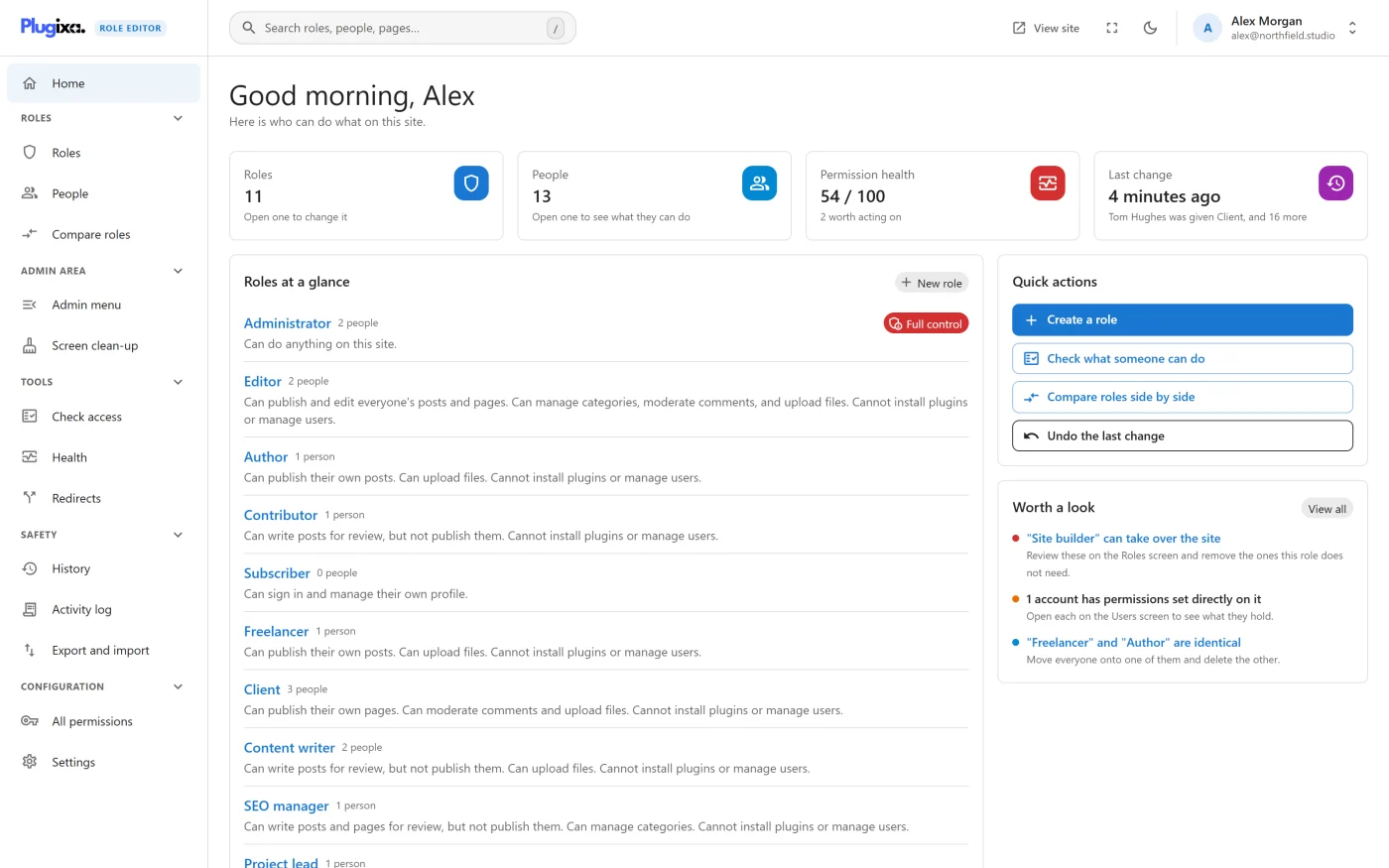
The page greets you by first name under the line Here is who can do what on this site.
The four tiles
Each tile shows one figure and opens the screen behind it.
| Tile | What it shows | Opens |
|---|---|---|
| Roles | The number of roles on the site | Roles |
| People | The number of user accounts | People |
| Permission health | A score out of 100, with the number of findings worth acting on, or Nothing urgent | Health check |
| Last change | How long ago roles or people were last changed, with the change as a sentence. Never if nothing has been changed yet | History and restore |
The Permission health tile is green at 90 or above, amber from 60 to 89, and red below 60.
Two of the tiles are not always shown:
- Permission health needs the Health feature to be switched on in Settings, and is shown only to people who may change roles.
- Last change is shown only to people who may change roles.
Roles at a glance
The main panel lists every role on the site. Each row has:
- the role’s name, which opens its page,
- the number of people who have it, or Not counted on a site where counting is switched off,
- a Full control or Can take over the site badge where it applies,
- a short summary of what the role can do, such as Can publish and edit everyone’s posts and pages. Cannot install plugins or manage users.
The summary is the same one shown on the Roles list and on the role’s own page. If you have unsaved edits to a role, the summary and badge already reflect them.
New role in the corner of the panel opens the New role wizard.
Quick actions
| Action | What it does |
|---|---|
| Create a role | Opens the New role wizard |
| Check what someone can do | Opens Check access |
| Compare roles side by side | Opens Compare roles |
| Undo the last change | Asks for confirmation, then restores the point taken before the most recent change |
Undo the last change is shown only to people who may change roles, and is disabled when there is no change that can be restored. The confirmation shows the change as a sentence, who made it and when. Roles and people go back to how they were just before it. Undoing is recorded too, so you can change your mind again from History.
Worth a look
This panel shows the first three findings from the health check, most serious first. Each has a coloured dot for its severity, a title, and one line saying what to do about it. A finding about a particular role links to that role’s page.
When there are no findings the panel says Nothing needs attention. View all opens the full Health check.
Like the Permission health tile, the panel is shown only when the Health feature is on and you may change roles.
Recent changes
Across the bottom of the screen, Recent changes lists the four most recent entries from History as sentences, with who made each one and how long ago. History in the corner opens the full list. This panel is shown only to people who may change roles.
What to do next
- Open a role from the list and change it in Editing a role.
- Work through the findings in Health check.
- See every restore point in History and restore.