

Contents
Creating a role - Plugixa Advanced User Role Editor
New roles are made with a four-step wizard: Start from, Name, Permissions and Review. Nothing is created until the last step, so you can change your mind at any point.
Open it with New role on the Roles screen, Create a role on Home, or Duplicate on a role’s page.
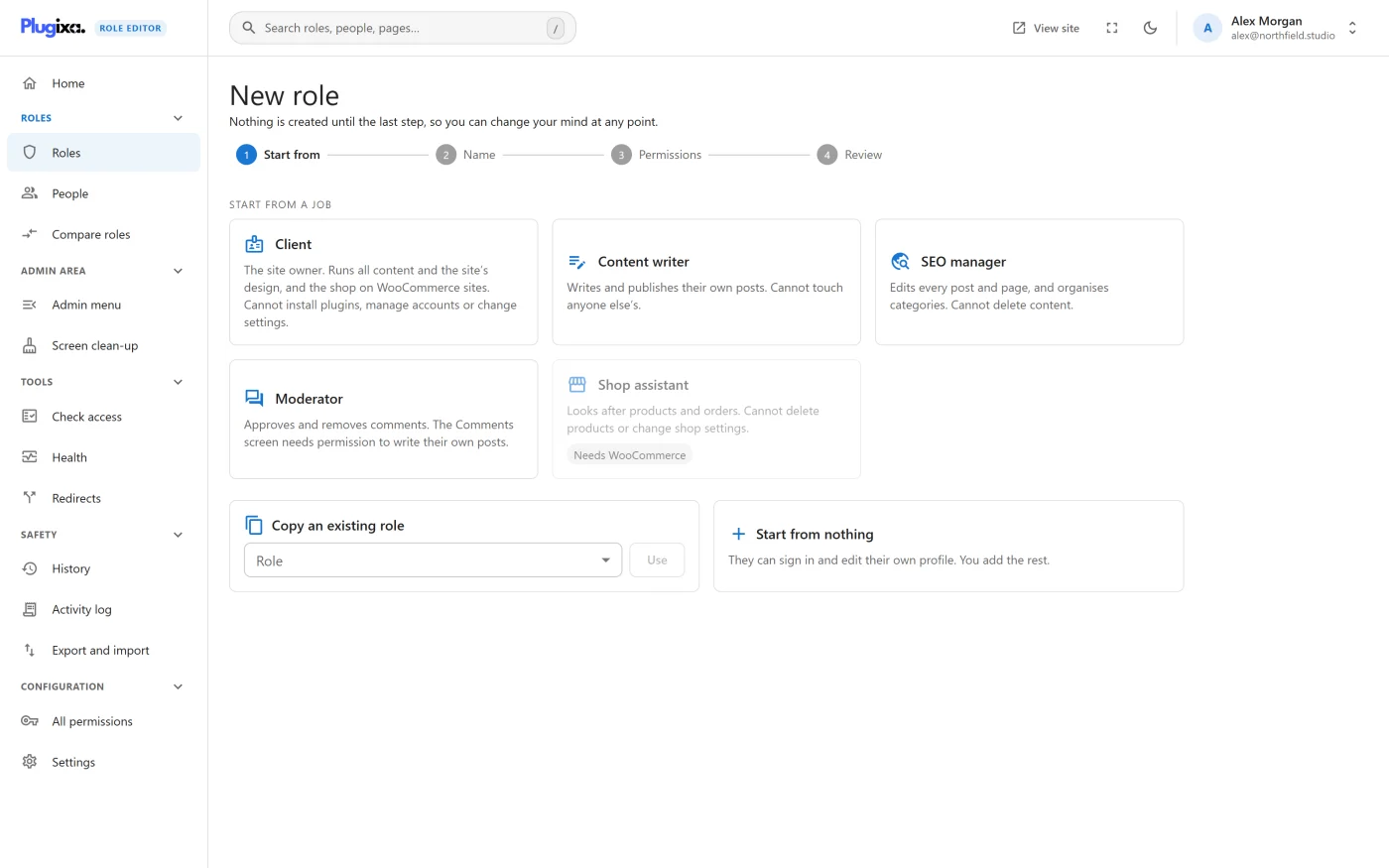
Step 1 - Start from
There are three ways to begin.
Start from a job
Each card is a job, with a sentence on what it is for. Picking one fills in the permissions for you and moves to the Name step with the job’s name filled in.
| Job | What it grants |
|---|---|
| Client | The site owner. Write and edit, publish, delete and see private items at All for every kind of WordPress content. Manage categories and tags. Upload files, moderate comments, manage menus, widgets and the site editor, see the list of users, and export all content. |
| Content writer | Posts only: write and edit Their own, publish Yes, delete Their own, see private No. Upload files. |
| SEO manager | For every kind of WordPress content: write and edit All, publish Yes, delete None, see private Yes. Manage categories and tags. Upload files. |
| Moderator | Moderate comments. Posts: write and edit Their own, with no publishing or deleting, because the Comments screen needs permission to write their own posts. |
| Shop assistant | Products and orders: write and edit All, publish Yes, delete None, see private Yes. Put products into product categories, without adding or deleting the categories. Upload files and view shop reports. |
Every job also includes signing in and editing their own profile.
Some things are deliberately left out of Client: it cannot install plugins or themes, manage accounts beyond seeing the list, or change site settings.
Two notes on WooCommerce:
- Shop assistant needs WooCommerce. Without it the card is greyed out and labelled Needs WooCommerce.
- Client is always offered. On a site with WooCommerce it also gets products and coupons at All, orders without deleting, full control of product categories, and shop reports.
A job is turned into permissions on your site when you pick it, so it uses the permission names your site really has. A part that belongs to a plugin you do not have is simply left out.
Copy an existing role
Choose a role from the list and press Use. The new role starts with the same permissions, including any that are blocked, and the name <Role> copy.
Duplicate on a role’s page is a shortcut to the same thing. It skips this step and opens the wizard on Name.
Start from nothing
The new role can sign in and edit their own profile. You add the rest.
Step 2 - Name
The step shows what you are starting from and asks for the role’s name.
Under the field, the wizard shows the role’s permanent name, made from what you type: lower-case letters, numbers and underscores, 60 characters at most. People are given the role by that name, so it cannot change later. The name people see can be changed at any time with Rename.
Next stays disabled while the name is empty or while A role with this name already exists.
Step 3 - Permissions
This is the same editor as on a role’s page, with the search box, the Content and Categories and tags tables, and a card of switches for each other area. It is described in Editing a role.
A bar pinned to the top shows the role’s name, its summary sentence and any risk badge. Both update as you change things, so you can see what the role amounts to before it exists.
Step 4 - Review
The last step shows:
- the name, the summary sentence and any risk badge,
- What it can do, area by area, in the same words the review dialog uses,
- What this role sees, a preview of the WordPress admin menu for the role.
If the role holds a permission that leads to administrator access, a warning says so: Anyone given this role can reach administrator access. Make sure that is what you intend.
Press Create role. The role is created, its page opens, and the notice
Created “
If the role cannot be created, the reason is shown on this step and nothing is written. For example, you cannot create a role containing a permission you do not hold yourself.
A new role has nobody in it. Give it to people from People.
The kept draft
The wizard keeps what you have set up as you go, in the browser tab you are working in.
| What you do | What happens |
|---|---|
| Click another screen or press Back | A dialog asks Leave without creating the role? Stay returns to the wizard. Leave throws the draft away. |
| Reload the page, or go to another WordPress screen | The browser asks before leaving. If you go, the draft is still kept. |
| Leave some other way without choosing Leave | A notice says Your unfinished role “ |
| Open New role again in the same tab | A message says You were setting up “ |
The draft is discarded when you create the role, choose Leave, or choose Start over. It belongs to the one browser tab and is not shared with other people or other tabs. Opening the wizard with Duplicate always starts from that role and ignores a kept draft.
What to do next
- Fine-tune the role in Editing a role.
- Give it to people in People.
- Check it against a similar role in Compare roles.