

Contents
Check access - Plugixa Advanced User Role Editor
Plugixa Role Editor -> Tools -> Check access answers one question: can this person do this thing? You pick the person by name and the action in plain words, and the screen replies with Yes or No, the reasons, and the changes that would turn a No into a Yes.
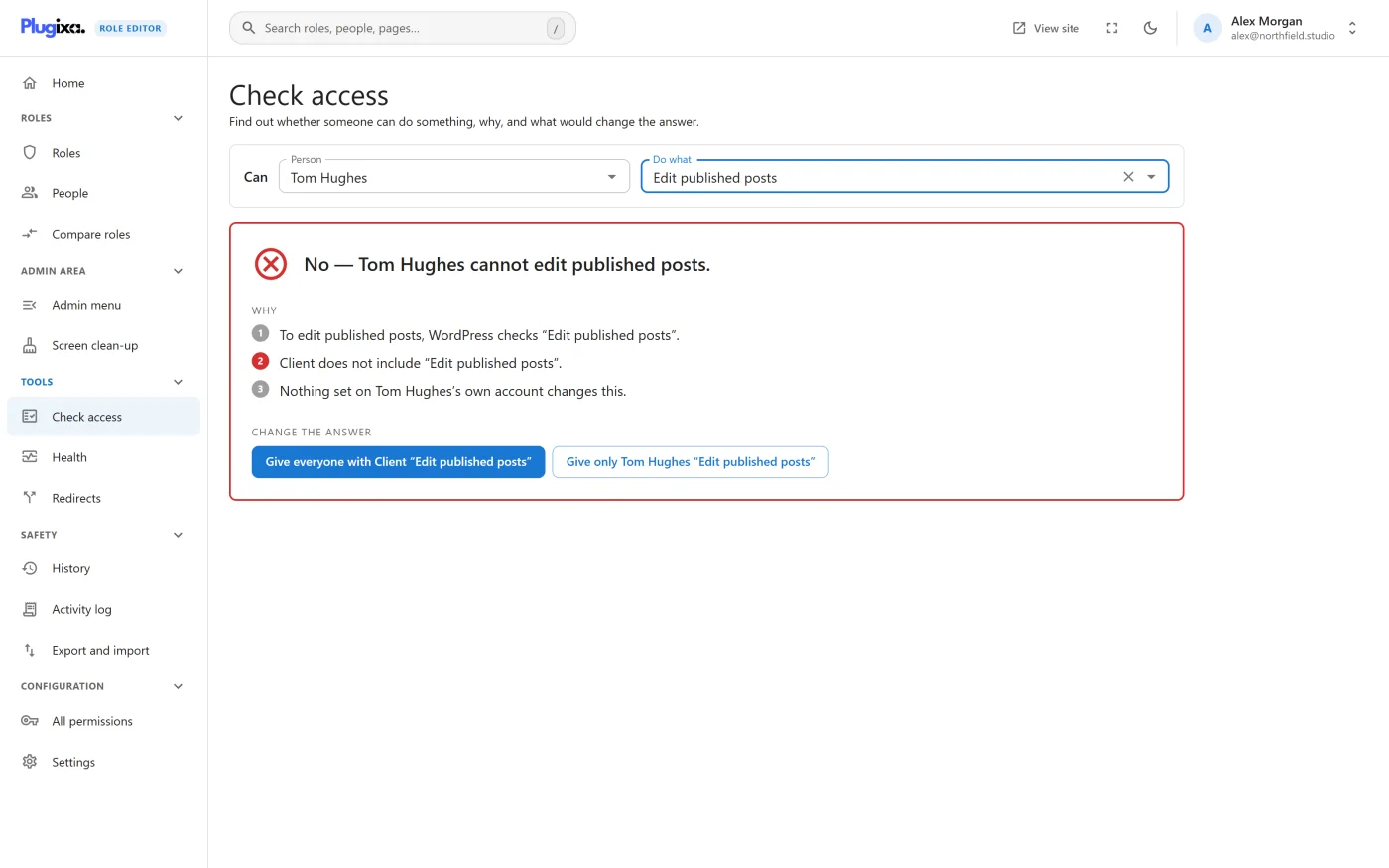
Asking the question
The top of the screen reads as a sentence: Can [Person] [Do what] [Which one].
| Field | What to choose |
|---|---|
| Person | Start typing a name. The list is searched on the server as you type, and each result shows the person’s roles under their name. |
| Do what | Something a person might do, grouped by area - for example “Publish posts”. Each kind of content also offers “Edit a specific item in …” and “Delete a specific item in …”. |
| Which one (optional) | Appears only for the two “specific item” actions. Pick a post, page or other item to ask about that exact one. |
The answer appears as soon as a person and an action are chosen. The question is kept in the page address, so you can copy the address and send somebody the same answer.
The optional “Which one”
For “Edit a specific item in Posts” you can leave Which one empty. The question then becomes whether the person can edit their own posts.
Choose an item and the question becomes exact, and the answer names it: “No - Jane cannot edit “Summer menu” (by Sam, published)”. This is how you find out why somebody can edit their own drafts but not a colleague’s published page.
The list shows the most recently changed items first, with the author and status under each title. It only lists items that you are allowed to read, so the checker never reveals the title of a private item you could not open yourself.
The answer
The answer is one sentence with a green tick or a red cross:
- “Yes - Jane can publish posts.”
- “No - Jane cannot publish posts.”
WordPress itself gives the verdict. The plugin asks WordPress the real question and then explains the result; it does not guess from the role alone.
Why
Under the answer is a numbered list, in the order WordPress decides. Green steps help the person, red steps stand in the way, grey steps are neutral.
| Step | What it tells you |
|---|---|
| What WordPress checks | “To publish posts, WordPress checks “Publish posts”.” Some actions need several permissions, and all of them are listed. |
| Each role on the account | One step per role, saying what it gives, what it blocks, and what it does not include. An account with no role says so. |
| The account itself | Whether the person’s own account adds or blocks one of those permissions. A block on the account beats every role. |
| When roles disagree | “When roles disagree, WordPress uses the role that comes last on the account.” Shown only when two of the person’s roles say different things. |
| Something else on the site | Shown when the roles and the account do not explain the result, which means another plugin or the theme is allowing or blocking it. |
Two special cases replace the role steps:
- WordPress does not allow it for anyone. Some actions are switched off for the whole site, whatever the roles say. The first step says so.
- Network super administrators. On multisite, a super administrator passes every check, and the step says that instead of walking through the roles.
Change the answer
When the answer is No, the screen offers buttons under Change the answer. Which ones appear depends on what is standing in the way:
| Button | What it does |
|---|---|
| Give everyone with [role] “[permission]” | Adds the permission to the person’s last role, so everybody with that role gets it. Not offered when that role is Administrator. |
| Give only [name] “[permission]” | Adds the permission to this one account as an extra permission. |
| Remove the block from [role] | Offered when one of the person’s roles blocks the permission. |
| Remove the block on [name]’s account | Offered when the block is on the account itself. |
The first two are different decisions with the same result for this person, and the choice matters: one changes a whole role, the other changes one account.
The buttons do not save anything. Each one adds the change to your unsaved changes, and a notice confirms it (“Added to your unsaved changes for Editor.”). You then review and save from the bar at the bottom of the screen like any other edit. See Safety guardrails.
Buttons are left out when they would not work:
- You only see fixes you are allowed to make. Somebody who cannot change roles is not offered the role buttons, and somebody who cannot change people is not offered the account buttons.
- No buttons are offered when the answer is Yes.
- No buttons are offered when another plugin or the theme is the cause, because a role change would not alter the result.
Unsaved changes are not counted
The answer always uses saved permissions. If you have changes waiting in the bar, the screen shows: “This answer uses saved permissions. Your unsaved changes are not included until you save them.” Save, and the answer updates.
The same check on a person’s page
Every person’s page has a Check access tab. It is the same tool with the person already filled in, so you only choose the action and, if you want, the item. Use it when you are already looking at somebody’s roles. See People.
From the command line or a script
The same question can be asked without opening the editor.
- Over SSH,
wp plugixa-aure explain <user> <capability> [<object>]prints the answer and each step behind it. See WP-CLI commands. - Over REST,
POST /simulatereturns the answer and the steps as JSON. See REST API.
Both take a WordPress capability name, not one of the plain actions listed on this screen, and both report without offering to change the answer.
What to do next
- Change a whole role on its page: Editing a role.
- Look for wider problems in Health check.
- Undo a fix you regret from History and restore.