

Contents
Screen clean-up - Plugixa Advanced User Role Editor
Screen clean-up PRO chooses what each role sees on the dashboard, in the toolbar and on the edit screens. It sits in the Admin area group of the sidebar, under Admin menu.
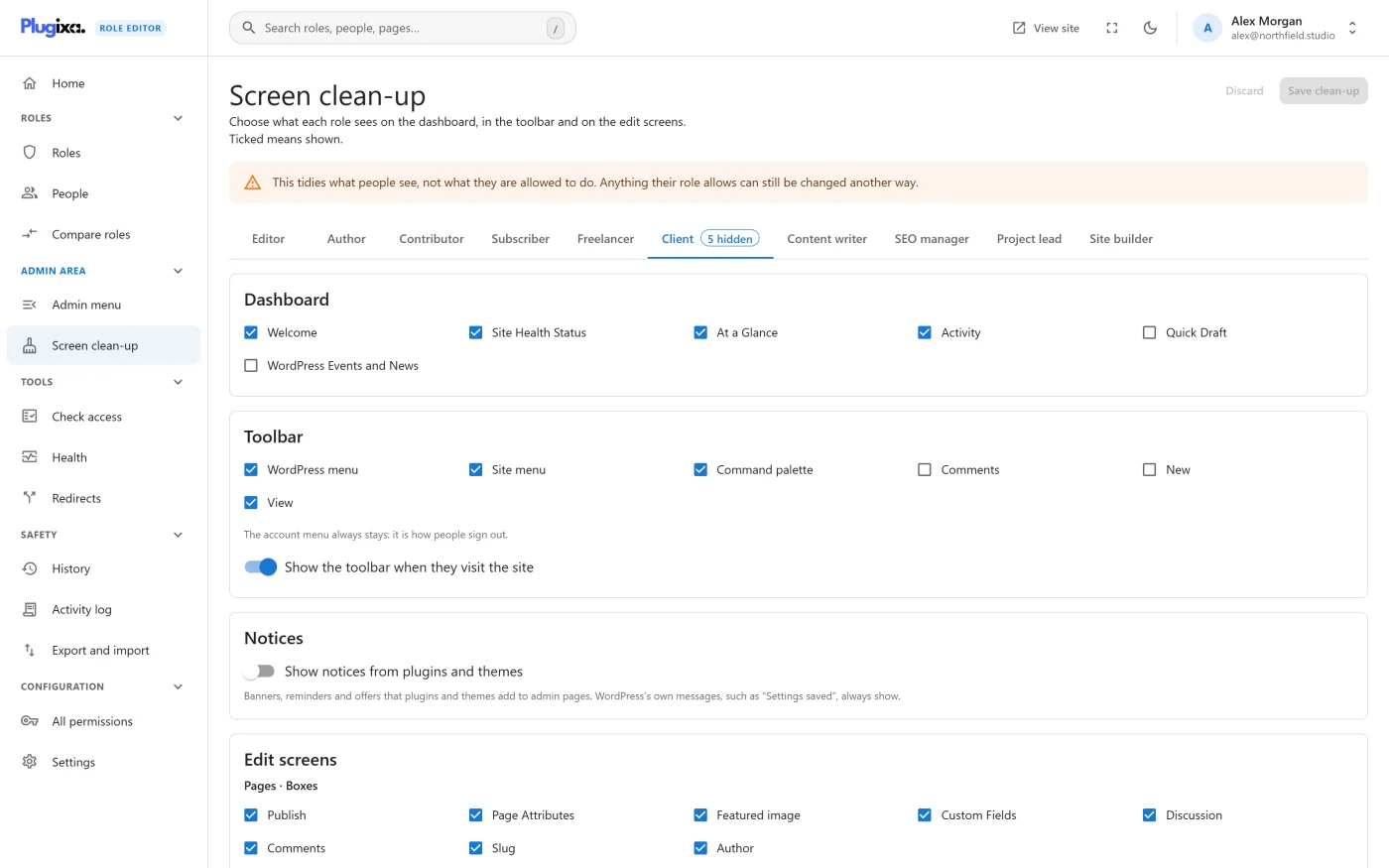
Everywhere on the page, ticked means shown. That includes the two switches.
This tidies what people see, not what they are allowed to do. Anything their role allows can still be changed another way. To take something away for real, change the role’s permissions on its role page.
One role at a time
Each role is a tab. A tab shows a small hidden count once the role has anything hidden.
One Save clean-up button covers every tab, so switching role never loses an edit. Discard returns every tab to what was last saved. After saving, the changes apply the next time each person loads a page.
Roles that can manage the site’s settings always see everything, so they have no tab.
Dashboard
A tick for each dashboard widget, including WordPress’s own Welcome panel and any widget a plugin adds.
Toolbar
A tick for each top-level item of the toolbar at the top of the screen. Hiding an item hides everything in its drop-down with it.
The account menu always stays. It is how people sign out.
Below the list is one switch:
| Switch | Off means |
|---|---|
| Show the toolbar when they visit the site | The toolbar is not shown on the front end of the site for this role. The admin area keeps its toolbar regardless |
Notices
| Switch | Off means |
|---|---|
| Show notices from plugins and themes | Banners, reminders and offers that plugins and themes add to admin pages are not shown to this role |
WordPress’s own messages, such as “Settings saved”, always show. So do this plugin’s.
A notice counts as coming from a plugin or theme when the code that prints it lives in the site’s plugins, must-use plugins or themes folder.
Edit screens
Two kinds of thing can be hidden here.
Boxes are the panels on an edit screen, listed under a heading for each kind of content: posts, pages, products and so on. Each box is hidden for that kind of content only.
Block editor panels are the sections in the block editor’s sidebar. They apply to every kind of content that uses the block editor:
- Summary: status, visibility and publish date
- Link
- Featured image
- Excerpt
- Discussion
- Page attributes
- One panel for each taxonomy the editor shows, such as Categories and Tags
Why a section says to open a screen first
Dashboard widgets, toolbar items and edit-screen boxes do not exist until WordPress builds the screen that shows them. A plugin adds its dashboard widget only while the dashboard is loading, and its box only while an edit screen is loading.
So the lists on this page are read from an administrator’s own page loads, just before any clean-up would run. Until that has happened once, a section shows a hint instead of a list:
| Section | What to do |
|---|---|
| Dashboard | Open the dashboard as an administrator once |
| Toolbar | Load any page as an administrator once |
| Edit screens | Open an edit screen as an administrator once: a post, a page, a product |
Boxes are recorded per kind of content, so open one edit screen for each kind you want to tidy. The toolbar differs between the admin area and the front end; visit both to see every item.
After installing a plugin that adds a widget, a toolbar item or a box, repeat the visit and it appears in the list.
The block editor panels need no visit. They are a fixed list plus the site’s taxonomies.
People with several roles
The rule is the same as for the Admin menu: something is hidden for a person only where every one of their roles hides it. A role with nothing hidden shows everything, so holding one alongside a tidied role undoes the tidying for that person.
The two switches follow the same rule. Notices from plugins and themes are hidden for someone with two roles only if both roles have the switch off.
Anyone who can manage the site’s settings, and any super admin on a multisite network, is exempt and sees everything.
Other things worth knowing
- Nothing here is a permission. A hidden box’s data can still be changed by anyone whose role allows it, through another screen or the REST API.
- Rules for a role that has been deleted are dropped.
- Saving is recorded in the Activity log, where one save can be undone. It does not create a restore point in History.
- Editing the rules needs the same access as editing roles.
Troubleshooting
| Symptom | Usual cause |
|---|---|
| A section shows a hint instead of a list | No administrator has loaded that screen yet. See the table above |
| A plugin’s widget or box is missing from the list | It was installed after the last visit. Open the screen again as an administrator |
| Something hidden still shows for one person | They hold another role that does not hide it, or they can manage the site’s settings |
| A role has no tab | It can manage the site’s settings, so it always sees everything |
| A plugin notice still shows | The notice is printed by WordPress itself or by code outside the plugins and themes folders |
What to do next
- Hide menu items and refuse their screens in Admin menu PRO.
- See who changed a rule in the Activity log PRO.
- Take a permission away properly in Editing a role.