

Contents
Compare roles - Plugixa Advanced User Role Editor
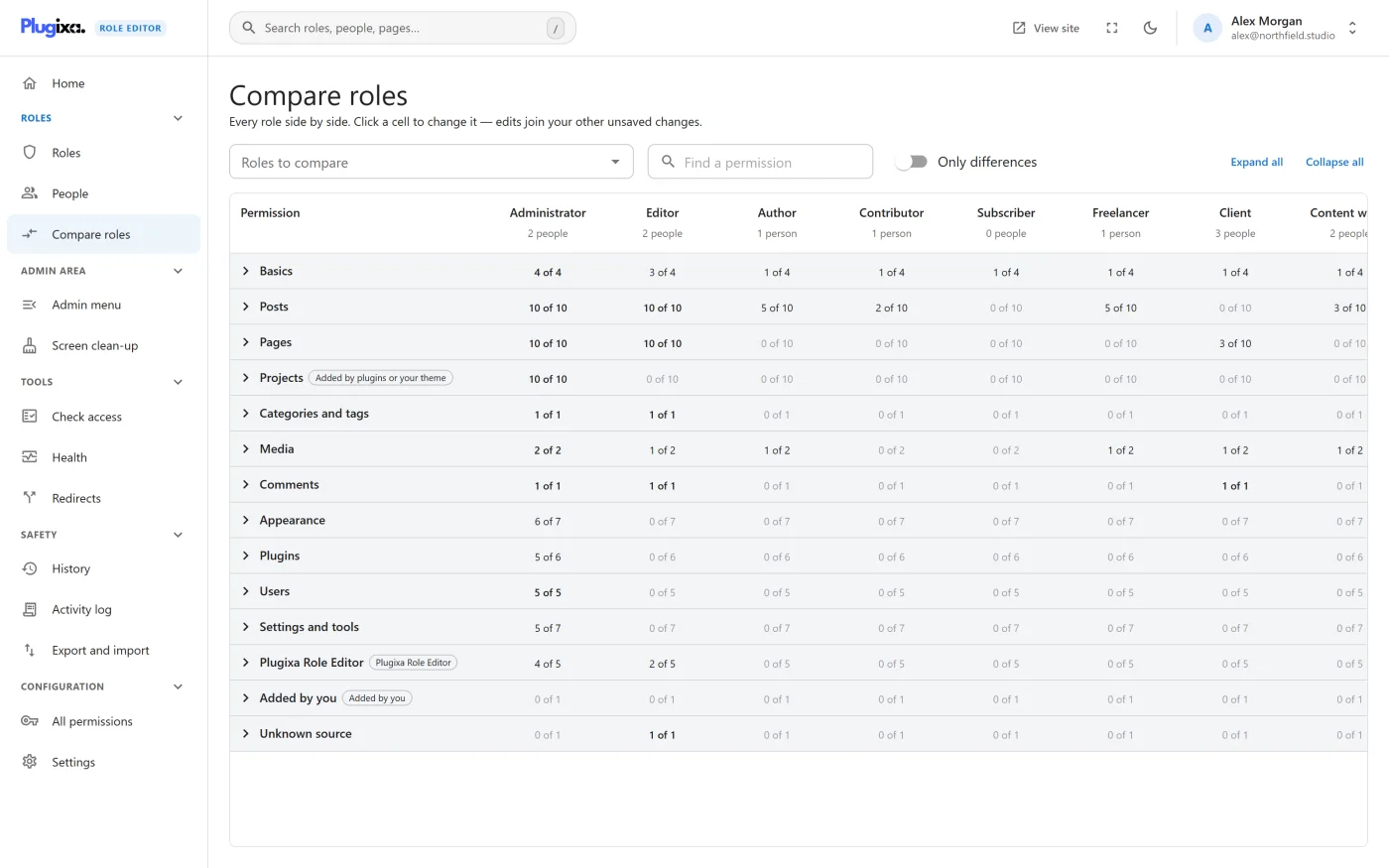
Compare roles puts roles side by side: one column per role, one row per permission. Use it to see how two roles differ, to find every role that can do a particular thing, or to make the same edit to several roles at once.
Open it from the sidebar, from Compare roles on the Roles screen, from Compare roles side by side on Home, or from Compare on a role’s page.
Choosing roles
Roles to compare takes any number of roles.
- With nothing chosen, every role is shown.
- With two or more chosen, only those are shown.
- With one chosen, it is compared against all the others. This is what Compare on a role’s page does.
Each column heading shows the role’s name, which opens its page, and the number of people who have it.
The matrix scrolls sideways when the roles do not fit. The permission column and the heading row stay in place.
Groups
Permissions are grouped by area, the same areas as on a role page: each kind of content, categories and tags, Basics, Media, Comments, Appearance, Plugins, Users, Settings and tools, and so on. A group that comes from a plugin carries the plugin’s name.
Groups start collapsed. Each group row shows a count for every role, such as 4 of 10, meaning the role is allowed four of the ten permissions in that group. The first screen therefore already answers questions like “which roles can touch plugins” before anything is opened.
Click a group to open or close it. Expand all and Collapse all do the same for every group.
Inside a group, each row shows the permission’s plain label with its capability name underneath.
Reading a cell
| Mark | State | Meaning |
|---|---|---|
| Tick | Allowed | The role grants the permission |
| Empty box | Not set | The role says nothing about it |
| Block mark | Blocked | The role blocks it, which overrides an earlier role on the same account |
Hover a cell to read it in words, for example Editor - Moderate comments: Allowed.
Only differences
Turn on Only differences to hide every row where the roles being compared agree. All groups open, and only the rows that differ remain.
Two roles agree on a row only when they are in the same state, so Not set in one role and Blocked in another counts as a difference.
If nothing differs, the matrix says These roles agree on everything.
Finding a permission
Find a permission filters the rows by label, by capability name or by group name, and opens the groups that match. It can be combined with Only differences.
The old WordPress user levels are hidden here unless Show deprecated capabilities is on in Settings.
Sharing a comparison
The chosen roles, the search and the Only differences switch are kept in the page address. Copy the address to send someone the same comparison, as long as they have access to the editor. Unsaved edits are never part of the address.
Editing a cell
Click a cell to change it. Each click moves it one step:
Not set -> Allowed -> Blocked -> Not set
An edited cell is outlined. Clicking it back round to where it started removes the edit.
Editing a cell saves nothing. The edit joins your other unsaved changes in the bar at the bottom of the screen, together with anything you changed on role pages and people’s pages. Press Review and save to see them all in words and save them with one restore point. The review, the confirmation for permissions that hand over the site, and the reasons a change can be refused are described in Editing a role.
This is the quickest way to block a single permission on a role, since the switches on a role page are only on or off.
Cells you cannot change
Cells in the Administrator column are locked, with the note Administrator always keeps every permission. To change them, turn on Allow editing the Administrator role in Settings.
For any other role, a change you are not allowed to make is not stopped in the matrix. It is reported when you review: the bar shows Cannot be saved as it is, and the review dialog gives the reason.
What to do next
- Change a role with levels rather than single cells in Editing a role.
- Check what a comparison means for one person in Check access.
- Find identical roles in Health check.