

Contents
Admin menu - Plugixa Advanced User Role Editor
The Admin menu screen PRO decides which items of the WordPress admin menu each role sees. It sits in the Admin area group of the sidebar, next to Screen clean-up.
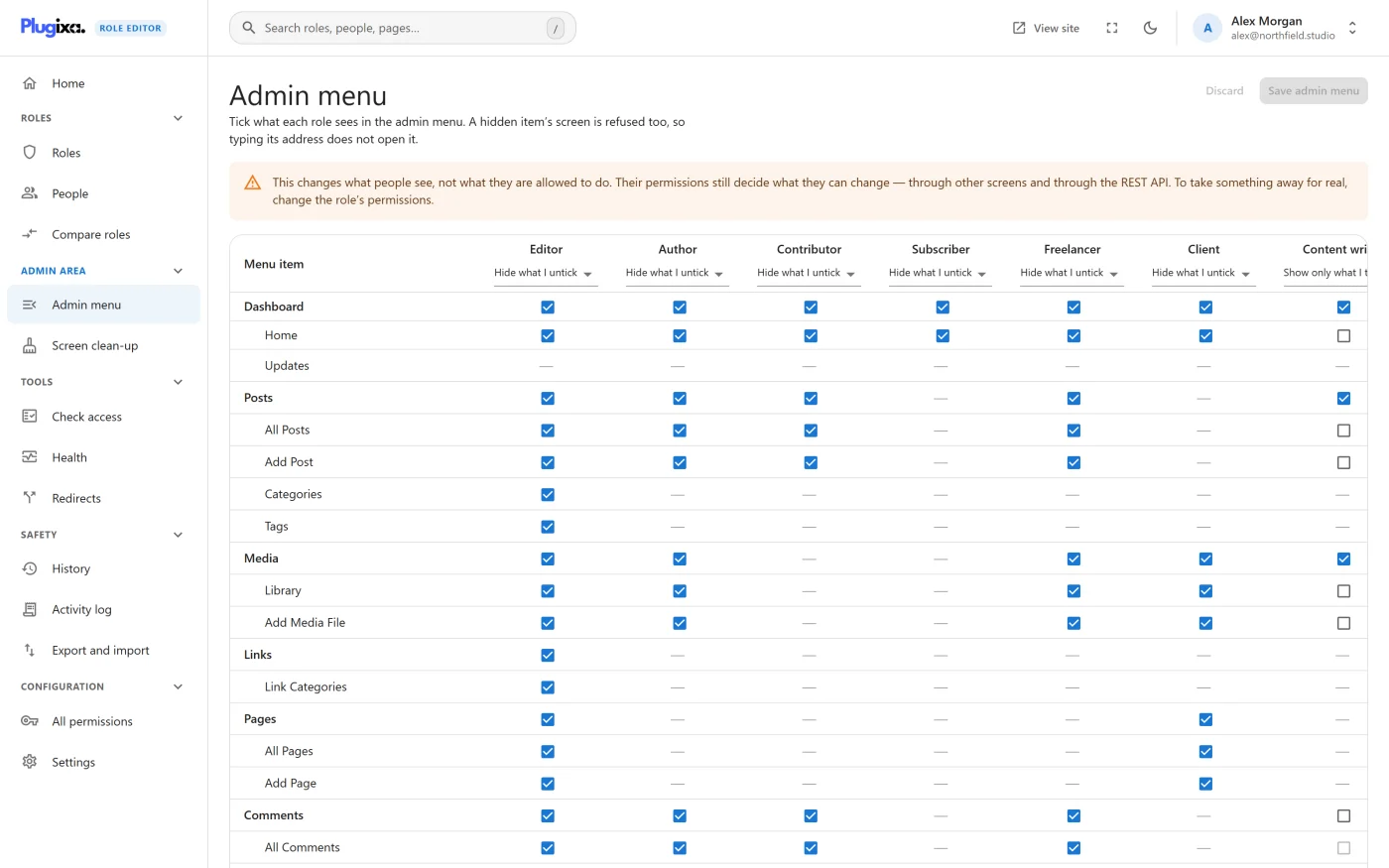
A hidden item’s screen is refused too, so typing its address does not open it.
This changes what people see, not what they are allowed to do. Their permissions still decide what they can change, through other screens and through the REST API. To take something away for real, change the role’s permissions on its role page.
The grid
Every menu item is a row, with its submenu items indented beneath it. Every role is a column. A tick means “this role sees it”.
| What you see in a cell | Meaning |
|---|---|
| A ticked box | The role sees the item |
| An empty box | The item is hidden from the role, and its screen is refused |
| A greyed-out box under a hidden parent | A submenu item cannot show while its top-level item is hidden |
| A dash | The role cannot open the item anyway, because it lacks the permission the item needs. Hover it to see which one |
| A padlock beside the item name | The item is always shown and cannot be hidden |
Ticking a submenu item whose parent is hidden ticks the parent as well, since a submenu has nowhere to appear without it.
Nothing is stored until you press Save admin menu. Discard puts the grid back to what was last saved. After saving, the menu changes the next time each person loads an admin page.
The two modes
Under each role name is a selector with two choices. It decides what an unticked box means for menu items that appear later.
| Mode | What it does |
|---|---|
| Hide what I untick | Everything shows except what you untick. A plugin installed next month appears in this role’s menu. This is the default |
| Show only what I tick | Only ticked items show. Menu items that plugins add later stay out until you tick them |
Switching mode never changes what the role sees today. The ticks stay as they are; only the treatment of future menu items changes.
Show only what I tick is the one to use when you hand a site to a client and do not want their menu to grow each time you install something.
What a refused screen looks like
When somebody opens the address of a hidden item directly, WordPress stops with the message “This screen is not available to your role.” and a link back.
The refusal is reported to WordPress as an ordinary “not allowed here” event, so the role’s redirect for reaching a screen it cannot open, set in Login redirects, applies to it exactly as it does to a refusal from WordPress itself.
Two cases are deliberately left open:
- The Dashboard is never refused. It is where WordPress sends everybody after signing in. Hiding it removes the menu item only.
- An address a visible item still leads to is not refused. Hiding “All Posts” while “Posts” stays visible does not block the posts list, because the visible “Posts” item links to that same screen.
Who is exempt
| Who | Why |
|---|---|
Any role that can manage the site’s settings (manage_options) |
The site’s owner must not be able to lock themselves out. These roles have no column; they are listed under the grid as Sees everything |
| Super admins on a multisite network | The same reason |
Two items can never be hidden from anybody, and show a padlock:
- Profile, because it is where people change their own password.
- Plugixa Role Editor and its screens, because a rule that hid the editor from the people who edit rules could not be taken back.
People with several roles
Someone with several roles sees an item unless every one of their roles hides it. This is the same way WordPress combines permissions, where any one role granting something is enough.
For example, Editor hides WooCommerce and Shop Manager does not. A person holding both sees WooCommerce, because their Shop Manager work needs it. A role with no rule hides nothing, so holding one shows everything.
The consequence: adding a restrictive role on top of a broader one does not lock anything down. To narrow what someone sees, narrow the role they have, or give them a narrower role instead of an extra one.
The same rule applies in Screen clean-up.
How the menu is read
WordPress builds its admin menu only while an admin page is loading, so the list on this screen is a stored copy. It is taken whenever an administrator loads any admin page, after every plugin has added its items, and saved only when it has changed.
The copy is always the administrator’s menu, not yours. Somebody who has been given access to the editor without being an administrator can therefore still hide items they do not see themselves.
If the screen says “The admin menu has not been read yet”, open any admin page as an administrator and come back. Do the same after installing a plugin whose menu item is missing from the grid.
This screen needs the Health feature switched on in Settings, because that feature is what reads the menu.
Other things worth knowing
- Rules for a role that has been deleted are dropped. A new role created later with the same name does not inherit them.
- A role with nothing unticked in Hide what I untick mode has no rule stored at all. Until at least one rule exists, the plugin does no menu work on admin page loads.
- Saving the rules is recorded in the Activity log, where one save can be undone. It does not create a restore point in History.
- Editing the rules needs the same access as editing roles.
Troubleshooting
| Symptom | Usual cause |
|---|---|
| A hidden item still shows for one person | They hold another role that does not hide it, or one of their roles can manage the site’s settings |
| A new plugin’s item is not in the grid | The stored menu is older than the plugin. Load any admin page as an administrator |
| A column is missing for a role | The role can manage the site’s settings, so it always sees the whole menu |
| A box cannot be ticked | Its parent item is hidden for that role, or the item carries a padlock |
| The person can still change the thing you hid | Hiding is not a permission. Remove the permission from the role |
What to do next
- Tidy the dashboard, toolbar and edit screens in Screen clean-up PRO.
- Take a permission away properly in Editing a role.
- Send people somewhere useful when a screen is refused: Login redirects.