

Contents
People - Plugixa Advanced User Role Editor
People lists every user account on the site with its roles by name. Open someone to change their roles, give them extra permissions, or see exactly what they can do.
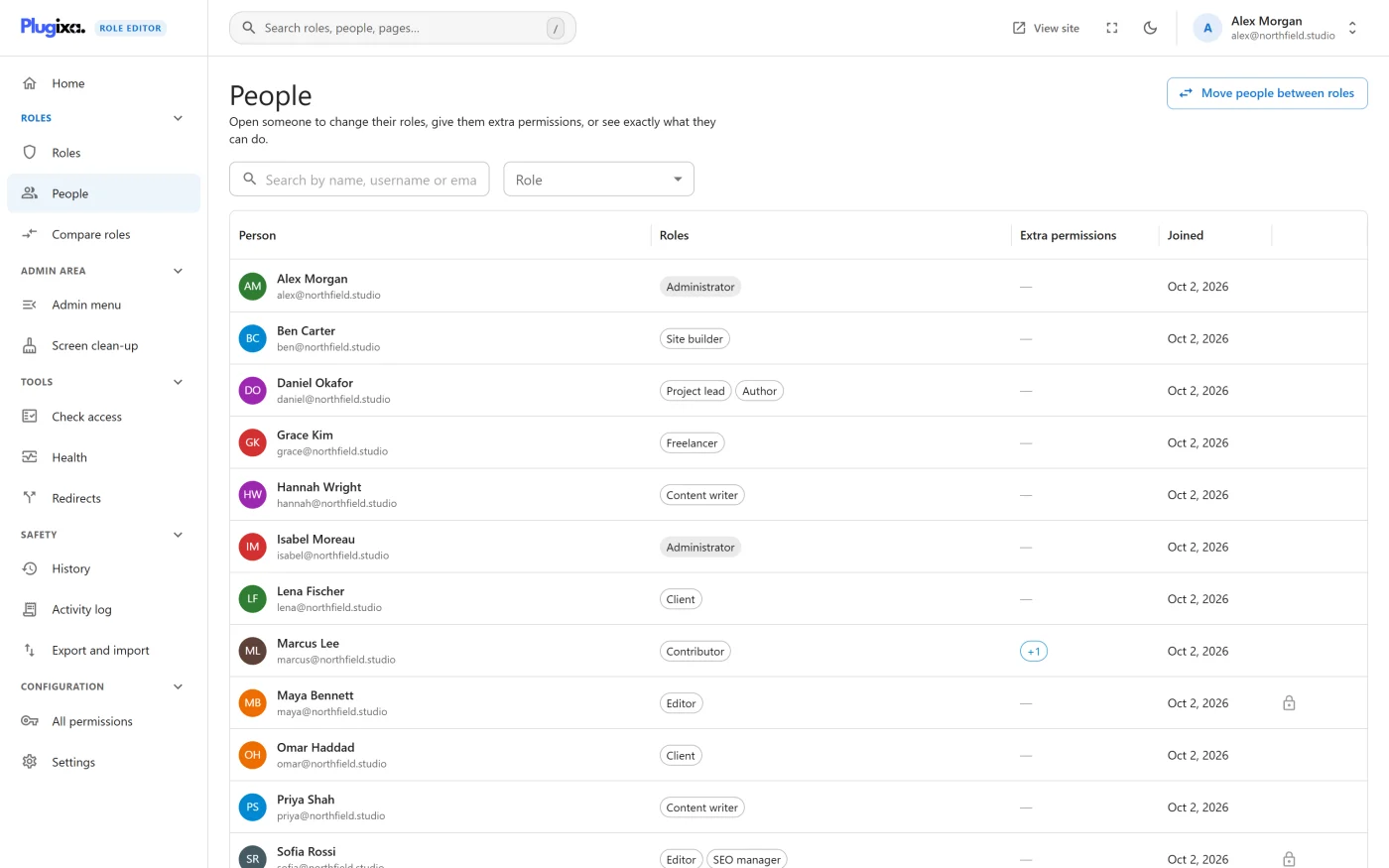
The People list
| Column | What it shows |
|---|---|
| Person | Name and email address |
| Roles | Each role by name, in the order they sit on the account. No role is flagged in amber. |
| Extra permissions | +2 for permissions allowed on the account alone, 1 blocked for permissions blocked on it. A dash when there are none. |
| Joined | The date the account was created |
| (last column) | A lock for an account you cannot change, and Unsaved when you have edits to this person waiting |
Above the table:
- Search by name, username or email. The search matches the start of each, and runs on the server, so it works on sites with a lot of users.
- Role filters the list to one role. The Roles screen and role pages link here with the filter already set.
The list is shown a page at a time, with 10, 25, 50 or 100 people per page. Click a row to open the person.
A person’s page
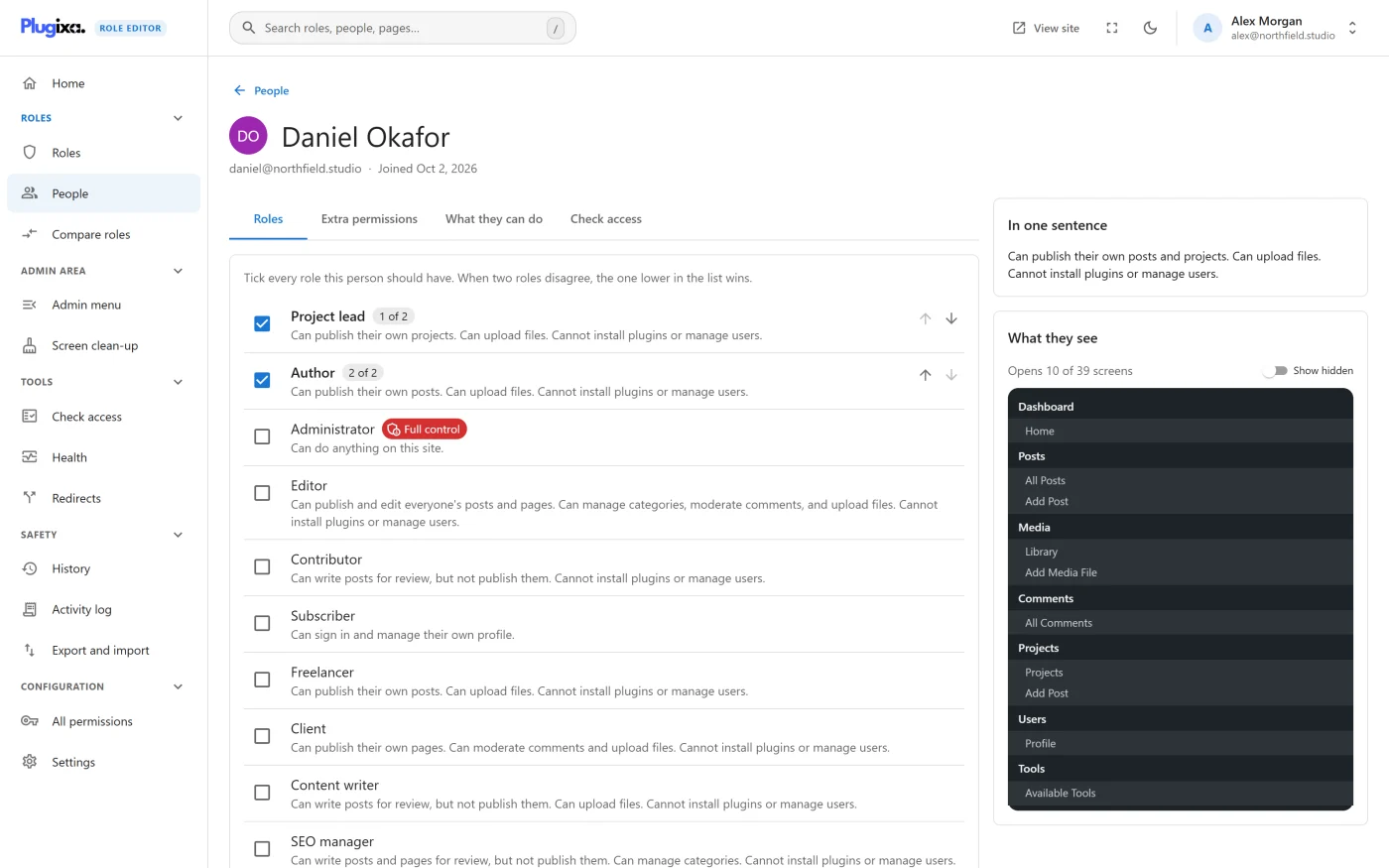
The header shows the person’s name, email address, the date they joined, a risk badge if what they can do amounts to Full control or Can take over the site, and Unsaved changes when you have edits waiting.
The side column has In one sentence, the same kind of summary a role gets but worked out from everything on the account, and What they see, a preview of the WordPress admin menu for this person.
The page has four tabs.
Roles
Tick every role this person should have. The roles they hold are listed first, in order, and the rest follow. Each role shows its summary sentence and risk badge.
Someone with no role can sign in but cannot do anything, which looks exactly like being blocked. The tab warns about this, and saving a person with no roles at all is refused.
Why role order matters
A person can hold several roles. Usually the roles simply add up. They only disagree when one role allows a permission and another blocks it. Then the rule is:
When two roles disagree, the one lower in the list wins.
This is WordPress’s own rule: it applies an account’s roles in order, and a later role overrides an earlier one. So Editor, then No publishing cannot publish, and No publishing, then Editor can.
When a person holds more than one role, each shows its position, such as 1 of 2, and arrows to move it:
| Arrow | Effect |
|---|---|
| Up | Earlier (loses ties) |
| Down | Later (wins ties) |
Reordering is an edit like any other. It joins your unsaved changes, and the review describes it as Same roles in a new order. Where they disagree, a different role now decides.
Extra permissions
Extra permissions apply to this person only, on top of their roles. Each permission has three choices:
| Choice | Meaning |
|---|---|
| Allowed | Adds something no role gives them |
| Not set | Leaves it to their roles |
| Blocked | Takes it away whatever their roles say |
A setting on the account is applied after all of the roles, so it beats every role.
Permissions are grouped by area. Areas with something set on this account are listed first and opened, with a count such as 2 set on this account. Use Find a permission to search.
Use extra permissions sparingly. They are easy to forget when a role changes. The health check lists accounts that have them.
What they can do
Everything their roles and their own account add up to, the way WordPress works it out.
- Content is shown as levels, for example Write and edit: All, Publish: Yes.
- A mix that matches no level is marked Custom mix and shown as the individual permissions it really is.
- Other areas list each permission they have. A blocked permission is struck through.
- Hover a permission to see where it comes from: from Editor, or set on this account.
- Areas where they can do nothing are gathered into one line at the bottom, Nothing in: ….
This tab includes your unsaved edits to the person and to their roles.
Check access
The same tool as the Check access screen, with this person already chosen.
Saving changes to people
Edits to people join the same Unsaved changes bar as edits to roles, and are reviewed and saved together with one restore point. The review lists each person with Now has: …, No longer has: …, and any extra permissions changed. Granting a role or permission that hands over the site asks you to type the person’s name.
Restoring that point from History puts the person back as they were.
Accounts you cannot edit
Some accounts open read-only, with a lock in the list.
| Message | Why |
|---|---|
| This account holds permissions you do not have, so you cannot change it. | One of their roles grants something you do not hold yourself. Nobody can change an account that outranks them. Ask someone who holds those permissions. |
| This is a network administrator. Their access does not come from roles on this site, so there is nothing to change here. | On multisite, a network administrator’s access is not decided by a site’s roles. |
The server applies the same rule, so the change is refused however it is attempted.
Two more rules apply when changing people:
- You cannot give someone a role containing a permission you do not hold.
- On a single site, the only administrator cannot lose the Administrator role. Give another account the role first.
Move people between roles
Move people between roles, at the top of the People list, moves everyone who holds one role to another. It is shown to people who may change users.
| Field | Choice |
|---|---|
| Everyone who holds | The role to move people from |
| Should hold | The role to move them to |
| And their old role | Replace it, Keep it as well, or Just remove it |
With Just remove it, the second role is used only as a fallback for anyone who would otherwise be left with no role.
Press Start. The move runs in the background in batches, so it works on sites with a lot of users. You can close the dialog and come back. While it runs, a banner on the People screen shows progress.
The dialog reports two numbers: Looked at and Moved. When the job finishes it says how many people were actually moved, or that nobody needed moving.
Stop ends the job where it is. Stopping leaves everyone already moved as they are. It does not put them back.
A move is refused when:
- the role to move from is Administrator. Change administrators one at a time on a person’s page.
- the two roles are the same, or nobody holds the first one,
- another move is already running,
- it would hand out or take away permissions you do not hold, or remove your own access to the editor.
What to do next
- Find out why someone can or cannot do something in Check access.
- Find accounts with no role or with extra permissions in Health check.
- Change what a role gives everyone who has it in Editing a role.