

Contents
Export and import - Plugixa Advanced User Role Editor
Plugixa Role Editor -> Safety -> Export and import moves roles between sites. The rule of the screen is in its subtitle: “Nothing is written until you have seen what it would change, role by role.”
Both directions are in the free edition. You need permission to change roles to use either.
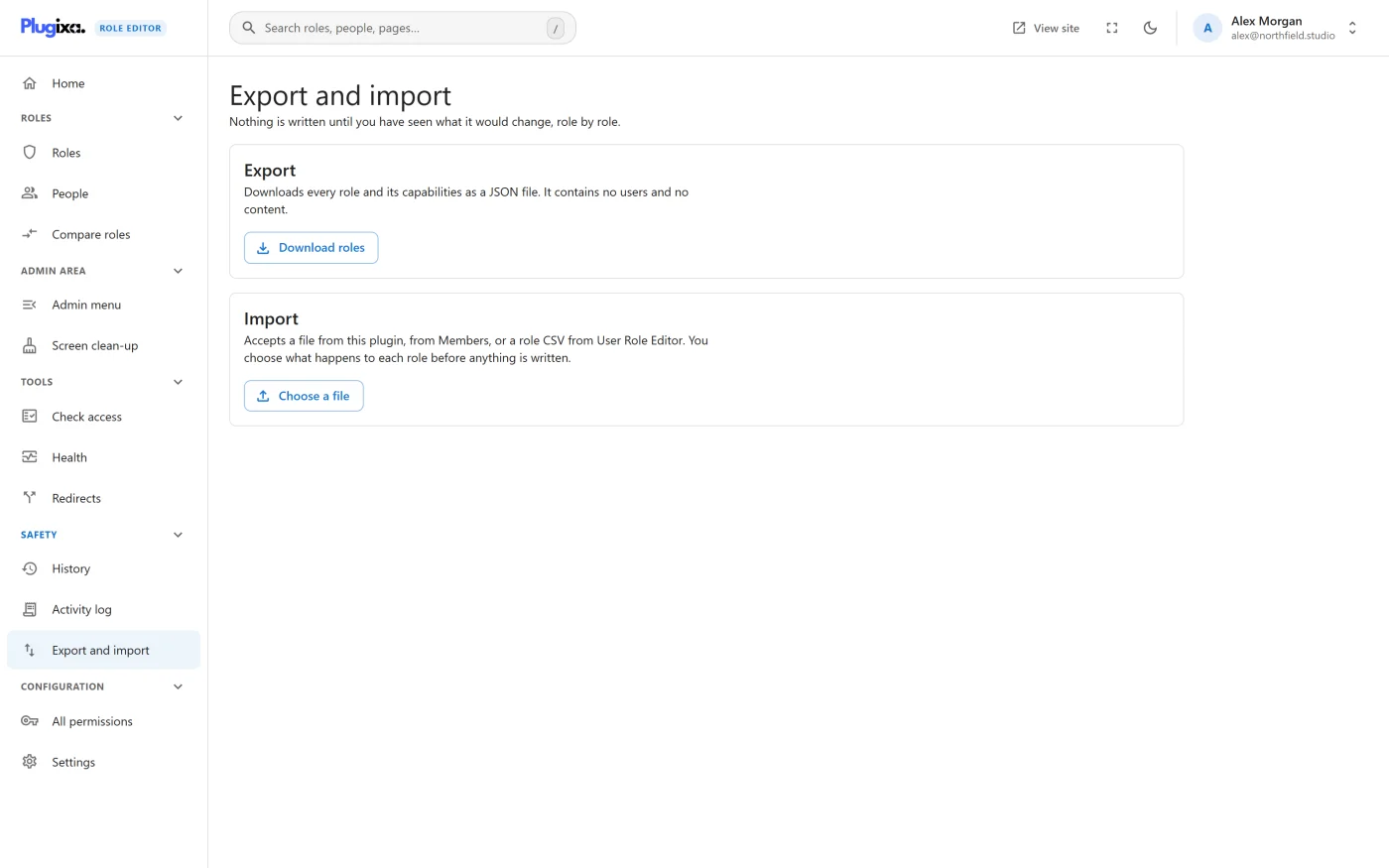
Exporting
Press Download roles. The browser saves a file named
roles-<your-site>-<date>.json.
What the file contains
| Part | Contents |
|---|---|
| Roles | Every role on the site: its machine name, its display name, and each permission it holds, marked as granted or blocked. |
| Details | When the file was made, the site address, the plugin version, the WordPress version and the number of roles. |
| Checksum | A fingerprint of the roles, used on import to tell whether the file was edited afterwards. |
What it does not contain
- No users. Not who holds which role, and not the extra permissions set on individual accounts.
- No content.
- No redirects, settings or restore points.
An export is therefore safe to keep as a backup of your role setup, and it is the only copy that survives uninstalling the plugin.
Formats you can import
| Source | File | Notes |
|---|---|---|
| This plugin | The JSON file from Download roles | Granted and blocked permissions both travel. |
| Members | A JSON export with granted and denied capabilities per role | Denied capabilities arrive as blocks. If a capability is in both lists, it is treated as blocked. |
| User Role Editor | A role CSV: role names across the first row, one capability per row | A filled cell means granted. The format has no way to write a block, so nothing imported from it is blocked. |
The file is recognised by what is inside it, not by its name. The limit is one megabyte, which is far more than a role export needs.
If the file is none of these, you see: “That file is not a role export this plugin can read. It accepts its own JSON exports, and exports from User Role Editor and Members.”
Importing
- Press Choose a file and pick a
.jsonor.csvfile. - Read the preview. Nothing has been written yet.
- Set the choice for each role.
- Press Apply the choices below.
The preview
Above the list, the screen says how the file was read, how many roles it holds, and how many Cannot be imported.
Each role then has its own row:
| Label | Meaning |
|---|---|
| New role | No role with this machine name exists on this site. |
| Already on this site | A role with this machine name exists and differs from the file. |
| Identical, nothing to do | The role exists and matches the file exactly. Its choice is locked. |
Under each row, green chips show what the role would gain and outlined chips what it would lose, by capability name. The first twelve of each are shown, with a count for the rest.
If the role would gain powerful permissions, a warning appears on the row: “This grants full control of the site” or “This grants some powerful capabilities”, with What each one allows to read the detail.
The choices
| Choice | Offered for | What happens |
|---|---|---|
| Create it | New roles | The role is created with the name and permissions in the file. |
| Replace what is here | Existing roles | The role’s permissions and display name are replaced by the file’s. |
| Leave it alone | Every role | Nothing happens to that role. |
The starting choices are the safe ones: new roles are set to Create it, and roles already on the site are set to Leave it alone. Replacing a live role is always something you choose on purpose.
Roles that cannot be imported
You cannot grant a permission you do not hold yourself, and an import is no exception. A role containing one is marked with the reason, for example “You cannot grant “install_plugins”, because you do not hold it yourself.”, and its choice is locked.
An edited file
If the checksum does not match, the screen says: “This file has been edited since it was exported. That is allowed - every capability in it is still checked individually.” Editing an export by hand is fine. The checksum only tells you the file changed; it is not a guarantee of where a file came from, so read the preview of any file you did not make yourself.
Applying
The whole import is checked before any of it is written, so a refusal never leaves half a file applied. A restore point is taken first, like any other change, and the import appears in History.
Afterwards the screen reports “Created: 2 · Replaced: 1 · Left alone: 4”.
What an import does not do
- It does not move people. Roles are created or replaced; nobody is given a role. Assign people afterwards in People.
- It does not delete roles. A role on this site that is not in the file is left as it is.
- It does not rename machine names. Roles are matched by machine name.
Troubleshooting
| Symptom | Usual cause |
|---|---|
| “That file is not a role export this plugin can read.” | The file is not one of the three formats, or a CSV has a header row but no capability rows. |
| “That export contains no roles.” | The file is in this plugin’s format but its role list is empty. |
| “That file is too large to be a role export. The limit is one megabyte.” | The wrong file was chosen. |
| A role is marked as not importable | It holds a permission you do not hold. Import from an account that does. |
| Apply the choices below is greyed out | Every role is set to Leave it alone. |
| Blocks are missing after importing a CSV | Expected. The CSV format cannot carry them. |
What to do next
- Coming from another plugin? Read Migrating from other role plugins.
- Check what arrived in Roles.
- Undo an import from History and restore.