

Contents
Settings - Plugixa Advanced User Role Editor
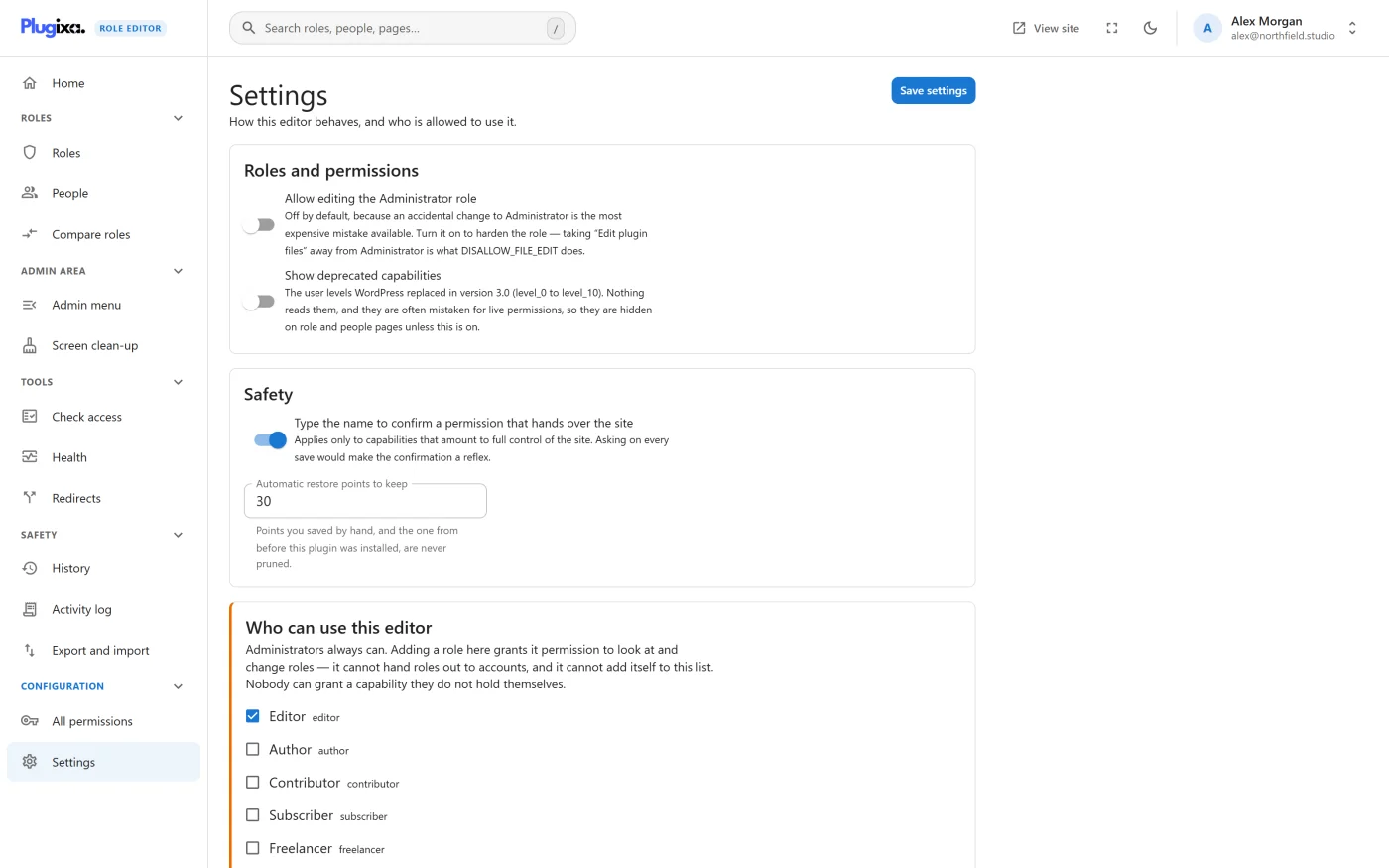
Plugixa Role Editor -> Configuration -> Settings controls how the editor behaves and who is allowed to use it. The screen has four cards.
Saving
The first three cards are saved together with Save settings at the top right. The switches in the Features card save the moment you flip them.
Settings need their own permission. Administrators have it. A role you add under Who can use this editor does not, and sees: “You do not have permission to change these settings.”
Roles and permissions
| Setting | Default | What it does |
|---|---|---|
| Allow editing the Administrator role | Off | While off, any change to the Administrator role is refused. Turn it on to harden the role, for example by taking “Edit plugin files” away from Administrator. |
| Show deprecated capabilities | Off | Shows the user levels WordPress replaced in version 3.0 (level_0 to level_10) on role and people pages. Nothing reads them, and they are often mistaken for live permissions, so they are hidden unless this is on. |
Administrator is locked by default because an accidental change to it is the most expensive mistake available. With the lock on, a save that touches Administrator is refused with “Administrator is locked, so nobody changes the role the site depends on by accident. Turn on editing Administrator in Settings first.”
Safety
| Setting | Default | What it does |
|---|---|---|
| Type the name to confirm a permission that hands over the site | On | Before saving a permission that amounts to full control of the site, you must type the name of the role or person receiving it. It applies only to those permissions; asking on every save would make it a reflex. |
| Automatic restore points to keep | 30 | How many automatic restore points are kept. Accepts 1 to 200. Older ones are removed once a day. |
With the confirmation off, the review still warns about full-control permissions; only the typing is dropped.
For restore points the screen adds: “Points you saved by hand, and the one from before this plugin was installed, are never pruned.” A number outside the range is refused with “Keep between 1 and 200 restore points.”
See History and restore and Safety guardrails.
Who can use this editor
This card lists every role except Administrator, with a tick box each. Nothing is ticked by default, so on a new install only administrators can open the editor.
In the card’s own words: “Administrators always can. Adding a role here grants it permission to look at and change roles - it cannot hand roles out to accounts, and it cannot add itself to this list. Nobody can grant a capability they do not hold themselves.”
So a role you tick here:
| Can | Cannot |
|---|---|
| Open the editor and see roles, people and reports | Change which roles or extra permissions a person has |
| Change what roles can do, up to what its own holders already hold | Change these settings, including this list |
| Use History, Redirects and Export and import | Grant any permission its holders do not have themselves |
This is not an ordinary preference. Ticking a box changes the role itself, so it goes through the same checks as any other role change and takes a restore point. It appears in History, and unticking takes the access away again. Administrator is not in the list because it always has access and cannot lose it here.
Give access with care: a role listed here can change every role on the site up to the limit of what its own holders can already do.
Features
Each part of the plugin has a switch. From the card: “Switching a feature off hides its screen and stops its API answering. Nothing it has saved is deleted, so switching it back on picks up where you left off.”
All features are on by default.
| Feature | Covers | Can be switched off |
|---|---|---|
| Roles | The role pages, creating and editing roles. | No. “Always on. The plugin does not work without it.” |
| Restore points | The restore point before every change, and History. | No. Every other safety feature depends on it. |
| Capabilities | All permissions and Check access. | Yes |
| Health | Permission health and the Home tile. | Yes |
| Users | People, extra permissions and moving people between roles. | Yes |
| Redirects | Redirects per role. | Yes |
| Export and import | The Export and import screen. | Yes |
| Admin menu PRO | Admin menu control. | Yes |
| Screen clean-up PRO | Screen clean-up per role. | Yes |
| Activity log PRO | The activity log. | Yes |
The three Pro features are listed only when the Pro edition is installed.
Two things to know:
- A change takes effect on the next page load. The card says so: “A change here takes effect on the next page load - hooks and routes for this request were decided before you clicked.” Reload the page after flipping a switch.
- Some features need another. Admin menu PRO needs Health, because it uses the same picture of the admin menu. Switching Health off switches Admin menu off with it.
With Users off, changes to people are refused as well as hidden.
Settings that are somewhere else
| Looking for | It is in |
|---|---|
| Where roles go after signing in | Login redirects |
| How long the activity log is kept | Activity log PRO |
What settings are kept
Settings survive deactivating the plugin, and so does the access you gave to roles. Uninstalling removes them. See Privacy and uninstall.
What to do next
- Read what the safety settings protect in Safety guardrails.
- Compare editions in Free vs Pro.
- If a screen has disappeared, see Troubleshooting.