

Contents
History and restore - Plugixa Advanced User Role Editor
Plugixa Role Editor -> Safety -> History lists every change made with the plugin as a sentence, newest first and grouped by day, with a way back from each one. Restoring puts roles and the people a change touched back as they were.
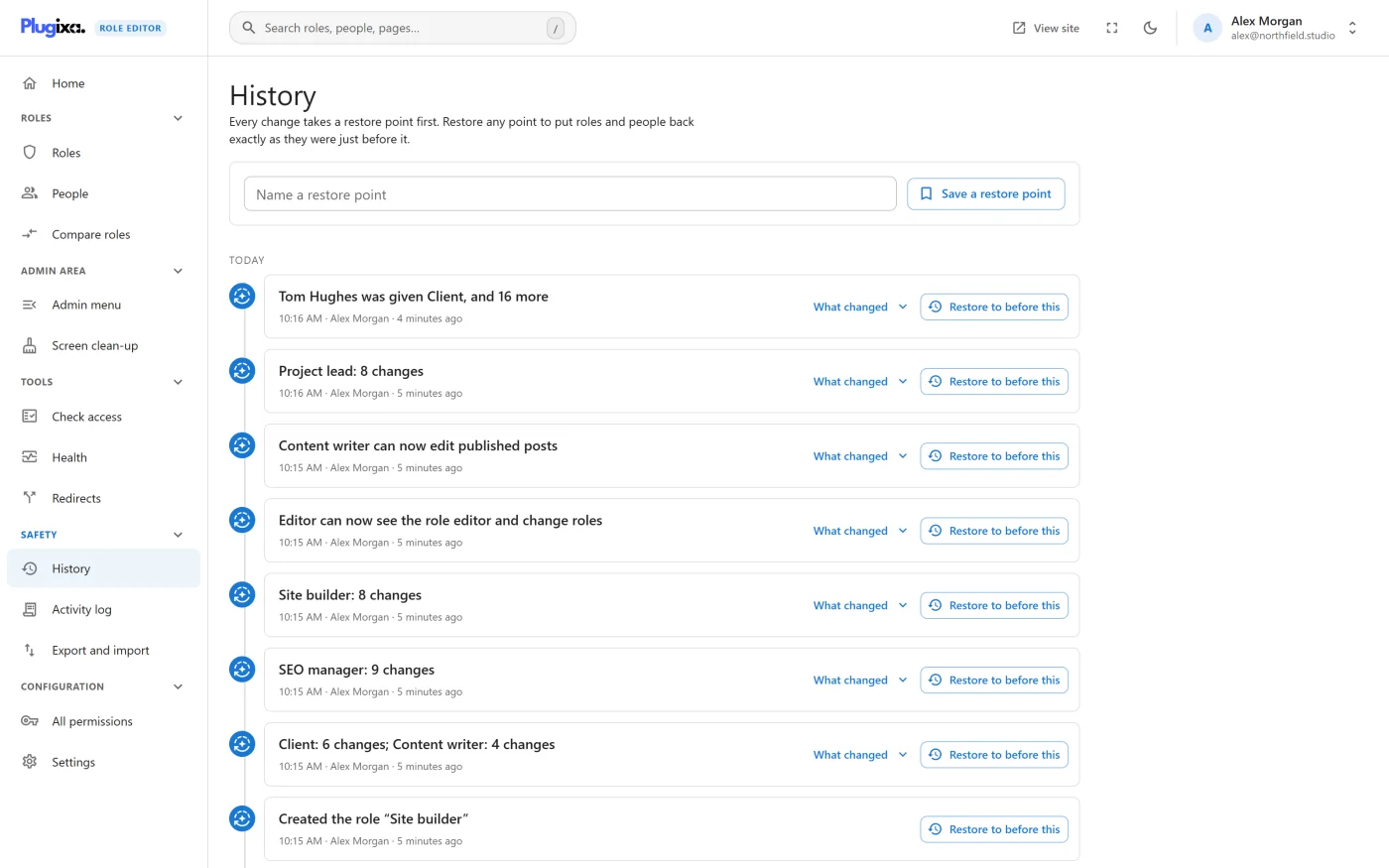
Restore points are automatic
A restore point is taken before every change, without you asking. One save is one restore point, however many roles and people it covered.
Each entry shows:
- A sentence describing the change, such as “Editor can now manage menus and widgets”, “Created the role “Client”” or “Jane was given Editor”. A larger change reads “Editor: 7 changes”.
- The time, who made it, and how long ago.
- What changed - a button that opens the detail, line by line, for each role and person in that change.
- A restore button.
Restore points cannot be switched off. Every other safety feature assumes a mistake can be undone, so the only control is how many to keep.
You need permission to change roles to open History.
Before this plugin was installed
The oldest entry is Before this plugin was installed. It is taken once, when the plugin is first activated, before anything has been changed. Restoring it undoes everything ever done with the plugin.
Deactivating and reactivating does not take another one. Uninstalling removes all restore points, so a later fresh install takes a new one.
Named points saved by hand
At the top of the screen, type a name in Name a restore point (for example “Before the client handover”) and press Save a restore point. It appears in the timeline with a bookmark icon.
Save one before a piece of work you may want to abandon as a whole.
What changed
What changed opens a list under the entry. Each role or person is named, and under it each line says what was added, removed or blocked, with the area it belongs to. Additions are green and blocks are red.
A change that undid itself within one save does not appear as a difference.
Restoring
The button reads differently depending on the kind of entry:
| Entry | Button | What you get back |
|---|---|---|
| A change | Restore to before this | The site as it was just before that change. |
| A named point, or the install point | Restore this point | The site as it was when the point was taken. |
Pressing it opens a confirmation: “Roles and people go back to exactly how they were at [time]. Anything changed since then is undone too.” That last sentence matters. Restoring is not “undo this one change and keep the later ones”; it returns the whole site to that moment.
What a restore does:
- Roles go back to the permissions and names they had. Roles that had been deleted since are created again. Roles that did not exist at that point are removed, except Administrator, which is never removed.
- People whose roles or own permissions were changed by the saves covered by that point get them back. A point keeps up to 500 accounts.
The button is disabled, with the tip “The site already matches this point.”, when restoring would change nothing.
A restore is recorded too
A restore takes its own restore point first and appears in History as “Restored to before …”. The confirmation says so: “The restore is recorded with its own restore point, so you can undo it straight away.” The notice after restoring has an Undo button for exactly that.
When a restore is refused
A restore is checked as a whole before any of it is written, by the same rules as an ordinary save. It is refused if it would lock you out, leave the site without an administrator, or grant something you do not hold yourself. See Safety guardrails.
One refusal is specific to restoring:
At this restore point the role “Client” did not exist, and people hold it now. Move them to another role first, then restore.
The point cannot know where those people should go, so it does not guess.
Two rules are relaxed for a restore, because it returns the site to a state it has already been in: it does not ask you to type a name to confirm, and it can put the Administrator role back even while Administrator is locked in Settings.
Undo the last change
You do not have to open History for the most recent change:
- Right after saving, the notice “Saved. A restore point was taken first.” has an Undo button.
- On Home, Undo the last change shows what the last change was and who made it, and restores to just before it. “Undoing is recorded too, so you can change your mind again.”
How many are kept
Settings -> Safety -> Automatic restore points to keep sets the number. The default is 30 and it accepts 1 to 200. Older automatic points are removed once a day.
Only automatic points count towards the limit and only they are removed. In the words of the setting: “Points you saved by hand, and the one from before this plugin was installed, are never pruned.”
What History does not cover
- Redirects and settings are not part of a restore point. A restore point holds roles and the people a change touched.
- Uninstalling removes every restore point. To keep a copy of your roles beyond that, use Export and import.
- Undoing one change while keeping later ones, and seeing who changed what in detail, belong to the Activity log PRO.
What to do next
- Set the retention in Settings.
- Keep an off-site copy with Export and import.
- Read the rules a restore must pass in Safety guardrails.