

Contents
Getting started - Plugixa Advanced User Role Editor
This page takes you from installing the plugin to making a change and undoing it again. Nothing has to be configured first, and the walk-through leaves your site exactly as it found it.
Install
From a ZIP
- In wp-admin, go to Plugins -> Add New -> Upload Plugin.
- Choose the plugin ZIP and install it.
- Activate.
By hand
Upload the plugin folder to /wp-content/plugins/, then activate it from
Plugins.
Requirements
- WordPress 6.5 or higher
- PHP 8.2 or higher
On activation you are shown an opt-in screen from Freemius, the service used for licensing and updates. You can skip it. See Privacy and uninstall for what is and is not sent.
What activation does
- Takes the first restore point, labelled Before this plugin was installed. It is your roles as they were before the plugin touched anything, and it is never pruned.
- Gives the Administrator role access to the editor. No other role gets access unless you add it under Settings -> Who can use this editor.
- Stores the plugin’s default settings.
It does not change any of your existing roles.
Where the menu is
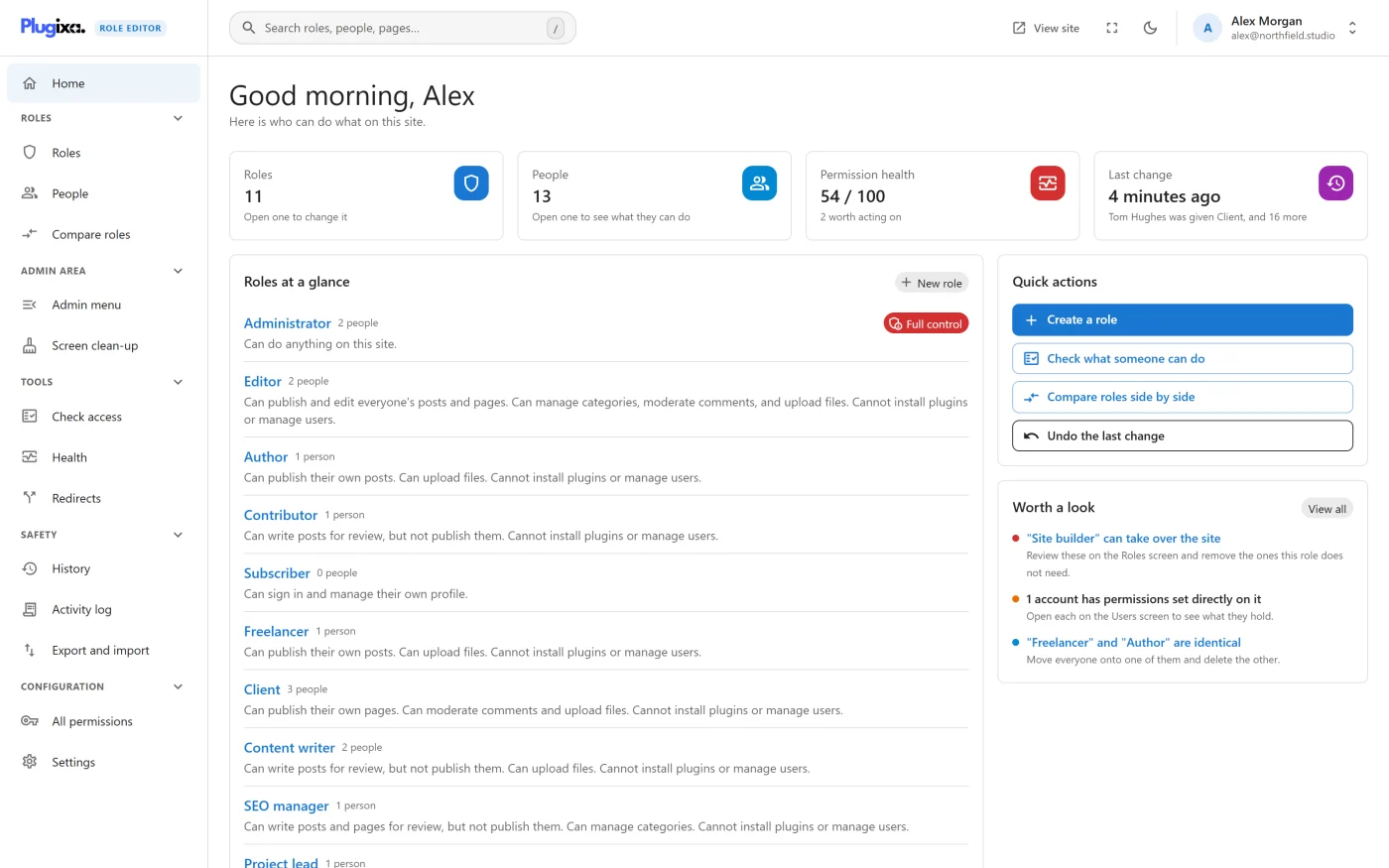
Open Plugixa Role Editor in the WordPress admin menu. It is a top-level item directly below Users.
The editor is one screen with its own sidebar, not a list of WordPress submenus. Home sits at the top, and the rest is grouped under headings.
| Group | Screens |
|---|---|
| Roles | Roles, People, Compare roles |
| Admin area PRO | Admin menu, Screen clean-up |
| Tools | Check access, Health, Redirects |
| Safety | History, Activity log PRO, Export and import |
| Configuration | All permissions, Settings |
The header carries a search box that finds roles, people and screens from
anywhere in the editor. Press / to open it. Beside it are View site, a
full-screen switch, a light and dark switch, and an account menu with Exit to
WordPress.
Search, full screen and the header
The bar across the top of the editor is the same on every screen.
Search
The search box reads Search roles, people, pages… Click it, or press /
anywhere in the editor, to open the search palette. / typed into a field, or
while a dialog or menu is open, is still an ordinary slash. The shortcut is /
and not Ctrl+K, because WordPress uses Ctrl+K for its own command palette on
the same screen.
The palette lists three kinds of result, each under its own heading.
| Heading | What it finds | How it matches |
|---|---|---|
| Roles | A role, by name or by slug. Opens the role’s page | From the first letter. Upper and lower case and accents are ignored. Names that start with what you typed come first, then slugs that start with it, then any other match |
| People | A person. Opens the person’s page | From two letters, searched on the server. Listed only when you are allowed to edit people |
| Go to | Every screen in the sidebar, with its group beside it | By the screen’s name. With nothing typed, every screen is listed |
Each of Roles and People shows at most eight results. A screen whose feature is switched off in Settings is not listed, and neither are its results.
| Key | What it does |
|---|---|
/ |
Opens the palette |
| Up and Down arrows | Move through the results |
Enter |
Opens the highlighted result |
Esc |
Closes the palette |
The palette opens empty each time. If nothing matches, it says so and quotes what you typed.
Full screen
The full-screen button hides the WordPress admin menu and the admin bar and
gives the whole browser window to the editor. Press it again, or press Esc, to
come back. The button appears only when the browser allows full screen. If the
browser refuses the request, nothing happens and the screen stays as it was.
Dialogs, menus and notices keep working in full screen, and switching in or out does not reload the page, so unsaved changes stay where they are.
Light and dark
The light and dark switch changes the editor’s colours. The first time you open the editor it follows your device’s setting. Once you use the switch, your choice is remembered in that browser. It is not stored on the site, so each device and each person keeps their own.
The rest of the bar
- View site opens the front of the site in a new tab. It is hidden on narrow screens.
- The account menu shows who is signed in, with Profile, All users, Exit to WordPress and Log out. It shows the first letter of your name instead of a profile picture, so no image is requested from another service.
- A sidebar group can be folded by clicking its heading. Folded groups are remembered in that browser.
On a narrow screen the sidebar is hidden behind a menu button at the left of the bar, and the search box shrinks to an icon.
Your first change
The walk-through below gives the Author role one extra permission, saves it, and then undoes it.
1 - Open a role
Go to Roles and click Author. The page opens with a sentence describing what the role can do, the number of people who have it, and the permissions below.
2 - Change something
Scroll to the Comments card and switch on Moderate comments.
Nothing has been saved. The edited row is marked, the role shows an Unsaved changes badge, and a bar appears at the bottom of the screen:
- the number of edits waiting,
- People affected, the number of people the edits reach,
- Discard and Review and save.
The bar follows you between screens, so you can edit several roles and people and save them together.
3 - Review
Press Review and save. The Review changes dialog lists every change in words, grouped by role and by person, for example Can now: Moderate comments. The line under the title says how many changes there are, how many people they affect, and that a restore point is saved first.
If a change cannot be saved, for example because it would remove your own access to the editor, the reason is shown at the top and Save changes stays disabled. If a change hands over control of the site, the dialog asks you to type the name of the role or person receiving it.
4 - Save
Press Save changes. A notice confirms Saved. A restore point was taken first. and offers Undo straight away.
5 - Undo it from History
Go to History under Safety. The change is at the top, written as a sentence such as Author can now moderate comments. Choose Restore to before this, confirm, and the Author role goes back to how it was. The restore is recorded with its own restore point, so it can be undone too. See History and restore for the details.
You can also undo the most recent change from Home, with Undo the last change under Quick actions. Undoing is itself recorded, so you can change your mind again.
Letting someone else use the editor
Administrators have access straight away. To let another role use the editor without making its holders administrators, add the role under Settings -> Who can use this editor. See Settings.
If you are locked out
If every account has lost access to the editor, run this over SSH with WP-CLI:
wp plugixa-aure rescue <user>
It prints a one-time link, valid for fifteen minutes and only while signed in as that account, which gives the account the Administrator role back. It is recorded in History like any other change.
The other commands the plugin adds are listed in WP-CLI commands.
What to do next
- Learn the opening screen in Home.
- Build a role for a real job in Creating a role.
- Understand levels and switches in Editing a role.
- Give one person something their role does not in People.
- Read the rules that protect you in Safety guardrails.