

Contents
Roles - Plugixa Advanced User Role Editor
A role is a named set of permissions. Everyone with the role gets exactly these. The Roles screen lists every role on the site, the ones WordPress ships with and the ones added by you or by plugins, each described in words rather than as a count of capabilities.
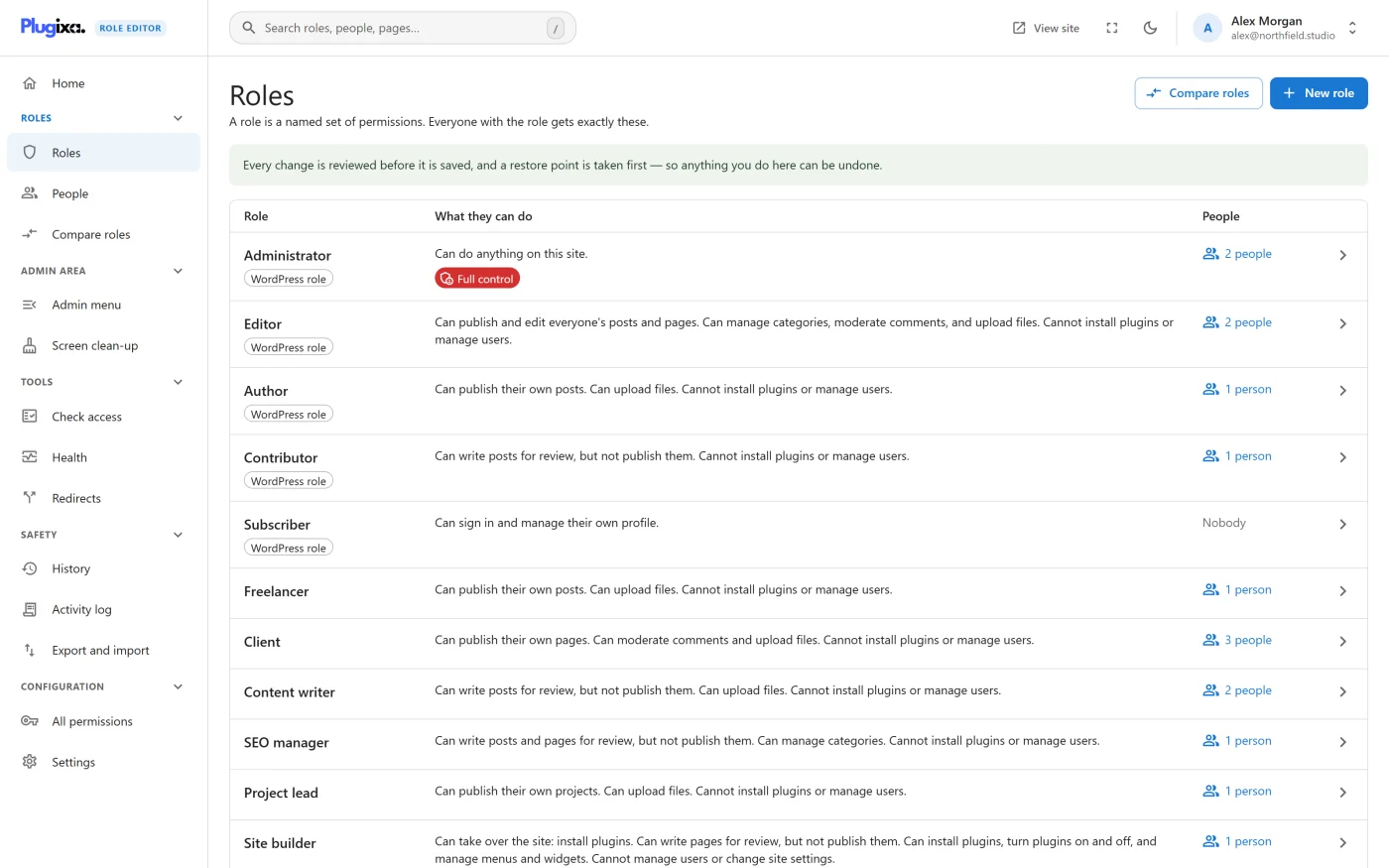
A line above the table is a reminder of how the editor works: every change is reviewed before it is saved, and a restore point is taken first, so anything you do here can be undone.
The columns
| Column | What it shows |
|---|---|
| Role | The role’s name, with a WordPress role badge on the five roles WordPress ships with, and an Unsaved badge when you have edits to it waiting |
| What they can do | A short summary of the role, and a risk badge where one applies |
| People | How many people have the role, as a link to those people |
Click anywhere on a row to open the role’s page.
The summary sentence
The summary is built the same way for every role, so two roles can be compared by reading them. It never lists everything. It answers, in order:
- Whether the role can take over the site, and through which permission.
- What content it can publish or edit, for example Can publish and edit everyone’s posts and pages or Can write posts for review, but not publish them.
- Up to three notable things it can do, such as installing plugins, changing the theme or moderating comments.
- Up to two things people often assume a role can do and this one cannot.
Three cases have a sentence of their own:
| Sentence | When |
|---|---|
| Can do anything on this site. | The role has full control |
| Can sign in and manage their own profile. | The role’s only permission is signing in |
| Cannot do anything on this site yet. | The role has no permissions at all |
The badges
| Badge | Meaning |
|---|---|
| WordPress role | One of Administrator, Editor, Author, Contributor or Subscriber |
| Full control | The role can change site settings, change people’s roles, turn plugins on and off and edit other people’s accounts. It can do anything on the site, including changing who else can |
| Can take over the site | The role holds at least one permission marked Hands over the site, so one of its permissions leads to administrator access |
| Unsaved | You have edits to this role in the Unsaved changes bar |
A role without a risk badge holds no permission that leads to administrator access.
People counts
The People column shows Nobody for a role no one holds. Otherwise it shows the number of people as a link that opens People filtered to that role.
Counts are refreshed after every change made in the editor, and otherwise cached for a few minutes. On a site where counting has been switched off for speed, the column shows Not counted.
Buttons at the top
| Button | What it does |
|---|---|
| Compare roles | Opens Compare roles |
| New role | Opens the New role wizard |
Duplicate, rename and delete
These are done from the role’s own page. Open the role, then use Duplicate or the More actions menu at the top.
Duplicate
Duplicate opens the New role wizard on the Name step with the role’s permissions loaded and the name set to <Role> copy. Nothing is created until you finish the wizard.
Rename
Rename changes only the name people see. People keep the role, and its permanent name, shown small beside the badges on the role page, does not change. The rename is saved as soon as you confirm it.
Delete
Delete role asks for confirmation.
- If nobody has the role, nothing else changes.
- If people have it, you choose the role they get instead, so nobody is left unable to sign in. Administrator is not offered as the replacement.
A restore point is taken first, and you can bring the role back from History.
Reset to WordPress defaults
For the five WordPress roles, Reset to WordPress defaults puts every WordPress permission back to what a fresh site gives the role. Permissions added by plugins are left alone. The reset is added to your unsaved changes, so nothing is saved until you review it.
What the editor allows and refuses
| Action | Rule |
|---|---|
| Deleting Administrator | Refused. WordPress needs the role, and a site without one cannot be recovered from this screen. |
| Deleting Editor, Author, Contributor or Subscriber | Allowed |
| Editing Administrator | Locked by default. The page says Administrator always keeps every permission and Rename, Reset, Add a permission by name and Delete are disabled. Turn on Allow editing the Administrator role in Settings to change it. Duplicate still works. |
| Deleting a role people hold, without a replacement | Refused |
| Moving people to a replacement role containing permissions you do not hold | Refused |
| Resetting a role that is not a WordPress role | Not offered. The menu item reads Reset (WordPress roles only). |
| Two roles with the same name | Refused when creating a role |
What to do next
- Change what a role can do in Editing a role.
- Make a new one in Creating a role.
- Bring a deleted role back in History and restore.