

Contents
Editing a role - Plugixa Advanced User Role Editor
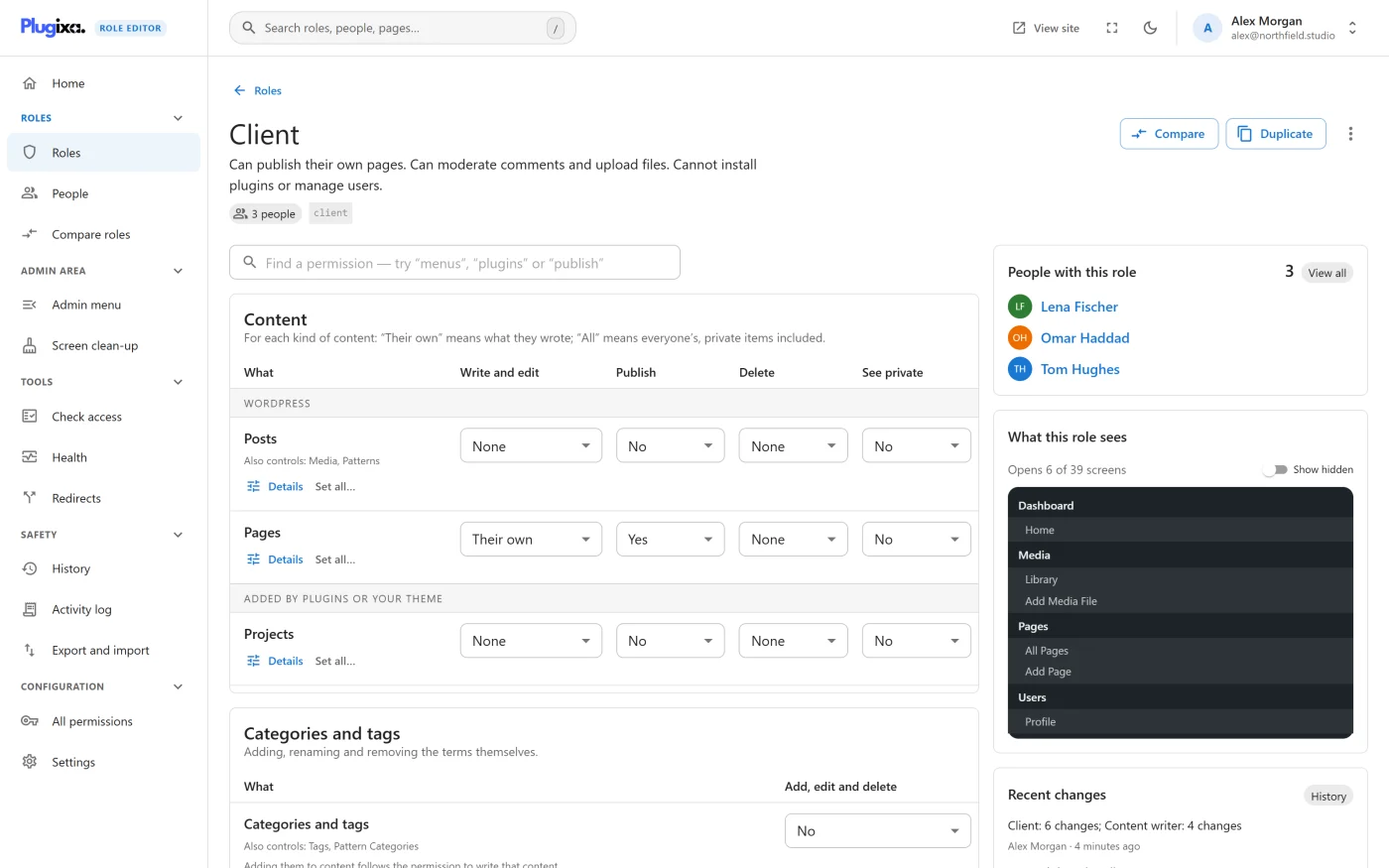
Each role has a page of its own. The top says what the role can do in a sentence and how risky it is, the main column is where you change it, and the side column shows who has the role and what they see in the WordPress admin.
Nothing on this page saves by itself. Every level and switch you change joins the Unsaved changes bar at the bottom of the screen, and the summary sentence, the badges and the menu preview update straight away from the unsaved state.
The header
Under the role’s name you will find the summary sentence, the number of people who have the role, a Full control or Can take over the site badge where one applies, an Unsaved changes badge when you have edits waiting, and the role’s permanent name in small type.
| Button | What it does |
|---|---|
| Compare | Opens Compare roles with this role against all the others |
| Duplicate | Starts the New role wizard from a copy of this role |
| More actions | Rename, Reset to WordPress defaults, Add a permission by name, Delete role. See Roles. |
Content levels
The Content table has a row for each kind of content, such as Posts and Pages and any content types plugins add, and a dropdown for each action.
| Action | Choices | What they mean |
|---|---|---|
| Write and edit | None, Their own, All | Their own is only what they wrote. All is everyone’s, private drafts included. |
| Publish | No, Yes | Publishing also lets them edit what is already published, their own or everyone’s, following Write and edit. |
| Delete | None, Their own, All | Their own covers their published items too when Publish is Yes. |
| See private | No, Yes | Reading other people’s private items. |
Publish has no Their own, because WordPress does not tie publishing to who wrote the item. Write and edit Their own with Publish Yes is what an Author has. Write and edit All with Publish Yes is what an Editor has.
How levels map to capabilities
A level is only a way of reading and writing WordPress capabilities. Nothing extra is stored. For Posts the mapping is:
| Choice | Capabilities |
|---|---|
| Write and edit: Their own | edit_posts |
| Write and edit: All | edit_posts, edit_others_posts, edit_private_posts |
| Publish: Yes | publish_posts, edit_published_posts |
| Delete: Their own | delete_posts, plus delete_published_posts when Publish is Yes |
| Delete: All | delete_posts, delete_published_posts, delete_others_posts, delete_private_posts |
| See private: Yes | read_private_posts |
Other kinds of content use their own capability names in the same pattern.
Things the table tells you
- Linked changes. Setting Write and edit to None also turns off Publish and Delete, and turning on Publish or Delete for a role that cannot write turns Write and edit on. A note under the row says what else moved, for example Also turned off Publish and Delete.
- Also controls. Some kinds of content share permissions. The row names them, so changing Posts never changes something else without saying so.
- Custom. If a role’s permissions for a row match no combination of levels, the row shows a Custom badge, the nearest levels marked with an asterisk, and what differs: Also has: … and Missing: …. Choosing a level replaces the custom mix with that level.
- Blocked. A Blocked badge with a count means the role blocks some permissions in that row. Hover it to see which.
- No ownership. A content type that does not track who wrote what offers only two choices for each action, and has a View column.
Details and Set all
Each row has two small buttons.
Details opens every permission behind the row, each with its plain label, its capability name and three choices: Allowed, Not set and Blocked. This is where you set anything a level cannot express.
A block takes the permission away even when another role on the same account gives it, as long as this role comes later on that account. See People for how role order works.
Set all… sets the whole row at once:
| Choice | Result for a content row |
|---|---|
| None | Clears the row |
| Their own | Write and edit Their own, Publish Yes, Delete Their own, See private No |
| All | Everything at its highest, private items included |
Categories and tags
A second table covers categories, tags and other taxonomies: adding, renaming and removing the terms themselves. Depending on the taxonomy there is one column for adding, editing and deleting together, or separate columns for Add and edit, Delete and Assign to content. Each is Yes or No.
The other sections
Everything that is not content is a card of switches, one sentence per permission, with a count in the corner such as 2 of 6.
| Card | What it covers |
|---|---|
| Basics | Signing in, and a few things that apply everywhere |
| Media | Uploading files. Editing and deleting files follows the permissions for Posts. |
| Comments | Approving, editing and removing comments |
| Appearance | Menus, widgets and the site editor, and themes |
| Plugins | Turning plugins on and off, installing, updating, deleting, editing plugin files |
| Users | Other people’s accounts. Everyone can always edit their own profile. |
| Settings and tools | Site settings, import and export, and updates |
| Network | Multisite permissions that control every site in the network |
| Plugin cards | Permissions registered by plugins, under the plugin’s name |
| Other permissions | Registered permissions that belong to no other card |
| Added by you | Permissions added by name |
| Unknown source | Permissions roles hold that nothing on the site registers, in a card with a dashed border |
Which cards appear depends on your site.
Each switch shows the permission’s label, a line on what it allows, and its capability name. Permissions marked Hands over the site or High impact carry that badge.
A switch is on or off. If the permission is blocked on this role, the row says Blocked, and switching it on removes the block. To block something, use Details on a content row or the Compare roles screen.
The old WordPress user levels (level_0 to level_10) are hidden unless
Show deprecated capabilities is on in
Settings.
The permission search
The box at the top, Find a permission - try “menus”, “plugins” or “publish”, filters the page as you type. It matches the words on screen, not only capability names, so menus finds Manage menus, widgets and the site editor. If nothing matches, clear the search or try a different word.
What this role sees
The side column draws the WordPress admin menu the way WordPress would draw it for this role, in the admin’s own colours. Above it is a count such as Opens 14 of 52 screens.
Turn on Show hidden to see the items the role cannot open, struck through with a lock. Hover one to see which permission it needs.
The preview follows your unsaved edits, so switching on an Appearance permission makes Appearance appear before anything is saved. It is read-only. It shows what the role’s permissions already decide and hides nothing itself. To hide menu items from a role, see Admin menu control PRO.
The card is part of the Health feature and is not shown when that feature is switched off.
People with this role
The first five people who have the role, each linking to their page. A +2 roles badge marks someone who holds other roles as well. View all opens People filtered to this role.
Below it, Recent changes lists the last four History entries that touched this role.
Review and save
Press Review and save on the Unsaved changes bar. The bar also offers Discard, which throws every unsaved edit away.
The Review changes dialog shows, in order:
- Anything that stops the change. This cannot be saved, with the reason. Save changes stays disabled until you fix it.
- What changes. Each role with the number of people who have it, then each area as levels (Write and edit: Their own -> All) or permissions (Can now: …, No longer: …, Blocked: …, Block removed: …).
- Powerful permissions. What each one allows.
Press Save changes. One restore point is taken for everything in the dialog, and the notice that follows offers Undo.
Confirming Full-control permissions
When a change grants a permission marked Hands over the site, the dialog turns red under the heading This hands over control of the site, lists each such permission with what it allows, and asks you to type the name of the role receiving it, for example Type “Editor” to confirm. Save changes stays disabled until the name matches. The server checks the confirmation as well.
Permissions marked High impact are listed under This grants some powerful permissions and need no typing.
Typing the name can be switched off in Settings.
Changes that are refused
| Reason | What to do |
|---|---|
| You do not hold the permission yourself | Ask someone who holds it to make the change |
| The change would remove your own access to the editor | Grant the access to another role you hold first, or make the change from an administrator account |
| Administrator is locked | Turn on Allow editing the Administrator role in Settings |
| Someone else changed the role after you opened the screen | Reload to see their change, then make yours again |
The full list is in Safety guardrails.
What to do next
- See the role beside others in Compare roles.
- Test the result for a real person in Check access.
- Undo a save in History and restore.