

Contents
Import / Export - Plugixa Testimonial
Move testimonials in and out of the plugin in two formats: JSON and CSV. Useful for migrating from other testimonial plugins, backing up content, syncing staging and production, and bulk editing in a spreadsheet.
Export
From the admin
- Go to Plugixa Testimonial → Testimonials.
- Select the rows you want (or don’t select any to export all).
- Bulk actions → Export (JSON or CSV).
Formats
| Format | Use case |
|---|---|
| JSON | Full fidelity - every field, every custom field, every translation link. Import it back for a loss-less restore. |
| CSV | Spreadsheet-friendly - for bulk editing in Excel or Google Sheets, then re-importing. |
| PDF PRO | A formatted document to send to a client or attach to a proposal. Export only; see PDF export. |
JSON structure
{
  "version": "1.0",
  "exported_at": "2026-04-17T10:30:00Z",
  "plugin_version": "1.x.x",
  "categories": [
    {
      "id": 1,
      "name": "Product Reviews",
      "slug": "product-reviews",
      "description": "...",
      "display_order": 0,
      "translation_group": "abc-123...",
      "language_code": "en"
    }
  ],
  "testimonials": [
    {
      "id": 42,
      "client_name": "Jane Doe",
      "client_role": "CEO",
      "client_company": "Acme Inc",
      "testimonial_text": "<p>Excellent service...</p>",
      "rating": 5,
      "is_featured": true,
      "video_url": "https://youtu.be/...",
      "website_url": "https://acme.com",
      "status": "approved",
      "display_order": 0,
      "source": "manual",
      "categories": ["product-reviews", "enterprise"],
      "custom_fields": {
        "industry": "SaaS",
        "team_size": "50-200"
      },
      "translation_group": "def-456...",
      "language_code": "en",
      "created_at": "2026-01-15T10:30:00"
    }
  ],
  "custom_field_definitions": [ ... ]
}
CSV columns
Default columns:
client_name, client_role, client_company, testimonial_text, rating,
website_url, video_url, status, is_featured, display_order,
source, language_code, translation_group, created_at,
categories   (pipe-delimited slugs, e.g. "product-reviews|enterprise")
Plus one column per custom field: cf__{field_key} (e.g., cf__industry).
Import
From the admin
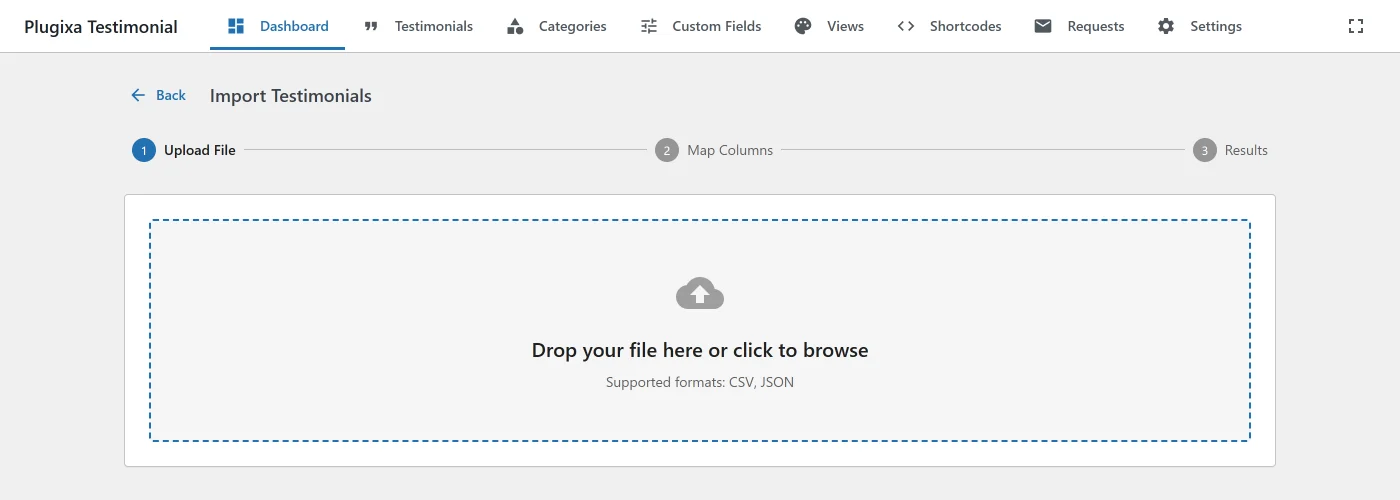
- Go to Plugixa Testimonial → Testimonials → Import.
- Upload a JSON or CSV file (drag-and-drop or file picker).
- Review the preview - you’ll see how many items will be created vs updated.
- Click Import.
Import behavior
- New items - created with
status = draftby default (override in the import dialog). - Existing items - matched by
translation_group(JSON) or by exactclient_name + testimonial_textmatch (CSV). If a match exists, the row is updated. - Categories - auto-created if a slug in the file doesn’t exist.
- Custom fields - values are set for existing field definitions; new keys create new
textdefinitions (rename the type afterwards). - Translations -
translation_groupUUIDs are preserved so links survive the round-trip. - Video URLs - copied as-is.
Conflict handling
| Conflict | Behavior |
|---|---|
| Duplicate slug (category) | Suffixed with -2, -3, etc. |
| Missing category | Created. |
| Missing custom-field definition | Created as text type. |
Invalid HTML in testimonial_text |
Stripped via wp_kses_post. |
| Photo URL | Not imported - photos must be re-attached manually from the Media Library. |
REST API
# Export JSON
GET /wp-json/plugixatestimonial/v1/import-export/export?format=json

# Export CSV (specific category)
GET /wp-json/plugixatestimonial/v1/import-export/export?format=csv&category_id=5

# Import
POST /wp-json/plugixatestimonial/v1/import-export/import
Content-Type: multipart/form-data
# field "file" containing the JSON/CSV
All endpoints require the admin capability. CSV and JSON export are in the free build; only PDF export needs Pro.
Migrating from other testimonial plugins
| Source plugin | Approach |
|---|---|
| Strong Testimonials | Export via its native CSV, rename columns to match Plugixa’s, import. |
| Easy Testimonials | Export as CSV, map person_name → client_name, person_company → client_company, import. |
| WP Customer Reviews | Most data lives in wp_comments - export with WP-CLI, transform to JSON, import. |
| Custom post type testimonials | WP-CLI: wp post list --post_type=testimonial --format=json → transform to Plugixa’s JSON shape → POST to /import. |
For all migrations, we recommend:
- Stage on a dev site first.
- Back up the DB before running a production import.
- Review a sample batch (20–50) before full import.
- Photos must be re-attached - do that last, after content is imported and approved.
CLI (advanced)
If you have WP-CLI access:
# Export all testimonials to JSON
wp plugixa-testimonial export --format=json > testimonials-backup.json

# Import
wp plugixa-testimonial import testimonials-backup.json
CLI commands are registered when the plugin boots in CLI context.
Hooks
There are no import or export hooks. The plugin fires eight filters in total and no actions; see the Hooks Reference for the full list and what each one can change.
Troubleshooting
Import stopped midway
Large imports time out. Split into smaller batches (< 500 rows per file). The process resumes cleanly on the next run - no duplicates if translation_groups are present.
CSV with non-English characters mangles
Re-save the CSV as UTF-8 with BOM in Excel (or --encoding=utf-8 in LibreOffice). The importer assumes UTF-8.
Export returns 500 / blank
Most often a memory or timeout issue with large exports. In wp-config.php, raise WP_MAX_MEMORY_LIMIT to 512M and PHP max_execution_time to 300. For truly large datasets (10k+ rows), export per-category or per-language.
Photos are missing after import
Photos are not part of import/export - they stay in the Media Library as WP attachments. After importing testimonials, re-attach photos manually by editing each testimonial.
For a photo-preserving migration, you need to also export/import wp_posts rows with post_type=attachment and the wp-content/uploads directory separately.