

Contents
Troubleshooting - Plugixa Testimonial
Common issues and how to fix them. If your problem isn’t here, collect the debug info at the bottom and contact support.
Plugin not appearing in admin
Symptom: You installed and activated the plugin but no Plugixa Testimonial menu appears.
Causes & fixes:
- User role - only users with
manage_optionsor one of the five plugin capabilities (plugixa_testimonial_manage,_edit,_delete,_approve,_settings) see the admin menu. Grant the capability or use an admin account. - Another plugin is suppressing it - switch to a default theme and deactivate all other plugins to isolate.
- Autoloader failed - check the error log for
Class "PlugixaTestimonial\Plugin" not found. Deletevendor/and re-download the plugin ZIP to re-run Composer.
Shortcode prints as raw text
Symptom: The page shows [plugixa_testimonials] literally instead of rendered testimonials.
Fixes:
- Confirm the plugin is active: Plugins → Installed Plugins.
- Check that quotes are straight (
") not curly (""). The WP visual editor sometimes converts them - paste from a plain-text editor. - If you’re using a page builder, use the builder’s Shortcode widget, not a raw HTML block.
- Verify the shortcode name - it’s
[plugixa_testimonials](plural), not[plugixa_testimonial].
No testimonials displayed
Symptom: Empty space where testimonials should be.
Run through this checklist:
- Approved testimonials exist - Plugixa Testimonial → Testimonials with status filter
approved. - Correct category IDs - typos are the #1 cause. Category filter uses IDs, not slugs.
- Featured filter -
featured="1"requires testimonials with the featured flag on. - Min rating -
min_rating="4"excludes testimonials below 4 stars. - Language filter - if Multilingual is active, testimonials in other languages are hidden. Try
language="en"explicitly. - Limit is 0 or negative -
limit="0"returns nothing;limit="-1"returns all.
Styles not loading
Symptom: Testimonials render but look unstyled - no borders, wrong colors, broken layout.
Causes & fixes:
- CSS not enqueued - the plugin only loads CSS on pages with a shortcode. If you use
do_shortcode()in a template file, enable Settings → Display → Load Assets Globally. - CSS cache - clear browser cache. Purge any caching plugin (WP Rocket, W3 Total Cache, LiteSpeed, Cloudflare).
- Theme CSS override - the theme’s CSS may be more specific. Use browser DevTools to find the overriding rule, add a fix in Settings → General → Custom CSS.
- TailwindCSS not built - rare in production. Confirm
assets/frontend/build/css/frontend.cssexists and is enqueued.
Slider not working
Symptom: Slider layout shows testimonials stacked vertically or arrows/dots are missing.
Fixes:
- Swiper not loading - the slider depends on Swiper 11.x. Check the browser console for Swiper errors. View the page source and confirm
swiper-bundle.min.jsis enqueued. - Another plugin includes a different Swiper version - check the console for version conflicts.
- JavaScript error blocking execution - any earlier JS error can prevent Swiper from initializing.
- View layout is not
slider- check the view config. - Only one testimonial - Swiper may not initialize with a single slide. Add more testimonials or set
loop=truein the view. - Multi-row + loop - Swiper can’t loop multi-row grids. The view form disables loop when rows > 1.
Submission form errors
Symptom: The frontend submission form shows errors, fails to submit, or reCAPTCHA breaks.
“reCAPTCHA verification failed”
- Verify Site Key and Secret Key in Settings → Submission.
- Keys must match the selected version (v2 keys don’t work with v3).
- Check your domain is registered in the Google reCAPTCHA admin console.
- For v3, the default score threshold is
0.5. If legitimate users are blocked, lower to0.3.
reCAPTCHA widget not appearing (v2)
- Console errors from the reCAPTCHA script block the render - fix those first.
- Confirm the site key is for reCAPTCHA v2 (checkbox), not v2 invisible or v3.
Form does not submit
- Browser console for JS errors.
- Form enabled in Settings → Submission → Enable Submission Form?
- Test with other plugins deactivated.
Photo upload fails
- File size ≤
max_photo_sizeMB (default 2 MB). - File type in
allowed_photo_typeslist (defaultjpg,jpeg,png,webp,gif). - PHP
upload_max_filesizeandpost_max_sizeare high enough.
Admin panel blank or broken
Symptom: The Plugixa Testimonial admin page is blank, shows a white screen, or has broken UI.
- JavaScript errors - F12 → Console. The SPA is React 19 + MUI 7; a single error can blank the panel.
- Plugin or theme conflict - another plugin loading conflicting React / MUI versions. Deactivate plugins one at a time.
- PHP errors - enable
WP_DEBUGandWP_DEBUG_LOG, checkwp-content/debug.log. - Insufficient memory - raise
WP_MEMORY_LIMITto256Minwp-config.php. - HMR port blocked (development only) - if
includes/admin/class-hmr.phpexists, port5177must be reachable. Deleteclass-hmr.phpfor production builds.
Photos not displaying
Symptom: Cards show a broken image icon or photos are missing.
- Attachment deleted - testimonials store photos as WP Media Library attachment IDs. If the media file was deleted, re-upload.
- File permissions -
wp-content/uploadstypically 755 for directories, 644 for files. - Site migration - URLs may be broken. Run a search-and-replace tool (WP-CLI
wp search-replace) on the DB. - Initials fallback not showing - CSS conflict with
.pxt-custom-fallback. Inspect the element to see if the container is present but hidden.
Schema not outputting
Symptom: JSON-LD structured data isn’t appearing in the page source.
- Schema disabled - check Settings → Schema → Enable Schema.
- Per-shortcode disabled - the shortcode’s
schemaattribute (or saved config’sschemafield) must be1. Both global and per-shortcode must be on. - No approved testimonials on the page - schema only renders when testimonials are rendered.
- View the page source (Ctrl+U or Cmd+U) and search for
application/ld+json. Also try Google’s Rich Results Test. - Cache - purge page cache if you enabled schema after the page was cached.
Multilingual issues
I see the same testimonial in every language
- Check the testimonial has a non-empty
language_code. Empty values show in every language. - Deactivate/reactivate the plugin to re-run the activator’s backfill.
Translation not showing up
- Each translation has its own status - all translations must be
approved. - The
language_codemust match the URL language exactly (frnotfr_FR). - Categories must also be translated - a translated testimonial with only EN categories may be filtered out by a translated category filter.
Multilingual filter doesn’t appear
- WPML or Polylang must be active.
- The plugin is set to
autoin Settings → Multilingual (notoff). - If multilingual plugin was installed after Plugixa Testimonial, deactivate and reactivate Plugixa Testimonial to refresh.
Testimonial requests issues
Emails not arriving
- Install WP Mail Logging plugin to verify
wp_mail()is firing. - Check spam folders.
- Configure SPF / DKIM records for the sending domain.
- Install an SMTP plugin (WP Mail SMTP, Fluent SMTP) for reliable delivery.
Token “Invalid”
- Already submitted (token consumed).
- Expired (past
expires_at). - Copied incorrectly - tokens are case-sensitive.
Google Reviews issues PRO
- “API key invalid” - the Places API isn’t enabled in Google Cloud Console; or the referrer / IP restriction is blocking.
- “No reviews found” - the place has fewer than 5 reviews; or wrong place selected.
- Only 5 reviews imported - Google’s API limit, not a plugin limit.
See Google Reviews → Troubleshooting.
Pro features not unlocking after license activation PRO
Symptom: You’ve activated your license but Pro features still show upgrade cards.
- Disk state - verify
wp-content/plugins/plugixatestimonial/pro/contains files. Freemius downloads the Pro ZIP on license activation - if the download failed, the directory is empty. - Manually trigger the update - Plugixa Testimonial → Account → Sync license.
- Permissions - the
pro/directory must be writable by the web-server user. - Cache - object cache plugins (Redis, Memcached) can cache the license state. Flush the cache.
- Opcache - if PHP OPcache is aggressive, reset it from the admin (e.g., Opcache Manager plugin).
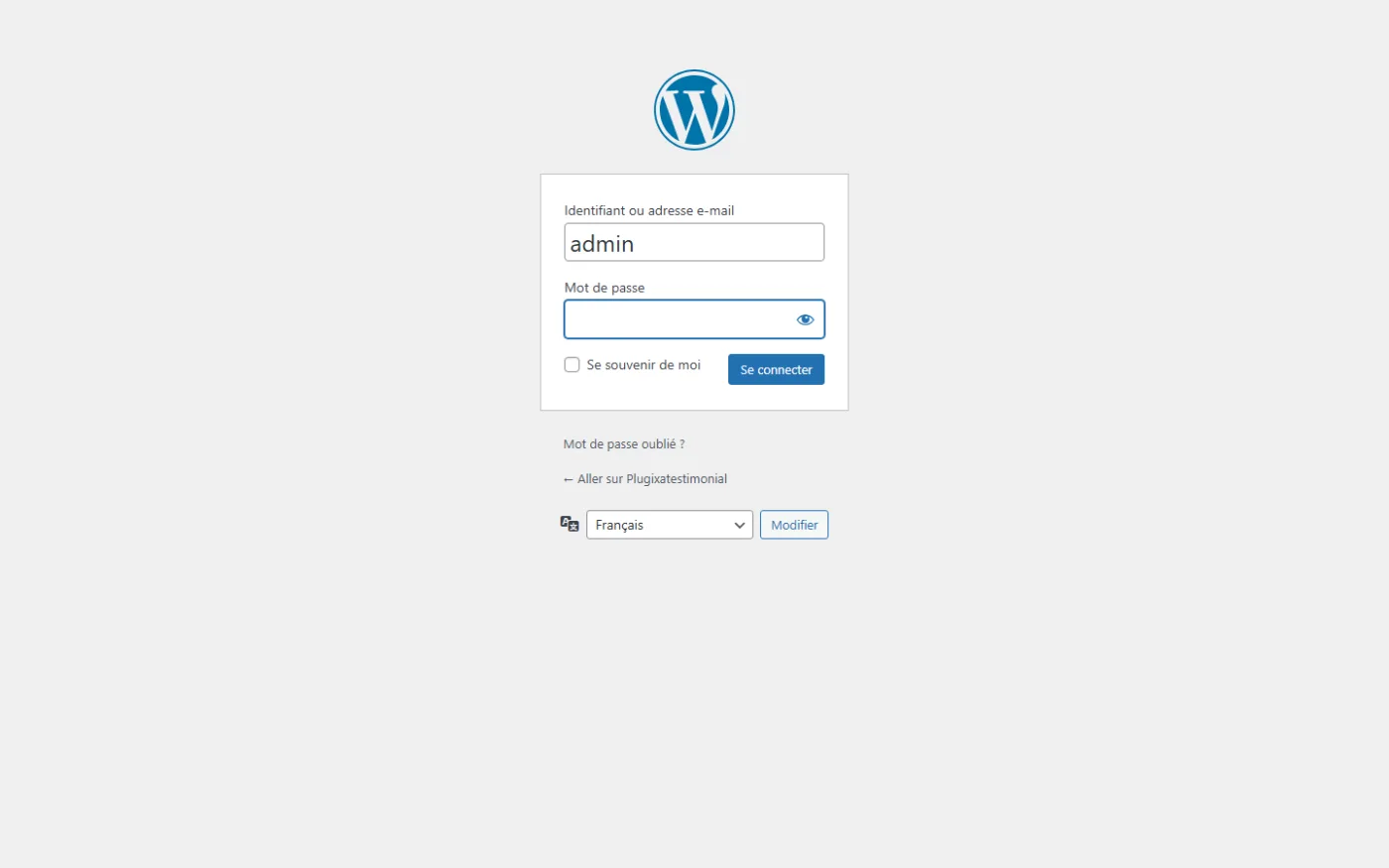
Admin login issue
If you can’t access wp-admin due to a plugin fatal error:
- FTP/SSH into the site.
- Rename
wp-content/plugins/plugixatestimonialtoplugixatestimonial.disabled. - Log in - the plugin is now deactivated.
- Rename back, re-activate, and check the error log.
HMR / dev server not loading assets
Symptom: Admin panel is blank or loading-spinner-forever (development setup only).
- Confirm the Vite dev server is running:
cd assets/backend/app && npm run dev. - Confirm port
5177is reachable. - To use production assets, delete
includes/admin/class-hmr.php. The presence of that file toggles HMR mode.
“Permission denied” on REST API
Symptom: REST calls return 403.
- The endpoint requires
edit_posts,manage_options, or a plugin capability. Log in as admin. - Nonce - custom front-end callers must include the
wp_restnonce in theX-WP-Nonceheader. - Pro endpoints on a free install return 403 with a message pointing to the upgrade URL - that’s expected.
- Free views quota -
POST /viewsreturns403 views_limit_reachedwhen free users hit the 2-view limit.
WooCommerce tab not showing
- WooCommerce active? Plugins screen.
- Tab enabled in Settings → WooCommerce?
- Shortcode assigned? Product edit → Plugixa Testimonial meta box.
- Theme override - some themes replace WC tabs entirely. Test with Storefront to isolate.
Debug mode
Add to wp-config.php:
define( 'WP_DEBUG', true );
define( 'WP_DEBUG_LOG', true );
define( 'WP_DEBUG_DISPLAY', false );
Errors write to wp-content/debug.log. Reproduce your issue, attach the relevant lines to your support request.
What to include in a support request
To get help fast, provide:
- Plugin version and license tier (Free / Pro).
- WordPress version, PHP version, MySQL version - from Tools → Site Health.
- Active theme and list of active plugins.
- The exact shortcode or steps to reproduce.
- Browser console output if the problem is frontend.
- Relevant
debug.logexcerpt if the problem is backend. - Screenshots or screen recording where helpful.