

Contents
WooCommerce Integration - Plugixa Testimonial
Display a Testimonials tab on every WooCommerce product page, auto-populated from a saved shortcode configuration you pick per product.
Requirements
- WooCommerce 7.0 or higher.
- Plugixa Testimonial (free or Pro).
The integration activates automatically when both plugins are active (via class_exists('WooCommerce')).
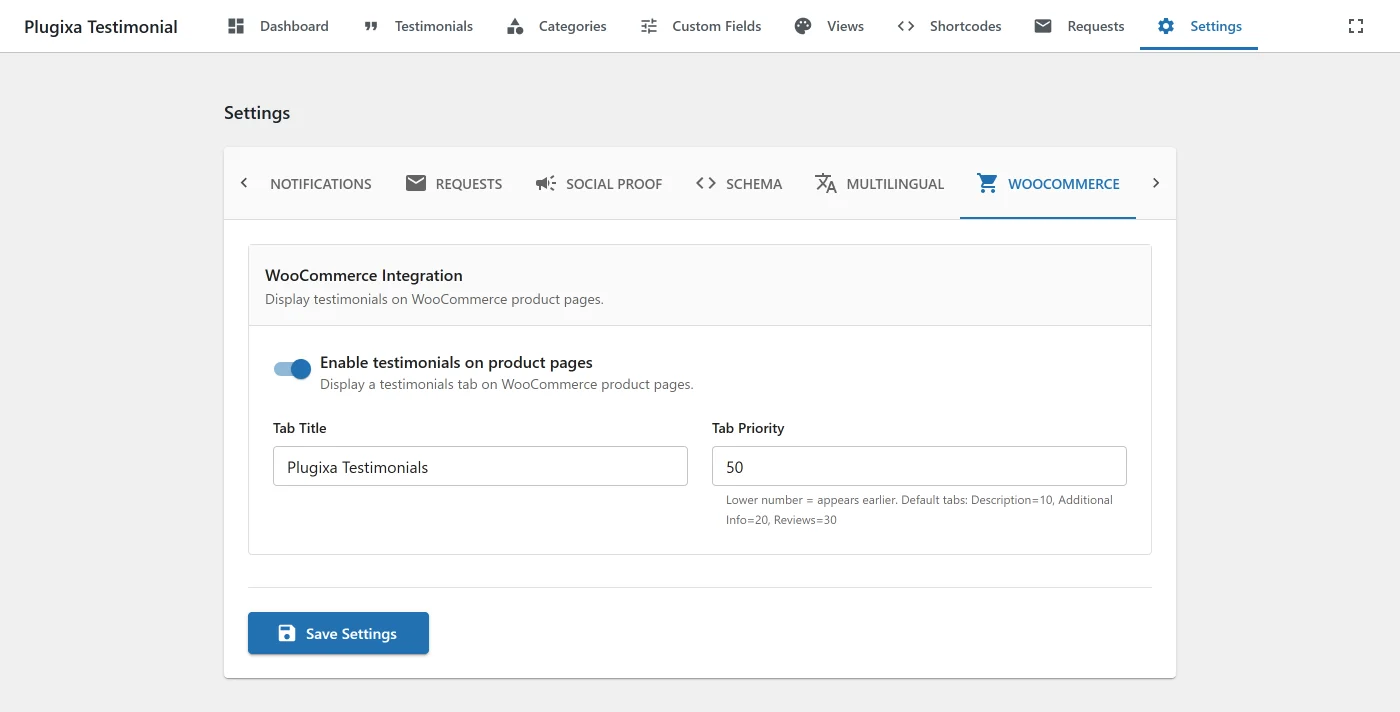
Enable the tab
- Go to Plugixa Testimonial → Settings → WooCommerce.
- Toggle Enable product tab on.
- Optionally customize:
- Tab title - default
Testimonials. - Tab priority - default
50(tab position relative to other tabs: Description = 10, Additional Info = 20, Reviews = 30).
- Tab title - default
- Save.
Assigning a shortcode to a product
Edit any product in Products → All products. Scroll to the Plugixa Testimonial meta box (typically below the product data panel).
- Shortcode - dropdown listing all saved shortcode configurations from Plugixa Testimonial → Shortcodes.
Pick a shortcode. Save the product. The tab now appears on that product’s frontend page, rendering the selected shortcode.
If you have not created any shortcode configurations yet, the dropdown will be empty - create one first in Plugixa Testimonial → Shortcodes.
What gets stored
The selected shortcode ID is saved as product meta (_plugixa_testimonial_shortcode). This allows each product to have a different testimonial set - different categories, different views, different limits.
How the tab renders
- WooCommerce fires
woocommerce_product_tabsfilter. - The plugin adds a new tab with the configured title and priority.
- When the tab is clicked, WooCommerce renders the tab content via the plugin’s callback.
- The callback loads the selected shortcode config and renders it.
No shortcode assigned
If a product has no shortcode assigned, the Testimonials tab does not appear for that product - the tab is conditional, not always-on.
Customization
Tab title per product
add_filter( 'plugixa_testimonial_product_tab_title', function( $title, $product_id ) {
    if ( has_term( 'featured', 'product_cat', $product_id ) ) {
        return __( 'Customer Reviews', 'textdomain' );
    }
    return $title;
}, 10, 2 );
Tab priority (position)
add_filter( 'plugixa_testimonial_product_tab_priority', function( $priority, $product_id ) {
    return 15;  // between Description (10) and Additional Info (20)
}, 10, 2 );
Replace tab content
add_filter( 'plugixa_testimonial_product_tab_content', function( $content, $product_id, $atts ) {
    return '<p>Common questions from buyers:</p>' . $content;
}, 10, 3 );
Styling the tab content
The tab content uses the plugin’s standard CSS (prefix pxt-). The view you selected in the shortcode controls the look. To style overrides:
- Per-product - assign a different shortcode (which points to a different view).
- Globally - add rules to Settings → General → Custom CSS scoped to
.woocommerce-tabs .pxt-custom-testimonial-root.
.woocommerce-tabs .pxt-custom-testimonial-root {
  padding: 20px 0;
}
Schema.org integration
When the tab is active, the plugin still emits JSON-LD Review + AggregateRating schema on the product page. This may surface star ratings beside your product in search results - distinct from WooCommerce’s own Product + AggregateRating schema.
If both schemas conflict or produce duplicate data in Search Console, disable the testimonial schema for the product shortcode:
[plugixa_testimonials view_id="3" schema="0"]
Or disable the schema globally in Settings → Schema.
Variable products
- The tab applies to the parent product, not individual variations.
- Variations inherit the parent’s shortcode assignment.
Bundle / grouped products
- The tab is shown only for the parent product, not child bundle items.
WC Subscriptions
The integration works identically - the tab appears on subscription product pages based on the product’s assigned shortcode.
Performance
- Tab content is rendered only when the tab is viewed (WooCommerce renders all tabs up front, but the frontend displays them conditionally). If performance matters for initial product page load, keep the testimonial
limitmodest (≤ 12). - Frontend assets are enqueued on any product page with a testimonial shortcode assigned - not on product pages without one.
Custom product types
The integration works with any product type that uses the standard woocommerce_product_tabs filter. Non-standard product types (bundles from third-party plugins, custom post types pretending to be products) may need a filter adjustment.
Troubleshooting
Tab not appearing
- WooCommerce active? Plugins screen.
- Tab enabled in Settings → WooCommerce?
- Shortcode assigned to the product? Product edit → Plugixa Testimonial meta box.
- Theme override? Some themes replace WC tabs entirely. Test with Storefront to isolate.
Wrong testimonials appear
- Double-check the saved shortcode config - the filters (category, featured, min_rating) may be filtering out too aggressively.
- Testimonials must be
approved- check the status filter on the Testimonials list.
Tab shows but content is blank
- The assigned shortcode config has
limit=0or filter criteria that match nothing - relax the filters. - Check the browser console for JS errors on initial page load.
REST API
No dedicated REST endpoints for the tab - the UI is server-rendered by WooCommerce. You can list testimonials assigned to a product via a custom query using the _plugixa_testimonial_shortcode post meta.
Hooks
See Hooks → WooCommerce.
Related
- Shortcodes
- Settings → WooCommerce - WooCommerce section
- Hooks Reference