

Contents
Advanced settings — Plugixa FAQ
The Advanced tab holds the “power user” options: custom CSS, asset loading control, debug toggles, and the Delete all data button.
Go to Plugixa FAQ → Settings → Advanced.
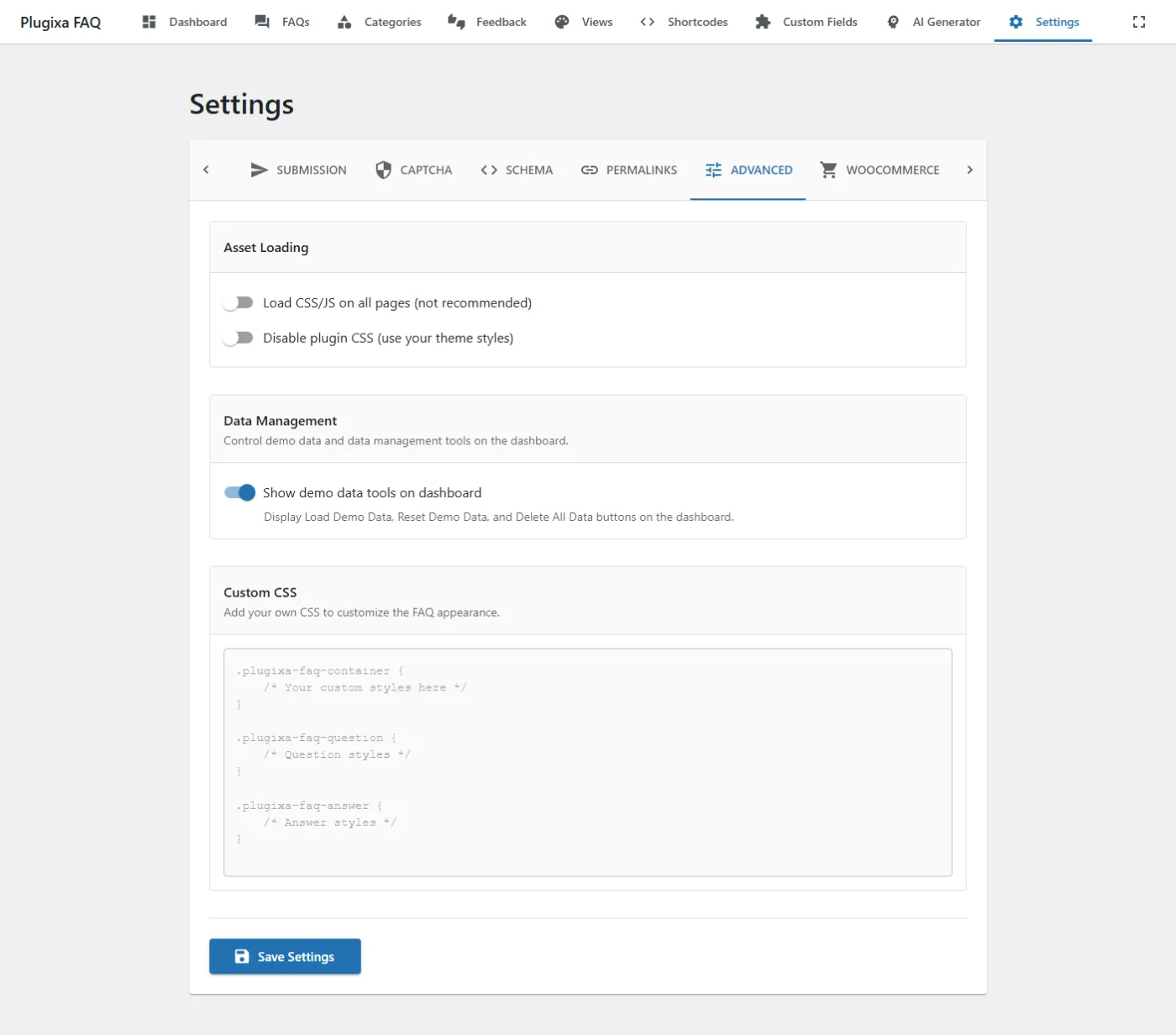
Options
| Key | Default | Notes |
|---|---|---|
custom_css |
"" |
Raw CSS injected on every page that renders a [plugixa_faq] shortcode. See Custom CSS below. |
load_assets_globally |
false |
If true, load the plugin CSS and JS on every page — not just those containing the shortcode. Useful when FAQs are injected by AJAX or by themes after page render. |
disable_plugin_css |
false |
Skip the plugin’s stylesheet entirely. Use only if you’re shipping complete custom styling. |
show_demo_data_tools PRO |
false |
Reveal the Demo Data import/reset tools in the admin UI. |
Custom CSS
The CSS editor accepts raw CSS and injects it inside a single <style> tag in the document head, scoped only to pages rendering the shortcode.
Use the pxf- prefix to target plugin elements without fighting WordPress/theme CSS specificity:
.pxf-faq-question {
    font-weight: 600;
    letter-spacing: -0.01em;
}
.pxf-faq-answer {
    line-height: 1.7;
}
Prefer this over theme-level overrides when the change is plugin-specific — it keeps the theme portable.
Delete all data
Settings → Advanced → Delete all data drops every plugin database table, removes the plugixa_faq_settings option, and unsubscribes the plugin’s cron jobs. Irreversible.
Use when:
- You’re permanently removing the plugin and want a clean uninstall.
- You’ve corrupted data you can’t fix via the UI and want to start over.
For a non-destructive reset, see Demo Data below (Pro only) or the Settings → Advanced → Re-run multilingual migration option in Troubleshooting.
Demo Data PRO
When show_demo_data_tools is on, two additional buttons appear:
- Load demo data — inserts a curated set of FAQs, categories, and views for evaluation.
- Reset demo data only — removes just the demo records, leaving your real content intact.
Debug mode
For diagnosing issues, add these to wp-config.php:
define( 'WP_DEBUG', true );
define( 'WP_DEBUG_LOG', true );
define( 'WP_DEBUG_DISPLAY', false );
Errors write to wp-content/debug.log. See Troubleshooting for the full debug workflow.
Related
- Views — most styling lives in View presets, not here
- Troubleshooting
- Settings overview