Contents
Import / Export — Plugixa FAQ
Move FAQs in and out of the plugin in three formats: JSON, CSV, and styled PDF. Useful for migrating from other FAQ plugins, backing up content, syncing staging and production, or producing a printable knowledge base.
Export
From the admin
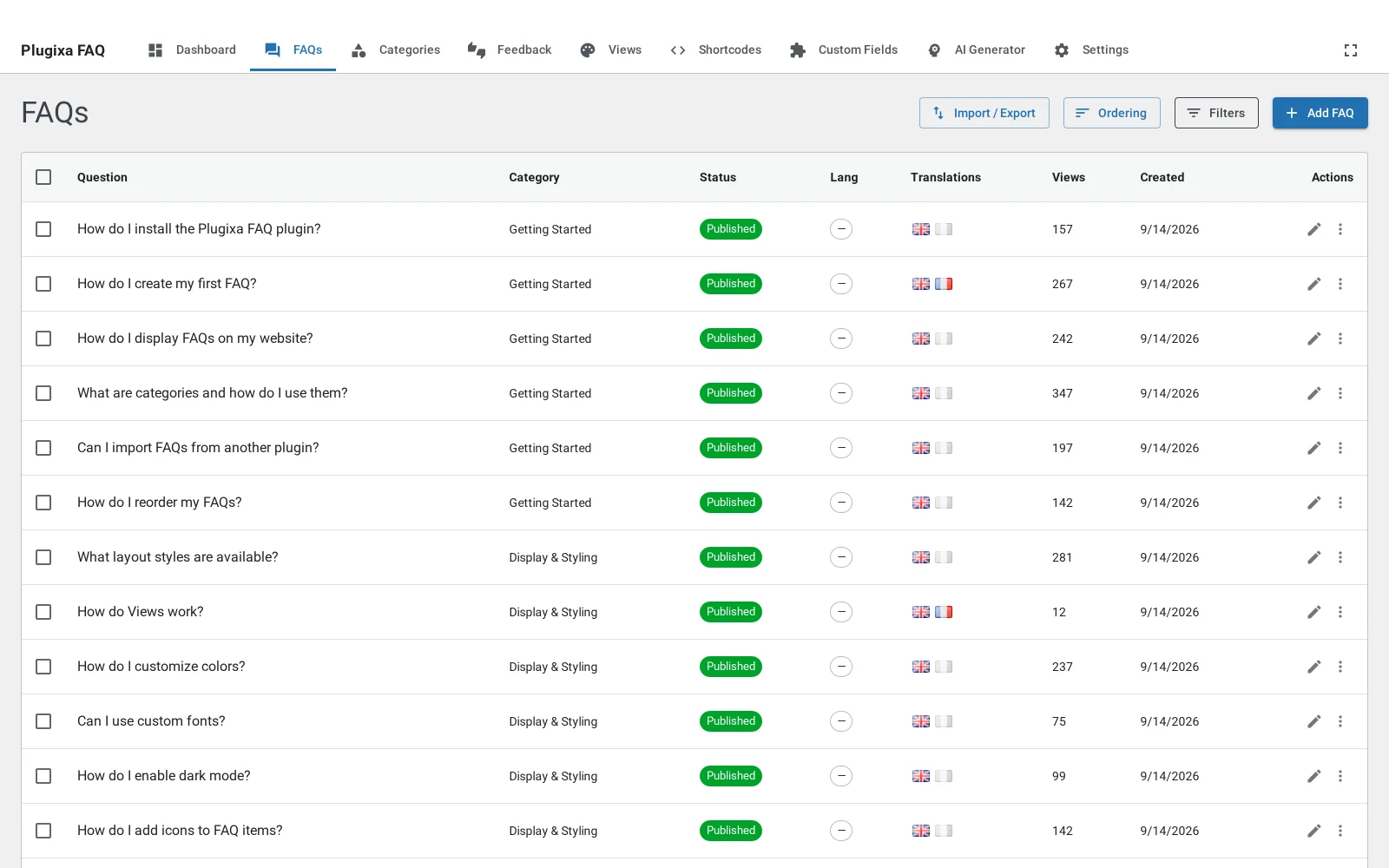
- Go to Plugixa FAQ → FAQs.
- Select the rows you want (or don’t select any to export all).
- Bulk actions → Export (JSON / CSV / PDF).
Formats
| Format | Use case |
|---|---|
| JSON | Full fidelity — every field, every custom field, every translation link. Import it back for a loss-less restore. |
| CSV | Spreadsheet-friendly — for bulk editing in Excel or Google Sheets, then re-importing. |
| Human-readable — a print-ready document with your branding. |
JSON structure
{
"version": "1.0",
"exported_at": "2026-04-17T10:30:00Z",
"plugin_version": "1.0.5",
"categories": [
{
"id": 1,
"name": "Shipping",
"slug": "shipping",
"description": "...",
"color": "#4a90e2",
"icon": "dashicons-cart",
"translation_group": "abc-123...",
"language_code": "en"
}
],
"faqs": [
{
"id": 42,
"question": "How long does shipping take?",
"answer": "<p>Typically 3-5 business days...</p>",
"category_slug": "shipping",
"status": "published",
"menu_order": 0,
"custom_fields": {
"shipping_region": "global",
"estimated_days": "3-5"
},
"translation_group": "def-456...",
"language_code": "en"
}
],
"custom_field_definitions": [ ... ]
}
CSV columns
Default columns:
question, answer, category_slug, status, visibility, author_alias,
menu_order, language_code, translation_group
Plus one column per custom field: cf__{field_key}.
PDF export
A styled document with table of contents, categorized sections, and optionally a cover page.
Query parameters:
| Parameter | Values | Default |
|---|---|---|
ids |
CSV of FAQ IDs | (all) |
category_id |
Category ID | (all) |
title |
Cover page title | “Frequently Asked Questions” |
paper_size |
a4, letter, legal |
a4 |
orientation |
portrait, landscape |
portrait |
GET /wp-json/plugixa-faq/v1/faqs/export-pdf?paper_size=a4&title=My%20Help%20Center
PDF generation uses DomPDF (loaded via the plugin’s class-pdf-generator.php). Fonts are bundled — no system font dependency.
Import
From the admin
- Go to Plugixa FAQ → FAQs → Import.
- Upload a JSON or CSV file (drag-and-drop or file picker).
- Review the preview — you’ll see how many items will be created vs updated.
- Click Import.
Import behavior
- New items — created with
status = draftby default (override in the import dialog). - Existing items — matched by
translation_group(JSON) or by exact question text (CSV). If a match exists, the row is updated. - Categories — auto-created if a slug in the file doesn’t exist.
- Custom fields — values are set for existing field definitions; new keys create new definitions.
- Translations —
translation_groupUUIDs are preserved so links survive the round-trip.
Conflict handling
| Conflict | Behavior |
|---|---|
| Duplicate slug | Suffixed with -2, -3, etc. |
| Missing category | Created. |
| Missing custom-field definition | Created as text type (you can change it afterwards). |
| Invalid HTML in answer | Stripped via wp_kses_post. |
REST API
# Export JSON
GET /wp-json/plugixa-faq/v1/faqs/export?format=json
# Export CSV (specific category)
GET /wp-json/plugixa-faq/v1/faqs/export?format=csv&category_id=5
# Export PDF (specific FAQs, landscape letter)
GET /wp-json/plugixa-faq/v1/faqs/export-pdf?ids=1,5,12&paper_size=letter&orientation=landscape
# Import
POST /wp-json/plugixa-faq/v1/faqs/import
Content-Type: multipart/form-data
# field "file" containing the JSON/CSV
Migrating from other FAQ plugins
| Source plugin | Approach |
|---|---|
| Ultimate FAQ | Export to CSV (or its native export), clean columns in a spreadsheet to match Plugixa’s, import CSV. |
| Easy Accordion | Plugixa doesn’t have a direct import; extract to CSV manually. |
| Arconix FAQ | Export as posts, then use the WordPress importer, then change post_type in the DB and reassign. |
| Custom post type | WP-CLI: wp post list --post_type=faq --format=json → transform → POST to /faqs/import. |
For all migrations, we recommend:
- Stage on a dev site first.
- Back up the DB before running a production import.
- Review a sample batch (20-50) before full import.
CLI (advanced)
If you have WP-CLI access:
# Export all FAQs to JSON
wp plugixa-faq export --format=json > faqs-backup.json
# Import
wp plugixa-faq import faqs-backup.json
CLI commands are registered under WP_CLI\CommandRegistry::register when the plugin boots in CLI context.
Hooks
| Hook | Type | Purpose |
|---|---|---|
plugixa_faq_export_data |
filter | Modify the payload before serialization. |
plugixa_faq_import_row |
filter | Modify each row before insert/update. |
plugixa_faq_before_import |
action | Before the batch starts. |
plugixa_faq_after_import |
action | After the batch completes ($stats). |
plugixa_faq_import_conflict |
filter | Override conflict resolution per row. |
plugixa_faq_pdf_generator_config |
filter | Override DomPDF options (paper, fonts). |
Troubleshooting
Import stopped midway
Large imports time out. Split into smaller batches (< 500 rows per file). The process resumes cleanly on the next run — no duplicates if translation_groups are present.
CSV with non-English characters mangles
Re-save the CSV as UTF-8 with BOM in Excel (or --encoding=utf-8 in LibreOffice). The importer assumes UTF-8.
PDF export returns 500
Most often a memory issue with large exports. In wp-config.php, raise WP_MAX_MEMORY_LIMIT to 512M. For truly large knowledge bases, export per-category as separate PDFs.