

Contents
Dark mode - Plugixa FAQ
Where this appears: the view editor’s colour panel, and the dark_mode
attribute on the shortcode.
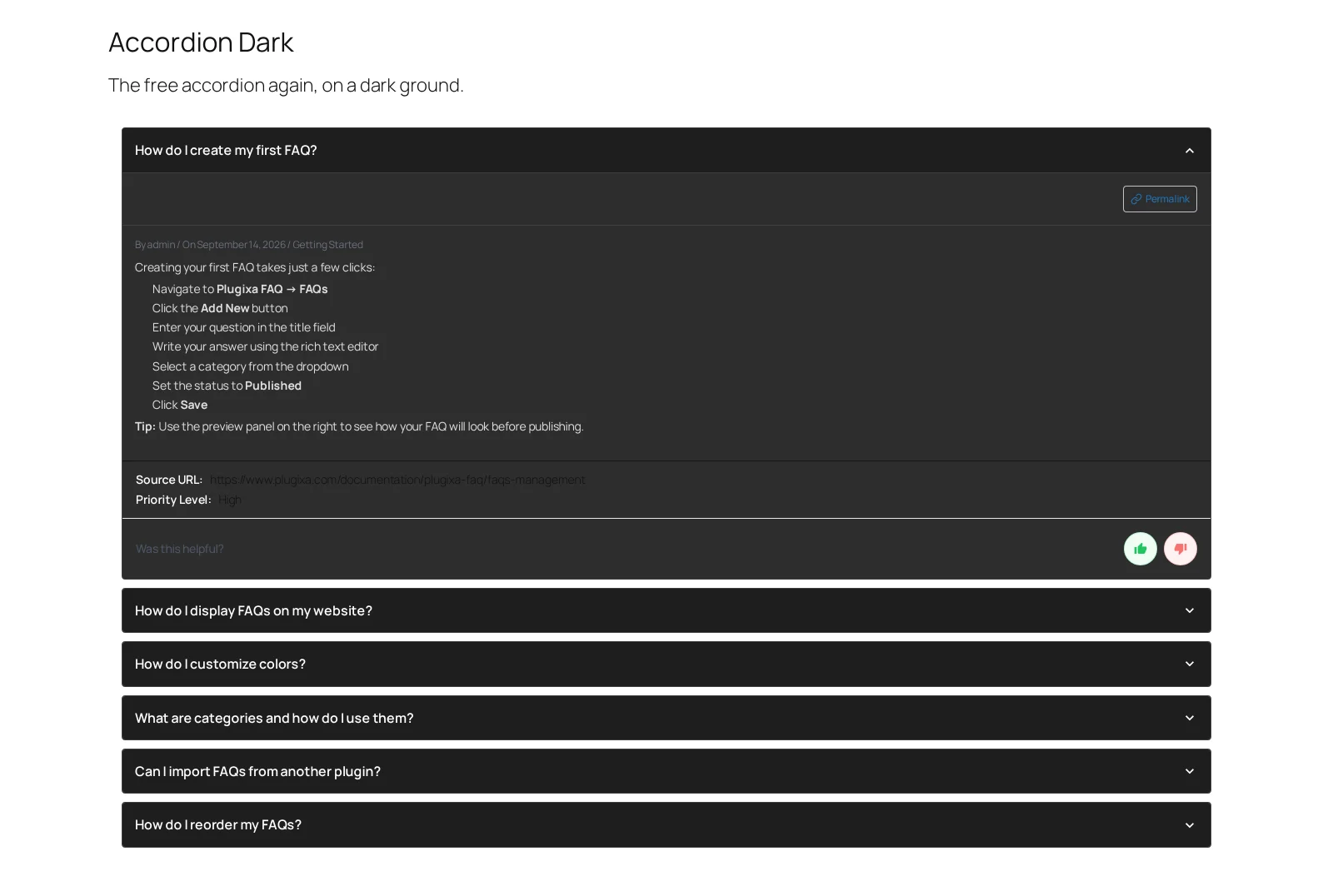
Dark is not a filter dropped over the light design. The dark values are saved on
the view, as their own set of colours, which is why accordion and
accordion-dark are two views rather than one with a switch.
Why it is done this way
Inverting a light palette produces grey text on near-black, hairline borders that disappear, and an accent colour that was chosen against white and now glows. Every one of those is a decision, and a filter cannot make it.
Saving the values means you can pick a slightly warmer background, lift the body text off pure grey, and thicken the borders, and none of that affects the light design.
The three modes
The shortcode’s dark_mode attribute:
| Value | Behaviour |
|---|---|
from_view |
Use whatever the view says. The default |
enabled |
Force dark, whatever the view says |
disabled |
Force light |
auto |
Follow the visitor’s own system preference |
auto is the one to reach for on a site that already respects
prefers-color-scheme, so your FAQ does not stay blazing white on a page that
has gone dark around it.
[plugixa_faq view="support-center-pro" dark_mode="auto"]
Setting the values
Open the view, use the light and dark toggle above the live preview, and set the colours with the preview in dark. The toggle changes only the preview, not your own theme, so you can do this at midday.
Troubleshooting
| What you see | Why | What to do |
|---|---|---|
| Dark mode does nothing | The shortcode says from_view and the view is light |
Set dark_mode="enabled", or set the view dark |
| Text is unreadable in dark | The dark values were never set, so light ones are reused | Set them with the preview toggled to dark |
| It ignores the system setting | The mode is not auto |
Set dark_mode="auto" |
| The theme’s dark mode fights it | Both are setting a background | Use disabled and let the theme win, or scope your theme’s rule |
What to do next
Colours covers the palette in both directions.