Contents

Gutenberg Block — Plugixa FAQ

The Plugixa FAQ block is the block-editor equivalent of the [plugixa_faq] shortcode. Everything the shortcode can do, the block exposes through a visual sidebar — no attribute typing.

Adding the block

  1. Edit a page or post in the block editor.
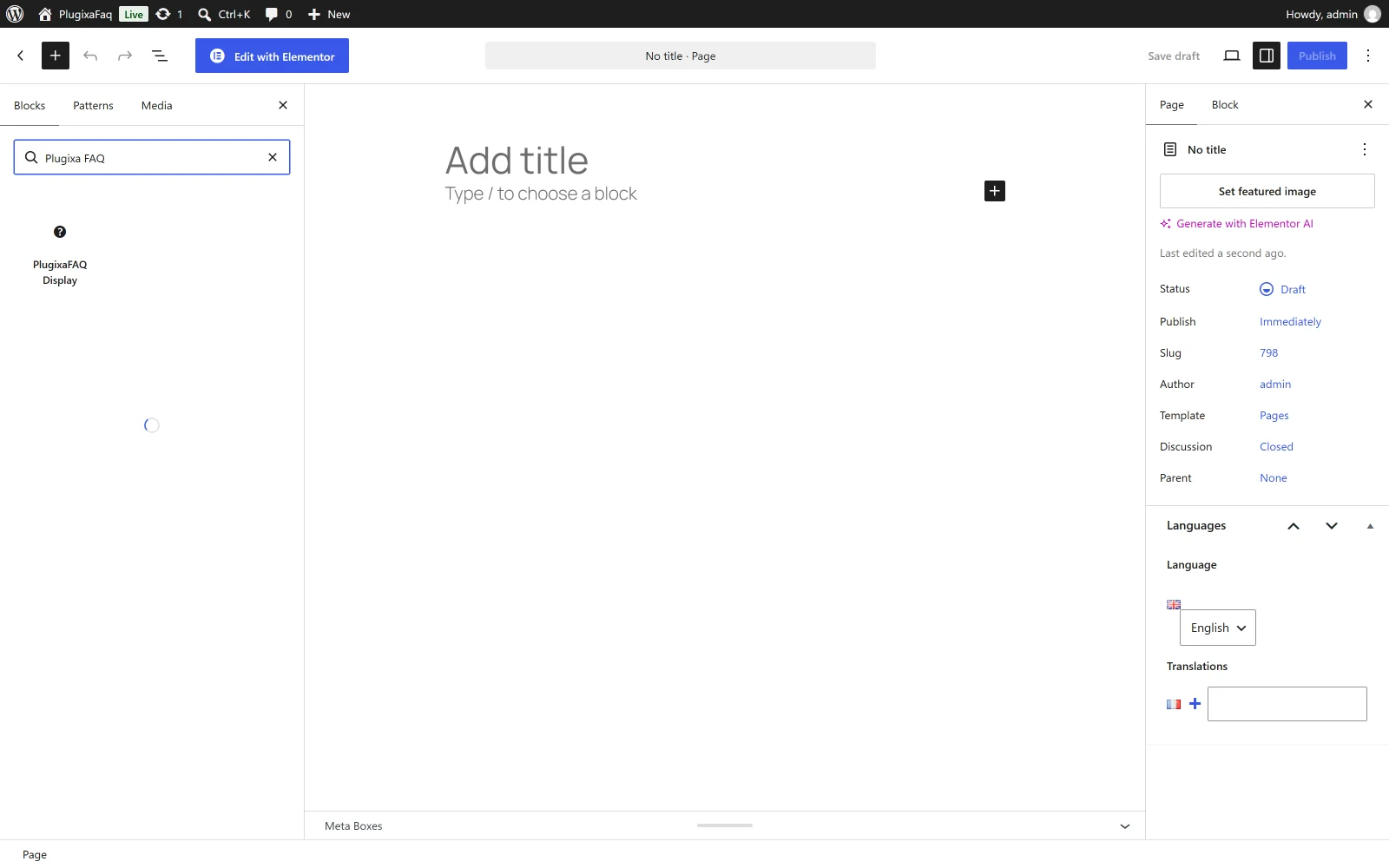
  2. Click the + inserter.
  3. Search for Plugixa FAQ, or scroll to the Widgets category.
  4. Click the block to insert.

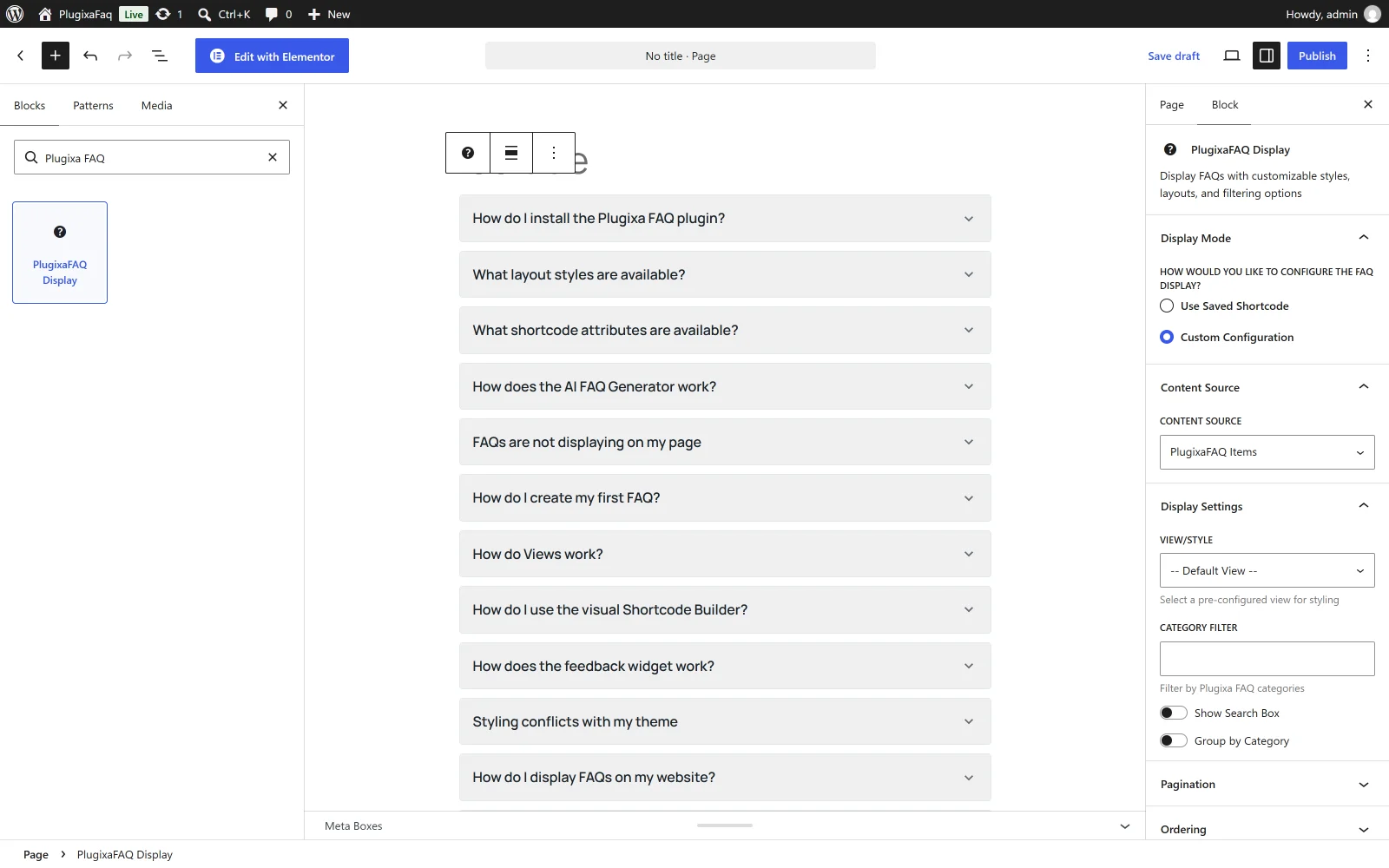
Plugixa FAQ Gutenberg block

Block sidebar

The sidebar mirrors the Shortcode Builder tabs:

Content

  • Content sourceplugixa_faqs, wordpress_posts, wordpress_pages, woocommerce_products PRO, wordpress_media PRO.
  • Category — dropdown of your categories.
  • Specific IDs — comma-separated IDs.
  • Limit — max items.
  • Order — sort field + direction.

Display

  • View — pick a view preset.
  • Style — layout override.
  • Search — show the search box.
  • Group by category — toggle category headers.
  • Schema — FAQPage JSON-LD.
  • Dark modefrom_view, enabled, disabled, auto.

Behavior

  • Open first — auto-expand first item.
  • Allow multiple — allow multiple open simultaneously.
  • Enable permalinks — deep linking.
  • Toggle-all button — expand-all / collapse-all.
  • Feedback widget — show “Was this helpful?” buttons.

Pagination

  • Type — none, numbers, load-more PRO, infinite-scroll PRO.
  • Per page — items per page.
  • Load more label — button text.

Block preview

The block renders a live preview inside the editor using ServerSideRender. You see the actual FAQ output while editing — no need to save-and-check on the frontend.

If the preview is too tall in the editor, click Edit as HTML to collapse the block into its shortcode form.

Saving a configuration from the block

The block doesn’t support saving named configurations directly — that’s a feature of the Shortcode Builder. If you build a block configuration you want to reuse, copy the resulting shortcode ([plugixa_faq ...] emitted when you save) and store it as a Shortcode configuration.

Block patterns

The plugin ships with two block patterns:

Pattern Description
FAQ Section with heading Two-column layout: left heading + description, right FAQ.
FAQ Accordion full-width Full-width FAQ with search, group-by-category, and feedback enabled.

Insert via Block inserter → Patterns → Plugixa FAQ.

Reusable blocks

To reuse the same FAQ configuration on multiple pages:

  1. Insert and configure a Plugixa FAQ block.
  2. Click the block menu (⋮) → Create pattern/reusable block.
  3. Name it.
  4. Use from Patterns → My patterns.

Changes to the reusable block propagate to all instances — the same way native WordPress reusable blocks work.

Theming the block in the editor

The editor-side block styles are in assets/blocks/faq-block/editor.css. Theme developers can override with their own styles via block_editor_assets enqueues or the theme’s editor-style.css.

Under the hood

The block is a server-rendered block (api_version: 3, no React render on save). Its render_callback delegates to the same shortcode renderer, so output is identical to [plugixa_faq].

Block slug: plugixa-faq/faq-block.

Elementor users

If your site primarily uses Elementor, use the Elementor widget — it offers the same options through Elementor’s control panel.

Troubleshooting

Block says “Loading…” forever

  • Check that the REST API is reachable. Try GET /wp-json/plugixa-faq/v1/views/slug/accordion in a browser — expect JSON.
  • A security plugin (WordFence, iThemes) might be blocking the preview endpoint. Whitelist /wp-json/plugixa-faq/v1/*.

Preview doesn’t match frontend

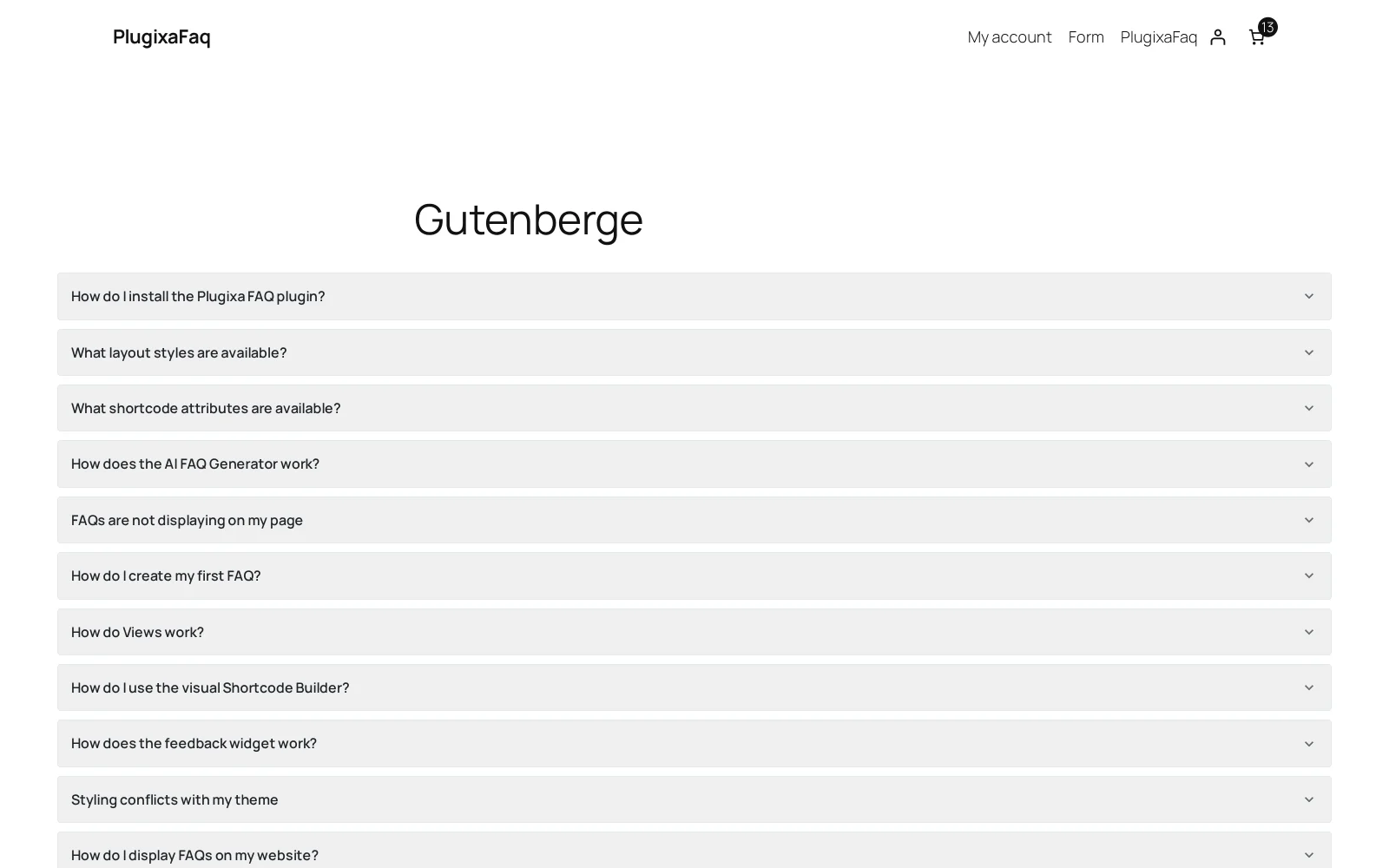
The editor always loads the admin-side CSS. If your theme applies different styles on the frontend, the preview can look slightly different. The frontend is the source of truth.

Block not showing in inserter

  • Plugin active? Plugins screen.
  • Block theme compatible? The block works in classic and block themes.
  • Clear block-editor cache: log out and back in.

Quick Links