

Contents
Invoices - Plugixa Chauffeur
Every booking has an invoice PRO: a clean page built for printing or for saving as a PDF from the browser. It is produced on demand from the booking as it is now, so there is nothing to generate or store.
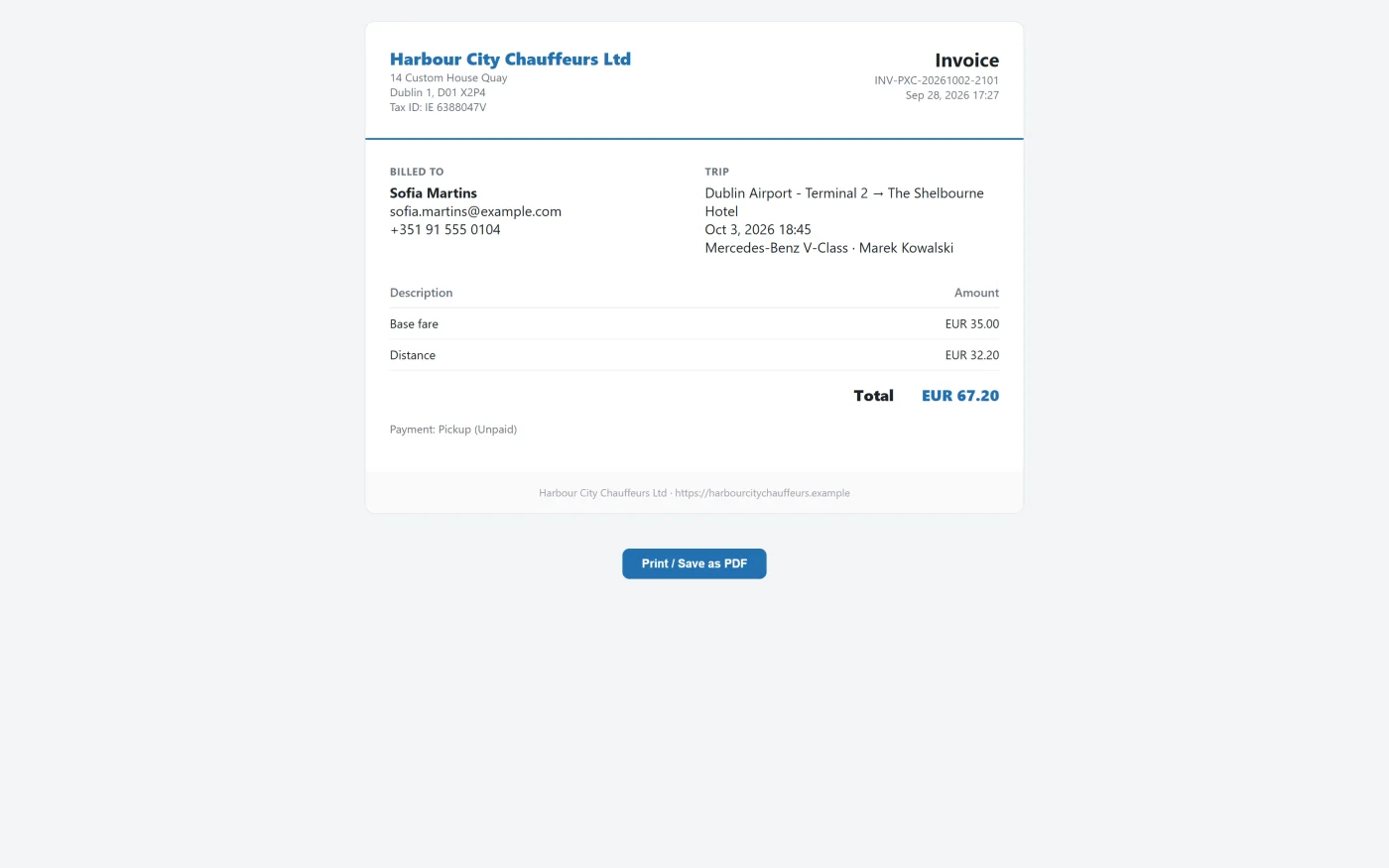
Opening an invoice
- Open a booking from Plugixa Chauffeur -> Bookings.
- Click Invoice at the top of the booking.
The invoice opens in a new tab. Click Print / Save as PDF at the bottom of the page to open the browser’s print dialog, then print it or choose the dialog’s save-as-PDF destination. The button itself is left off the printed page.
The address of an invoice is your site’s home URL with the booking’s ID:
https://example.com/?plugixa_chauffeur_invoice=123
What the plugin does not do
To set expectations for version 1.0.0:
- It does not create a PDF file. The PDF comes from your browser’s print dialog.
- It does not email the invoice or attach it to the booking emails.
- It gives customers no way to open their invoice. The page is for staff; send the customer the PDF you saved.
- It has no separate invoice numbering. The number is the booking number, with your optional prefix in front.
- It has no tax lines. The page lists the fare and a total.
Who can open an invoice
An invoice carries customer and payment details, so the page is restricted even
though it lives on a front-end URL. The visitor must be logged in and hold the
plugixa_chauffeur_manage capability, which administrators have.
| Situation | Result |
|---|---|
| Not logged in, or without the capability | “You are not allowed to view this invoice.” with status 403 |
| The booking ID does not exist | “Booking not found.” with status 404 |
To let another role open invoices, change the capability with the
plugixa_chauffeur_invoice_capability filter. See
Hooks reference.
What is on the page
| Part | Content |
|---|---|
| Letterhead | Company name, address and tax number, from the settings below |
| Title | “Invoice”, the invoice number, and the date the booking was made |
| Billed to | Customer name, email and phone |
| Trip | Pickup and drop-off, pickup date and time, vehicle, and the assigned driver if there is one |
| Lines | Base fare, Distance and Time, each shown only when above zero |
| Total | The booking total |
| Payment | The payment method and payment status |
| Footer | Company name and your site address |
Notes on the figures:
- The total is the booking’s total. When a pricing rule has changed the price, the lines show the unadjusted parts and the Total shows the adjusted price, so the lines may not add up to it.
- When all three parts are zero, a single Service line carries the total.
- Amounts are printed as the currency code followed by the number with two
decimals, for example
EUR 60.30. Dates are printed likeOct 10, 2026 20:00. Neither follows the format settings in Settings. - The invoice uses its own stylesheet and none of your theme’s, so it looks the same on every site.
Letterhead settings
Plugixa Chauffeur -> Settings -> Invoice holds “The letterhead printed on every booking invoice.”
| Setting | Default | What it does |
|---|---|---|
| Company name | Empty | “Shown as the invoice letterhead. Defaults to the site title.” Also used in the footer. |
| Company address | Empty | “Printed under the company name. One line per address line.” Left off when empty. |
| Tax / VAT number | Empty | Printed as “Tax ID” followed by the number. “Left off the invoice when empty.” |
| Invoice number prefix | Empty | “Prepended to the booking number, e.g. INV-.” |
The prefix is cosmetic. With a prefix of INV-, booking PXC-20261010-0042
prints as INV-PXC-20261010-0042, which keeps every invoice traceable to its
booking.
Save with Save settings. The settings apply to every invoice the next time it is opened, including invoices for older bookings, because the page is always built fresh.
Because the page is built fresh
An invoice reflects the booking at the moment you open it. If you change the customer’s name, the driver or the fare afterwards, the invoice changes with it. Save the PDF at the point you want a fixed record.