

Contents
Booking forms - Plugixa Chauffeur
A booking form is one configuration of the booking wizard. You can have as many as you like, for example one for airport transfers priced by distance and one for hourly hire, each on its own page.
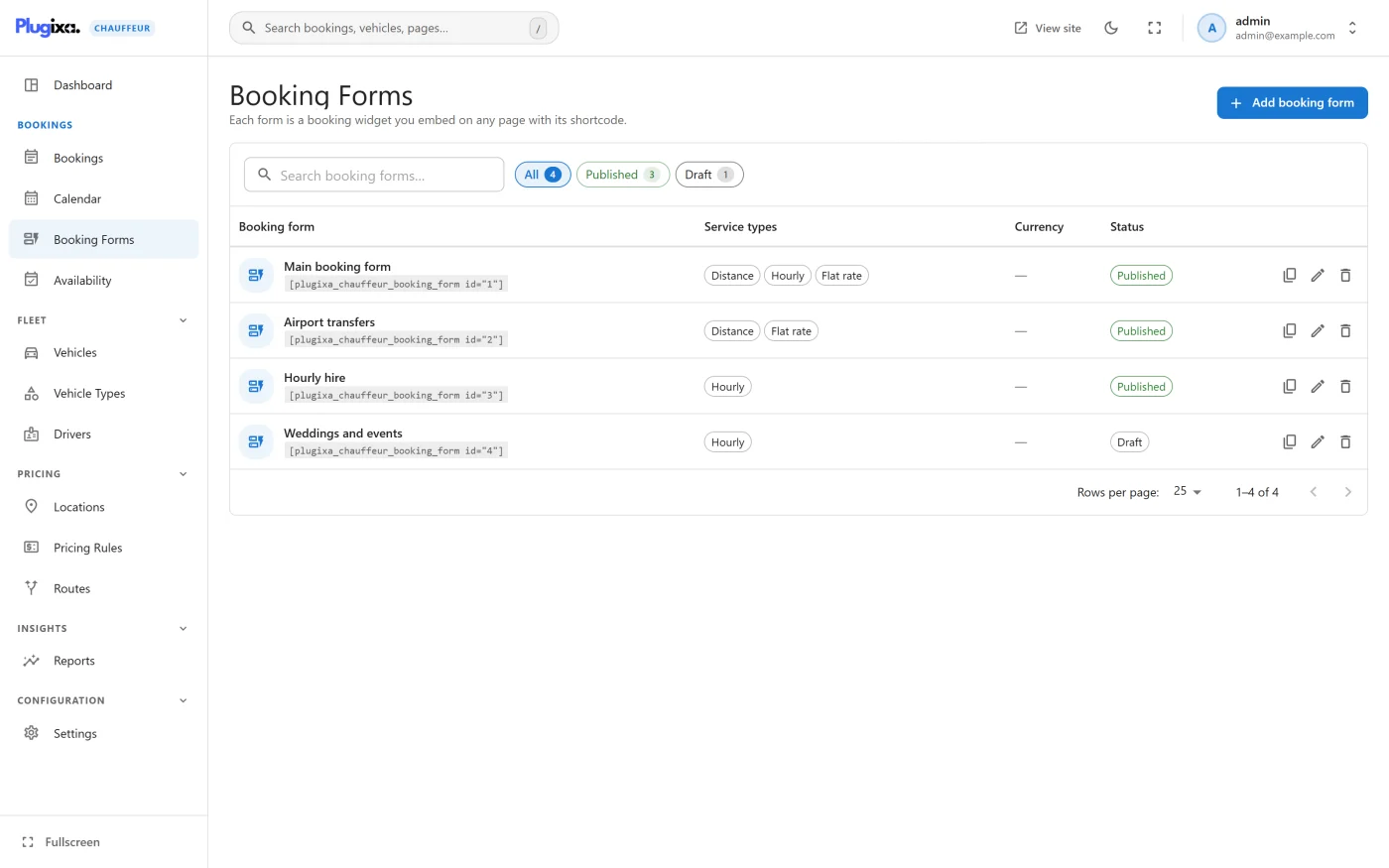
Forms are managed under Plugixa Chauffeur -> Booking Forms.
The list
The screen is described as “Each form is a booking widget you embed on any page with its shortcode.” Each row shows:
| Column | What it shows |
|---|---|
| Booking form | The name, with the form’s shortcode underneath. |
| Service types | Distance, Hourly, and Flat rate PRO, for each type the form offers. |
| Currency | The form’s own currency, when it has one. |
| Status | Published or Draft. |
Above the list are a search box and a Status filter. At the end of each row are three actions: Copy shortcode, Edit and Delete.
A new site has no forms. The empty list offers Add booking form.
Creating a form
Press Add booking form. The screen has three sections and two cards on the right.
Details
| Field | Notes |
|---|---|
| Name | Required. Used in the admin list. |
| Slug | Optional. “Generated from the name if left empty.” |
Service types
“The kinds of trip customers can choose between. Enable at least one.”
| Switch | What it offers |
|---|---|
| Distance | “Point-to-point transfers, priced by distance.” |
| Hourly | “A chauffeur at the customer’s disposal, priced by the hour.” |
| Flat rate PRO | Fixed-price routes. See Flat-rate routes. |
| Return trips | “Let customers book the way back in the same booking.” Adds the One way / Return choice to the wizard. |
Default service type is the one “Pre-selected when the form opens.” A service type that is switched off cannot be chosen as the default.
When a form offers only one service type, the wizard does not show the Service choice at all.
Rules
“Limits applied to every booking made through this form.”
| Field | Default | What it does |
|---|---|---|
| Currency | Empty | An ISO currency code for this form. Empty means the site currency from Settings -> General. |
| Minimum lead time | 60 min | How far ahead of pickup a booking must be made, in minutes. |
| Minimum passengers | 1 | The starting and lowest value of the Passengers field in the wizard. |
Visibility
| Field | Notes |
|---|---|
| Published / Draft | A new form starts as Published. A draft form is not available to visitors. |
| Display order | “Lower numbers show first.” Orders the admin list. |
Press Create booking form. The form is saved and reopened so that you can copy its shortcode. When you edit an existing form the button reads Save changes.
Two things stop a save: an empty name (“Name is required”) and having no service type switched on (“Enable at least one service type”).
Embedding a form
Once a form exists, its edit screen has an Embed card:
Paste this shortcode on any page or post to show the form.
Press Copy shortcode and paste it into a page. See Shortcodes and Blocks.
How the rules are applied
Minimum lead time
The wizard pre-fills the pickup time with the earliest moment the lead time allows and will not let the date picker go earlier. The same rule is checked on your server when the booking is saved. A booking that is too soon is refused with a message such as “Bookings must be made at least 2 hours in advance.”
This is separate from the lead time on the Availability screen. The form’s lead time always applies. The availability lead time applies only while availability rules are switched on. When both apply, the customer has to satisfy both.
Set it to 0 to switch the form’s own lead time off.
Minimum passengers
This sets where the Passengers field starts and its lowest value in the browser. It does not hide vehicles: the wizard lists every published vehicle that can carry the number of passengers the customer enters.
Currency
The currency of the form is used for the prices in the wizard, for the booking that is saved, and for the Stripe payment. The plugin does not convert between currencies. Vehicle prices are plain numbers, so a form in another currency shows the same numbers with a different currency.
Draft forms
Switching a form to Draft takes it offline without touching your pages. The shortcode stays where it is and shows “Booking form not found.” until you publish the form again. Existing bookings made through the form are not affected.
Deleting a form
Delete asks for confirmation and warns: “Pages embedding its shortcode will stop showing a form. This cannot be undone.” Bookings already made through the form are kept.
Deleting needs the delete permission as well as access to the admin screen.
What to do next
- See the customer’s side in Booking wizard.
- Set site-wide opening hours in Availability.
- Add fixed-price routes with Flat-rate routes PRO.