

Contents
Flat-rate routes - Plugixa Chauffeur
A route PRO is a trip with a fixed price, such as “Airport -> City centre” for 45. Routes add a third service type to the booking wizard, Flat rate, alongside Distance and Hourly. The customer picks a route from a list instead of typing addresses and a distance.
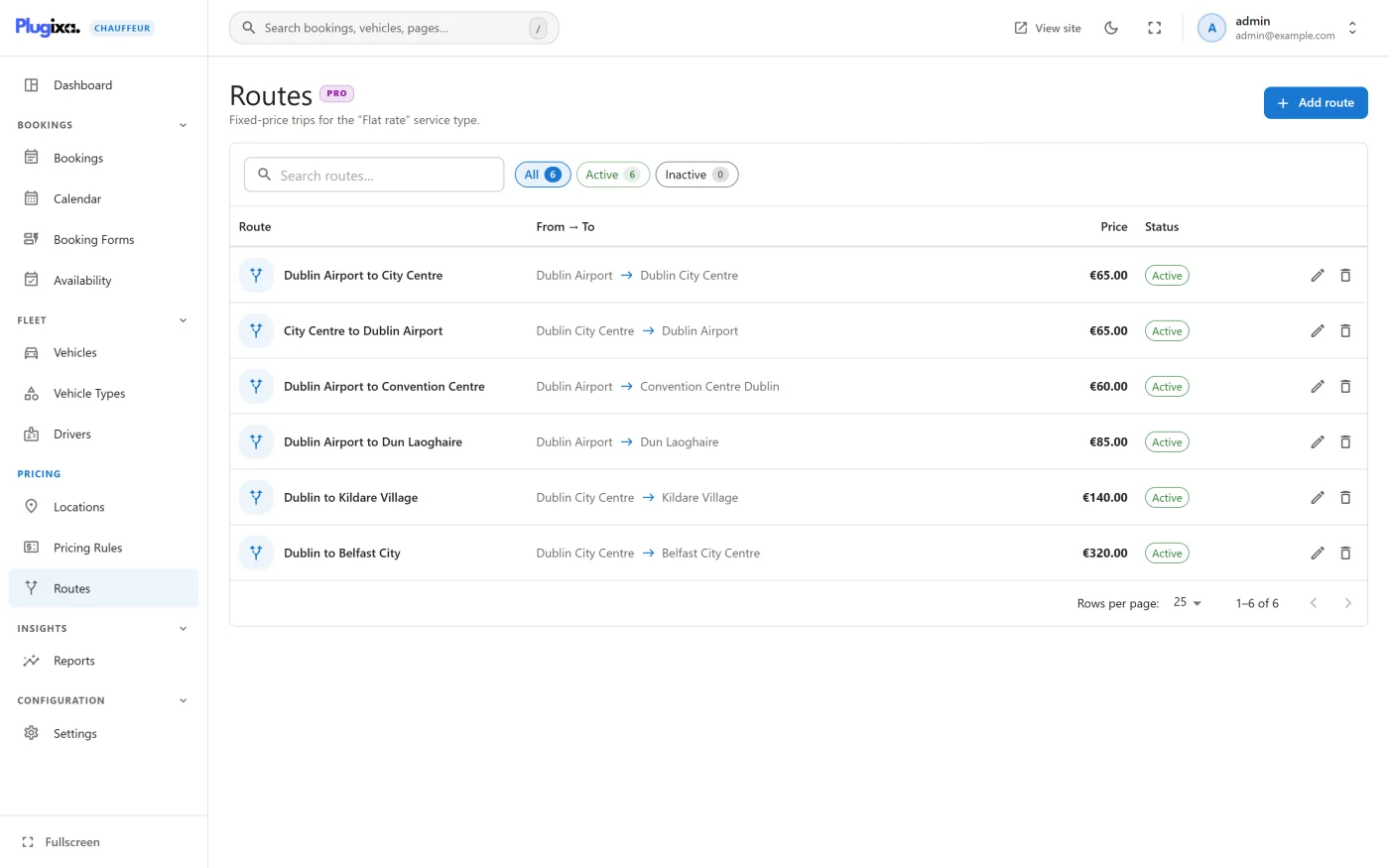
Open them from Plugixa Chauffeur -> Routes. The screen describes them as “Fixed-price trips for the “Flat rate” service type.”
Setting it up
Two things are needed before customers see a route.
- Create at least one active route, as described below.
- Switch on Flat rate for the booking form. Edit the form under Plugixa Chauffeur -> Booking Forms and, in Service types, turn on Flat rate (“Flat rate (predefined routes)”). You can also make it the Default service type. See Booking forms.
A form with Flat rate on and no active routes still shows the service type, with an empty route list.
The list
| Column | What it shows |
|---|---|
| Route | The route’s name |
| From → To | The pickup and drop-off labels |
| Price | The fixed price, shown in the site currency |
| Status | Active or Inactive |
The search box matches the name and both labels.
Adding a route
Click Add route.
| Field | Notes |
|---|---|
| Name | Required. Shown to customers in the route list. |
| Pickup | The starting point, as text. |
| Drop-off | The destination, as text. |
| Price | The fixed fare for the trip. |
“Customers see the name and both ends when they choose a flat-rate trip.” In the wizard each option reads as the name followed by the two ends in brackets.
The side panel has a Preview of the route as a customer would read it, an Availability switch (Active or Inactive) and a Display order (“Lower numbers show first.”). Only active routes are offered, in display order.
Click Create route, or Save changes when editing.
What the customer sees
On the first step of the wizard, choosing Flat rate replaces the address, distance and duration fields with a single Route list. The date, passenger and luggage fields stay. A route must be chosen to continue.
The next step lists vehicles as usual, filtered by passenger capacity. Every vehicle shows the same price: the route’s price.
How the price is worked out
For a flat-rate booking the route’s price replaces the fare. The vehicle’s base price, per-distance price, per-hour price and minimum price are all ignored.
- The price is the same for every vehicle. There is no per-vehicle route price in version 1.0.0.
- A return trip is not doubled. If the form allows return trips and the customer picks Return, the total is still the route’s price. Create a separate, dearer route for a round trip, or switch Return trips off on a form used for flat rates.
- Pricing rules still apply, on top of the route price. A weekend surcharge of 20% makes a 45 route cost 54 on a Saturday. Give a rule a Service types condition to keep it away from flat-rate trips.
- The route’s price is read when the booking is made. Changing a price later does not touch existing bookings.
If a flat-rate request names a route that does not exist or is inactive, the fare is 0. The wizard never sends such a request, because it only offers active routes and insists on one being chosen, but a route switched to Inactive while a customer is part-way through the wizard produces exactly this. Check a booking’s total if you deactivate routes during opening hours.
What is saved on the booking
| Field | Value |
|---|---|
| Service type | flat |
| Pickup address | The route’s Pickup label |
| Drop-off address | The route’s Drop-off label |
| Distance, duration | Empty |
| Base | The route’s price, before pricing rules |
| Total | The route’s price after pricing rules |
The booking does not keep a link to the route itself, only its labels and price. Renaming or deleting a route afterwards leaves the booking as it was.
Deleting a route
Deleting is permanent and needs the delete permission. Set a route to Inactive instead if you may want it back.
Without Pro
The routes table and the form’s flat-rate switch are stored by the free plugin too, so nothing is lost by a switch from Pro to free. Without Pro the service type is not registered: the wizard offers Distance and Hourly only, and a form whose default was Flat rate opens on the first type it does offer. See Free vs Pro.