

Contents
Pricing rules - Plugixa Chauffeur
Pricing rules PRO change the fare after the vehicle’s own rates have been applied. A rule says: when a booking matches these conditions, adjust the total this way. Weekend surcharges, long-trip discounts and seasonal promotions are all pricing rules.
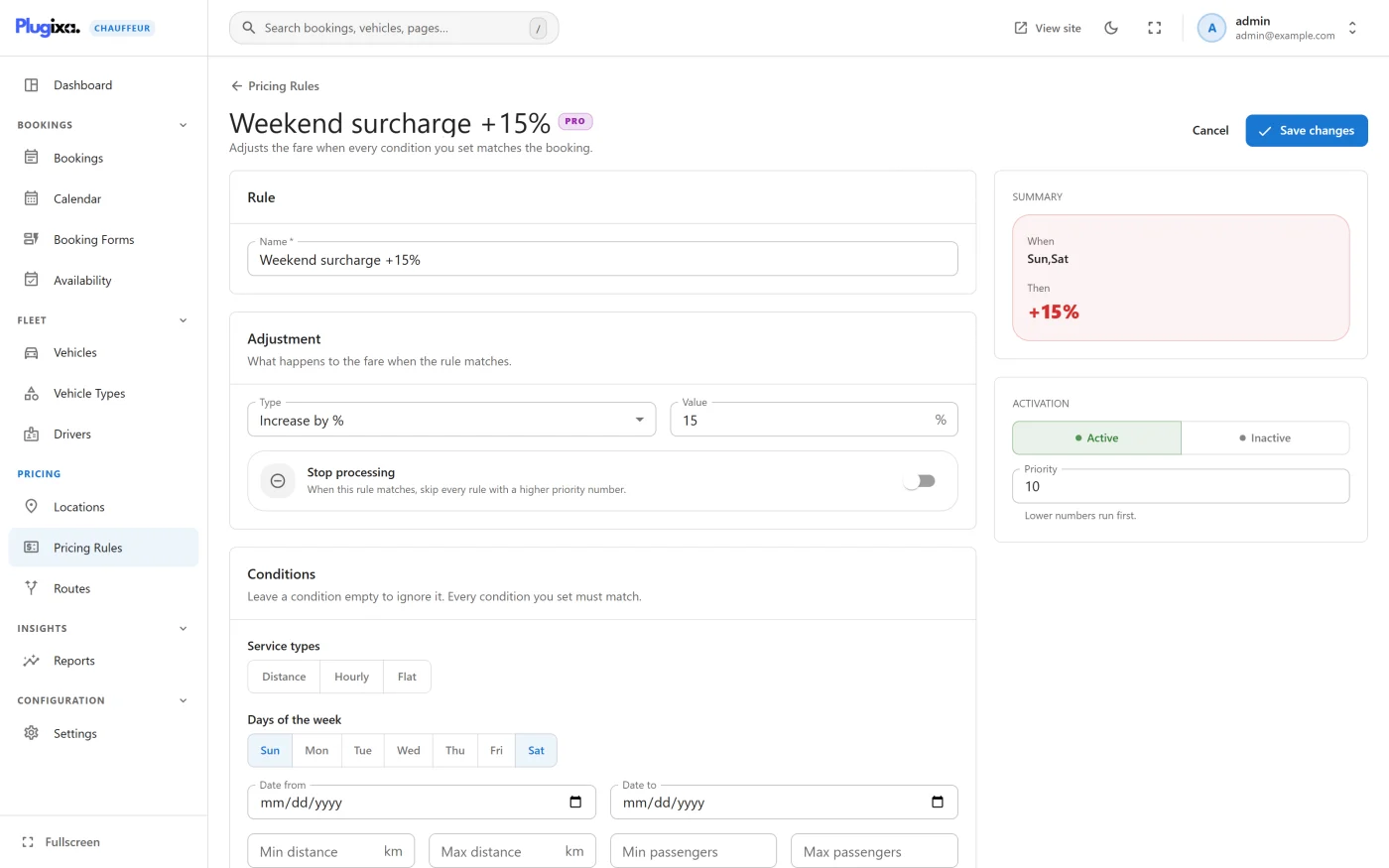
Open them from Plugixa Chauffeur -> Pricing Rules. The screen’s own summary is “Applied in priority order on top of the base fare.”
Where rules sit in the calculation
- The base fare is calculated from the vehicle: base price, plus the distance or hourly cost, raised to the minimum price if it falls short. See Pricing.
- For a flat-rate booking the fare is replaced by the route’s price. See Flat-rate routes.
- Pricing rules run on the result, one after another.
Rules run both when the wizard asks for a quote and when the booking is created, so the price the customer sees on each vehicle card already includes them. The server recalculates everything on submission; a price sent by the browser is never used.
The list
| Column | What it shows |
|---|---|
| Priority | The rule’s position in the running order |
| Rule | The name, with a marker when the rule stops processing |
| When | A short summary of the conditions, or “Always” when there are none |
| Adjustment | For example +20%, -5 or = 65 |
| Status | Active or Inactive |
Creating a rule
Click Add rule.
Rule
Name is required. It is for your own reference and is never shown to customers.
Adjustment
| Field | Notes |
|---|---|
| Type | One of the five types below. |
| Value | A percentage for the two percent types, an amount for the others. |
| Stop processing | “When this rule matches, skip every rule with a higher priority number.” |
| Type | Effect on the running total |
|---|---|
| Increase by % | total + (total x value / 100) |
| Decrease by % | total - (total x value / 100) |
| Increase by amount | total + value |
| Decrease by amount | total - value |
| Set total to | total becomes value, whatever it was before |
Amounts are plain numbers in the booking’s currency. Nothing is converted between currencies.
Conditions
“Leave a condition empty to ignore it. Every condition you set must match.” A rule with no conditions matches every booking.
| Condition | Matches when |
|---|---|
| Service types | The booking’s service type is one of those selected: distance, hourly or flat. |
| Days of the week | The pickup falls on one of the selected days. |
| Date from | The pickup is on or after this date. |
| Date to | The pickup is on or before this date, up to 23:59:59. |
| Min distance | The trip distance is at least this number. |
| Max distance | The trip distance is at most this number. |
| Min passengers | The passenger count is at least this number. |
| Max passengers | The passenger count is at most this number. |
Things worth knowing about the conditions:
- Day and date use the pickup time the customer entered, as written, not the time the booking was made. If a request has no readable pickup time, any rule with a day or date condition does not match.
- Distance is the number the customer typed. The field is labelled km on this screen, but the wizard sends the entered figure unchanged whichever Distance unit is set in Settings. On a site set to miles, enter your thresholds in miles.
- Hourly and flat-rate bookings have a distance of 0. A Min distance condition therefore never matches them, and a Max distance condition always does. Add a Service types condition if a distance rule should apply to distance bookings only.
- Return trips are not doubled for the condition. The distance compared is the one-way figure, even though the base fare charges it twice.
- A value of 0 means “not set”. Zero or empty distance and passenger limits are discarded on save.
The REST API accepts one more condition, vehicle_ids, which restricts a rule
to specific vehicles. The form has no field for it in version 1.0.0. See
REST API.
Side panel
| Field | Notes |
|---|---|
| Summary | A live reading of the rule: When the conditions, Then the adjustment. |
| Activation | Active or Inactive. Inactive rules are skipped. |
| Priority | “Lower numbers run first.” |
Click Create rule, or Save changes when editing.
Running order
Active rules run in ascending Priority. Rules with the same priority run in the order they were created.
Each rule works on the total left by the rule before it. This matters for percentages: 20% applied after a 5 discount is 20% of the reduced figure.
Stop processing ends the run. When a rule with it switched on matches, no later rule is looked at. If the rule does not match, it stops nothing.
When the last rule has run, the total is rounded to two decimals. A total that has gone below zero becomes 0.
Worked example
A vehicle with a base price of 10 and a per-distance price of 2, no minimum price. A customer books a one-way distance trip of 25 for 3 passengers, with pickup on Saturday 10 October 2026 at 20:00.
Base fare: 10 + (2 x 25) = 60.00.
Four active rules:
| Priority | Name | Conditions | Adjustment | Stop |
|---|---|---|---|---|
| 10 | Weekend surcharge | Days: Sat, Sun | Increase by % 20 | - |
| 20 | Long trip discount | Min distance 20 | Decrease by amount 5 | - |
| 30 | October promotion | 2026-10-01 to 2026-10-31 | Decrease by % 10 | yes |
| 40 | Booking fee | none | Increase by amount 8 | - |
| Step | Rule | Matches? | Total |
|---|---|---|---|
| start | base fare | 60.00 | |
| 1 | Weekend surcharge | Yes, the pickup is a Saturday | 72.00 |
| 2 | Long trip discount | Yes, 25 is at least 20 | 67.00 |
| 3 | October promotion | Yes, 10 October is inside the range | 60.30 |
| 4 | Booking fee | Not reached: rule 3 stopped processing | 60.30 |
The customer pays 60.30.
The same rules give different results as the booking changes:
| Change | Result | Why |
|---|---|---|
| Stop processing off on rule 3 | 68.30 | Rule 4 now runs and adds 8. |
| Pickup on Wednesday 14 October | 49.50 | No surcharge: 60 - 5 = 55, then 10% off. |
| Pickup on Saturday 7 November | 75.00 | 72 - 5 = 67; the promotion is over, so it neither applies nor stops; 67 + 8. |
These figures were produced by running the plugin’s own fare calculator and rule engine with the rules above.
What a rule changes on the booking
Rules change the booking’s total only. The stored breakdown (base, distance, time) keeps the vehicle’s unadjusted figures, so after a rule has applied the parts no longer add up to the total. That is expected: the total is the authoritative price, and it is the figure sent to Stripe and printed on emails and invoices.
One consequence in the admin: on the booking detail screen, editing Base, Distance or Time in the Fare card recalculates the total as the plain sum of the three, which discards whatever the rules added or removed. Changing only the status, customer details or driver leaves the total alone.
Rules are not applied to bookings created through the REST API’s admin
POST /bookings route, only to bookings and quotes that come through the public
routes.
Deleting and switching off
Set a rule to Inactive to stop it without losing it. Deleting a rule is permanent and needs the delete permission. Neither affects bookings already made: each booking keeps the total it was created with.
Without Pro the rules table still exists but nothing reads it, so base pricing stands. See Free vs Pro.
For developers
The engine is a listener on the plugixa_chauffeur_fare filter at priority 10.
A filter of your own at a later priority sees the fare after the rules. See
Hooks reference.