

Contents
Vehicles - Plugixa Chauffeur
A vehicle is what a customer chooses on the second step of the booking wizard. Each one has a capacity and its own prices, so a sedan and a minibus on the same trip show different fares.
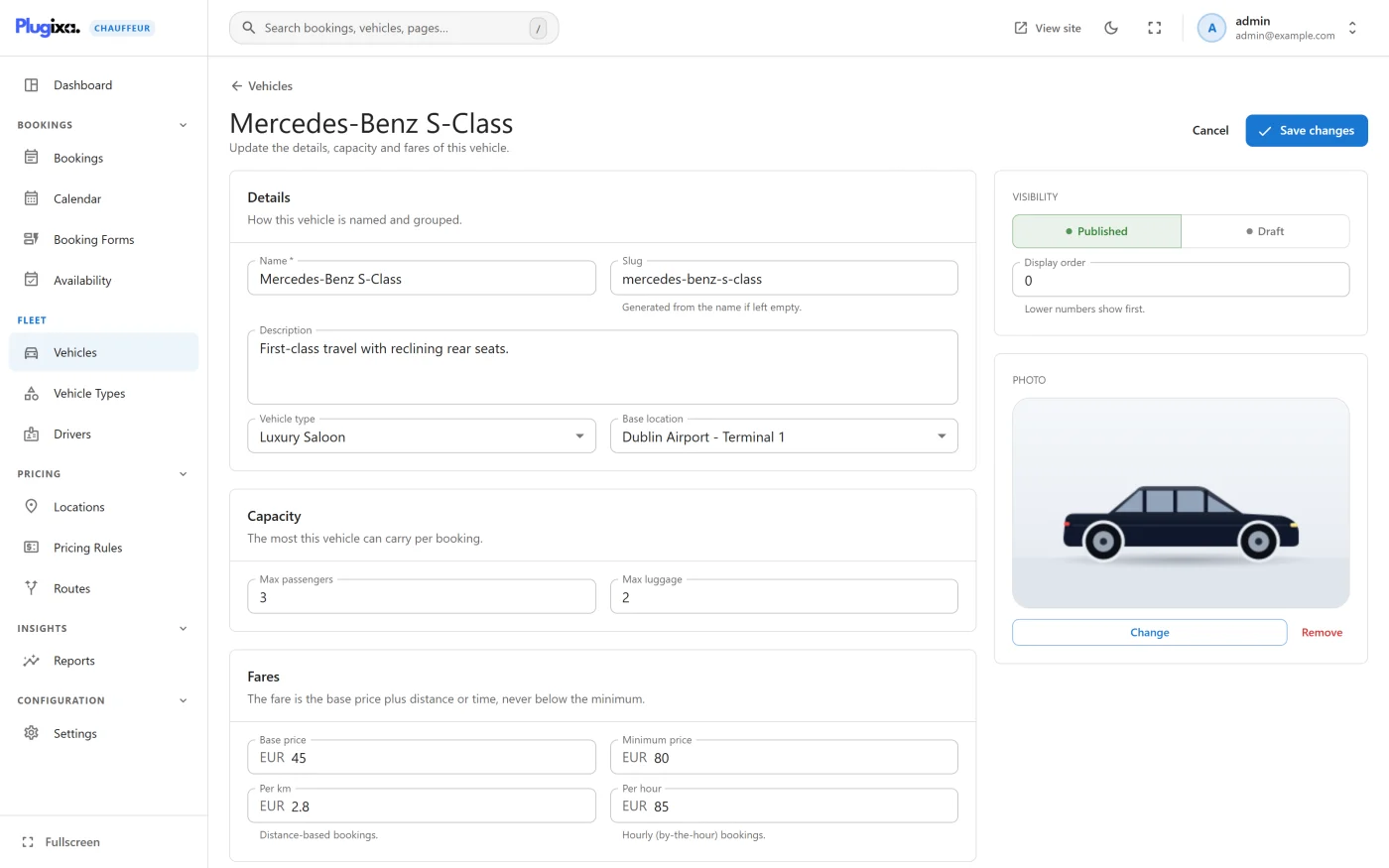
Vehicles are managed under Plugixa Chauffeur -> Vehicles, described as “Your fleet, with capacity and base pricing for each vehicle.”
The list
| Column | What it shows |
|---|---|
| Vehicle | The photo, the name and the slug. |
| Type | The vehicle type. |
| Capacity | Maximum passengers and maximum luggage. |
| Base price | The base price in the site currency. |
| Status | Published or Draft. |
Above the list are a search box, a Status filter and a Vehicle type filter. Each row ends with Edit and Delete.
Adding a vehicle
Press Add vehicle.
Details
“How this vehicle is named and grouped.”
| Field | Notes |
|---|---|
| Name | Required. Shown to customers. |
| Slug | Optional. “Generated from the name if left empty.” |
| Description | Optional text about the vehicle. |
| Vehicle type | One of your vehicle types, or none. |
| Base location | One of your locations, or none. It is a record of where the vehicle is kept and does not change the fare. |
Capacity
“The most this vehicle can carry per booking.”
| Field | Default | How it is used |
|---|---|---|
| Max passengers | 4 | The vehicle is offered only when it can carry the number of passengers the customer entered. |
| Max luggage | 2 | Shown on the vehicle’s card in the wizard. It does not hide the vehicle when the customer enters more luggage. |
Fares
“The fare is the base price plus distance or time, never below the minimum.”
| Field | Used for |
|---|---|
| Base price | Every booking of this vehicle. |
| Minimum price | Every booking. A fare below this amount is raised to it. 0 means no minimum. |
| Per km | “Distance-based bookings.” The label follows the distance unit in Settings, so it reads Per mi when the unit is miles. |
| Per hour | “Hourly (by-the-hour) bookings.” |
The amounts are plain numbers in your site currency. Pricing explains exactly how they are combined, with a worked example.
A vehicle is offered for every service type the booking form allows. If a vehicle has no Per hour price, an hourly booking of it costs the base price, or the minimum price if that is higher. Fill in both rates for every vehicle that can be booked both ways.
Visibility
| Field | Notes |
|---|---|
| Published / Draft | A new vehicle starts as Draft. Only published vehicles are offered to customers. |
| Display order | “Lower numbers show first.” Vehicles with the same number are ordered by base price, cheapest first. |
Photo
Press the photo card to choose an image from the media library. It is “Shown to customers when they choose a vehicle.” A vehicle without a photo shows a placeholder in the wizard.
A vehicle has one photo. Version 1.0.0 has no gallery in the admin.
Press Create vehicle, or Save changes when editing.
What customers see
On the Choose a vehicle step, each published vehicle that is large enough appears as a card with its photo, its name, its type, its passenger and luggage capacity, and the price for the trip the customer described. The description is not shown on the card in this version.
Drafts and deleting
Switch a vehicle to Draft to take it off the booking form without losing it. A draft vehicle cannot be booked, even by a request that names it directly.
Delete asks for confirmation and needs the delete permission. Bookings already made with the vehicle are kept, but they no longer show a vehicle name. Prefer Draft for a vehicle that has bookings.
Changing prices
A price change applies to quotes and bookings made from that moment. Existing bookings keep the fare they were made with.
Changing the order
The order of vehicles is set with the Display order number on each vehicle, in the Visibility card. The lowest number comes first.
- In the wizard, vehicles are offered in display order. Vehicles that share a number are ordered by base price, cheapest first.
- In the admin, the Vehicles list opens in display order.
To move a vehicle, open it, change the number and press Save changes. Numbers do not have to follow each other: 10, 20, 30 leaves room to slot a new vehicle in later without renumbering the others. A new vehicle has the number 0, so it comes first until you give it another.
Version 1.0.0 has no drag handle in the list. Developers can set the order of
several vehicles in one call with POST /vehicles/reorder, see
REST API.
What to do next
- Group vehicles with Vehicle types.
- Understand the fare in Pricing.
- Add surcharges and discounts with Pricing rules PRO.
- Assign people to rides with Drivers PRO.