

Contents
Vehicle types - Plugixa Chauffeur
A vehicle type is a category for your fleet: Sedan, Van, Limousine and so on. Types are optional. They label vehicles for customers and give you a filter in the admin.
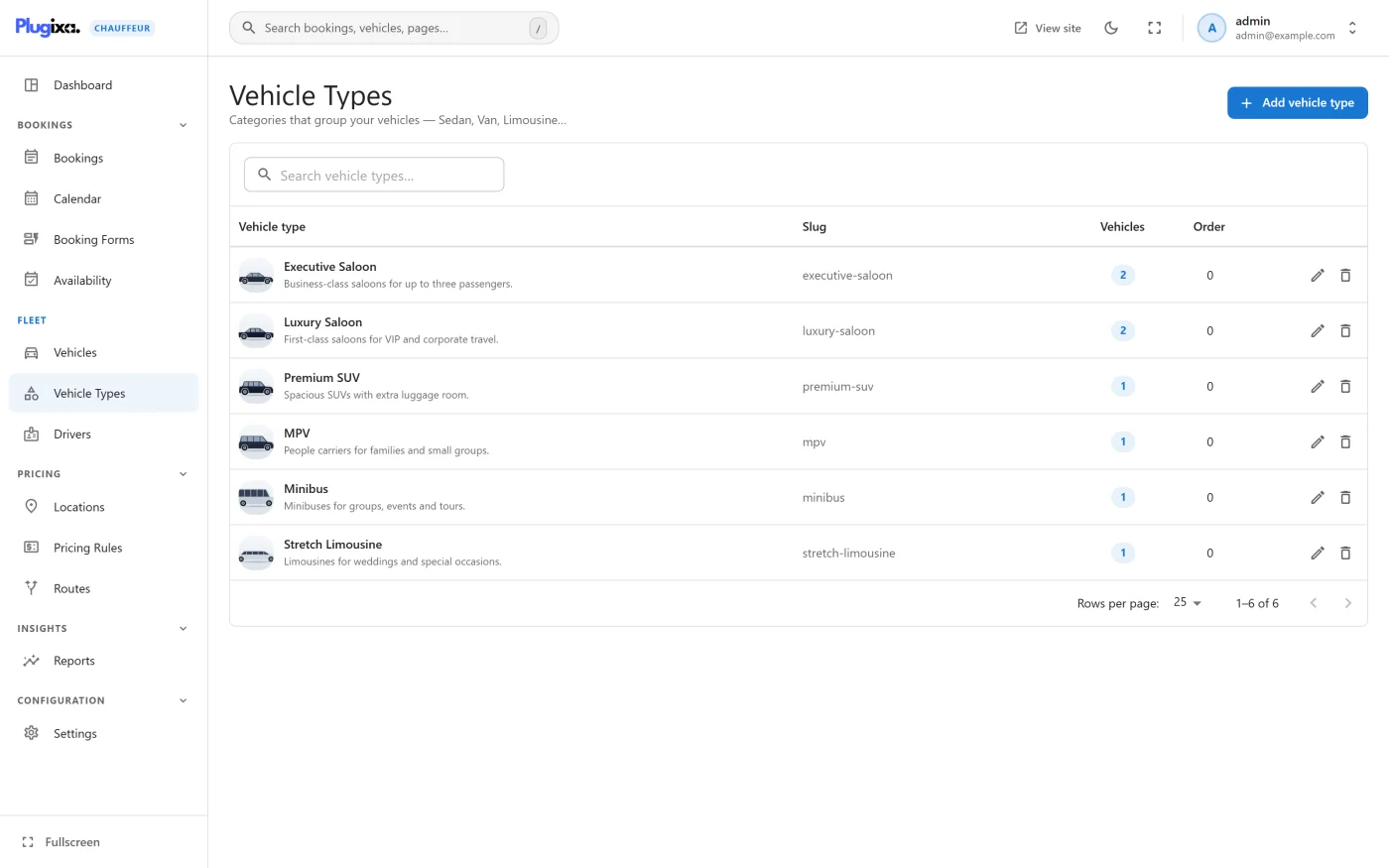
Types are managed under Plugixa Chauffeur -> Vehicle Types.
The list
| Column | What it shows |
|---|---|
| Vehicle type | The image and the name, with the description or the slug underneath. |
| Slug | The type’s slug. |
| Vehicles | How many vehicles use the type. |
| Order | The display order. |
A search box sits above the list. Each row ends with Edit and Delete.
Adding a type
Press Add vehicle type.
| Field | Notes |
|---|---|
| Name | Required. Shown to customers on each vehicle of this type. |
| Slug | Optional. “Generated from the name if left empty.” |
| Description | Optional. Shown in the admin list. |
| Display order | “Lower numbers show first.” Orders the admin list. |
| Image | An image from the media library, shown in the admin list. |
Press Create vehicle type, or Save changes when editing.
A type has no draft state and no prices. Prices belong to each vehicle.
Assigning vehicles
A type is chosen on the vehicle, not the other way round. Open a vehicle under Plugixa Chauffeur -> Vehicles and pick the type in the Vehicle type field. A vehicle has one type or none.
Where the type appears
- In the wizard - the type’s name is shown on each vehicle card, before the passenger and luggage capacity. In version 1.0.0 the wizard does not group vehicles by type, does not let customers filter by type, and does not show the type’s image or description.
- In the admin - the Type column and the Vehicle type filter on the Vehicles list.
Deleting a type
Delete asks for confirmation and warns: “Vehicles using this type will be detached from it. This cannot be undone.” The vehicles themselves are kept and simply have no type afterwards. Deleting needs the delete permission.
Changing the order
The Order column shows each type’s Display order number, and the list opens with the lowest number first. To move a type, open it, change Display order and press Save changes. A new type has the number 0.
The order is for the admin only: the wizard does not list or group vehicles by type, so it changes nothing for customers.
Version 1.0.0 has no drag handle in the list. Developers can set the order of
several types in one call with POST /vehicle-types/reorder, see
REST API.
What to do next
- Add vehicles in Vehicles.
- See how a vehicle card looks to customers in Booking wizard.