

Contents
Booking wizard - Plugixa Chauffeur
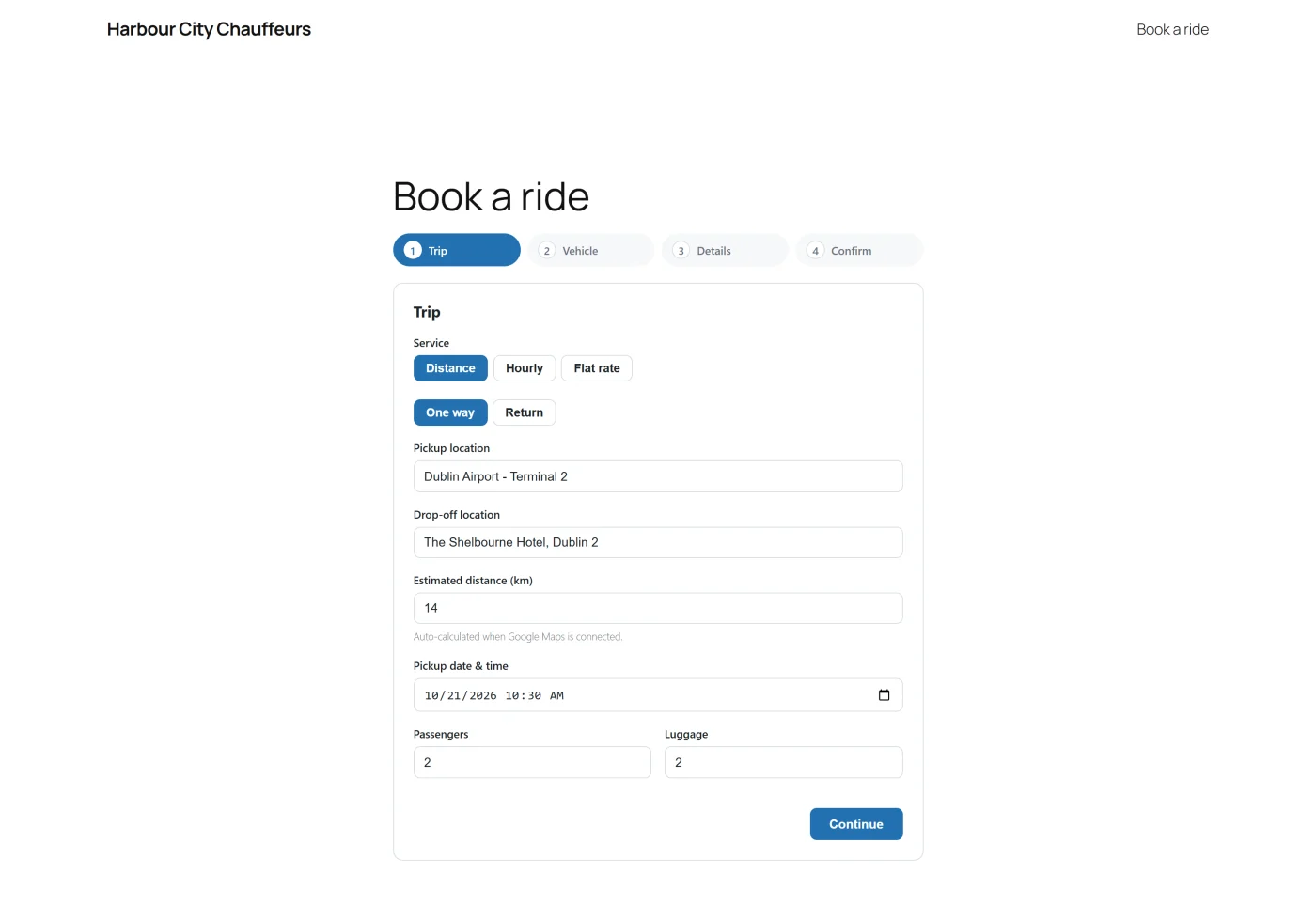
The booking wizard is what your customers use. It appears wherever you place a booking form’s shortcode, and it walks the customer through four steps shown in a numbered bar at the top: Trip, Vehicle, Details and Confirm.
While the form’s configuration loads, the customer sees “Loading booking form…”. If the form does not exist or is a draft, the wizard shows “Booking form not found.” instead.
Step 1 - Trip
The first step collects the journey. What is shown depends on the booking form.
| Field | When it is shown | Notes |
|---|---|---|
| Service | Only when the form offers more than one service type | A row of buttons: Distance, Hourly, and Flat rate PRO when enabled. The form’s default is pre-selected. |
| One way / Return | Only when Return trips is on for the form | One way is pre-selected. |
| Pickup location | Distance and Hourly | Free text. |
| Drop-off location | Distance only | Free text. |
| Estimated distance (km) | Distance only | A number typed by the customer. The unit in the label follows Settings -> General -> Distance unit. |
| Duration (hours) | Hourly only | A number, in steps of half an hour. |
| Route PRO | Flat rate only | A list of your active routes. It replaces the pickup, drop-off and distance fields. |
| Pickup date & time | Always | Pre-filled with the earliest time the form’s minimum lead time allows. |
| Passengers | Always | Starts at the form’s minimum passengers. |
| Luggage | Always | Starts at 0. |
The customer presses Continue. The wizard then checks that the step is complete:
- Distance: pickup, drop-off and a distance above zero.
- Hourly: pickup and a duration above zero.
- Flat rate PRO: a route.
- In every case: a pickup date and time.
If something is missing the customer sees “Please complete the required fields.”
The wizard then asks your site for prices. If the pickup time breaks one of your availability rules, the customer stays on this step and sees the reason, for example “We are closed on Sunday. Please choose another day.”
About the distance field
Version 1.0.0 does not contact a mapping service, so the distance is not calculated from the two addresses. The customer types it. The field carries the hint “Auto-calculated when Google Maps is connected.”, but there is no such connection in this version. The fare is calculated from the number entered, so check the distance on a booking before you confirm it.
About return trips
Choosing Return changes the price, see Pricing. The wizard does not ask for a separate return date and time. If you need one, ask customers to put it in the notes on step 3.
Step 2 - Vehicle
The step is headed Choose a vehicle. It lists every published vehicle that can carry the number of passengers entered, ordered by display order and then by base price. Each card shows:
- the vehicle’s photo, or a placeholder when it has none,
- its name,
- its vehicle type, with the maximum passengers and luggage,
- the price for this trip, formatted in the booking currency.
The customer clicks a card to select it, then presses Continue. The button stays disabled until a vehicle is selected. Back returns to the trip.
If no vehicle is large enough, the customer sees “No vehicles available for this trip.”
Only the passenger count narrows the list. The luggage count is saved on the booking but is not compared with a vehicle’s Max luggage.
Step 3 - Details
The step is headed Your details.
| Field | Required |
|---|---|
| Full name | Yes |
| Yes, and it must look like an email address | |
| Phone | No |
| Notes (optional) | No |
Continue moves on. A missing name or an invalid email shows “Please complete the required fields.”
Step 4 - Confirm
The step is headed Review & confirm. It summarises the service, the pickup and drop-off, the pickup date and time, the number of passengers and the chosen vehicle.
Below the summary:
- Payment method - one button for each method you have enabled. The first one is pre-selected. When a method has instructions, they are shown under the buttons. This section is not shown when no method is enabled.
- Total - the price of the chosen vehicle for this trip.
The customer presses Confirm booking. The button reads “Booking…” while the request is sent.
What happens when the customer confirms
Your site does not trust anything the browser calculated. It:
- Checks the security token issued with the page. A page left open for a very long time can fail here with “Security check failed. Please refresh and try again.”
- Checks that the booking form is still published.
- Checks the pickup time against the availability rules again.
- Checks the pickup time against the form’s own Minimum lead time.
- Checks that a name and a valid email were given.
- Checks that the vehicle is published and can carry the passengers.
- Recalculates the fare from the vehicle’s rates.
- Saves the booking with the status Pending and the payment status Unpaid, and gives it a reference.
- Sends the notification emails.
If any check fails, the customer stays on the confirm step and sees the message.
After confirming
Offline payment methods
The wizard shows a success screen with:
- “Thank you! Your booking is received.”
- Your reference and the booking number,
- the total and the vehicle name,
- the payment method’s instructions, when it has any,
- a Make another booking button that starts the wizard again.
Stripe
The customer is sent to Stripe’s hosted checkout page. When they come back to your page, the wizard shows one of two screens in place of the steps:
- Paid - a confirmation that payment was received, with the reference and a note that a confirmation email is on its way.
- Not completed - a message that the payment was not completed and that the booking is awaiting payment.
Both screens have a Make another booking button. The second screen does not offer a way to pay for the same booking again: that booking stays Pending and Unpaid in your admin, and a new attempt creates a new booking. See Payments.
Things worth knowing
- Times are read as your site’s time. The pickup time is treated as a time in the timezone set under WordPress Settings -> General, whatever timezone the customer is in.
- Prices use the visitor-facing locale. Amounts are formatted for the site language with the currency of the booking form, or the site currency when the form has none.
- Several wizards can share a page. Each shortcode on the page starts its own wizard.
- Text can be translated. Every label in the wizard uses the
plugixa-chauffeurtext domain. See Multilingual.
What to do next
- Decide what each form offers in Booking forms.
- Place the form with Shortcodes.
- If the wizard does not load, see Troubleshooting.