

Contents
Bookings - Plugixa Chauffeur
Every booking made through a booking form lands in Plugixa Chauffeur -> Bookings. The screen is described as “Every ride booked through your forms. Click a booking to see the trip and update its status.”
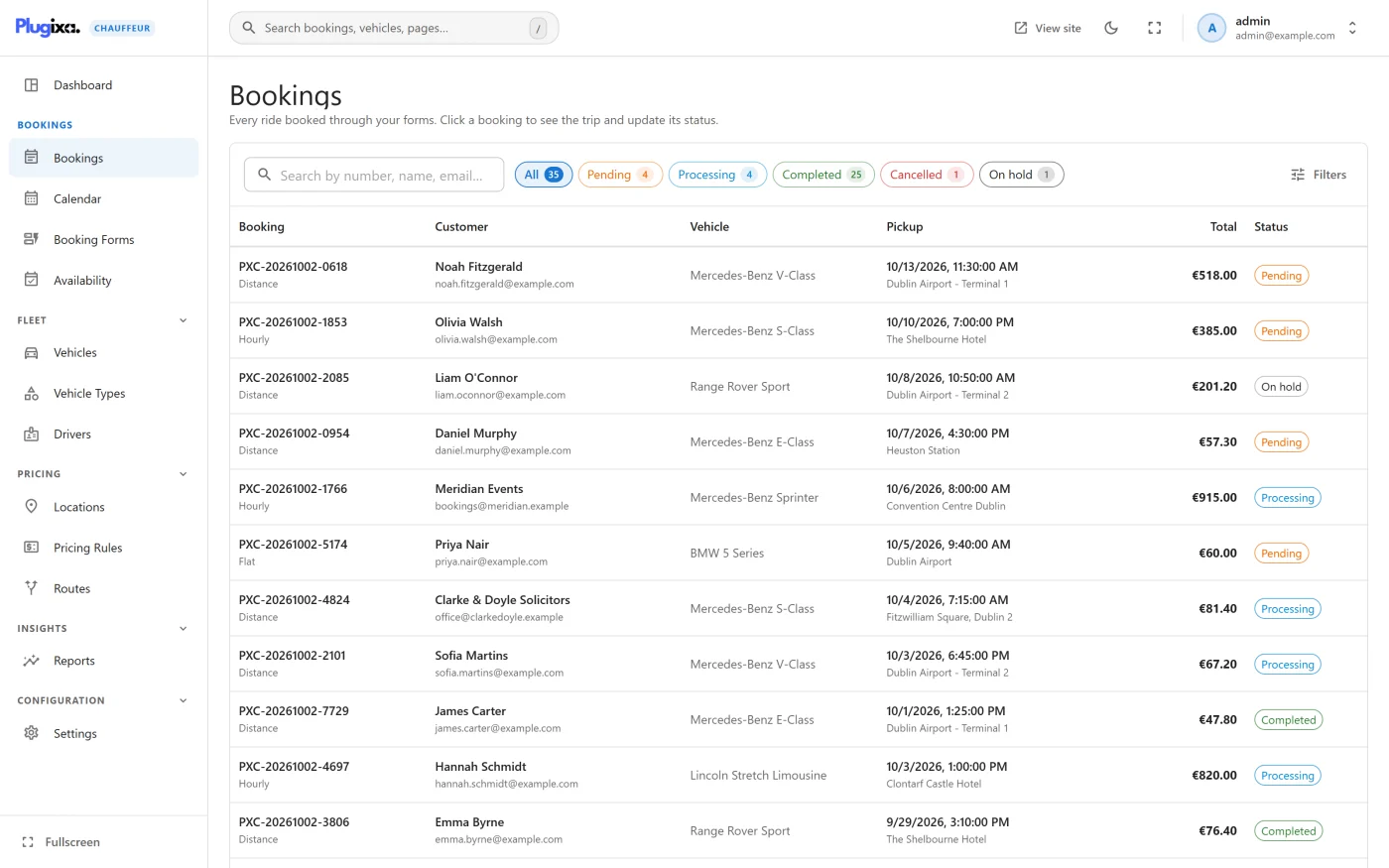
The list
Bookings are listed with the most recently received first.
| Column | What it shows |
|---|---|
| Booking | The reference, such as PXC-20261002-0421, with the service type underneath. |
| Customer | The customer’s name, with their email underneath. |
| Vehicle | The vehicle that was booked. |
| Pickup | The pickup date and time, with the pickup address underneath. |
| Total | The fare in the booking’s currency. |
| Status | The booking status. |
Finding a booking
- Search - the box is labelled “Search by number, name, email…” and searches the reference, the customer name and the customer email.
- Status - a row of chips, one for each status that has bookings, with a count on each. All shows everything.
- Filters - Service type (Distance, Hourly, and Flat rate PRO) and Payment (Paid or Unpaid). Under Payment, Unpaid means every booking that is not Paid, so it includes Deposit paid and Refunded.
The list loads the 200 most recent bookings that match the search and the status. The service type and payment filters narrow what has been loaded.
Click a row to open the booking. The list has no edit or delete buttons of its own; both are on the detail screen.
A site with no bookings shows “No bookings yet” and a Set up a booking form button.
The booking detail
The title is the reference, with the current status beside it and “Booked” followed by the date the booking was received.
Trip
The trip is shown for reference and cannot be edited here. The heading gives the service type and the transfer type, for example Distance · One way.
- Pickup and Drop-off, with the pickup date and time.
- Vehicle
- Distance, for distance bookings
- Duration, for hourly bookings
- Passengers
- Luggage
The distance is the number the customer entered in the wizard. It is always labelled km on this screen, whatever distance unit is chosen in Settings.
Customer
Name, Email, Phone and Notes can all be edited. Notes hold whatever the customer typed in the wizard, and you can add your own.
Status & payment
| Field | Choices |
|---|---|
| Assigned driver PRO | One of your drivers. See Drivers. |
| Booking status | Pending, Processing, Completed, Cancelled, On hold, Refunded, Failed |
| Payment status | Unpaid, Paid, Deposit paid, Refunded |
Below them, Paid with shows the payment method the customer chose.
Fare
Base, Distance and Time are the three parts of the fare, and Total is shown beneath them.
- If you leave the three amounts alone, the total stays exactly what the customer was quoted, whatever else you change on the booking.
- If you change any of the three, saving sets the total to their sum.
In Pro, a booking whose total includes rule adjustments or a flat-rate price shows a Rules & adjustments line. Editing one of the three amounts replaces the total with their sum, and the screen warns you that the adjustment will not be kept. See Pricing.
Saving and deleting
- Save changes saves everything on the screen. Once something has changed, a bar at the bottom of the screen reminds you that there are unsaved changes. Cancel returns to the list without saving.
- Invoice PRO opens a printable invoice in a new tab. See Invoices.
- Delete asks you to confirm: “The booking and its customer details are removed permanently. This cannot be undone.” Deleting needs the delete permission.
Booking statuses
A booking always has one of seven statuses.
| Status | Typical meaning |
|---|---|
| Pending | Received and waiting for you. Every booking from the wizard starts here. |
| Processing | Accepted. A Stripe payment moves a Pending booking here automatically. |
| Completed | The ride has taken place. |
| Cancelled | The booking will not go ahead. |
| On hold | Paused, for example while you wait for information. |
| Refunded | The customer has been refunded. |
| Failed | The booking could not be fulfilled or paid. |
The plugin sets a status itself in only two cases: a new booking is Pending, and a Pending booking paid through Stripe becomes Processing. Every other change is made by you on the detail screen. The meanings above are conventions; the plugin does not enforce an order.
Changing the status sends the customer an email. See Emails for which heading each status uses.
The Default booking status setting
Settings -> Maps & booking has a Default booking status field. In version 1.0.0 the wizard does not read it: a new booking is always Pending.
Payment status
Payment status is separate from booking status, so a booking can be Processing and still Unpaid.
| Payment status | When it is set |
|---|---|
| Unpaid | Every new booking. |
| Paid | Automatically, when Stripe confirms a payment. By you, for cash, bank transfer and pay on pickup. |
| Deposit paid | By you. |
| Refunded | By you. |
For offline methods the plugin has no way to know that money has changed hands. Set Payment status to Paid yourself once it has. Setting Refunded here is a record only: it does not send money back through Stripe. Make the refund in your Stripe dashboard.
Changing only the payment status does not send an email.
Customer cancellation
Customers cannot cancel a booking themselves. The emails the plugin sends do not contain a cancellation link, and there is no customer account area. To cancel, the customer contacts you and you set Booking status to Cancelled. The customer is then sent an email headed “Your booking has been cancelled”.
Adding a booking by hand
The admin has no “add booking” button in version 1.0.0. To record a phone booking, make it through your own booking form, or create it through the REST API.