

Contents
Calendar - Plugixa Chauffeur
Plugixa Chauffeur -> Calendar shows your bookings by pickup date. It is a view for planning: nothing can be created, moved or resized on it.
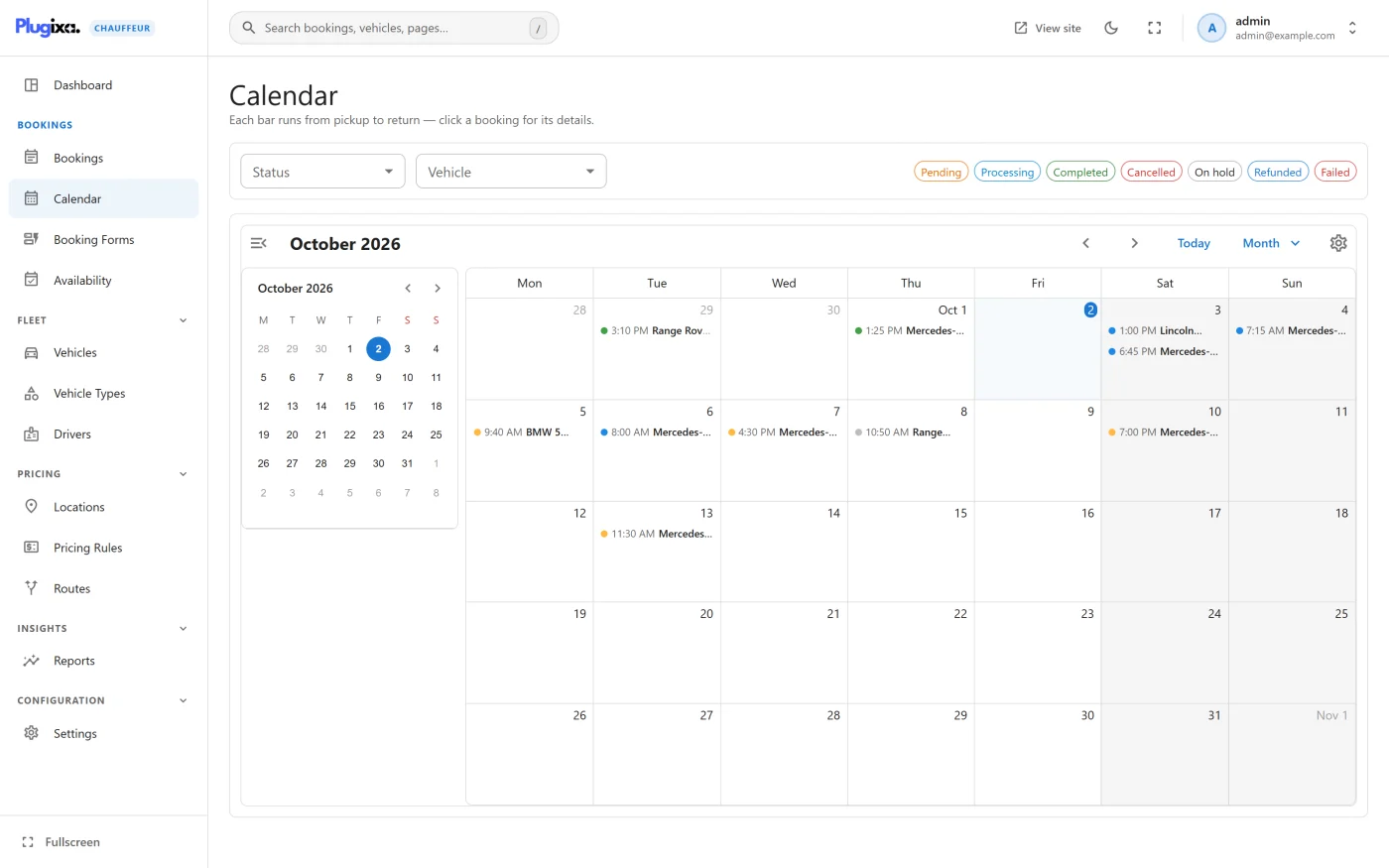
Reading the calendar
Each booking is one bar.
- Where it starts - the pickup date and time.
- How long it is - a booking with a return time runs from pickup to return. A booking without one is drawn as a one-hour block so that it is still visible. Bookings made through the wizard have no return time, so they appear as one-hour blocks.
- Its label - the vehicle name. When the booking has no vehicle, the customer name is used, and failing that the reference.
- Its colour - the booking status. The key at the top right of the screen shows a chip for every status in the same colours used in the bookings list.
Views
The calendar opens on the month and can be switched between day, week, month and agenda views with the calendar’s own controls, which also move backwards and forwards in time.
The week starts on the day chosen under Settings -> General -> First day of the week.
Filters
Two filters sit above the calendar.
| Filter | Choices |
|---|---|
| Status | All statuses, or one booking status |
| Vehicle | All vehicles, or one vehicle |
Filtering by vehicle is the quickest way to see whether one car is already committed on a given day.
Opening a booking
Click a bar. A panel slides in from the right with a summary:
- the reference and the status,
- Customer,
- Vehicle,
- Pickup,
- Return, or “Not set”,
- Total.
Press View full booking to open the detail screen, where the status, payment status, customer details and fare can be changed. See Bookings.
What the calendar does not do
- It does not stop two bookings for the same vehicle at the same time. The plugin does not check vehicle availability when a customer books. Use the Vehicle filter to spot overlaps.
- It does not show blackout dates or business hours. Those are set on the Availability screen and are applied when a customer books.
- It cannot be dragged. To change a booking, open it.
What to do next
- Change a booking in Bookings.
- Control when customers can book in Availability.