

Contents
Email capture - Plugixa Easy Social Share Buttons
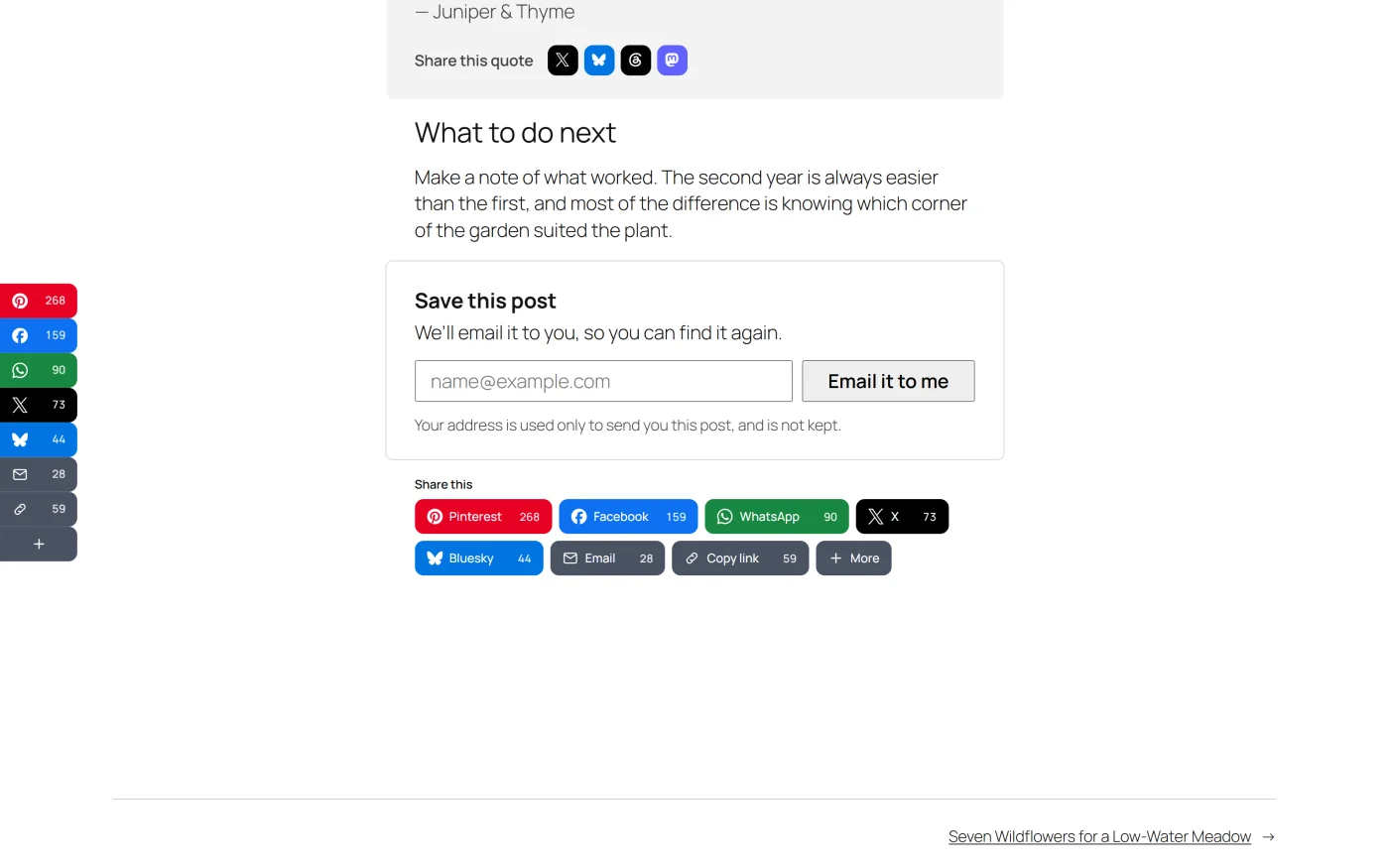
Email capture PRO adds a “Save this post” form. A reader types their email address and your site emails them the post they are on, so they can find it again. A tick box, which starts unticked, lets them join your email list as well.
No reader’s address is stored on your site.
The settings
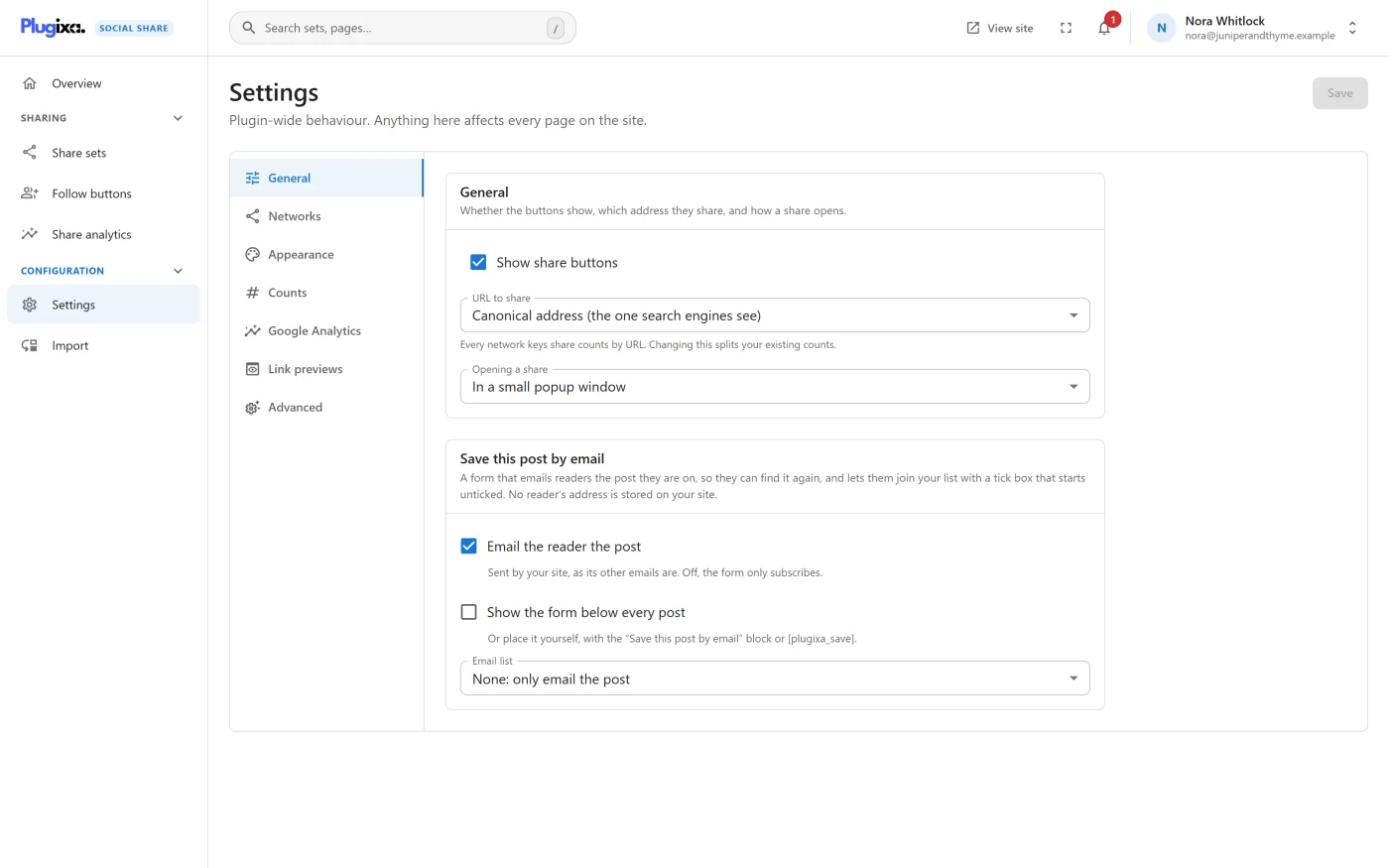
Go to Settings -> General. Pro adds a Save this post by email panel.
| Setting | Default | What it does |
|---|---|---|
| Email the reader the post | On | The form emails the reader the post. “Sent by your site, as its other emails are. Off, the form only subscribes.” |
| Show the form below every post | Off | Adds the form under the content of every post automatically |
| Email list | None: only email the post | The service readers who tick the box are added to |
Choosing a service shows its own fields:
| Service | Key field | List field |
|---|---|---|
| Mailchimp | Mailchimp API key | Audience ID |
| Brevo | Brevo API key | List ID (a number) |
| MailerLite | MailerLite API key | Group ID (a number) |
| Kit | Kit API key | Form ID (a number) |
Mailchimp has one more option, Ask Mailchimp to send its confirmation email first, which is on by default. With it on, Mailchimp emails the reader to confirm before adding them.
Each API key is write-only: once saved it is never shown again, and Remove the saved one deletes it.
Under the fields the panel names the service and the host it is contacted at, and says that a reader’s address is sent there only when they tick the box and send the form, and to nobody before that.
When the form is not shown
“With the post not emailed and no list chosen, the form has nothing to do, and is not shown.” The form also needs a service to be fully set up before it counts as chosen: its key and its list ID.
Where the form appears
| Way | How |
|---|---|
| Automatically | Tick Show the form below every post. It is added after the post’s share buttons |
| Block | The Save this post by email block |
| Shortcode | [plugixa_save] |
- The form appears on single posts, pages and products: the types a share set can be placed on. It is not drawn on a password-protected post.
- One form is drawn per page. A post that places the form itself keeps it where it put it, and the automatic one is left out.
- While Show share buttons is off in Settings, the form is not drawn.
What the reader sees
| Setup | Title | Button | Tick box |
|---|---|---|---|
| The post is emailed, no list | “Save this post” | “Email it to me” | None |
| The post is emailed, with a list | “Save this post” | “Email it to me” | “Also send me new posts by email”, optional |
| Only a list | “Get new posts by email” | “Subscribe” | “Also send me new posts by email”, required |
Under the form a line says what the address is used for, naming your email service when there is one.
After sending, the reader is told what happened:
| Message | When |
|---|---|
| “Done. Check your inbox for the post.” | The post was emailed, and they joined the list or did not ask to |
| “The post is on its way. We could not add you to the list just now; please try again later.” | The post was emailed but the list could not be reached |
| “Thank you. You’re on the list.” | Only a subscription |
The form works without JavaScript. With it, the answer appears in the form without leaving the page.
The email
The email is plain text, sent by WordPress’s own mail function, the same way your site sends its other emails.
- Subject: “The post you saved:” and the post’s title
- Body: the post’s title, its address, and your site’s name, with the line “You asked for this on our site; there is nothing to unsubscribe from.”
It contains nothing else: no content of the post and no tracking.
Joining the list
The list is joined only when the reader ticks the box. Their address is then sent from your server to the service you chose.
| Service | Host contacted |
|---|---|
| Mailchimp | Your account’s own data centre at api.mailchimp.com, taken from the end of your API key |
| Brevo | api.brevo.com |
| MailerLite | connect.mailerlite.com |
| Kit | api.convertkit.com |
A reader who is already on the list counts as success. If the list cannot be reached, the post is still emailed and the reader is told.
Protection against misuse
The form is public, because readers have no account, and it sits on cached pages, so it cannot use a security token that expires. It is protected another way:
- A hidden field that people cannot see and bots tend to fill. A request that fills it is told it worked, and nothing is done.
- At most five sends in ten minutes from one address: “That is a lot of addresses from one place. Please try again in a few minutes.”
- The address must be a real email address, and the post must be a published, unprotected post of a type the form can go on.
For the limit, a one-way hash of the visitor’s IP address is kept for ten minutes and then discarded.
Privacy
- The reader’s email address is not stored on your site.
- It is used to send them the post, and sent to your email service only if they ticked the box.
- The plugin offers suggested wording for your privacy policy, under WordPress’s Settings -> Privacy -> Policy Guide, naming the service you chose.
What it costs
The form’s script and stylesheet are 1.1 KB gzipped together. They load only on pages where the form is drawn, and no service is contacted until a reader submits it.
If Pro is removed
The form, the block and the shortcode are part of Pro and stop appearing. The settings and API keys stay stored and nothing reads them.
What to do next
- Place the form by hand: Blocks and Shortcodes.
- See the General tab’s other options: Settings.