

Contents
Per-post controls - Plugixa Easy Social Share Buttons
Share sets decide where buttons appear for a whole post type. The Share buttons panel in the post editor lets one post say otherwise: hide its automatic buttons, or drop just one spot, such as the floating bar on a landing page.
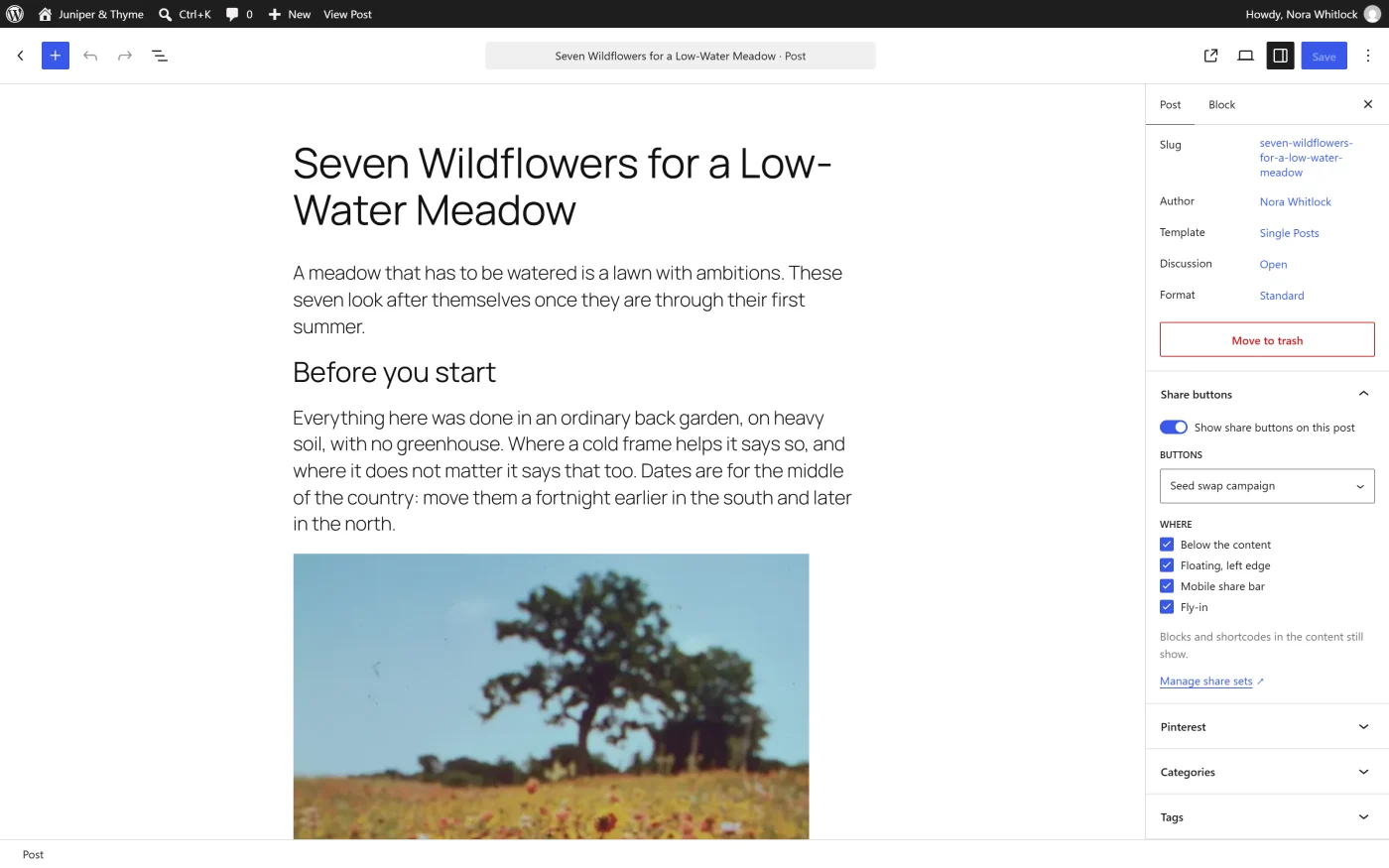
Where the panel is
| Editor | Where |
|---|---|
| Block editor | Share buttons in the post’s settings sidebar |
| Classic editor | A Share buttons box in the side column |
On a post type that does not support custom fields the block editor cannot save the panel’s choices, so the plugin shows the box there instead.
The panel is offered on the post types a share set can be placed on, to anyone who can edit the post. It is not shown on attachments or on a page builder’s own templates.
The controls
| Control | What it does |
|---|---|
| Show share buttons on this post | On by default. Switch it off to hide every automatic spot on this post. |
| Where | One tick box per spot this post’s type has, all ticked by default. Untick one to drop that spot on this post only. |
The spots listed are the ones your share sets place on this post type, for example Below the content and Floating, left edge. If no set places buttons on the type, the panel says so: “No share set places buttons on Pages automatically.”
Under the controls: “Blocks and shortcodes in the content still show.” For people who can open the plugin’s screens there is also a Manage share sets link.
In the block editor the choices are part of the post: they wait for Update or Publish like the title does, and Undo takes them back. In the classic editor they save with the post.
What a post can and cannot do
- A post can take away: hide everything, or drop some spots.
- A post can not add a spot its post type does not have. A floating bar on one page only is done the other way round: place the set on Pages, then drop the spot on the pages that should not have it, or place the set by hand.
- Only automatic buttons are affected. A Share buttons block or a
[plugixa_share]shortcode in the content is placed on purpose, and stays. To remove it, delete it from the content.
A hidden post with no block or shortcode of its own loads none of the plugin’s CSS or JavaScript.
Choosing another share set PRO
With Pro the panel gains a Buttons menu between the switch and the spots. It chooses which share set draws this post’s automatic buttons.
| Choice | What it does |
|---|---|
| As set for Posts | The default. The post uses its post type’s sets. When one set owns every spot of the type, its name is shown in brackets. |
| A share set’s name | This post’s spots are all drawn with that set instead. |
The post’s spots stay its post type’s. Only the set that draws them changes: a landing page with a quieter row, a recipe with Pinterest first.
The menu appears once there are at least two share sets, or when the post already made a choice. In the block editor it is shown only while Show share buttons on this post is on.
If the chosen set is deleted later, the post goes back to its post type’s buttons. The delete dialog counts these posts before you confirm.
Who can change it
Anyone who can edit the post: authors on their own posts, editors on anyone’s. The plugin’s own permissions are not needed, because choosing among existing sets is part of writing the post. Creating and changing the sets themselves still needs the plugin’s edit permission.
How it is stored
Each choice is a custom field on the post. A field exists only when the post chose something: setting a control back to its default removes the field.
| Field | Holds |
|---|---|
_plugixa_share_hide |
True when the post hides its automatic buttons |
_plugixa_share_off |
The spots the post drops |
_plugixa_share_set PRO |
The number of the share set the post chose |
The fields are available to the REST API on post types that support custom fields, with the same rule: only someone who can edit the post may change them.
Importing choices from another plugin
Posts that hid their buttons in Sassy Social Share or AddToAny can keep that choice. See Import.
What to do next
- Set the post type’s spots in Placements.
- Place a set inside the content with Blocks or Shortcodes.