

Contents
Placements - Plugixa Easy Social Share Buttons
A placement is where a share set appears by itself. It is chosen in the wizard’s fourth step, Where it appears, per post type, on a diagram of a page that you click.
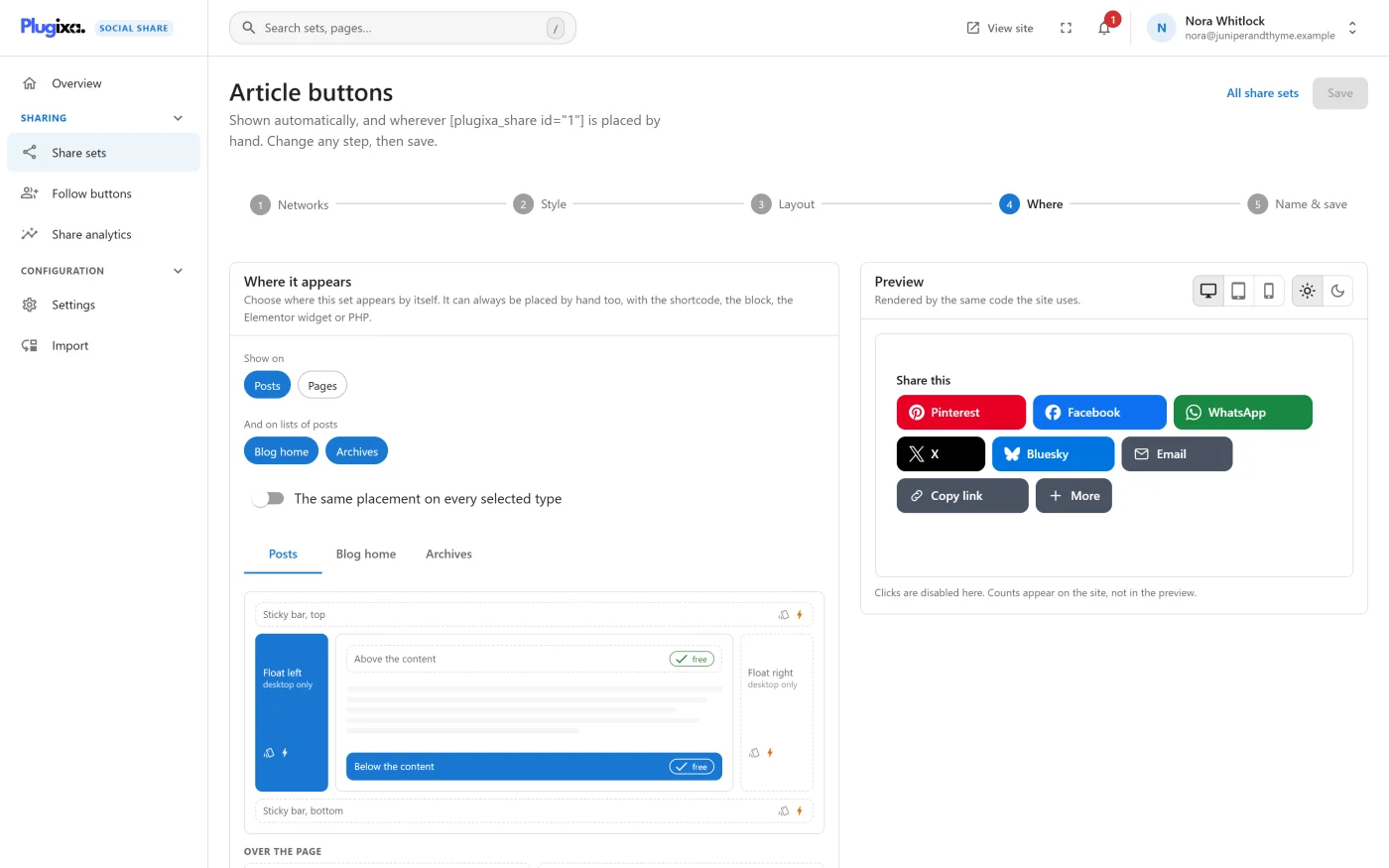
A set with no placement is still useful: it is Placed by hand, with its shortcode, the block, the Elementor widget or PHP.
The spots
| Spot | Where it is | Devices | Extra cost |
|---|---|---|---|
| Above the content | Before the first paragraph | All | None |
| Below the content | After the last paragraph | All | None |
| Float left | A column on the left edge of the window that follows the reader down the page | Windows 1024 pixels wide and up | A stylesheet part and the script |
| Float right | The same, on the right edge | Windows 1024 pixels wide and up | A stylesheet part and the script |
| Sticky bar, top | A bar across the top of the window | All | A stylesheet part and the script |
| Sticky bar, bottom | A bar across the bottom of the window | All | A stylesheet part and the script |
| Share bar (under On phones) | A row pinned to the bottom of the screen | Screens up to 782 pixels wide | A stylesheet part |
| In the product summary | WooCommerce’s own place for share buttons | All, on Products only | None |
Choosing both Above the content and Below the content puts the set in both places.
Each zone on the diagram states its cost: “free”, “Adds a small stylesheet.” or “Needs the script on pages that use it.” The exact sizes are in Performance.
Notes on behaviour:
- The floating sidebars and the top bar appear once the reader has scrolled past the top of the page.
- A floating sidebar is always drawn as a column, whatever the set’s layout.
- Device rules are applied in CSS, not by detecting the device on the server, so one cached page is correct on a phone and on a desktop.
- Buttons are not printed: they are hidden when a visitor prints the page.
Popup and fly-in PRO
Pro adds two spots under Over the page: Popup and Fly-in. They are chosen on the same diagram. See Popup and fly-in.
Post types
Show on lists the content types visitors read: Posts, Pages, Products and any other public type with pages of its own.
Left out on purpose are attachments and the storage types page builders register, because nobody reads those as pages:
- Elementor: My Templates, Floating Elements, Custom Code
- Beaver Builder templates
- Divi library layouts
- Oxygen templates
- Brizy templates
- Kadence elements
To put buttons inside an Elementor template, drag the Share buttons widget
into it. A developer can change the list with the
plugixa_social_share_placeable_post_types filter.
The same placement, or one per type
The same placement on every selected type is on by default: one diagram, applied to every ticked type. Switch it off and the diagram gets a tab per type, so Posts can have buttons below the content while Pages have a floating sidebar.
One set per spot
Each spot on each post type belongs to one share set. Set 1 above the content and Set 2 below it is a valid page; so is Set 1 below Posts and Set 2 below Products.
When you click a spot another set already has, nothing is refused. The zone reads “moves here from” with that set’s name, and a warning says, for example: ““Below the content” on Posts is used by Share set 1. Saving moves it to this set.” The other set keeps everything else it had. If it had Above and Below and you take Above, it keeps Below.
The blog home and archives
Under And on lists of posts, tick Blog home or Archives.
| Key | Pages it covers |
|---|---|
| Blog home | The latest posts, on the front page or on the posts page |
| Archives | Categories, tags, authors, dates, custom post type archives and shop archives |
On these pages the spots mean something slightly different:
| Spot | On a list of posts |
|---|---|
| Above each post / Below each post | A row on every post in the list, sharing that post. It works whether the theme shows the whole post or an excerpt, in classic and block themes. |
| Floating sidebars and bars | Share the list page itself, at the address of its first page. |
Two things are left out on a list:
- No counts. Each count belongs to one post and a list shows several, so rows and sidebars on a list show no share counts and no total.
- No “+” under each post. A sidebar or a bar on the list keeps its “+”.
Search results and “not found” pages get no automatic buttons.
WooCommerce
On a product, Below the content would put buttons inside the description tab, which is where a product’s content is. In the product summary uses the place WooCommerce keeps for share buttons instead:
| Theme | Where the row appears |
|---|---|
| Classic theme | In the product summary, beside the price and Add to cart |
| Block theme | Under the product, above its description, at the same width as the product details block |
Tick Products under Show on and click In the product summary. The zone is marked “only on Products” and is not offered for other types.
A shop page lists products with WooCommerce’s own template, which has no place for a row under each product. A floating sidebar or a bar still works there: tick Archives.
Where automatic buttons never appear
- In feeds, embeds and the WordPress admin
- On a single post that is password protected
- On any page while Show share buttons is off in Settings
- On a post that has hidden them in its own Share buttons panel
- Inside another post’s content shown in a widget or a related-posts list: only the main post or list of the page gets a row
A developer can switch automatic buttons off for a whole class of pages with
the plugixa_social_share_is_shareable filter.
Placing by hand
Every set can also be placed where you choose:
- Shortcodes and template tags
- The Share buttons block
- The Share buttons Elementor widget, which lists your sets by name
Hand-placed buttons are separate from automatic ones. Hiding a post’s automatic buttons does not hide a block or shortcode in its content.
On phones
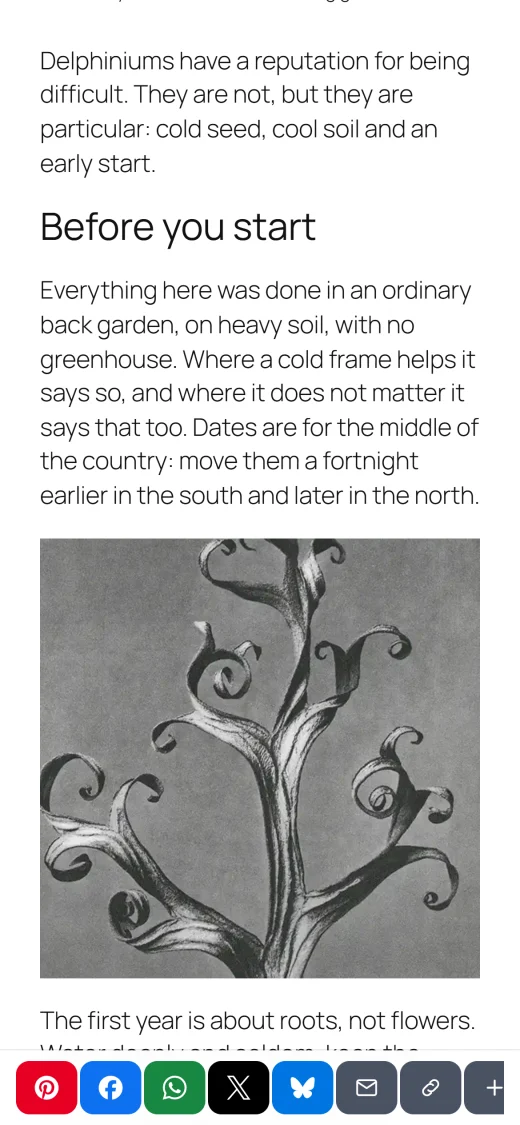
The Share bar is the placement made for phones. It is hidden on screens wider than 782 pixels. The floating sidebars are hidden below 1024 pixels, where they would cover the text.