

Contents
Import - Plugixa Easy Social Share Buttons
Plugixa Social Share -> Import reads another share plugin’s settings and shows what they become before anything is saved. It supports two plugins: Sassy Social Share and AddToAny.
“Nothing changes until you press Import, and nothing in the other plugin is touched.”
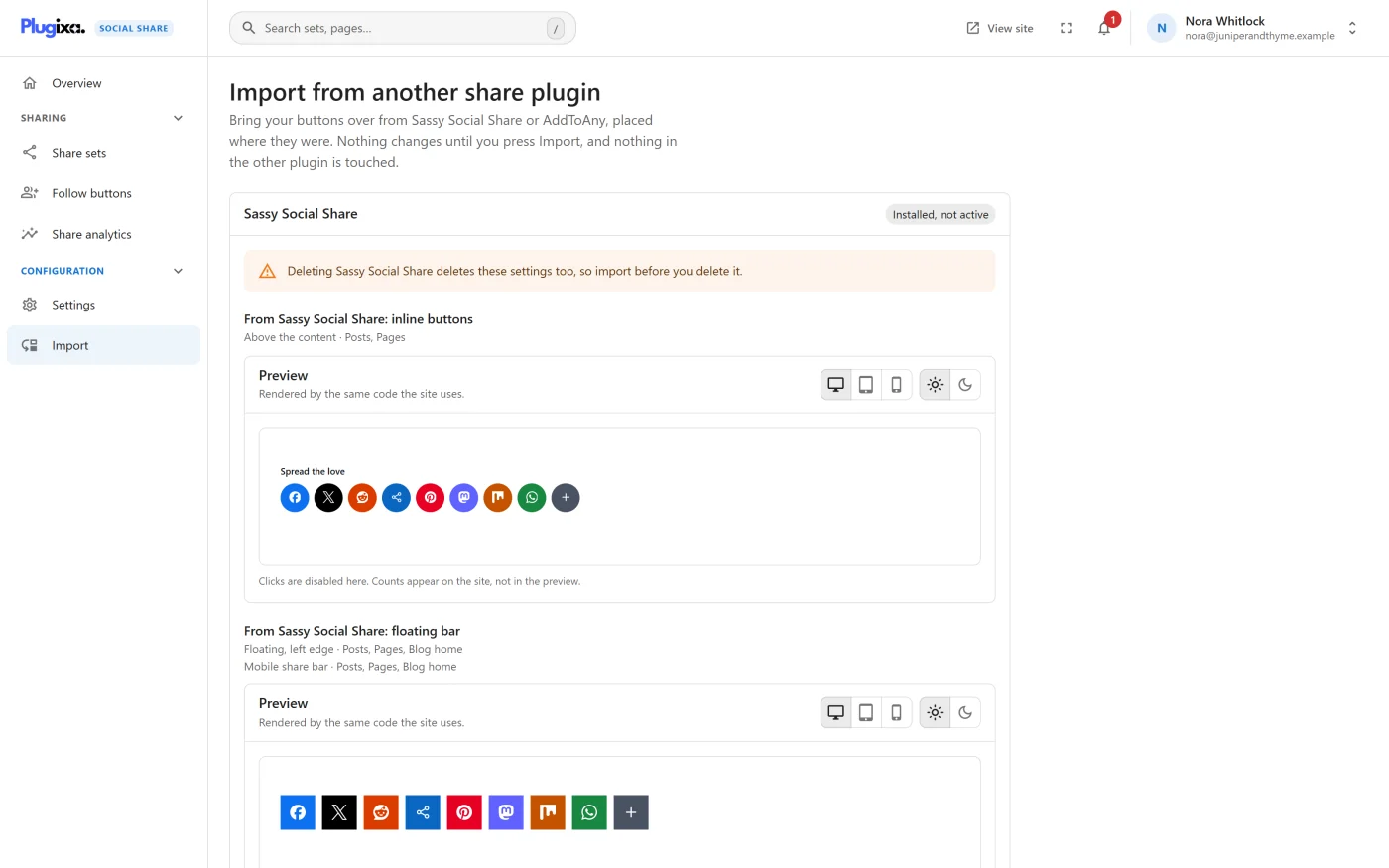
When a plugin is found
The screen has one panel per plugin whose settings exist on the site. A chip says what state that plugin is in:
| Status | Meaning |
|---|---|
| Active | The plugin is running |
| Installed, not active | It is installed but deactivated |
| Deleted, settings left | The plugin is gone but its settings are still in the database |
If neither has settings, the screen says so: “A plugin’s settings stay after it is deactivated, and usually go when it is deleted.”
Import before you delete Sassy Social Share. Sassy deletes its settings when it is deleted, and the panel warns about this when it applies.
When settings are found, the Overview screen and the header’s bell also point to this screen.
What the panel shows
Everything is shown before it happens.
| Section | What it lists |
|---|---|
| The share sets | Each set that will be created, drawn by the real renderer, with its name and where it will appear |
| Taken from your sets | Spots the new sets take from share sets you already have, for example “Below the content on Posts moves from Share set 1.” |
| Follow profiles it adds | Profiles from the other plugin’s follow widget that become follow buttons |
| Settings it changes | For example “Shares to X credit @yourname.” |
| Posts with their own choice | How many posts hid their buttons in the other plugin and will hide these too |
| Not brought over | Everything that cannot come, each with its reason |
A set with nowhere to go automatically is marked “No automatic spot: it appears only where you place it by hand.”
What each plugin becomes
| Plugin | Share sets created |
|---|---|
| Sassy Social Share | Two: “From Sassy Social Share: inline buttons” and “From Sassy Social Share: floating bar”, placed where Sassy placed them |
| AddToAny | One: “From AddToAny”, with its buttons and floating bars |
The sets are created through the same route the wizard saves with, so an imported set follows exactly the rules of a set built by hand, including one set per spot.
Posts that hid their buttons
Posts that switched their buttons off in the other plugin keep that choice:
- A post that hid all its buttons hides these too.
- With Sassy, a post that hid one of the two bars drops the same spots here.
These become the post’s own choices in its Share buttons panel, and can be changed there afterwards.
What is already here wins
- A follow profile for a service you already link is kept, and the import says so.
- An X account you already credit is kept.
What is not brought over
The Not brought over section names each item. The reasons include:
| Not brought over | Why |
|---|---|
| A network this plugin does not offer | It is not one of the 41 destinations |
| Facebook Like and Recommend buttons | They count likes, not shares, and load Facebook’s own script |
| A follow link for a service not on the follow list | Not one of the follow services here |
| Starting counts set on posts | This plugin shows only counts that exist |
| Custom CSS | It styled the other plugin’s buttons |
| Custom icon images | Each network’s own logo is used |
| Sharing one fixed address from every page | Here each page shares its own |
| Buttons under each product in the shop | WooCommerce’s shop grid has no place for them. A floating bar or a bottom bar still works there |
| Buttons on WooCommerce’s order-received page, in bbPress forums and in BuddyPress groups | Named on the screen as not brought over |
| The floating bar on phones | Here it shows on larger screens only. A set can add a bar for phones |
| The floating bar’s own icon size | A set has one size everywhere |
| AddToAny’s counters | Switch on counts in the set to show real ones |
| AddToAny’s additional JavaScript | Named on the screen as not brought over |
| AddToAny’s Google Analytics events | AddToAny sent them by itself. To keep them, switch on GA4 events in Settings |
| Bitly short links set up in the other plugin | Named on the screen as not brought over |
Wide rectangular buttons become icon buttons of the same height, and a floating bar attached beside the content sits at the edge of the window here.
Running the import
Press Import. The panel then reads “Imported. Your new share sets:” with a link to each one.
While the other plugin is still active, its buttons show beside these. The panel says so and links to the Plugins screen: “Deactivate it on the Plugins screen.”
Importing again
After an import the button reads Import again and the panel notes the date: “Importing again makes new sets and leaves those as they are.”
A second import makes a second copy of each set. It does not overwrite the first copies, because you may have edited them. Delete the copies you do not want from Share sets.
Who can import
Seeing this screen’s plan and running an import both need the
plugixa_social_share_manage_settings capability, which administrators have.
After the import
- Check the new sets under Share sets and adjust them in the wizard.
- Deactivate the other plugin once you are happy with the result.
- If the other plugin printed Open Graph tags, check Settings -> Link previews to see who prints them now.
What to do next
- Tune the imported sets: Share sets.
- Review the follow row: Follow buttons.