

Contents
Share sets - Plugixa Easy Social Share Buttons
A share set is a row of share buttons you build once and place anywhere: automatically, or by shortcode, block, Elementor widget or PHP. Plugixa Social Share -> Share sets lists every set, and the wizard builds or changes one.
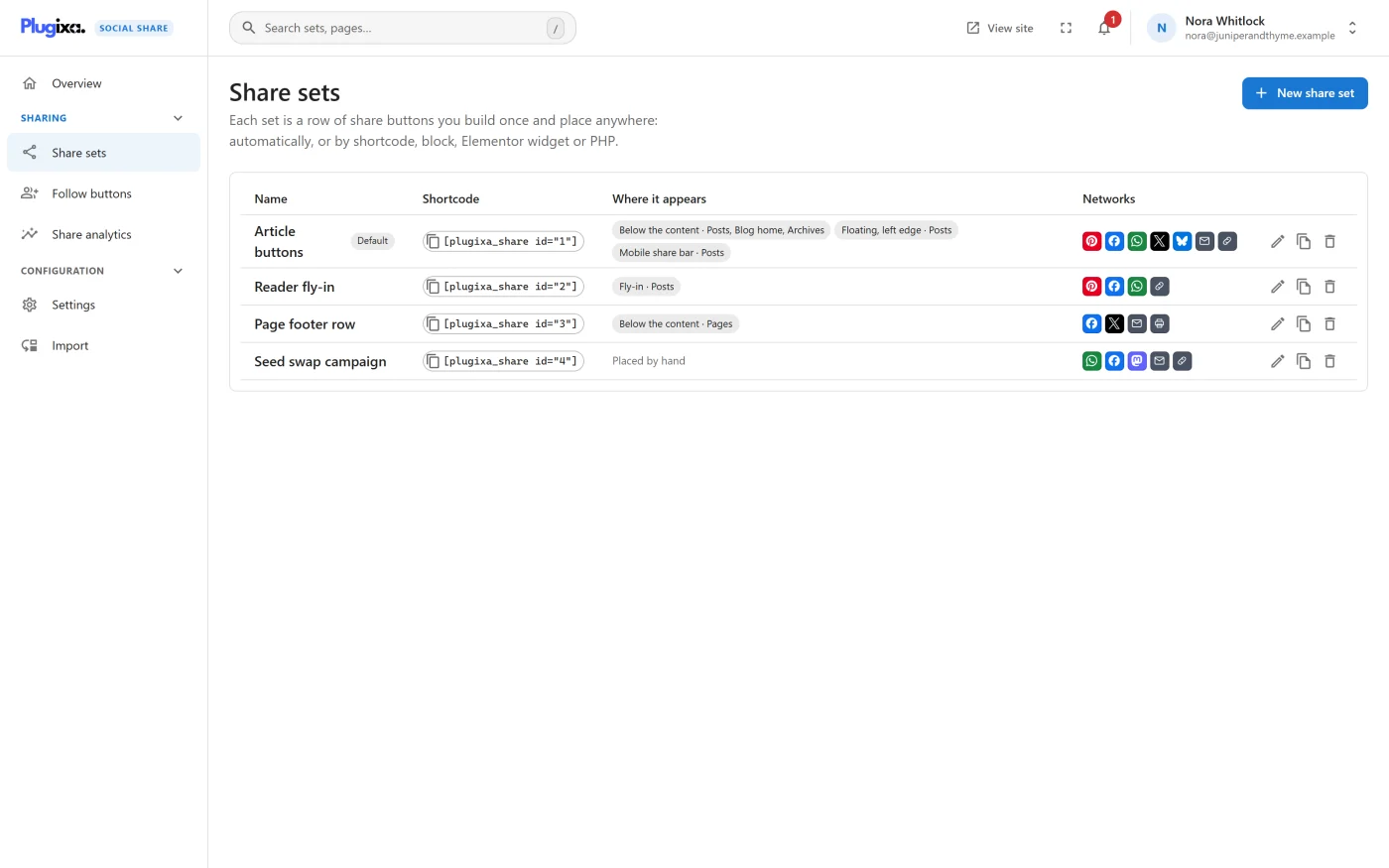
The list
| Column | What it shows |
|---|---|
| Name | The set’s name. The default set carries a Default chip. |
| Shortcode | The set’s own shortcode, for example [plugixa_share id="2"]. Click it to copy. |
| Where it appears | One chip per automatic spot with the post types it is on, for example “Below the content · Posts”, or “Placed by hand”. |
| Networks | The icons of the set’s networks. |
| Actions | Edit, Duplicate and Delete. |
On a narrow screen each set is drawn as a card with the same parts.
The default set
The default set is the one with the lowest number. In the list’s own words: “A bare [plugixa_share], and blocks and widgets left on Default, show this set.”
Numbers are never reused
Each set gets the next number, and a number is never given out again, even after its set is deleted. A shortcode left behind in a post can therefore never start drawing a different set.
Duplicate
Duplicate makes a copy named after the original with “(copy)” added. The copy has the same networks and look and no automatic placements, so it does not take any spot from the set it was copied from.
The wizard
New share set opens the wizard. A new set is a walk through five steps: each opens once the one before it is done, and the set is saved on the last. When you edit an existing set every step is open and Save is in the header on all of them.
The preview on the right is “Rendered by the same code the site uses.” It can be switched between desktop, tablet and phone widths, and between a light and a dark background. Clicks are disabled in the preview, and counts appear on the site, not in the preview.
Nothing is saved until you press save. Leaving with unsaved changes asks first.
Step 1 - Networks
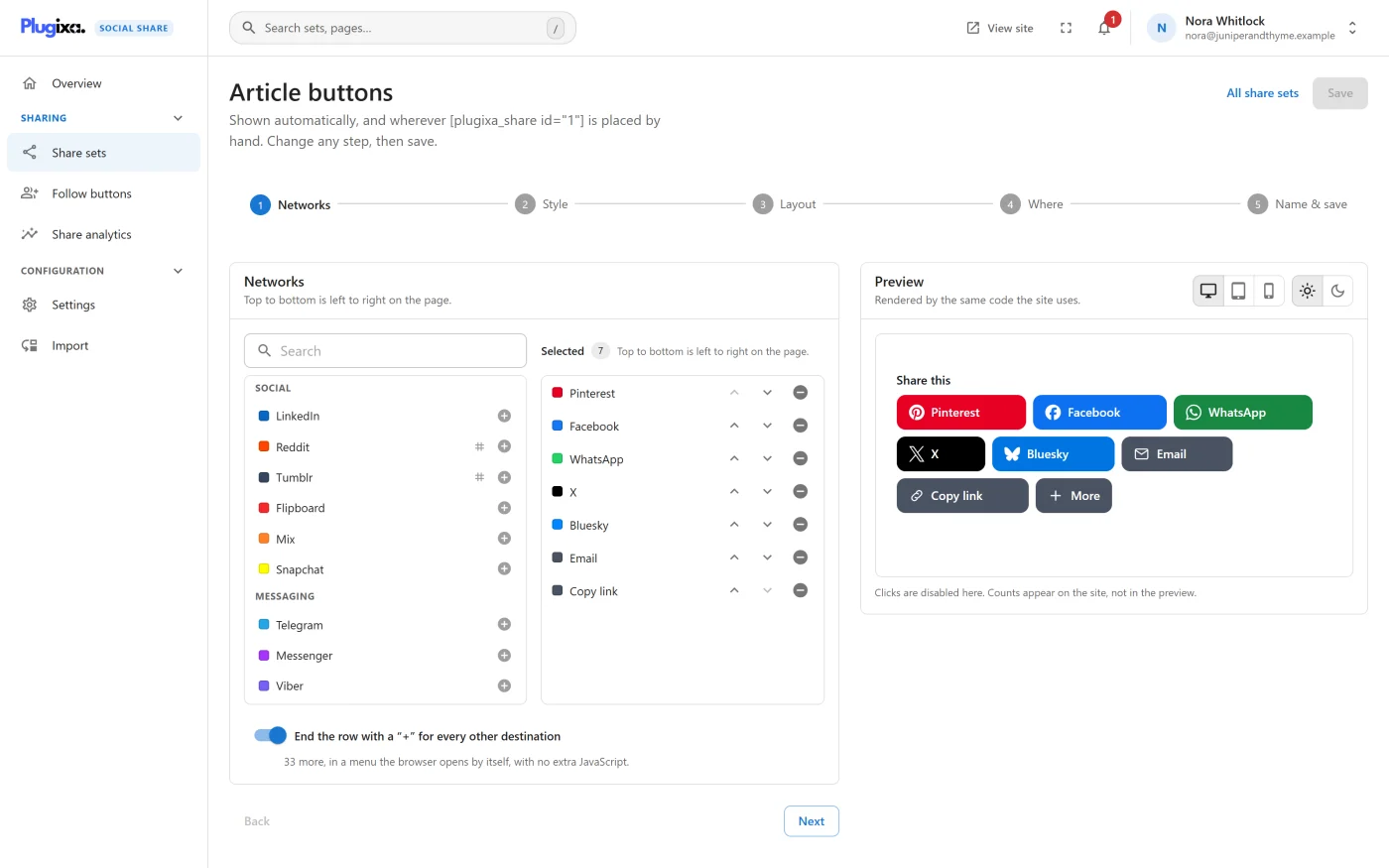
Two columns: Available, grouped and searchable, and Selected. Click a network to add it. In Selected, Move up, Move down and Remove set the order: “Top to bottom is left to right on the page.” A network that can show share counts is marked.
A set needs at least one network. Without one the step says “Choose at least one network.” and Next does not continue.
End the row with a “+” for every other destination adds a “+” button that opens a menu of every destination the row does not show. See Networks.
Step 2 - Style
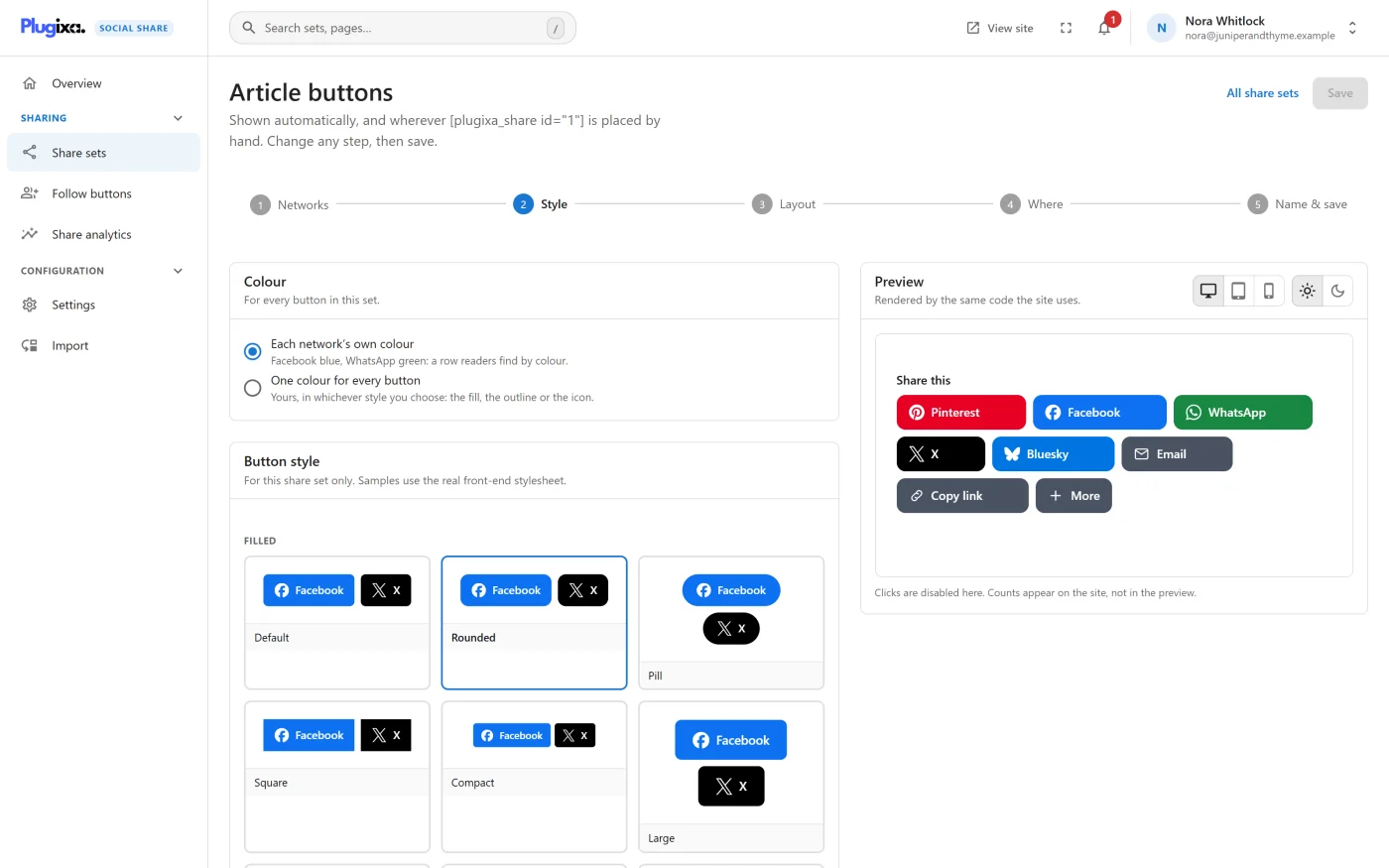
| Panel | What it sets |
|---|---|
| Colour | Each network’s own colour, or One colour for every button with a Button colour you pick. Tick Choose the label colour myself to set the Label colour too. |
| Button style | One style from the gallery. Samples use the real front-end stylesheet. |
| Readability | Whether labels and icons can be read on the colours actually drawn. |
See Styles for every style and how the readability check works.
Step 3 - Layout
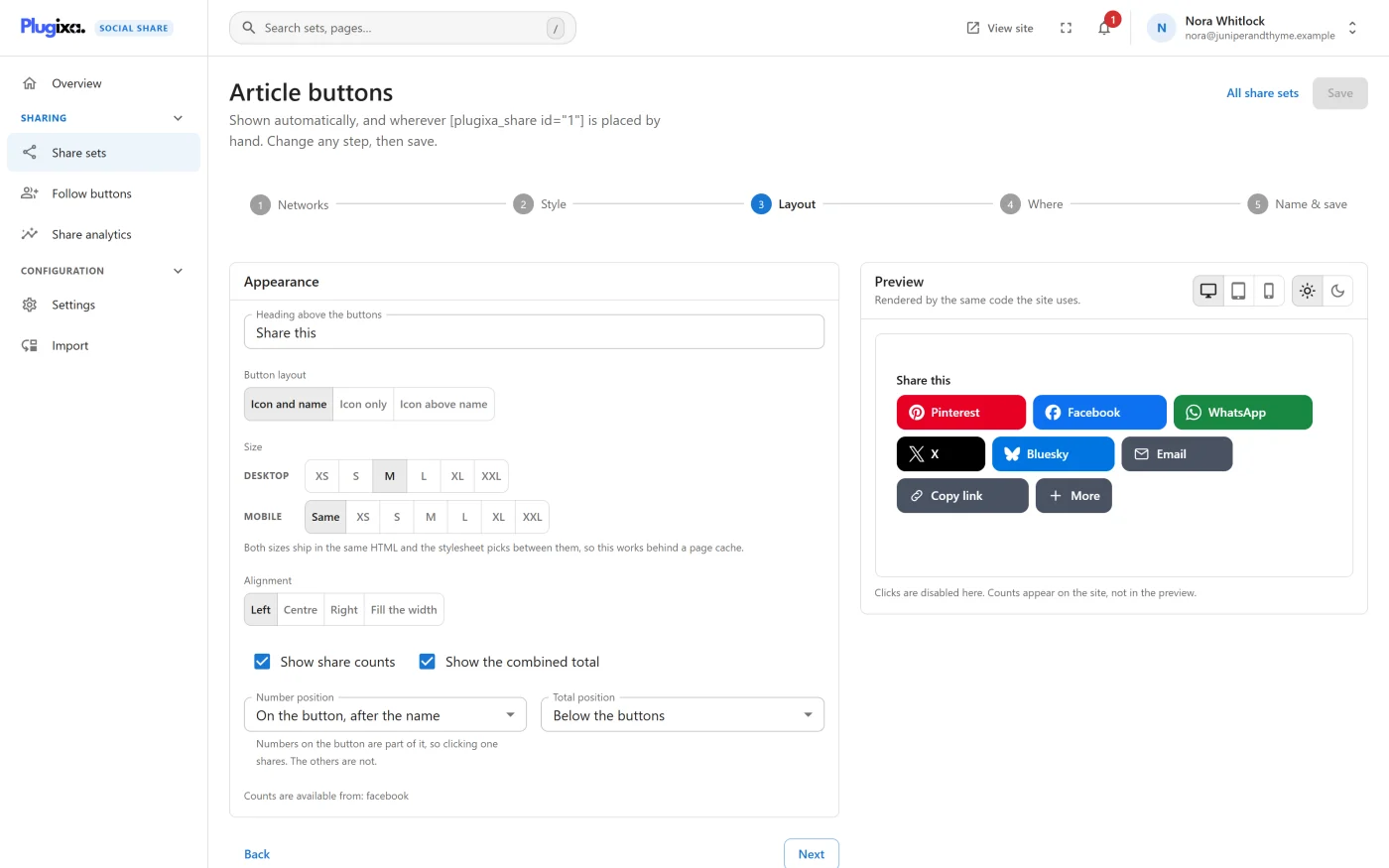
| Option | Choices | Default |
|---|---|---|
| Heading above the buttons | Any text, such as “Share this” | Empty |
| Button layout | Icon and name, Icon only, Icon above name | Icon and name |
| Size - Desktop | XS, S, M, L, XL, XXL | M |
| Size - Mobile | Same, or XS to XXL | Same |
| Alignment | Left, Centre, Right, Fill the width | Left |
| Show share counts | On or off | Off |
| Show the combined total | On or off | Off |
| Number position | Seven positions, listed below. Shown when counts are on. | On the button, after the name |
| Total position | Below the buttons, Above the buttons, Left of the buttons, Right of the buttons. Shown when the total is on. | Below the buttons |
Both sizes are sent in the same HTML and the stylesheet picks between them, so the mobile size works behind a page cache. The mobile size applies on screens up to 782 pixels wide.
The number positions are:
- On the button, after the name
- On the button, before the icon
- Beside the button, right
- Beside the button, left
- Above the button
- Below the button
- Badge on the corner
“Numbers on the button are part of it, so clicking one shares. The others are not.”
Under the count options the step lists which of your selected networks counts are available from. See Share counts.
Step 4 - Where it appears
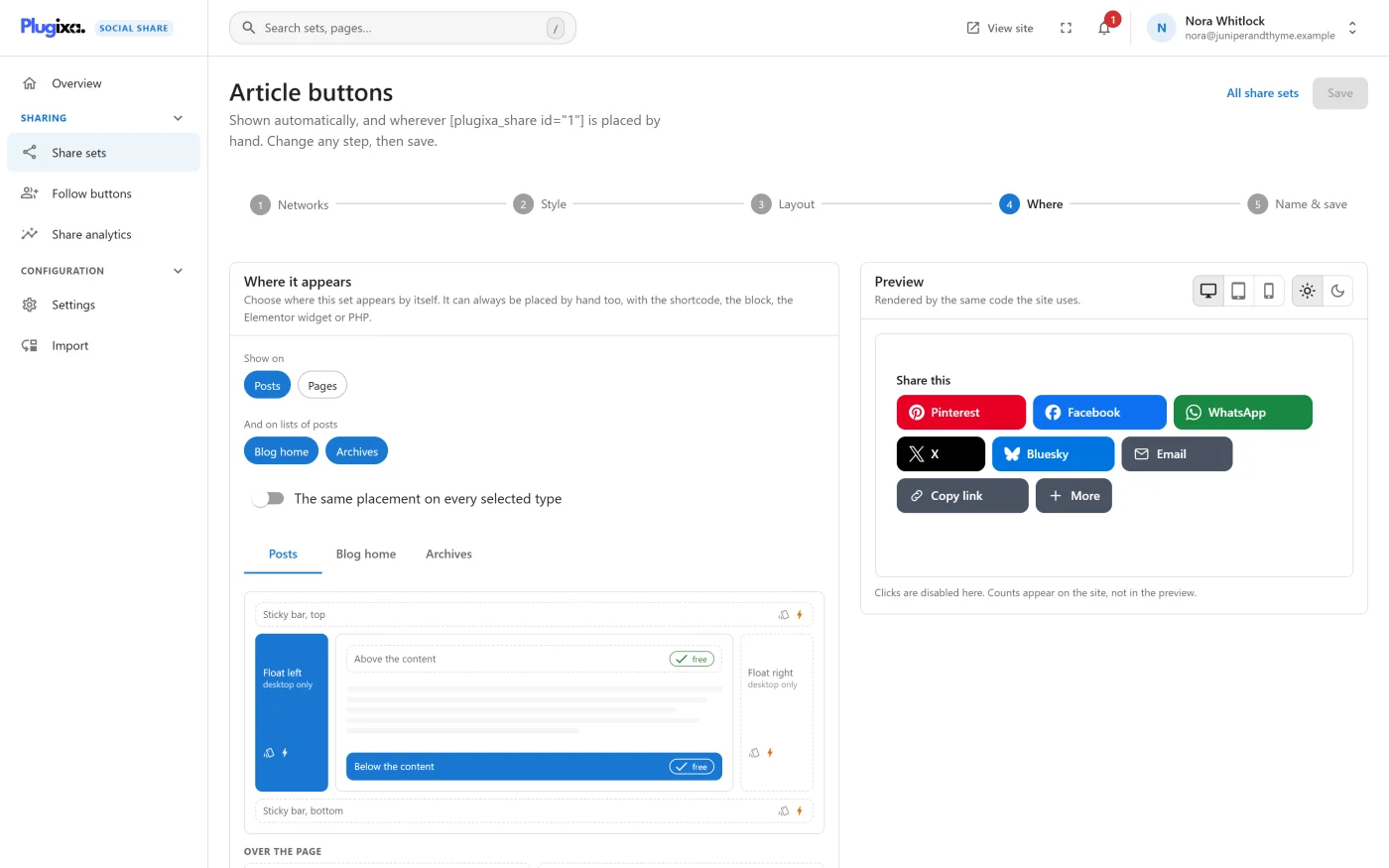
Choose where the set appears by itself. Tick the post types under Show on, and Blog home or Archives under And on lists of posts, then click the spots on the diagram of the page.
- The same placement on every selected type is on by default and shows one diagram. Switch it off for a diagram per type, in tabs.
- A spot another set already uses is labelled “used by” with that set’s name. If you take it, the label changes to “moves here from” and a warning names the move: saving moves the spot to this set.
- A ticked type with no spot chosen is flagged: “Choose a spot for …, or untick it.”
- With nothing ticked, the set is placed by hand only.
Every spot is described in Placements.
Step 5 - Name & save
Give the set a Name. “Only you see it. It tells your sets apart in lists, the block and the Elementor widget.” A name can be up to 80 characters. Left empty, the set is called “Share set” and its number.
The step summarises the networks, the style, where the set appears and its shortcode. Press Save share set.
After saving
The screen confirms “Saved as” with the set’s name, lists any spots that moved here from other sets, and shows Place it anywhere:
| Way | What to use |
|---|---|
| Shortcode | [plugixa_share id="2"], for posts, pages, widgets and page builders |
| PHP | <?php plugixa_share( 2 ); ?>, in a theme template |
| Block editor | Add the Share buttons block and choose the set |
| Elementor | Drag in the Share buttons widget and choose the set |
The shortcode and the PHP line have a Copy button. Back to share sets returns to the list and Keep editing stays in the wizard.
Deleting a set
Delete opens a dialog that says what the set will take with it before anything is removed:
- the automatic spots where it stops appearing
- how many posts place it by hand, with the first 20 listed. “They will show nothing to visitors; editors will see a note.”
- when it is the default set, which set becomes the default for bare shortcodes and for blocks and widgets left on Default
- when it is your only set: “No share buttons will show anywhere until you create another.”
The posts are looked up when the dialog opens. On a very large site the search stops after a limit and the dialog says “At least” before the number.
With Pro, the dialog also counts posts that chose this set in their own Share buttons panel. Those posts go back to their post type’s buttons. PRO
What a deleted set leaves behind
A shortcode, block or widget that names a deleted set draws nothing for visitors and loads no files. People who can edit posts see a note in its place: “Share set 2 does not exist. It may have been deleted: choose another set, or remove these share buttons.”
Who can do what
| Action | Permission needed |
|---|---|
| See the list and open a set | plugixa_social_share_view |
| Create, change, duplicate or delete a set | plugixa_social_share_edit |
Administrators hold both.
What to do next
- Place a set by hand: Shortcodes and Blocks.
- Change one post without touching the set: Per-post controls.