

Contents
Pinterest - Plugixa Easy Social Share Buttons
The Pinterest tools PRO are for sites whose readers save to Pinterest. They add two things:
- a Save button that appears on a post’s images, and
- a pin image and description of each post’s own, chosen in the post editor.
The Pinterest share button itself is part of the free edition, like every other network. These tools are what Pro adds around it.
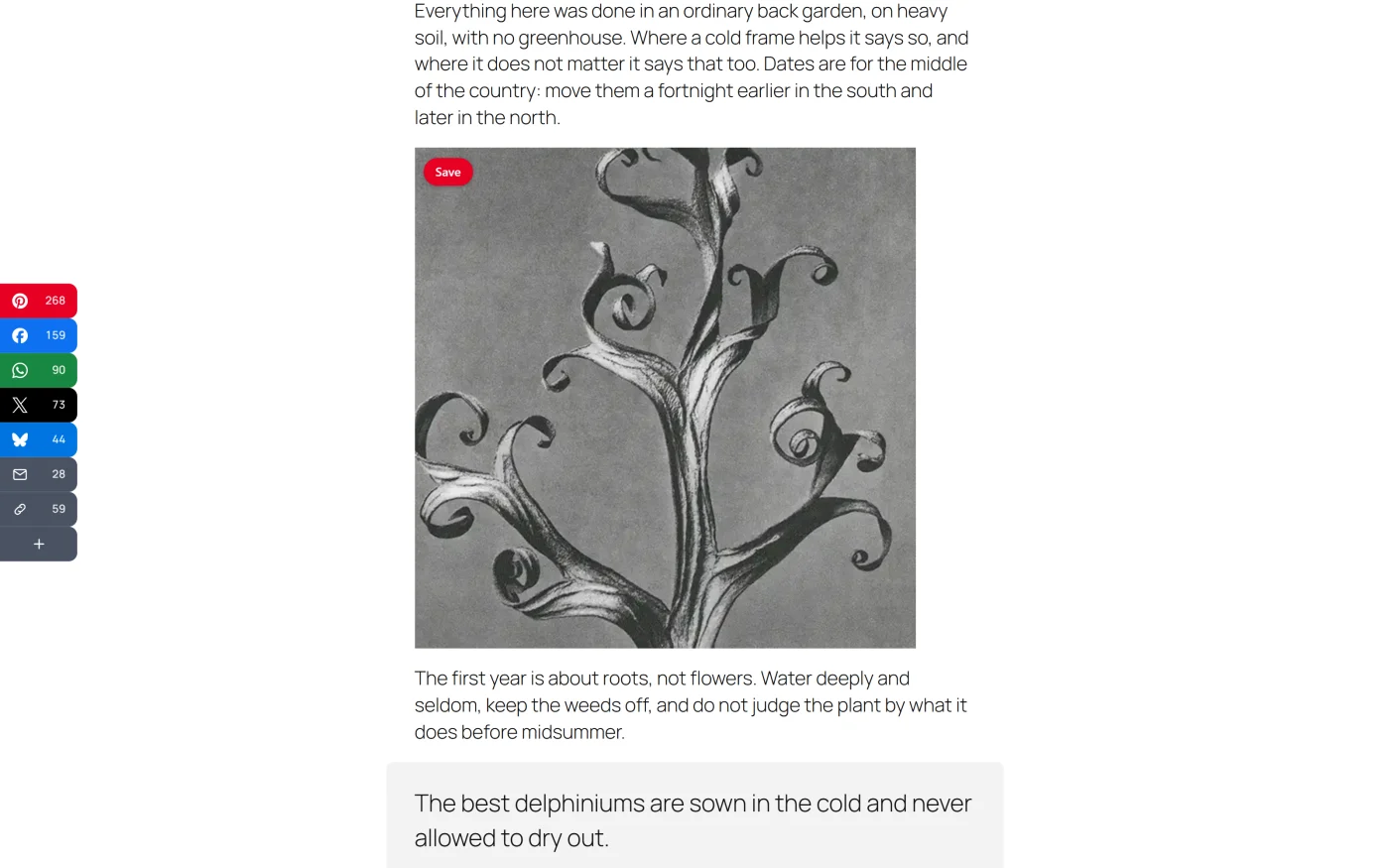
The Save button on images
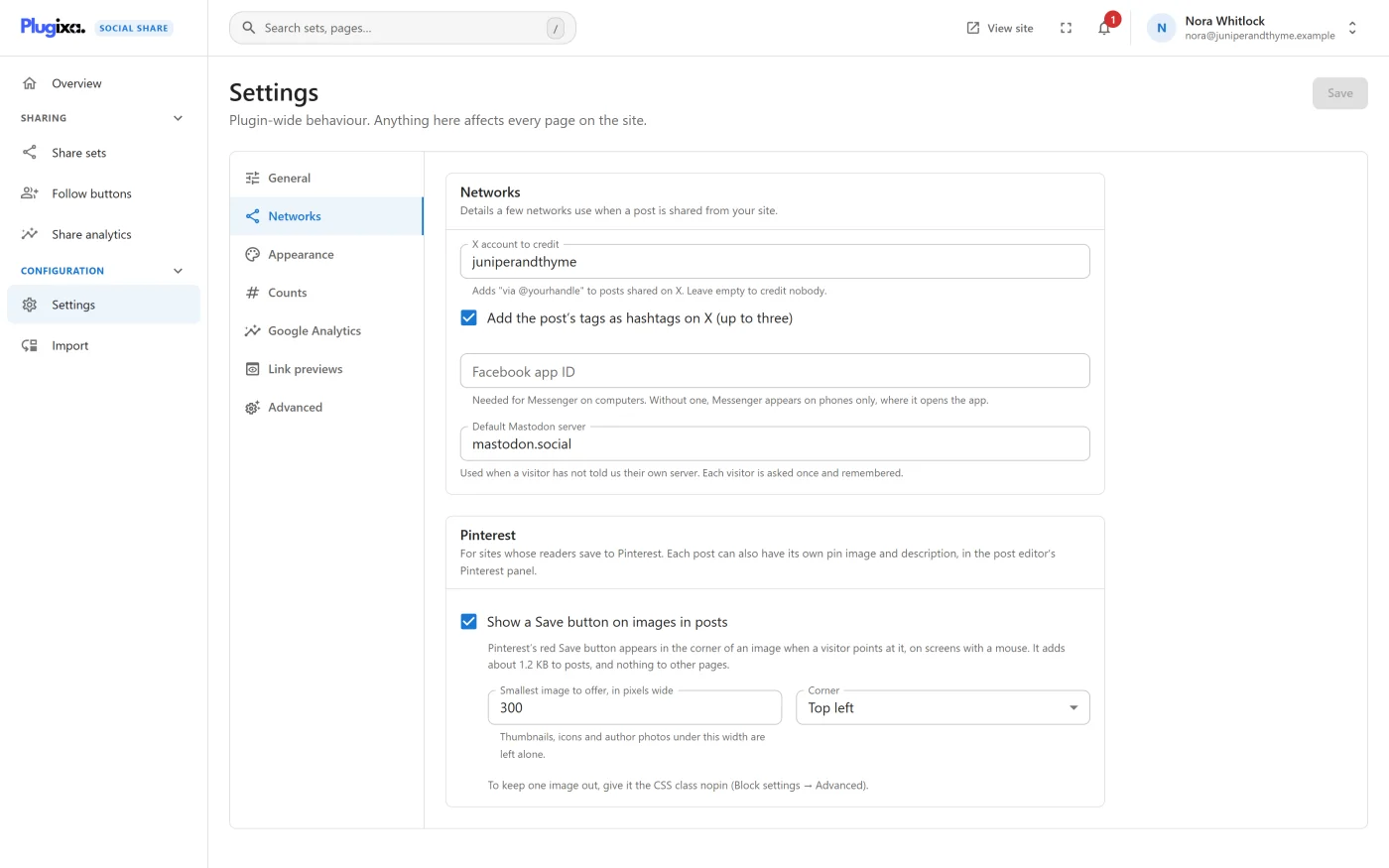
Go to Settings -> Networks. Pro adds a Pinterest panel there.
| Setting | Default | What it does |
|---|---|---|
| Show a Save button on images in posts | Off | Pinterest’s red Save button appears in the corner of an image when a visitor points at it |
| Smallest image to offer, in pixels wide | 300 | Thumbnails, icons and author photos under this width are left alone. Accepts 100 to 1200 |
| Corner | Top left | Top left or Top right |
Where it appears
- On single posts, pages and products: the types a share set can be placed on. Not on lists of posts.
- On the images in the post’s own content.
- On screens with a mouse. On a touch screen nothing is added; the Pinterest button in your share row is there for those readers.
- An image is judged by its size on screen as well as its declared width, so a large photo shown as a thumbnail is not offered.
- Not on a password-protected post, and not while Show share buttons is off.
Keeping an image out
To keep one image out, give it the CSS class nopin, under the block’s
Advanced settings. Pinterest’s own nopin and data-pin-nopin attributes
are respected too.
To keep a whole post out, untick Save button on this post’s images in its Pinterest panel.
What it costs
The Save button’s script and stylesheet are 1.2 KB gzipped together. They load only on a single post where the button can appear, and nothing is added to other pages. One button serves the whole page and moves to the image under the pointer, so a post with forty photos costs what a post with one does.
How a Save click is counted
A Save click is an ordinary share to Pinterest. On a page that also shows share buttons it opens the way those buttons open, is recorded in the analytics under the placement Save button on images, and is sent to GA4 if GA4 events are on.
On a page with no share buttons at all, the plugin’s main script is not loaded. The Save button is then a plain link to Pinterest that opens in a new tab, and the click is not recorded.
A pin image and description per post
Pinterest favours a tall image made for it, not the wide one that heads a post. Each post can name its own.
In the post editor, open the Pinterest panel in the sidebar. In the classic editor it is a Pinterest box.
| Field | What it does |
|---|---|
| Pin image | A tall image, 2:3 is best, used when this post is saved to Pinterest. It is not shown on the page |
| Pin description | What the pin says, up to 500 characters. Left empty, the post title is used |
| Save button on this post’s images | Untick to leave this post’s images without the Save button |
Anyone who can edit the post can set these. They save with the post.
Where they are used
Once set, a post’s pin image and description are used by every Pinterest button for that post:
| Button | Uses |
|---|---|
| The Pinterest button in a share row | The pin image and the description |
| The Save button on images | The image under the pointer, and the description for images that have none of their own |
| Pinterest’s own browser button | A hidden copy of the pin image placed in the page for it to find |
Without a pin image, the Pinterest share button uses the post’s featured image as before.
If the chosen image is later deleted from the media library, the post is treated as having no pin image.
How it is stored
| Custom field | Holds |
|---|---|
_plugixa_share_pin_image |
The attachment ID of the pin image |
_plugixa_share_pin_description |
The description, as plain text |
_plugixa_share_pin_nohover |
True when the post’s images get no Save button |
A field exists only when the post chose something. Clearing a value removes the field.
If Pro is removed
The settings and the posts’ fields stay in the database and nothing reads them. The Save button stops appearing and Pinterest buttons go back to the featured image. Installing Pro again finds everything as it was.
What to do next
- Put Pinterest first for one post with a share set of its own: Per-post controls.
- See Save clicks beside your other placements: Analytics.