

Contents
File Integrity - Plugixa Activity Log
Everything else in the log is something WordPress did. The file scan looks for what WordPress did not do: a core file edited by an intruder, a backdoor dropped into a plugin folder, PHP hidden among the uploads.
Pro feature. File integrity is part of Plugixa Activity Log Pro. See the Free vs Pro matrix.
What is scanned
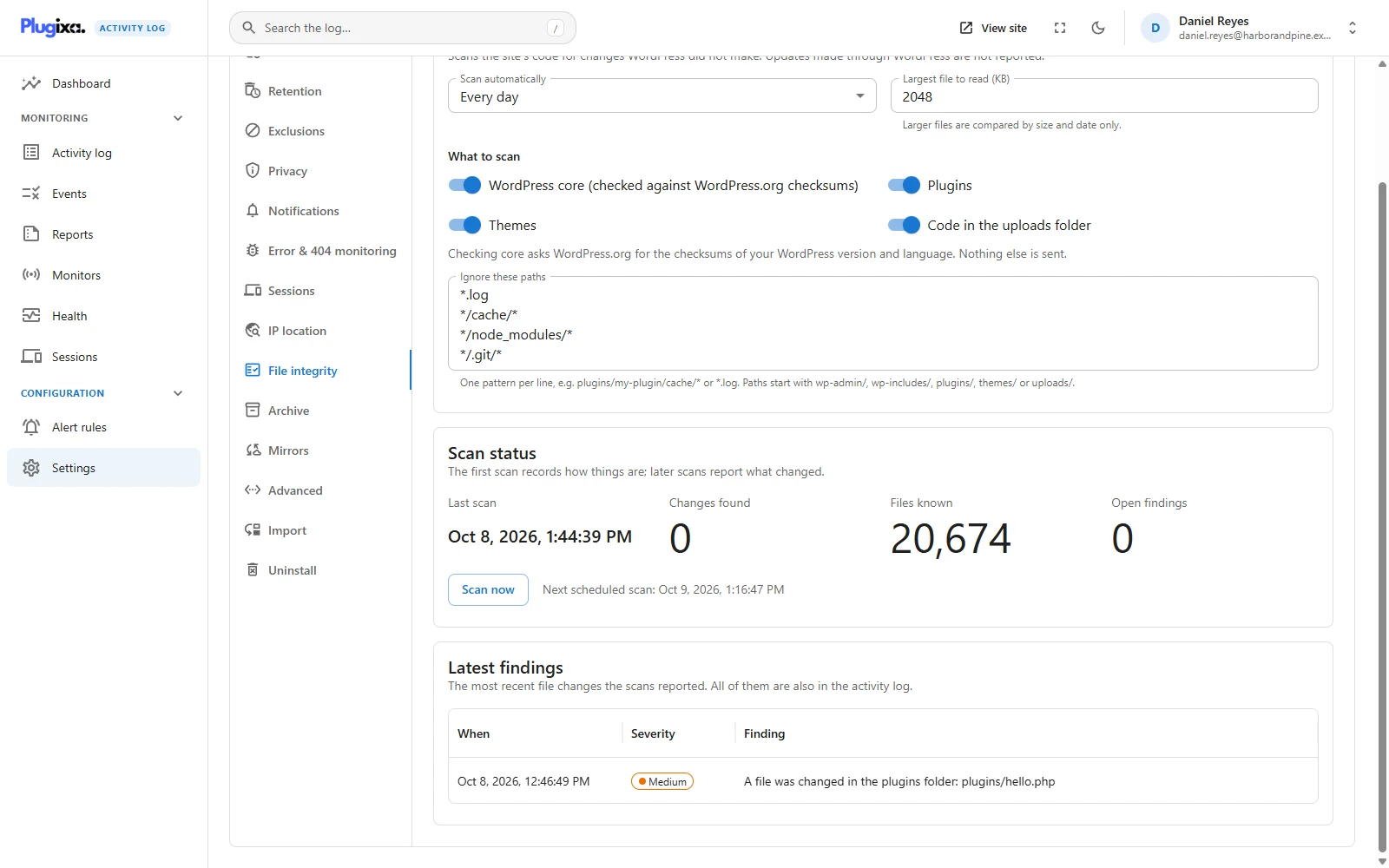
Settings -> File integrity, under What to scan. All four are on by default.
| Scope | How it is checked |
|---|---|
| WordPress core | Against the official checksums WordPress.org publishes for your version and language. |
| Plugins | Against the previous scan, one plugin at a time. |
| Themes | Against the previous scan, one theme at a time. |
| Code in the uploads folder | Only files that can run or change how code runs: PHP under any extension, JavaScript, .htaccess, .user.ini and web.config. |
Core can be checked against a published truth; plugins and themes cannot, so they are compared with what the last scan saw.
Media, fonts, archives and translation files in plugins and themes are not read.
An empty placeholder index.php in uploads - an opening tag and comments only -
is not code and is not reported.
The first scan is the baseline
The first scan records how things are. Later scans report what changed.
That is the one thing people get wrong: a first scan of plugins and themes finds nothing, and it is not broken. There was nothing to compare with yet.
Two things are reported from the very first scan, because they need no baseline:
- Core, because the checksums say what it should be.
- PHP in uploads, because it should not be there on any day.
What is reported
Findings are ordinary events in the log, in the 7200 range.
| Code | Severity | Finding |
|---|---|---|
| 7200 | High | A WordPress core file was modified |
| 7201 | High | A WordPress core file is missing |
| 7202 | High | An unexpected file was found in WordPress core folders |
| 7203 | Medium | A file was changed in a plugin or theme |
| 7204 | Medium | A file was added to a plugin or theme |
| 7205 | Low | A file was deleted from a plugin or theme |
| 7206 | High | An executable file was found in uploads |
| 7209 | High | Too many files changed in one plugin or theme to list one by one |
| 7207 | Informational | The scan finished, with how many changes in how many files |
| 7208 | Medium | The scan failed, with the reason |
- Each finding is reported once, when it appears or changes, not again on every scan while it lasts. A core file that is repaired simply stops being a finding.
- More than 50 changes in one plugin or theme in one scan become a single 7209 summary. Fifty-one lines saying the same thing is not information.
- Files often removed on purpose, such as
readme.html,license.txtandwp-config-sample.php, are not reported as missing.
Because findings are events, they can be emailed or sent to chat like any other: see Notifications and Alert Rules PRO.
Updates through WordPress are not reported
A scanner that raises an alarm on every plugin update is switched off within a week. So when WordPress installs or updates a plugin or theme, the plugin drops what it knew about that one, and the next scan records the new files silently.
A plugin copied in by FTP or a file manager is new to the scan too, and its first scan records it silently. The same files changed by hand later are reported.
A plugin or theme that is deleted is forgotten without a finding; the Plugins and themes monitor already logged the deletion.
The schedule
| Setting | Choices |
|---|---|
| Scan automatically | Every day (the default), Every week or Never (scan now only). |
The first scheduled scan runs about an hour after the module is switched on. Scans run through WP-Cron.
Scan now works for a few seconds in the request and hands the rest to the background. A scan is cut into slices of about 15 seconds and remembers where it stopped, so a large site never holds one request for minutes.
The Scan status card shows whether a scan is running, when the last one ran, how many files are known and how many findings are open. Latest findings lists the most recent ones; all of them are also in the log.
Ignore patterns
Ignore these paths takes one pattern per line. * matches anything. A pattern
is matched against the path as events show it, or against the file’s name alone.
Paths start with wp-admin/, wp-includes/, plugins/, themes/ or uploads/.
| Pattern | Ignores |
|---|---|
*.log |
Every log file |
*/cache/* |
Anything in a folder named cache |
plugins/my-plugin/data/* |
One plugin’s data folder |
The defaults are *.log, */cache/*, */node_modules/* and */.git/*. Add the
folders a plugin legitimately writes to itself; otherwise it reports its own
housekeeping on every scan.
Largest file size
Largest file to read (KB) is 2048 by default, from 64 to 51200. Files up to that size are compared by content. Larger files are compared by size and date only, so a scan does not spend its time hashing a 300 MB bundle.
What is sent to WordPress.org
Checking core asks WordPress.org for the checksums of your WordPress version and language. Nothing else is sent: no file, no file name, no visitor data. The answer is kept for a day.
If WordPress.org cannot be reached, the scan records 7208 and checks everything else. Turning the core scope off stops the request altogether.
Troubleshooting
| Symptom | Usual cause |
|---|---|
| The first scan found nothing | It is the baseline. Changes show from the second scan. |
| A plugin update was not reported | Correct. Updates through WordPress are recorded silently. |
| One plugin reports changes on every scan | It writes into its own folder. Add an ignore pattern. |
| A finding appeared once and never again | Each finding is reported once. |
| One 7209 instead of many findings | More than 50 changes in one component. Review the folder. |
| A scan never finishes | WP-Cron is not running. Health shows when the last scan ran. |
| Event 7208 | The scan failed, often because WordPress.org could not be reached. The message has the reason. |
| A large file changed and was not noticed | Above the size limit only size and date are compared. Raise the limit. |
What to do next
- Be alerted to findings: Alert Rules PRO.
- Check the scan is running: Health.
- See who installed or updated what: Monitors.