

Contents
IP location - Plugixa Activity Log
An IP address tells you very little at a glance. IP location answers the question you actually have - where was that? - by putting a flag and a city next to the address on every event.
Pro feature. IP location is part of Plugixa Activity Log Pro. See the Free vs Pro matrix.
Lookups never leave your server
This is the first thing to know, because it decides whether you can use the feature at all.
Nothing about your visitors is sent to MaxMind, or to anybody. The location comes from a GeoLite2 database file stored on your own server, and each lookup reads that file. No IP address from your log ever leaves the site.
The plugin contacts MaxMind for one reason only: to download the database. That request carries your MaxMind account ID and licence key, and nothing else.
Setting it up
GeoLite2 is free, but MaxMind requires an account to download it.
- Create a free GeoLite2 account at MaxMind.
- In your MaxMind account, create a licence key and note your account ID.
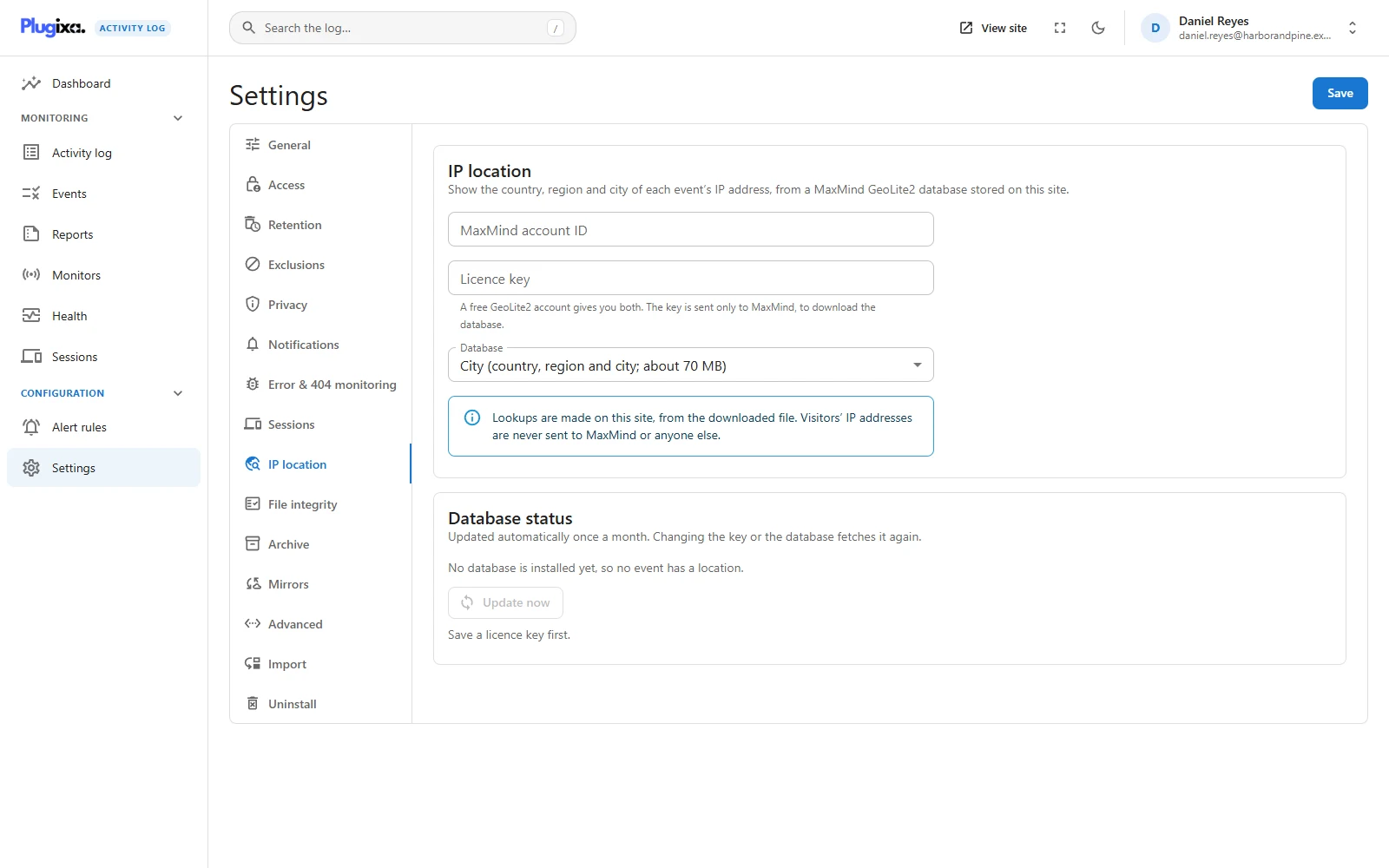
- In WordPress, open Settings -> IP location.
- Enter the account ID and the licence key, choose a database and save.
- The first download starts about a minute later. Update now starts it straight away.
| Setting | What it is |
|---|---|
| MaxMind account ID | The number of your MaxMind account. |
| Licence key | The key you created. Sent only to MaxMind, to download the database. |
| Database | City gives country, region and city and is about 70 MB. Country only is about 10 MB. |
After saving, the licence key is shown masked, as •••• followed by its last four
characters. Leave it as it is to keep the key, or type a new one to replace it.
When the database is downloaded
- Once a month, automatically.
- About a minute after you save a new key, a new account ID or a different database.
- Whenever you press Update now.
The Database status card shows the installed database, its date and size, when it was last updated, when the next automatic update is due and, if the last update failed, why.
A failed update keeps the previous database. A new file is downloaded, opened to prove it works, and only then put in place, so a lookup sees either the old database or the new one and never a half-written file.
What is added to events
When an event is recorded from a public IP address, its country, region and city are stored with the event. With Country only, just the country.
- The log shows the country’s flag and the city beside the IP address. Hover the flag for the country’s name.
- The event inspector shows the same in its IP address row.
The location is stored when the event is recorded, not looked up when you read it. Two things follow:
- An event keeps the location its address had at that time, even after the database is updated or removed.
- Events recorded before the first database was installed have no location, and installing one does not go back and fill them in.
Names use your site’s language when the database has it: English, German, Spanish, French, Japanese, Brazilian Portuguese, Russian and Simplified Chinese. For any other language the English name is used.
When there is no location
Nothing is looked up for:
- Private, loopback and reserved addresses, such as
192.168.x,10.x,127.0.0.1and::1. A local or staging site shows no locations for that reason. - Events with no IP address, such as those from WP-CLI and scheduled jobs.
- Addresses the database does not know.
GeoLite2 is an estimate. The country is usually right; the city is a good guess and sometimes the location of an internet provider, not of a person.
With shortened IP addresses
If Privacy is set to shorten IP addresses, the location is looked up from the full address before it is shortened. Only the shortened address is stored, and the location is still recorded.
If you do not want locations recorded at all, switch the IP location module off on the Monitors screen.
Where the file lives
wp-content/uploads/plugixa-activity-log/geo/, as GeoLite2-City.mmdb or
GeoLite2-Country.mmdb. On a multisite network it is the main site’s uploads
folder, and one database serves every site.
The folder holds an index.php and a deny-all .htaccess, because the GeoLite2
licence does not allow redistributing the file. On nginx, which ignores
.htaccess, add a rule of your own that denies access to
/wp-content/uploads/plugixa-activity-log/.
Every update is recorded: The IP location database was updated (event 9300) or could not be updated, with the reason (event 9301).
Troubleshooting
| Symptom | Usual cause |
|---|---|
| No flags anywhere | No database is installed yet. Check the Database status card. |
| Old events have no flag | Locations are stored at recording time. Earlier events stay without one. |
| No flags on a local site | Private and loopback addresses are never looked up. |
| “Save a licence key first” | Update now needs a saved key. |
| MaxMind refused the account ID or licence key | The key was revoked, or the account ID does not match the key. |
| The uploads folder is not writable | The database has nowhere to go. Fix the folder’s permissions. |
| The city is wrong | GeoLite2 is an estimate, often the provider’s location. |
| Only the country shows | The database is Country only. Switch to City. |
| The update is overdue | The monthly job runs through WP-Cron. Press Update now. |
What to do next
- Decide how IP addresses are stored: Privacy.
- See who is signed in and from where: Sessions PRO.
- Alert on an address range: Alert Rules PRO.