

Contents
Reports - Plugixa Activity Log
The log answers “what happened at 14:02?”. A report answers “what happened last week?” - how much, how serious, by whom and from where - in a file you can read, print or hand to somebody who has no account on the site.
Pro feature. Reports are part of Plugixa Activity Log Pro. See the Free vs Pro matrix.
Run a report now
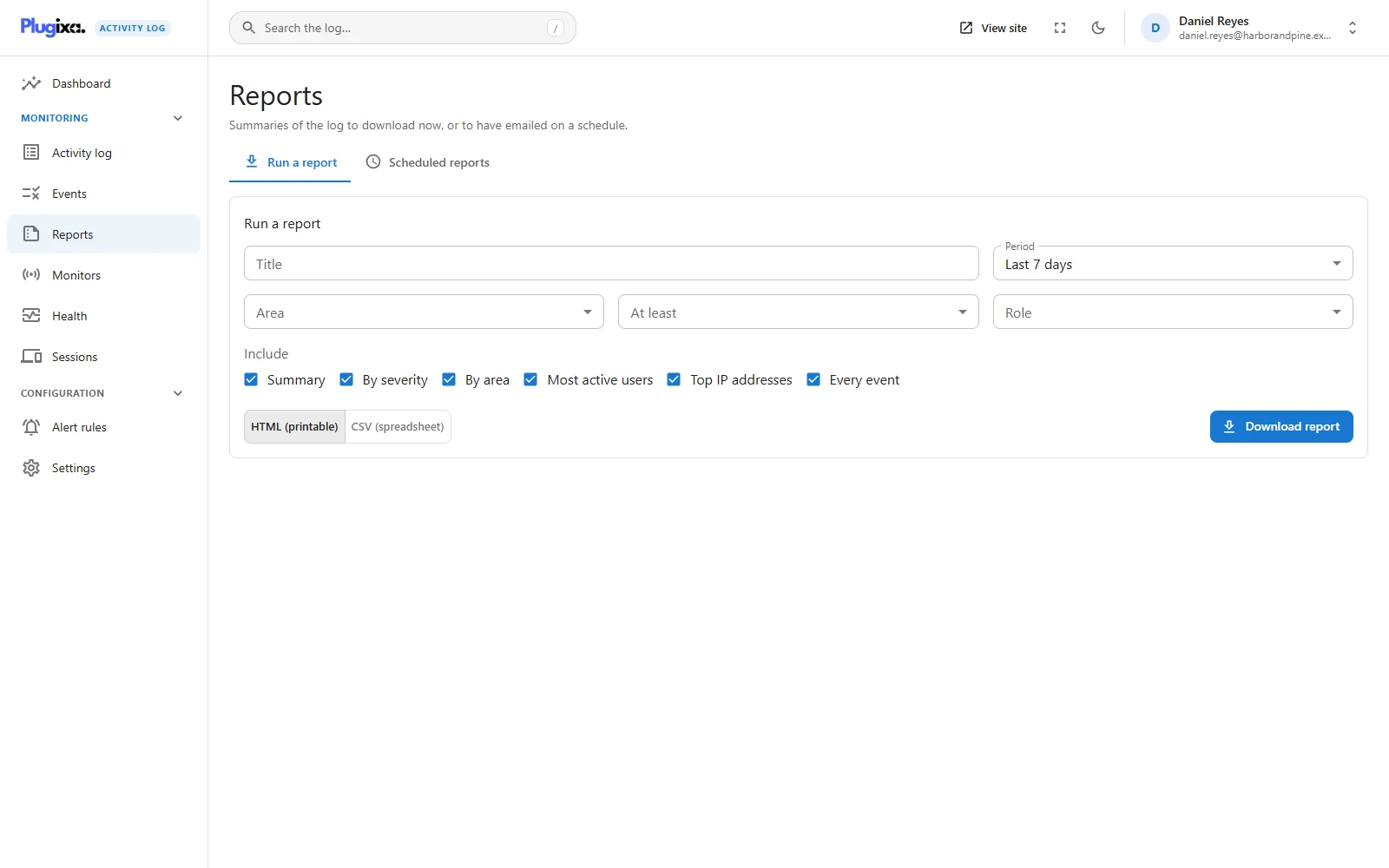
Open Reports. The Run a report tab builds one and downloads it.
| Field | What it does |
|---|---|
| Title | The heading of the report. Left empty it is Activity report. |
| Period | Today, Last 7 days, Last 30 days, Last 90 days or Custom range with a start and an end date. |
| Area | Only one area of the log, or all of them. |
| At least | Only events of this severity or higher. |
| Role | Only events done by people with this role. |
| Include | The sections, below. At least one. |
| Format | HTML (printable) or CSV (spreadsheet). |
Dates are read in the site’s timezone, not UTC, and both ends are included. A report for the 3rd covers the 3rd as the site’s clock sees it.
Press Download report. The filters are checked by the same code the log screen uses, so a report shows exactly what the log would for the same filters.
What each section contains
| Section | Contents |
|---|---|
| Summary | Five totals: events, high or critical events, failed sign-ins, users and IP addresses. |
| By severity | The number of events at each severity. |
| By area | The number of events in each area: sign-ins, users, content and so on. |
| Most active users | The 25 usernames with the most events. |
| Top IP addresses | The 25 addresses with the most events. |
| Every event | The events themselves: time, severity, code, area, user, role, IP address, object and message. Up to 50,000. |
Every event is the heavy one. A month of a busy site is a large file. When the period holds more than 50,000 events the report lists the first 50,000 and says so. For a summary to email, leave it off.
CSV or HTML
HTML is a self-contained, printable document. It is downloaded as a file and never displayed on your site, and every value in it is escaped.
CSV opens in a spreadsheet. Any cell that a spreadsheet would run as a formula is neutralised first, the same protection as the CSV export.
Who may run one
Running a report needs the export permission: administrators, plus the roles chosen under Settings -> Access. A report is a copy of the log leaving the site, so it is held to the same rule as the export, and every download is recorded: The report “…” was downloaded as … (event 9006).
Scheduled reports
The Scheduled reports tab appears for people who may change the plugin’s settings. New scheduled report asks for a name, recipients, the same filters, sections and format, and when to send.
| Frequency | Covers | Sent |
|---|---|---|
| Daily | Yesterday | Every day at the chosen hour |
| Weekly | The seven full days before the day it is sent | On the chosen weekday, at the chosen hour |
| Monthly | The previous calendar month | On the chosen day of the month, 1 to 28, at the chosen hour |
- The hour is site time. “Daily at 07:00” means seven in the morning where the site is.
- Monthly stops at the 28th so there is never a 31st of February to decide about.
- Recipients are email addresses separated by commas, up to 20.
The report arrives as an email attachment, with the headline totals in the body of the message.
How sending works
Schedules are checked once an hour by WP-Cron
(plugixa_activity_log_run_reports), which sends whatever is due. On a quiet site
WP-Cron only runs when somebody visits, so for punctual delivery give WordPress a
real cron job.
A sent report records event 9004. A failed send is recorded once (event 9005, with the reason) and is not retried every hour. The next report goes out at its normal time. Retrying hourly would mail nobody and fill the log with the same failure.
Send now on a schedule’s row sends it immediately. The list shows when each schedule runs next and whether the last one was Sent or Failed.
On a network
A site administrator on a multisite network sees and runs only their own site’s schedules, and their reports contain only their own site’s events.
Troubleshooting
| Symptom | Usual cause |
|---|---|
| Reports is not in the menu | Pro feature, or the module is switched off on the Monitors screen. |
| There is no Scheduled reports tab | Managing schedules needs the settings permission. |
| The report is one day off | Dates are in the site’s timezone. Check the timezone in WordPress’s general settings. |
| “Only the first 50,000 events are listed” | The period holds more. Shorten it, or narrow the filters. |
| A scheduled report is late | WP-Cron needs traffic, or a real cron job. |
| The last status is Failed | WordPress could not send the email. Event 9005 has the reason. |
| A failed report was not sent again | By design. It is tried at the next scheduled time. |
| Archived events are missing | Reports read the live log. See Archive. |
What to do next
- Take the rows instead of a summary: Export PRO.
- Choose who may run reports: Access.
- Be told as it happens, not next week: Alert Rules PRO.