

Contents
Settings - Plugixa Activity Log
One screen, a tab per subject on a rail down the left, and a single Save at the top.
Every tab writes into the same draft. Moving between tabs loses nothing, and
Save posts the whole form at once. The open tab is part of the address
(#/settings?tab=access), so a link can point straight at it.
Settings are network-wide. On a multisite network there is one events table shared by every site, so there is one set of settings too. A per-site retention rule would let one site’s setting prune another site’s events. For the same reason, only somebody who can manage network options may change them. See Access.
The tabs
| Tab | What it decides |
|---|---|
| General | How people are named, and how many events a page shows |
| Access | Which roles may read the log, and (Pro) export it |
| Retention | How long events are kept |
| Exclusions | Whose activity is left out |
| Privacy | How much of an address and a browser is stored |
| Notifications | Email about serious events |
| Sessions PRO | Concurrent sign-ins and idle sign-out |
| IP location PRO | The MaxMind database behind country and city |
| File integrity PRO | The scheduled scan of the site’s code |
| Archive PRO | Moving old events out of the live log |
| Mirrors PRO | Copying events off the site as they are written |
| Advanced | Where the visitor’s address is read from |
| Import | Bringing in history from WP Activity Log |
| Uninstall | Whether deleting the plugin deletes the log |
A tab belongs to the code that provides it. The five Pro tabs are absent from the free build rather than greyed out. One more tab, Error & 404 monitoring, is not there on a new install: it appears once the PHP error or 404 monitor is switched on, on the Monitors screen. See Errors and 404s.
General
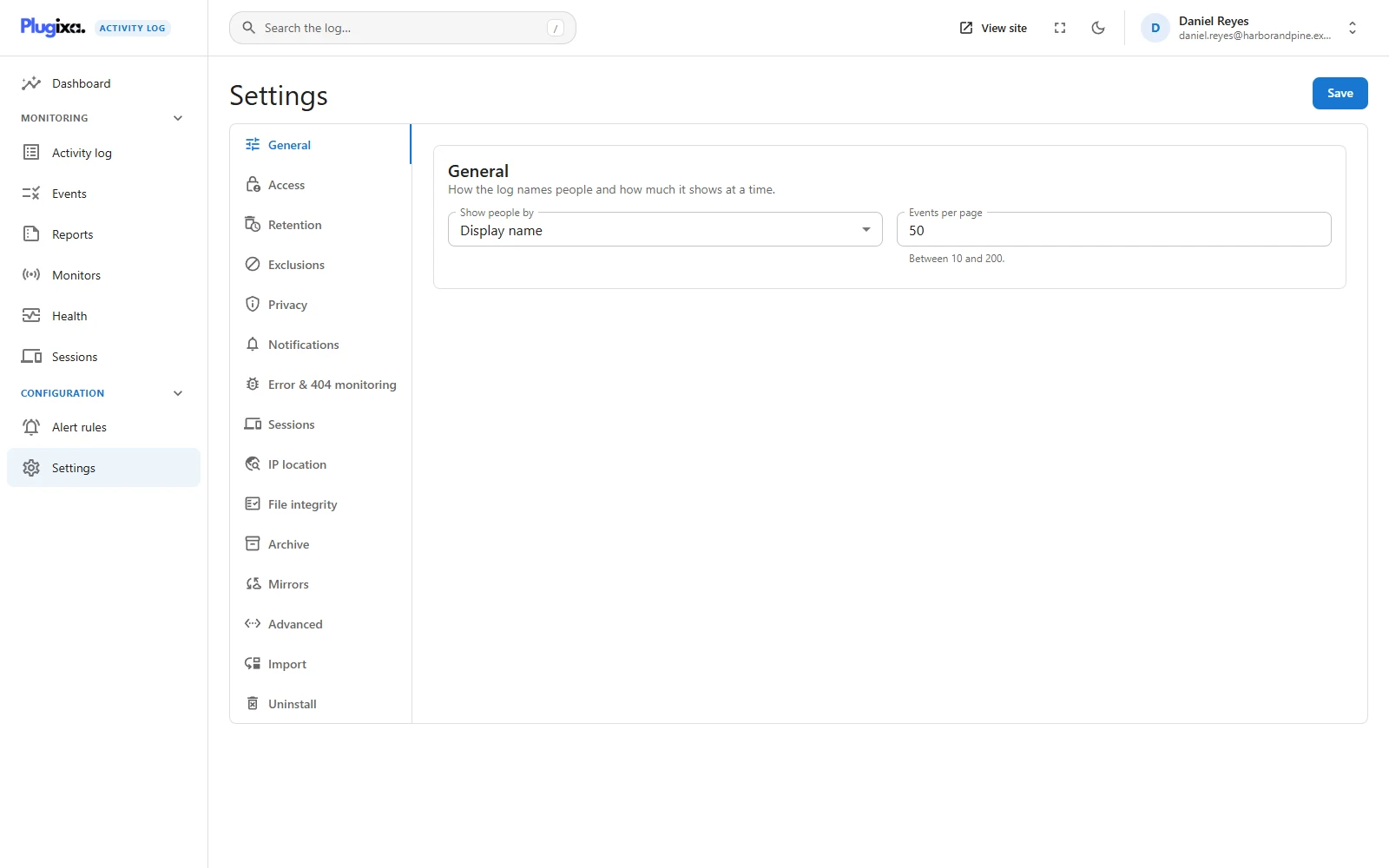
How the log names people, and how much it shows at a time.
| Option | Default | Values |
|---|---|---|
| Show people by | Display name | Display name, Username, or First and last name |
| Events per page | 50 | 10 to 200 |
Show people by changes what is displayed, never what is stored. Every event keeps the login the person had at the time, so switching this later relabels the whole log at once and loses nothing.
Events per page is capped at 200 on purpose. A page size is not a preference once it is large enough to be a load on the site’s own database. A value outside the range is pulled back to the nearest limit when you save. The same number is the default page size of the REST API.
Access
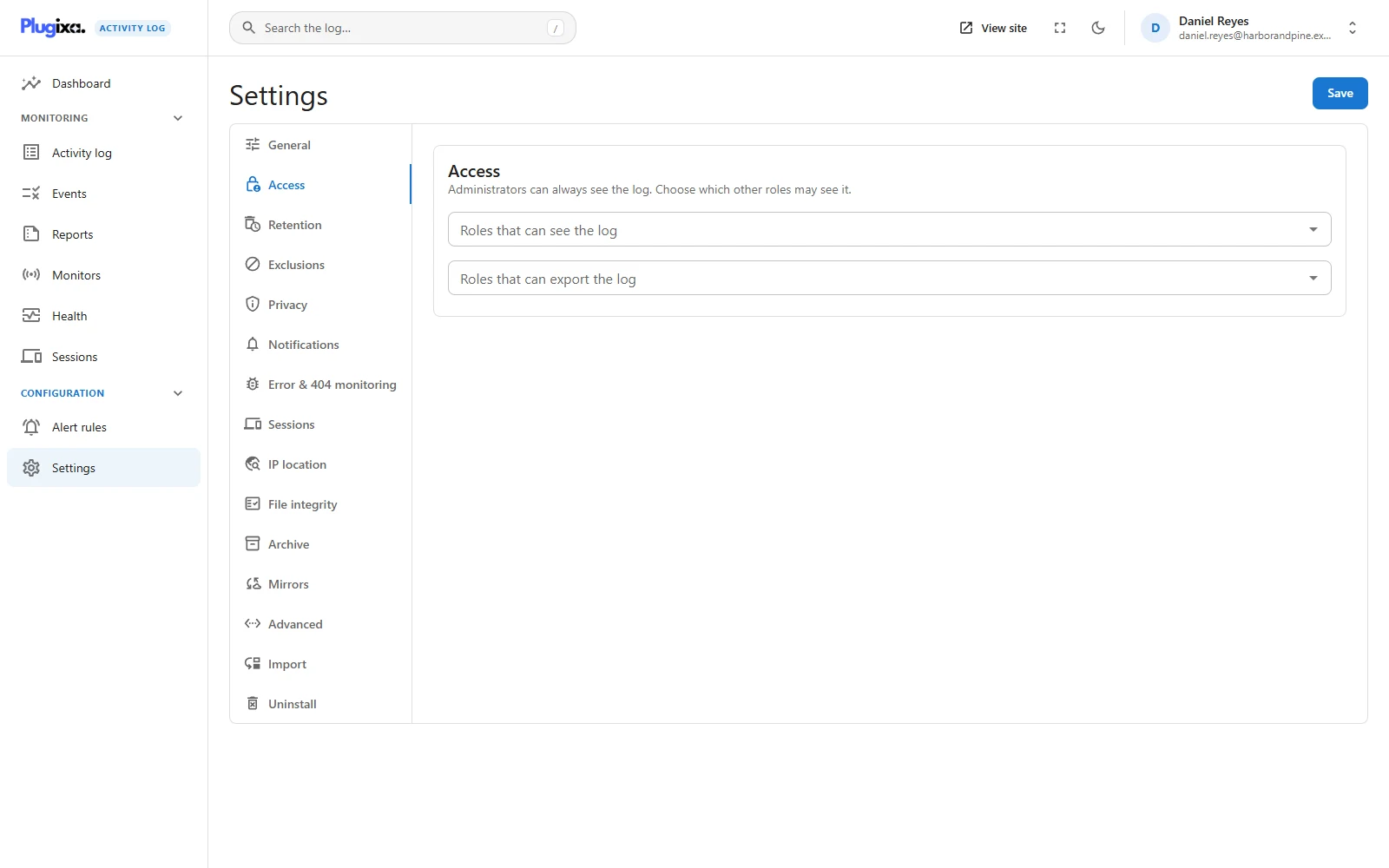
Administrators can always see the log. This tab chooses which other roles may.
| Option | Default | Effect |
|---|---|---|
| Roles that can see the log | None | Read-only access to the log and the dashboard |
| Roles that can export the log PRO | None | May download the log as CSV |
A role listed here can read. It cannot change settings, monitors or anything else. The full picture is on Access.
Retention
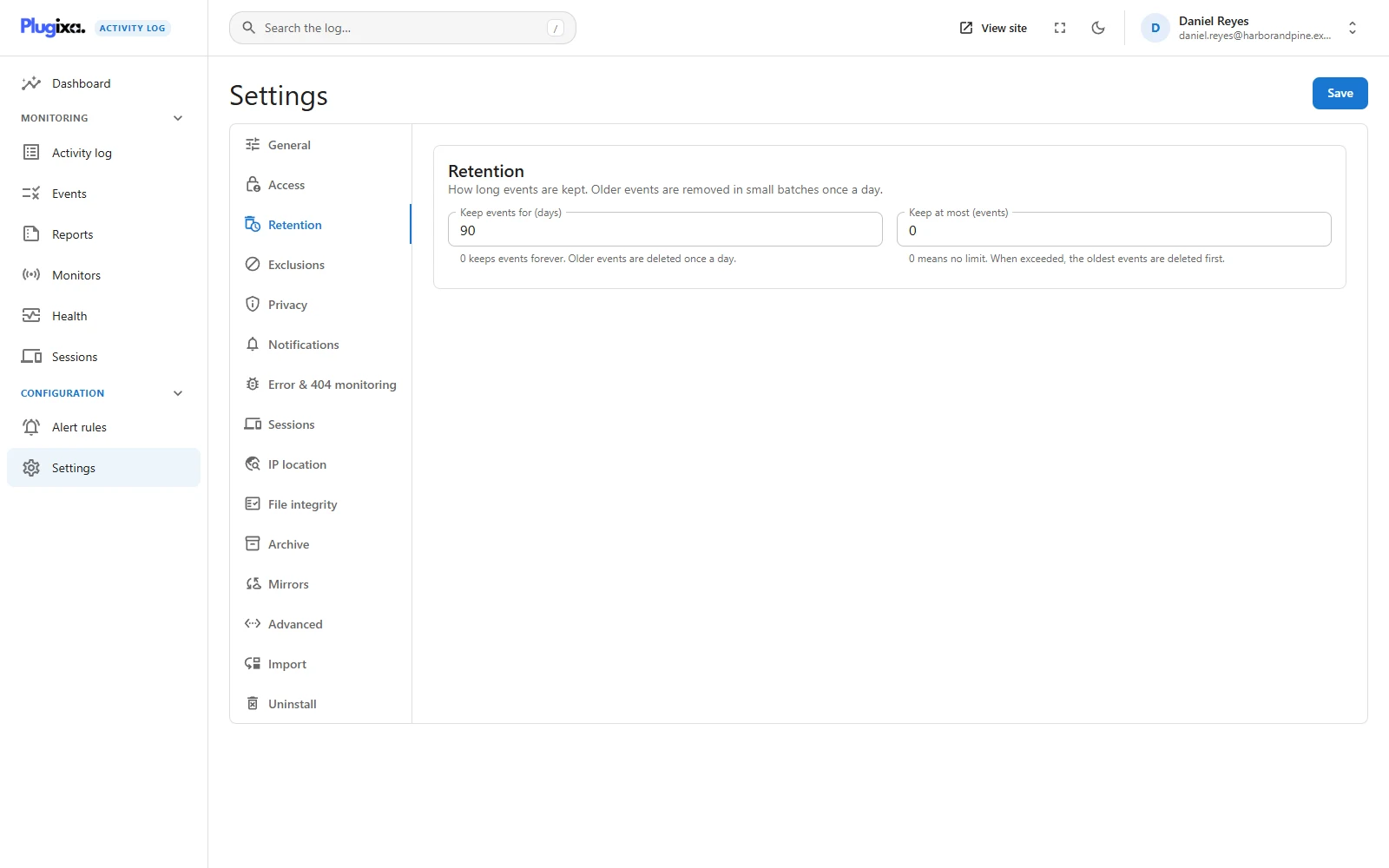
How long events are kept. Older events are removed in small batches once a day.
| Option | Default | Range |
|---|---|---|
| Keep events for (days) | 90 | 0 to 3650. 0 keeps events forever |
| Keep at most (events) | 0 | 0 to 100,000,000. 0 means no limit |
The two limits are independent, and whichever bites first wins. See Retention.
Exclusions
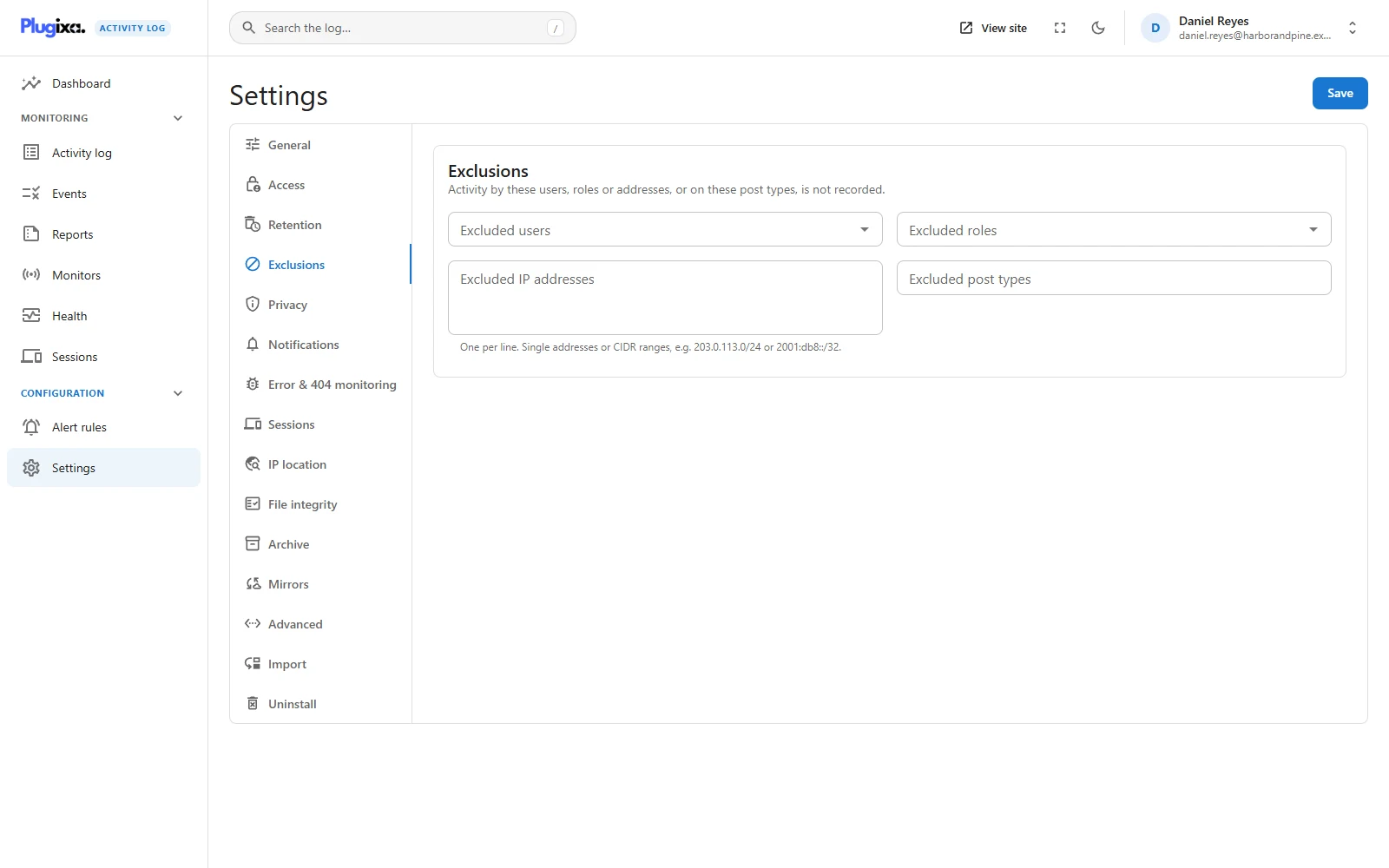
Activity by these users, roles or addresses, or on these post types, is not recorded.
| Option | Default | Accepts |
|---|---|---|
| Excluded users | None | Accounts, found by typing a name |
| Excluded roles | None | Any role on the site |
| Excluded IP addresses | None | One per line: an address, or a CIDR range such as 203.0.113.0/24 |
| Excluded post types | None | Post type slugs |
Save is disabled while a line in the IP box is not an address or a range. A rule that matched nothing would give false comfort, so it is refused instead of stored. See Exclusions.
Privacy
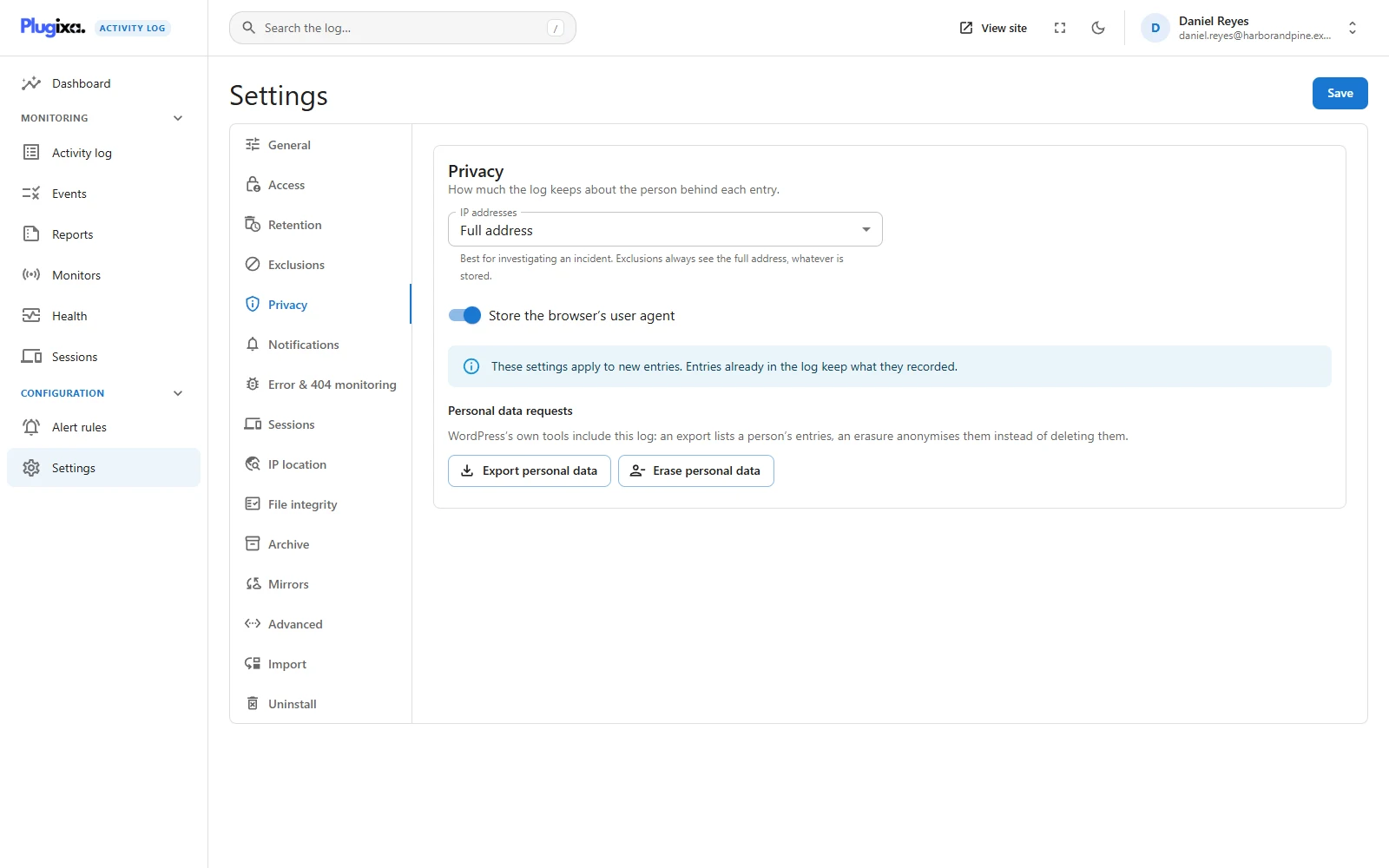
How much the log keeps about the person behind each entry.
| Option | Default | Values |
|---|---|---|
| IP addresses | Full address | Full address, Shortened (the network only), or Not stored |
| Store the browser’s user agent | On | On or off |
Both apply to new entries only. The tab also links to WordPress’s own Export Personal Data and Erase Personal Data tools, which include this log. See Privacy.
Notifications
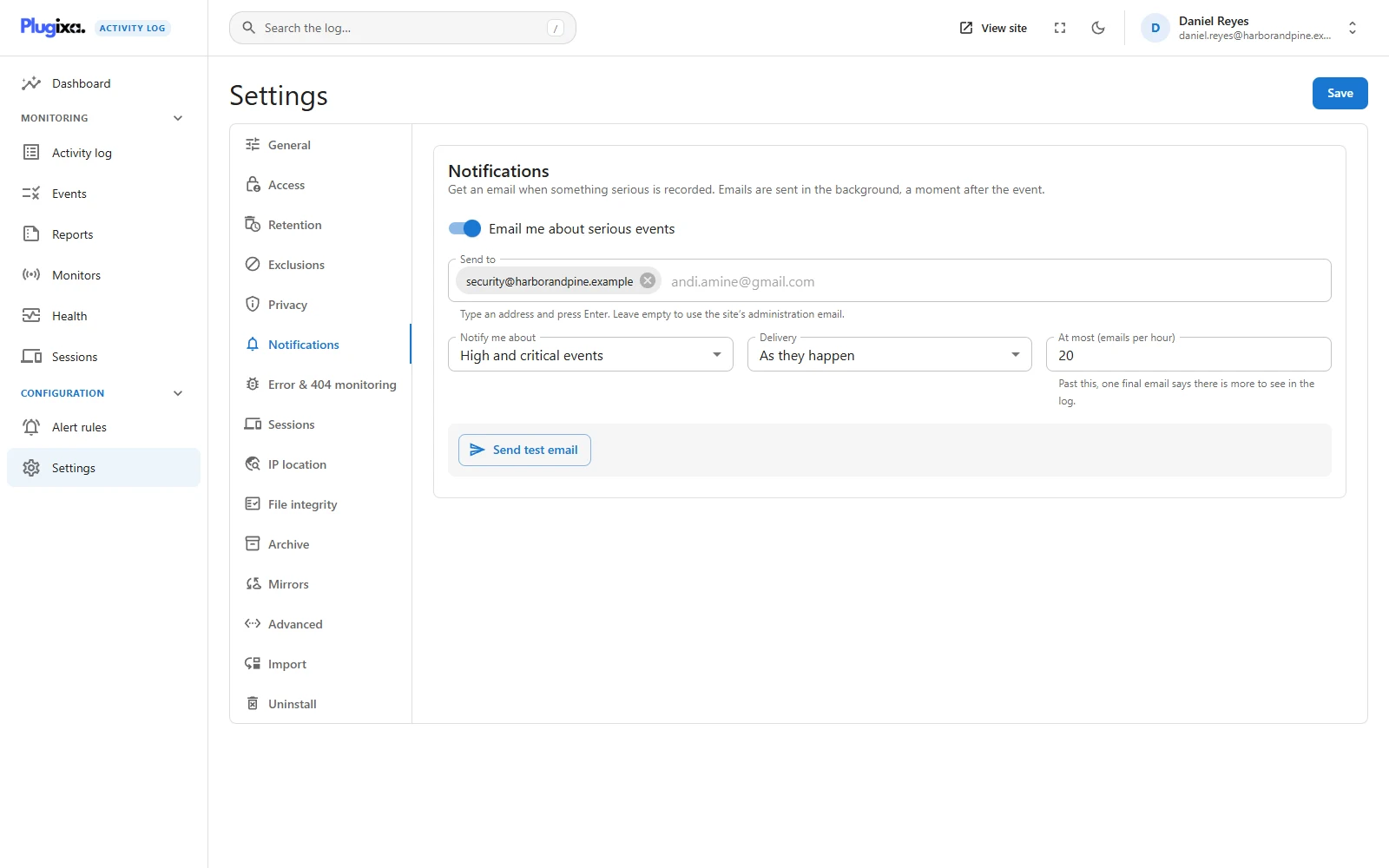
An email when something serious is recorded. Off until you switch it on.
| Option | Default | Values |
|---|---|---|
| Email me about serious events | Off | On or off |
| Send to | Empty | Up to 20 addresses. Empty means the site’s administration email |
| Notify me about | High and critical events | Medium and above, high and above, or critical only |
| Delivery | As they happen | As they happen, or bundled every 5, 15 or 60 minutes |
| At most (emails per hour) | 20 | 1 to 500 |
Send test email uses the saved recipients, so save first. See Notifications.
Sessions PRO
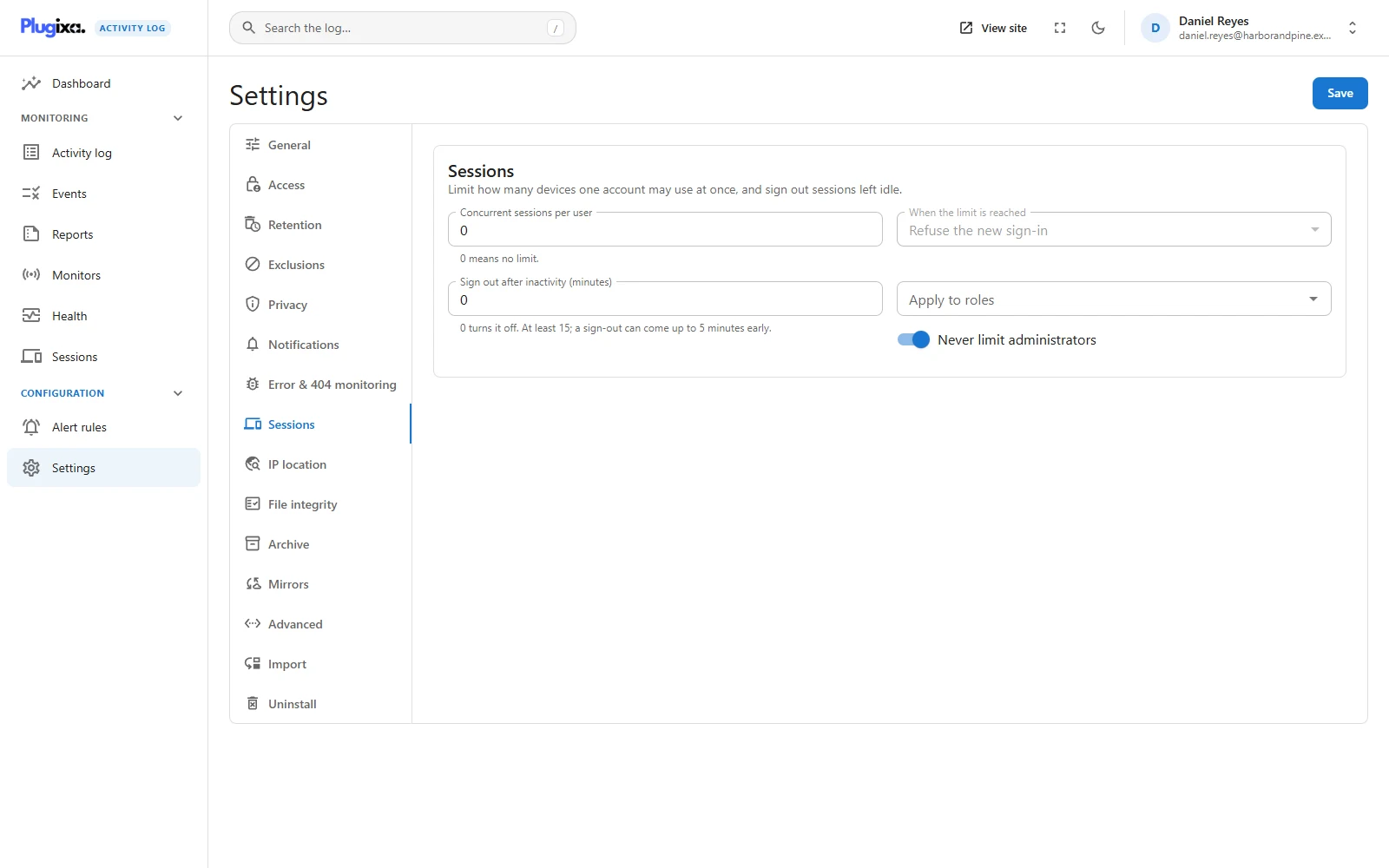
Limit how many devices one account may use at once, and sign out sessions left idle.
| Option | Default | Values |
|---|---|---|
| Concurrent sessions per user | 0 | 0 to 100. 0 means no limit |
| When the limit is reached | Refuse the new sign-in | Refuse the new sign-in, or End the oldest session |
| Sign out after inactivity (minutes) | 0 | 0 turns it off, otherwise at least 15 |
| Apply to roles | None | Empty means every role |
| Never limit administrators | On | On or off |
See Sessions.
IP location PRO
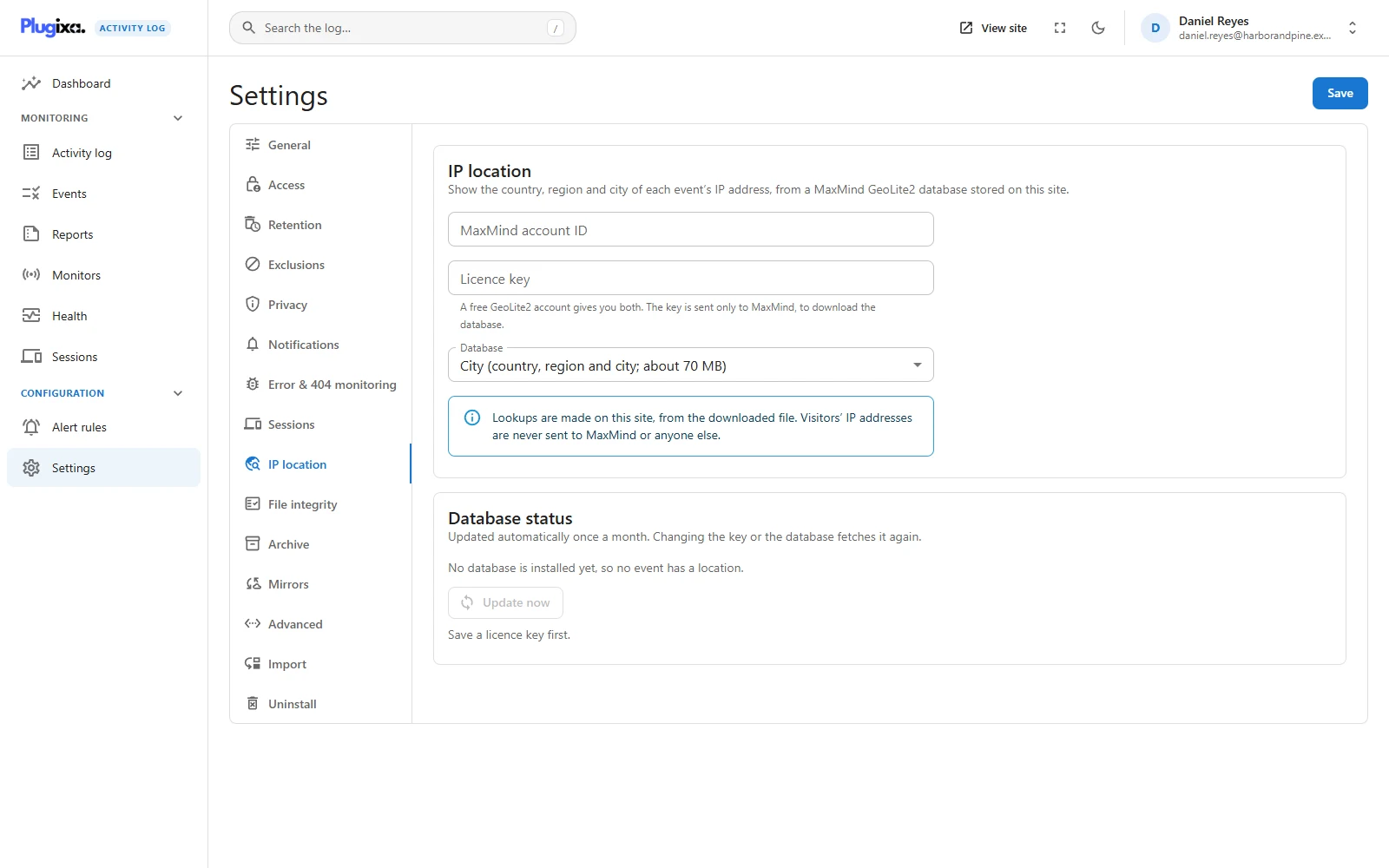
The country, region and city of each event’s IP address, from a MaxMind GeoLite2 database stored on this site.
| Option | Default | Values |
|---|---|---|
| MaxMind account ID | Empty | From your MaxMind account |
| Licence key | Empty | Shown masked once saved |
| Database | GeoLite2-City | GeoLite2-City or GeoLite2-Country |
Nothing is downloaded, and no event has a location, until a key is saved. Lookups are made on this site from the downloaded file. See IP location.
File integrity PRO
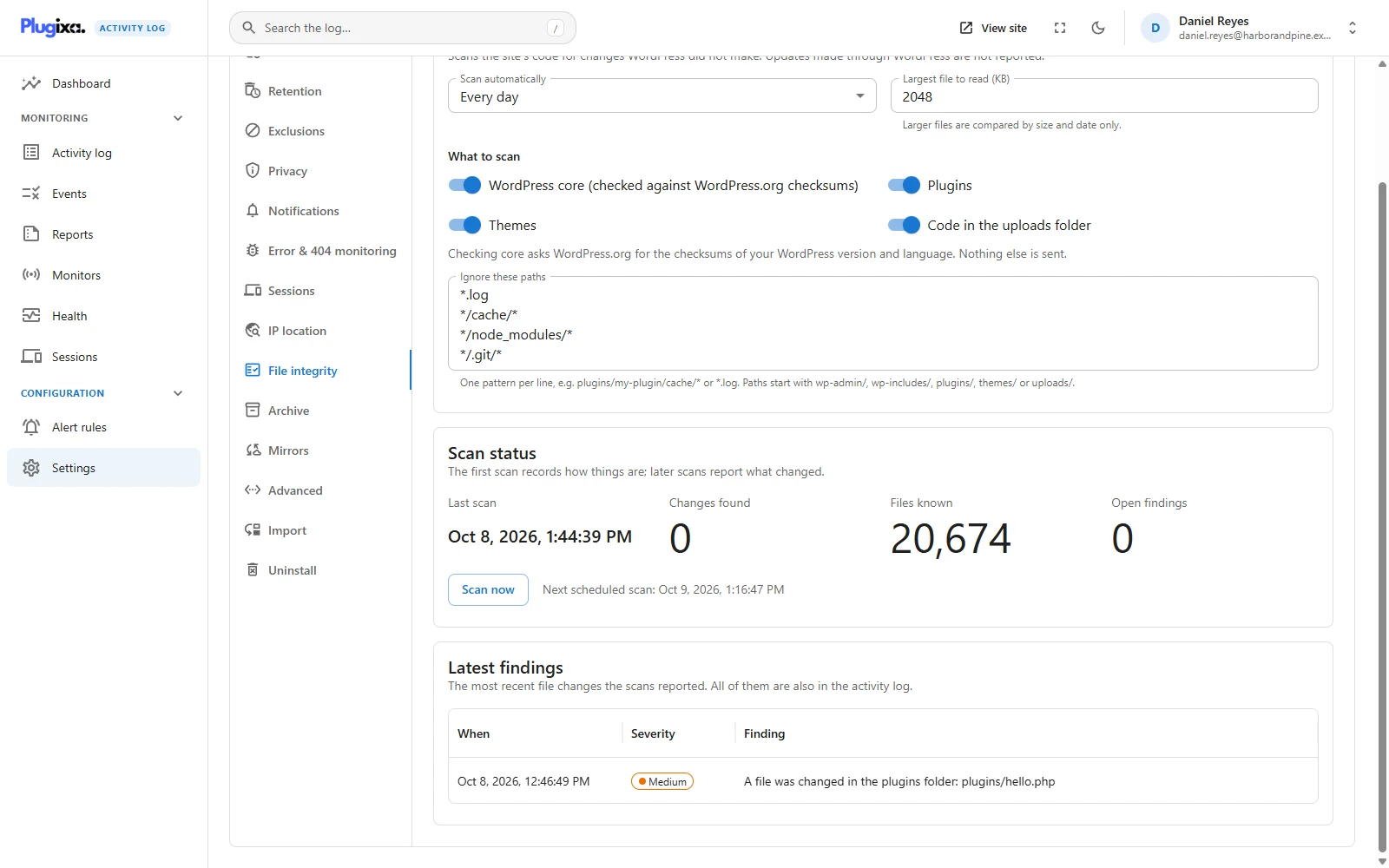
Scans the site’s code for changes WordPress did not make.
| Option | Default | Values |
|---|---|---|
| Scan automatically | Every day | Every day, Every week, or Never (scan now only) |
| What to scan | All four on | WordPress core, Plugins, Themes, Code in the uploads folder |
| Ignore these paths | *.log, */cache/*, */node_modules/*, */.git/* |
Up to 100 patterns |
| Largest file to read (KB) | 2048 | 64 to 51200. Larger files are compared by size and date only |
See File integrity.
Archive PRO
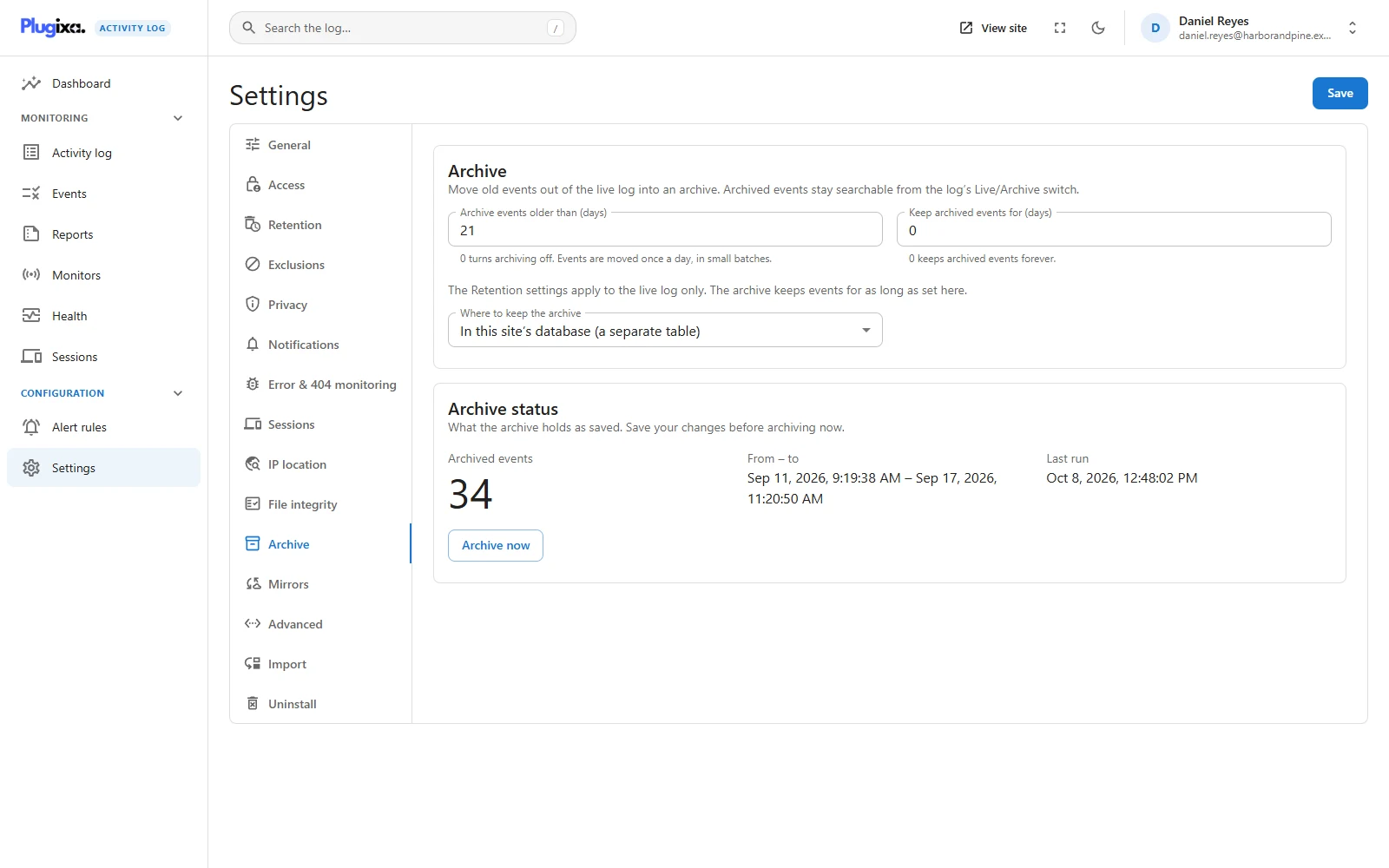
Move old events out of the live log into an archive, where they stay searchable.
| Option | Default | Values |
|---|---|---|
| Archive events older than (days) | 0 | 0 to 3650. 0 turns archiving off |
| Keep archived events for (days) | 0 | 0 keeps archived events forever |
| Where to keep the archive | In this site’s database | A separate table here, or another MySQL or MariaDB server |
| Table prefix (external server) | wp_ |
Letters, digits and underscores |
| Connect over TLS (external server) | Off | On or off |
Retention applies to the live log only. If Retention deletes events before they are old enough to archive, nothing is ever archived, and this tab warns about it. See Archive.
Mirrors PRO
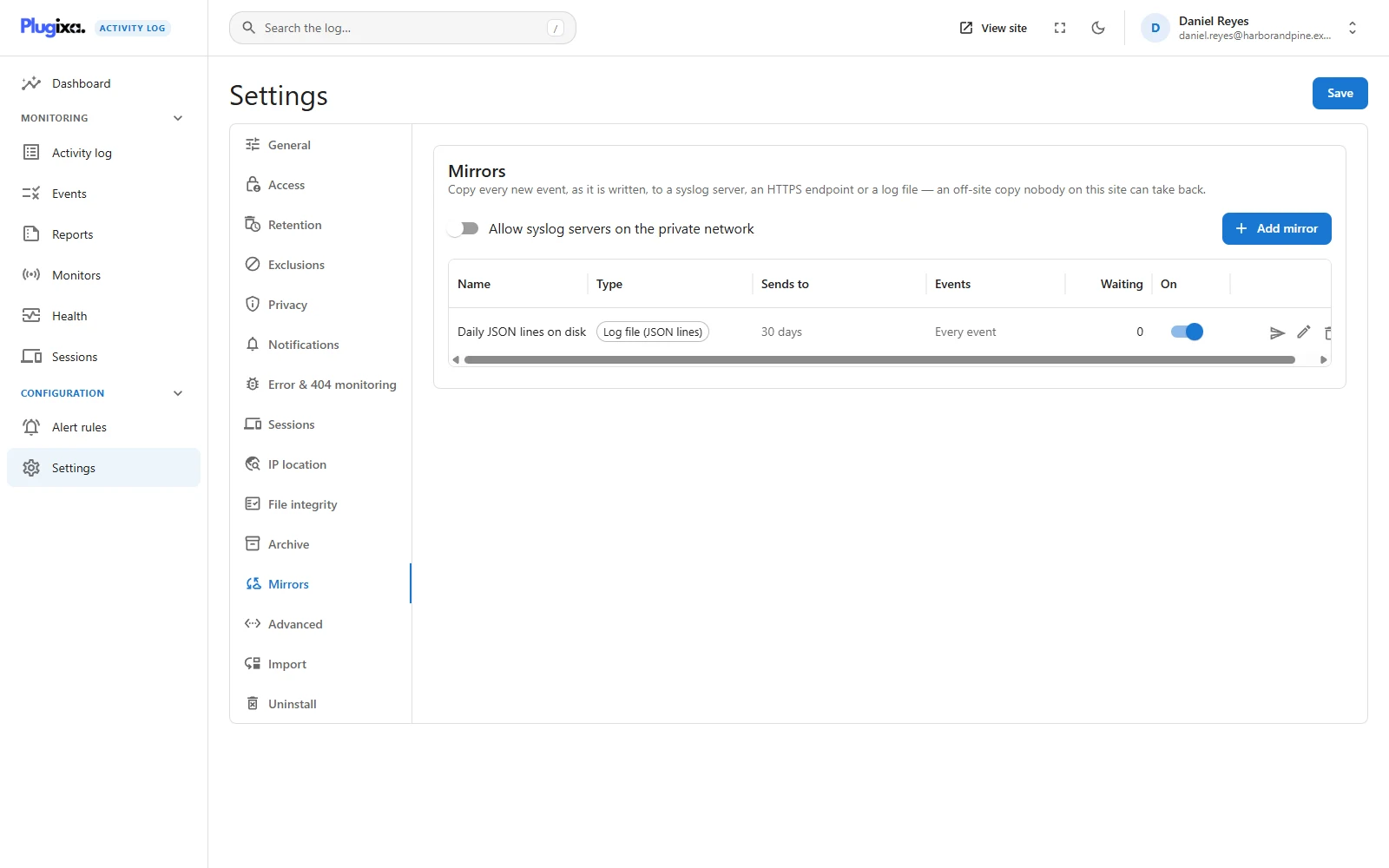
Copy every new event, as it is written, to a syslog server, an HTTPS endpoint or a log file. Mirrors are added and edited in a list on this tab, each with its own switch and a Send a test event button.
| Option | Default | Effect |
|---|---|---|
| Allow syslog servers on the private network | Off | Lets a syslog mirror point at a private address |
See Mirrors.
Error & 404 monitoring
This tab is present only while the PHP errors monitor or the 404 errors monitor is switched on, and it shows the half that belongs to each. Both monitors start off: switch them on under Monitors.
| Option | Monitor | Default | Values |
|---|---|---|---|
| Record | PHP errors | Warnings and fatal errors | Fatal errors only; Warnings and fatal errors; Notices, warnings and fatal errors; Everything, including deprecations |
| Ignore errors from these paths | PHP errors | Empty | One piece of text per line, at most 50. A file whose path contains the text is skipped |
| Ignore these addresses | 404 errors | */favicon.ico, */apple-touch-icon*, */robots.txt, *.map |
One pattern per line, at most 50. * matches anything, and a pattern must match the whole path |
Record sets the lowest level kept. Whatever it is set to, each distinct error is recorded at most once an hour, and at most 100 entries an hour in all.
The ignore lists are the way to quieten one noisy source without switching
the monitor off: plugins/noisy-plugin/ for PHP errors, *wp-login* for 404s.
What each monitor records, and what keeps it from flooding the log, is in PHP Errors and 404s.
Advanced
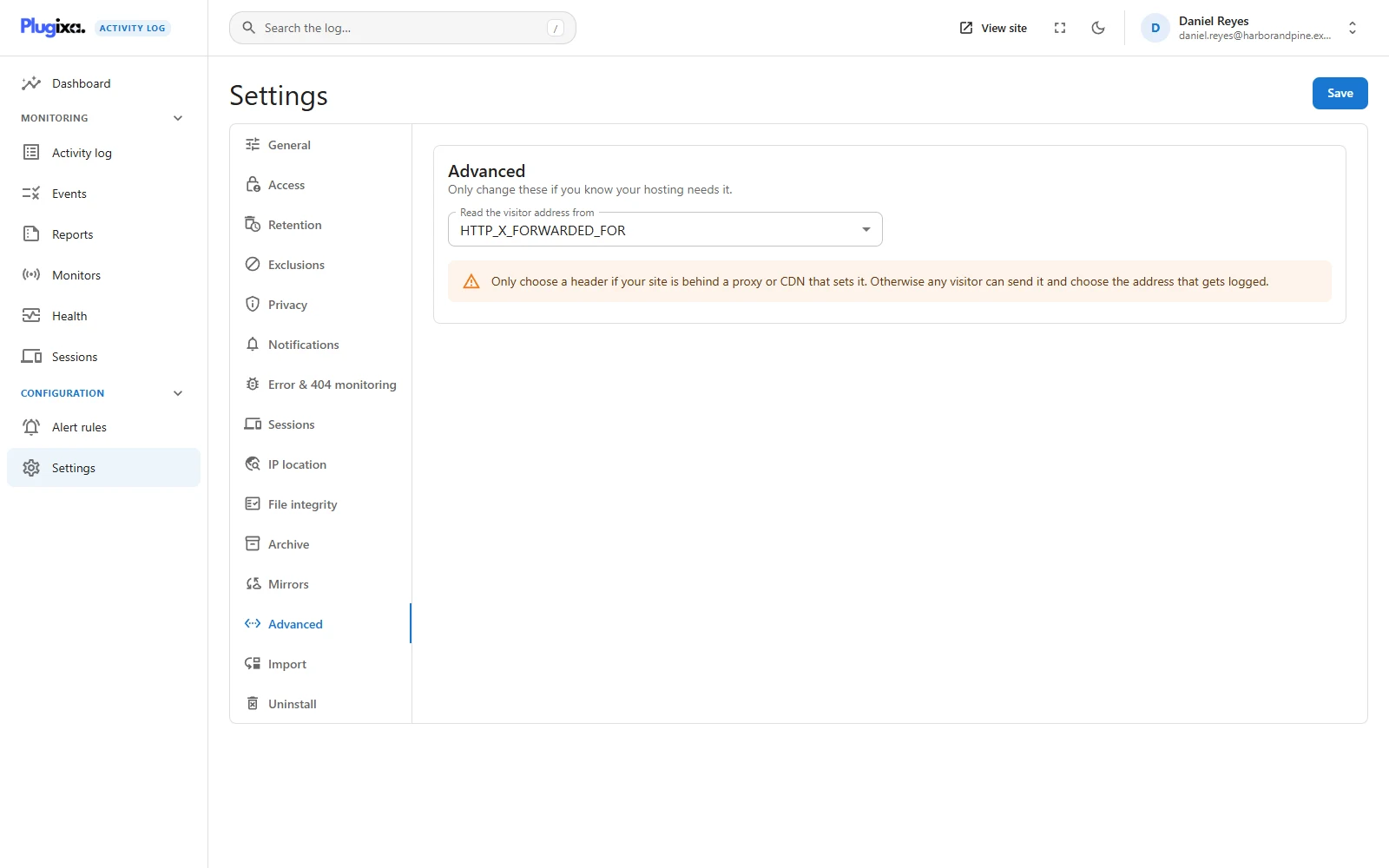
One option, and the one on this screen most worth understanding before you touch it.
| Option | Default | Values |
|---|---|---|
| Read the visitor address from | None: use the connection address | None, HTTP_X_FORWARDED_FOR, HTTP_CF_CONNECTING_IP, HTTP_X_REAL_IP, HTTP_TRUE_CLIENT_IP |
By default the log records the address of the machine that connected to your web server. That is the only value a visitor cannot choose.
Behind a proxy or a CDN, that machine is the proxy. Every event then shows
the proxy’s address, or 127.0.0.1. The proxy passes the real visitor’s address
along in a request header, and this option names the header to trust:
| Your site is behind | Choose |
|---|---|
| Nothing (most shared and VPS hosting) | None |
| Cloudflare | HTTP_CF_CONNECTING_IP |
nginx or another reverse proxy that sets X-Real-IP |
HTTP_X_REAL_IP |
A load balancer that sets X-Forwarded-For |
HTTP_X_FORWARDED_FOR |
A CDN that sets True-Client-IP |
HTTP_TRUE_CLIENT_IP |
Choosing a header your proxy does not set lets visitors forge their address.
These are ordinary request headers. On a site with no proxy in front of it, or
with a proxy that does not overwrite the one you picked, anybody can send
X-Forwarded-For: 8.8.8.8 and decide which address the audit log records. That
is precisely the thing an audit log exists to catch, so the screen shows a
warning as soon as anything other than None is selected. Ask your host which
header their proxy sets if you are not sure.
When a header holds a chain of addresses, the leftmost valid one is used. If the header is missing or holds nothing valid, the log falls back to the connection address. The change applies to new events only.
Import
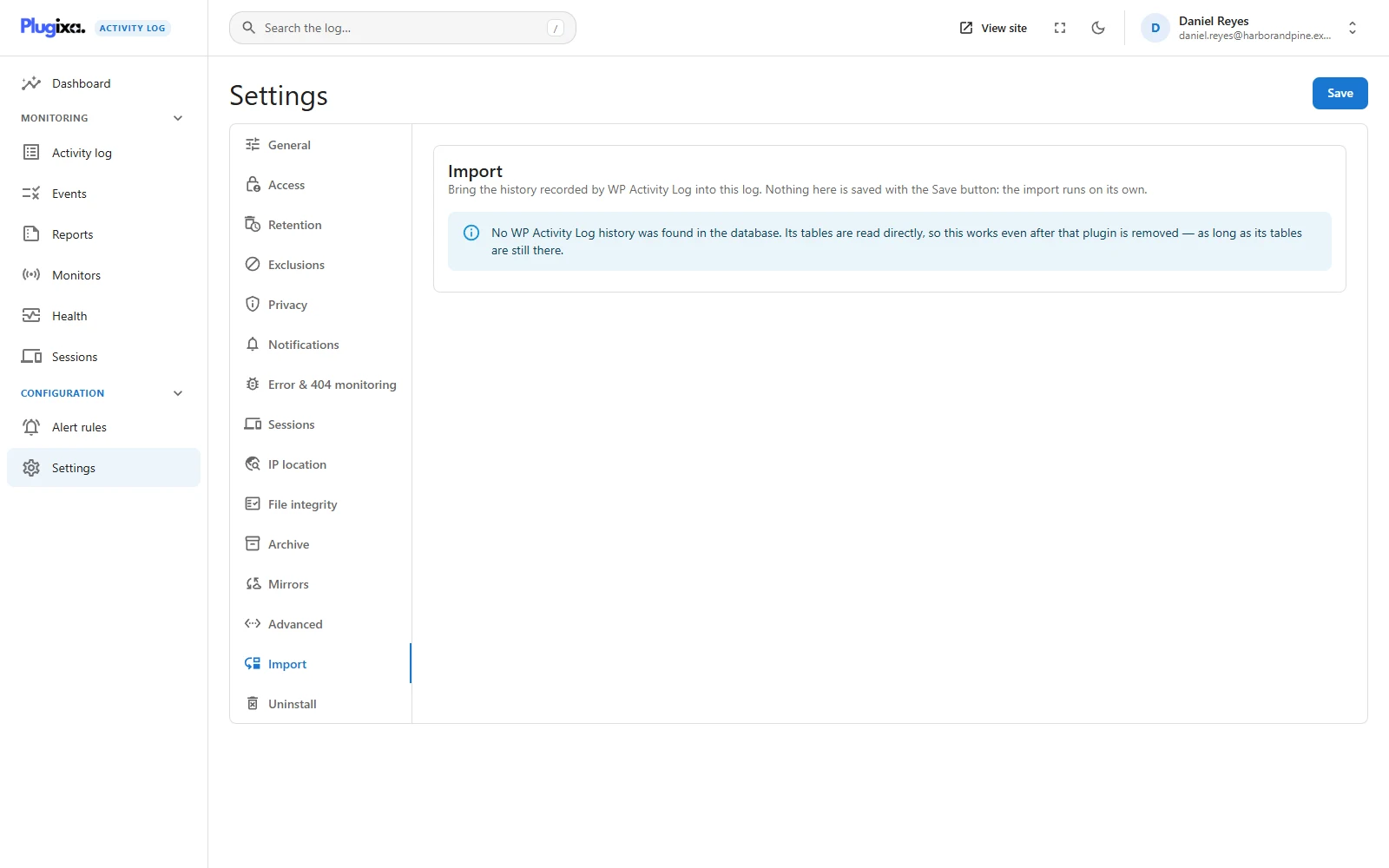
Brings the history recorded by WP Activity Log into this log. Nothing on this tab is saved with the Save button: the import runs on its own, in the background.
| Option | Default | Effect |
|---|---|---|
| Only events from | Empty | Start from a day. Empty imports everything retention would keep |
| Leave out events this plugin has no equivalent for | Off | Off keeps them as generic imported events |
See Importing from WP Activity Log.
Uninstall
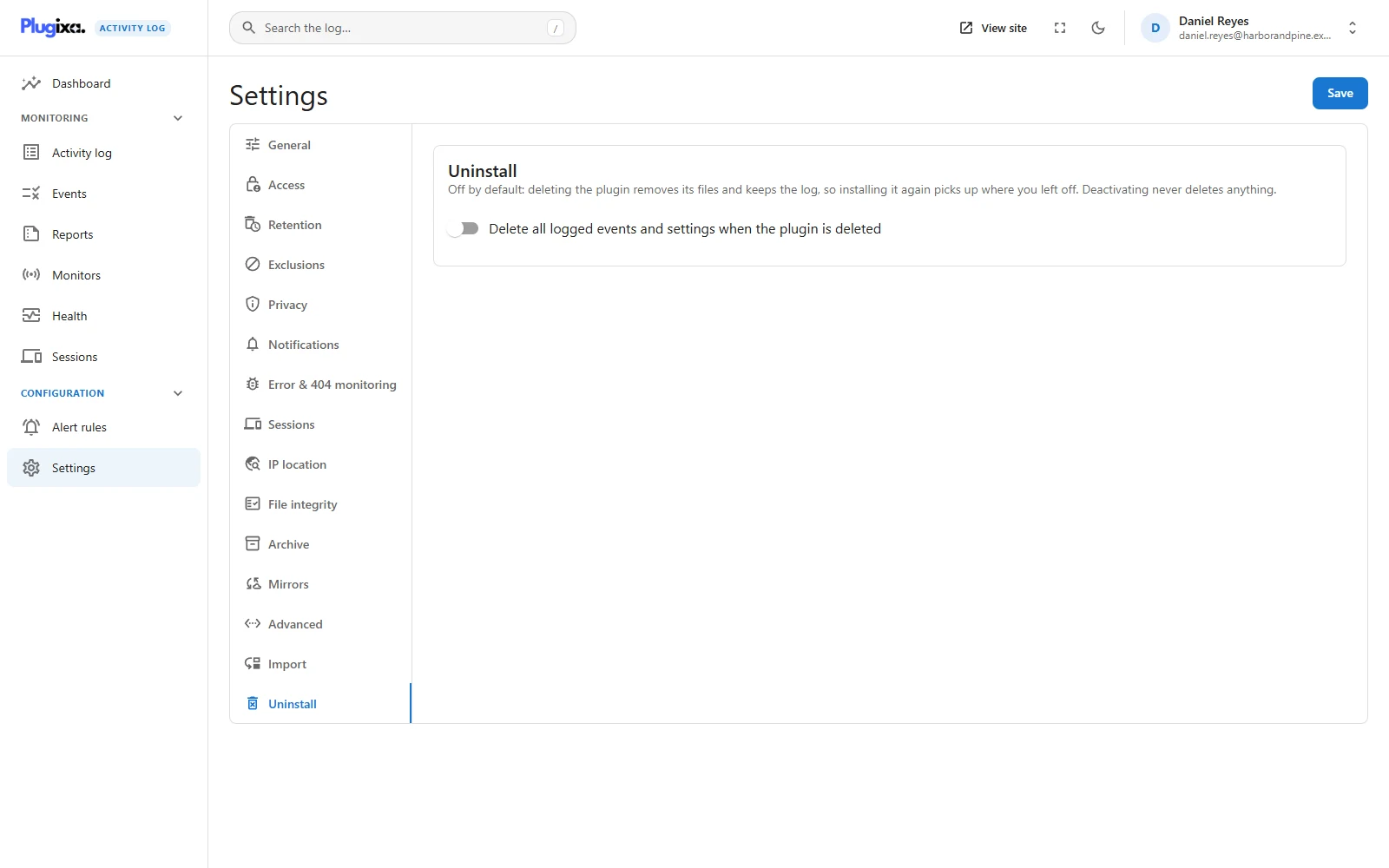
One switch, off by default: Delete all logged events and settings when the plugin is deleted.
| Option | Default |
|---|---|
| Delete all logged events and settings when the plugin is deleted | Off |
Off means deleting the plugin removes its files and keeps the log. Installing it again picks up where you left off. An audit trail is exactly the data people are sorry to lose: they delete the plugin to reinstall it, or delete the free copy after installing the premium one, which shares the same tables.
Deactivating never deletes anything, whichever way this is set.
Erasing has to be switched on deliberately, and saved, before you delete the plugin. The screen then warns that the whole log will go and that it cannot be undone. What erasing removes:
- every table the plugin created: the events, and the saved views, the notification queue, the archive and everything else a module stored;
- the settings, including which monitors and events are switched on;
- every other option and cached counter under the plugin’s prefix;
- any capability under the plugin’s prefix found on a role or a user.
Two things it will not do:
- It will not erase while another copy of the plugin is installed, active or not. That copy would come back to nothing. Delete the free copy with a premium copy still in the plugins folder and the log is kept, whatever the switch says.
- It does not reach outside this site’s database. An archive kept on another database server and anything a mirror already sent elsewhere stay where they are.
When the log is kept, nothing at all is touched.
Troubleshooting
| Symptom | Usual cause |
|---|---|
| A tab is missing | It is a Pro tab on a free build. Error & 404 monitoring needs one of its two monitors switched on. |
| A change did not take effect | Settings save as a whole. Press Save. |
| Save is greyed out | A line in Excluded IP addresses is not an address or a range. The field says which. |
| Every event shows the same address | The site is behind a proxy. See Advanced. |
| A subsite administrator cannot open Settings | Settings are network-wide and need a network administrator. |
| The test email went to the old recipients | The test uses the saved list. Save, then test. |
| Deleting the plugin kept the log | That is the default. The Uninstall switch decides. |