Contents
Dashboard - Plugixa Permalink Manager
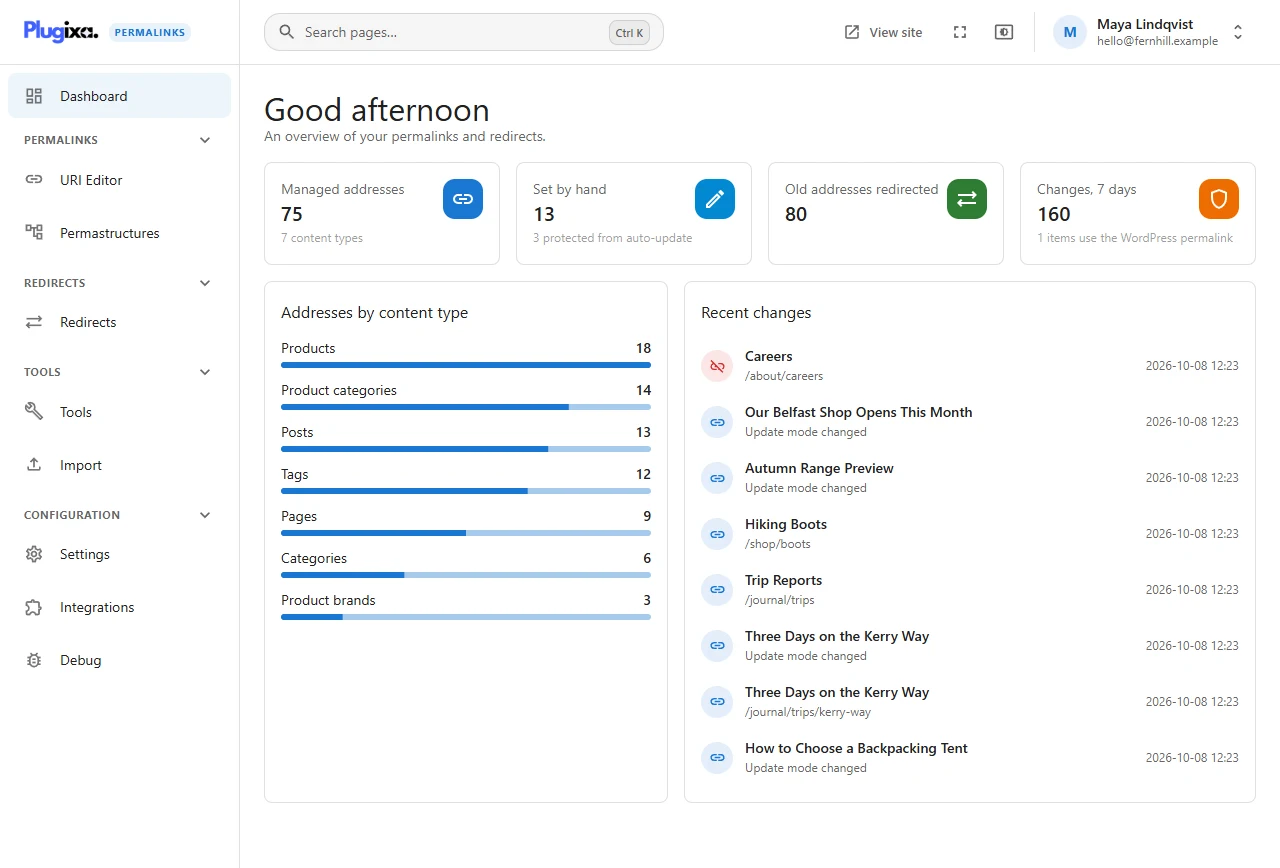
The dashboard is the first screen you see. It answers one question: what state are this site’s addresses in?
The four tiles
| Tile | What it counts |
|---|---|
| Managed addresses | Every item with an address stored by the plugin, and how many content types they span |
| Set by hand | Addresses somebody typed, as opposed to generated from a pattern. The line below says how many are protected from automatic updates |
| Old addresses redirected | Addresses that used to belong to an item and now redirect to its current one |
| Changes, 7 days | How many history entries the last week produced, update-mode changes included, and how many items use the WordPress permalink instead of a custom one |
Addresses by content type
One bar per content type and taxonomy, longest first. On the demonstration site products lead with 18, followed by product categories, posts, tags and pages. It is the quickest way to notice a content type you forgot to give a pattern.
Recent changes
The latest address changes across the whole site, newest first: which item, what its address became, and when. A change of update mode is listed too. For the full story of one item, open its history in the URI Editor.
When custom addresses are not being served
The dashboard shows a banner whenever the plugin has stood its routing down. There are four reasons, and the banner names the one that applies:
- Permalink Manager is active. Two plugins cannot both decide what an address means. See Import for moving over. Custom Permalinks and Permalinks Customizer only produce a warning; routing keeps running beside them.
- Safe mode is on. You switched it on in Advanced settings.
- The site uses plain permalinks. Choose any other structure under Settings, Permalinks.
- Safe mode is forced from
wp-config.php. See Troubleshooting.
In all four cases your data stays exactly as it is. The admin screens, the tools and the import keep working; only the front end falls back to WordPress addresses until the cause is removed.
The header
The bar across the top is the same on every screen of the plugin.
| Control | What it does |
|---|---|
| Search box | Opens the quick search described below |
| Environment label | Shows Local, Development or Staging when WordPress reports that this is not the live site. On a production site it is absent |
| View site | Opens the front of the site in a new tab |
| Full screen | Hides the WordPress menu and admin bar so the plugin has the whole display. Click it again to leave. It is absent in browsers that cannot do it |
| Appearance | Switches between Light, Dark and Match my device |
| Account menu | Your profile, Exit to WordPress and Log out |
Finding a screen quickly
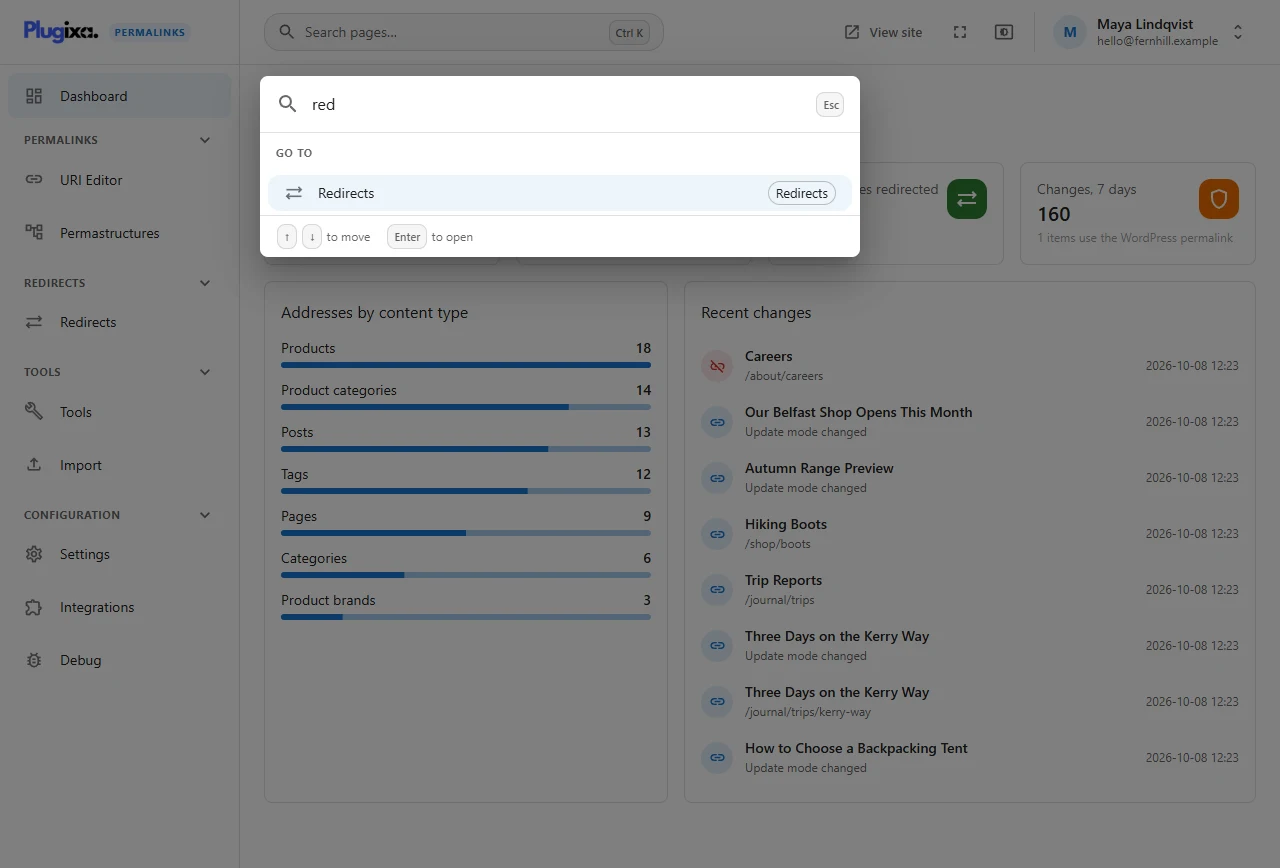
Press Ctrl K (or click the search box in the header) and type a few letters to jump to any screen.